Downloading Analysis Results
Overview
Within a workstation's detail view, the Data and Results tabs handle the two sides of moving files in and out of a workstation: uploading the inputs your analysis needs, and downloading the outputs it produces. Both directions are governed — uploads are scanned and approved, and downloads require explicit administrator sign-off — so that data never leaves the TRE without oversight.
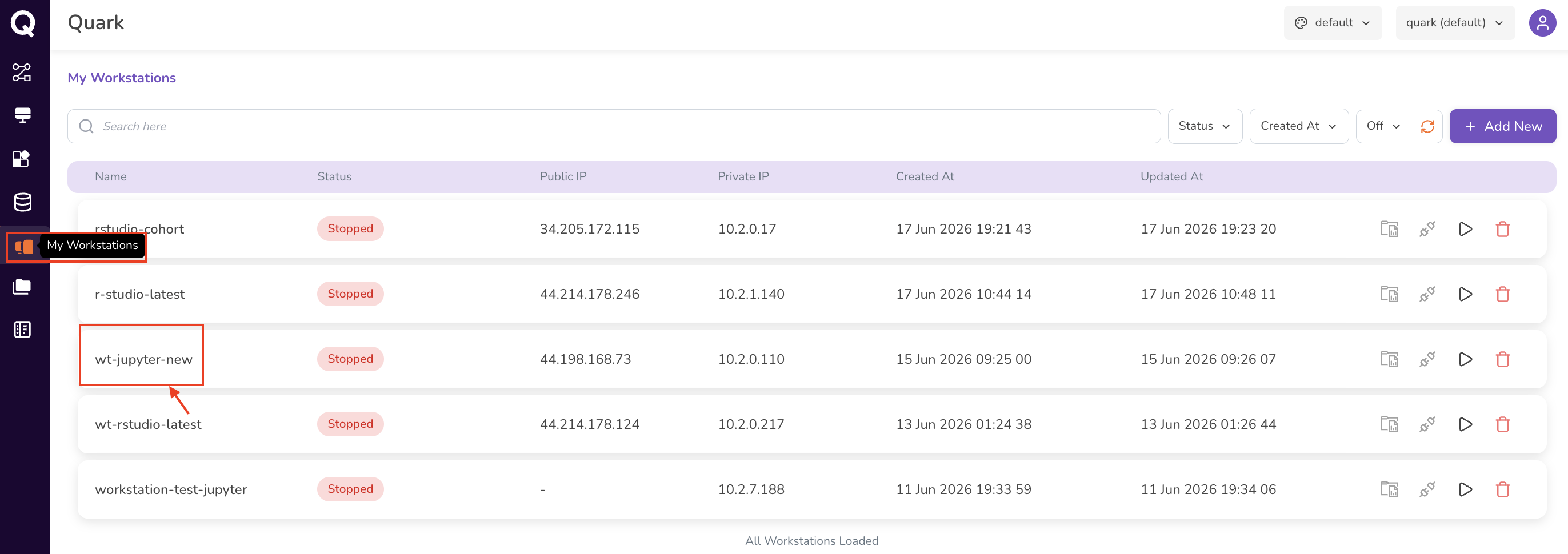
Navigation: Open Workstation Overview, click on a running workstation's name, then select the Data or Results tab.
Data Tab
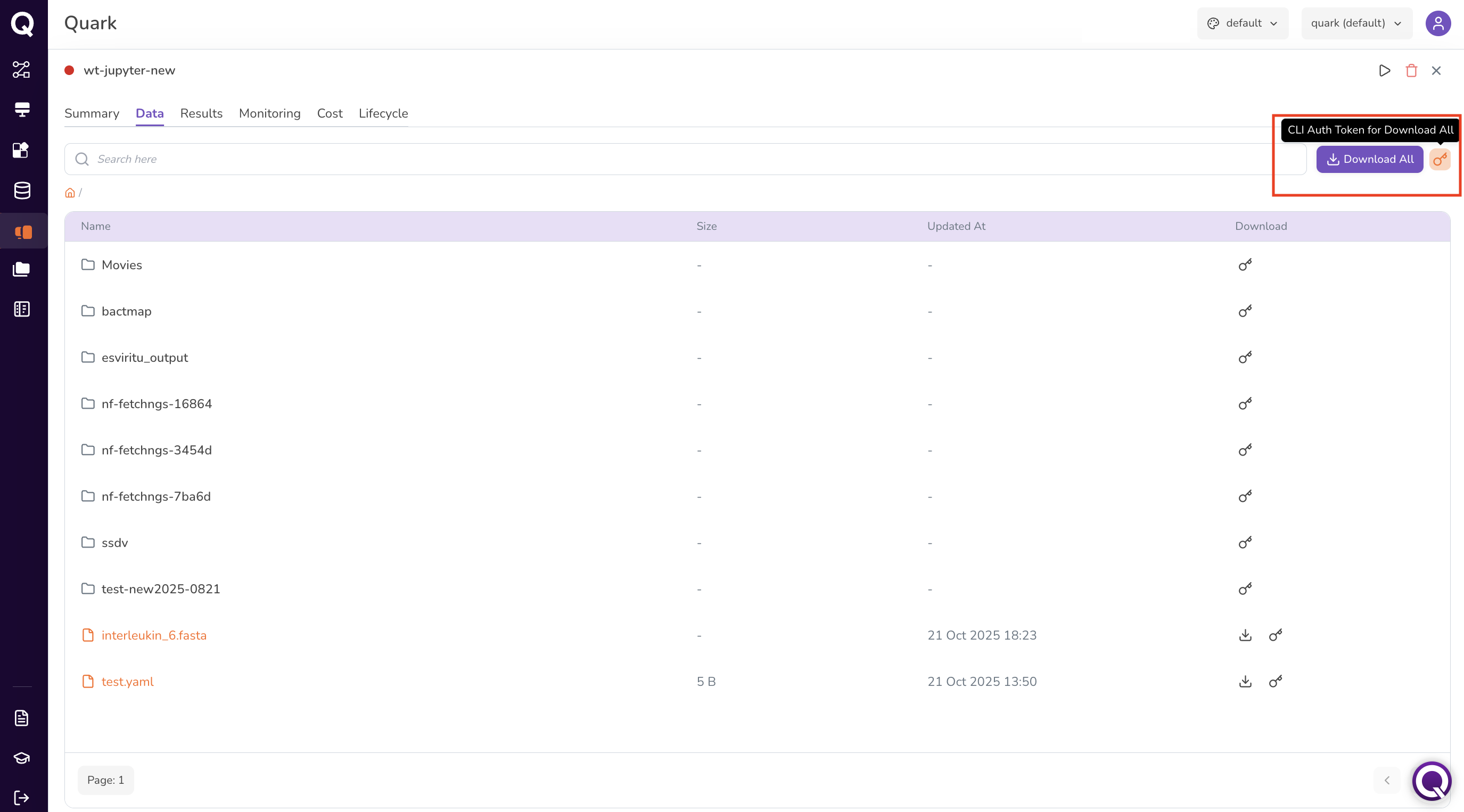
The Data tab (My Workstations → click on your workstation name → select the Data tab) displays files that have been uploaded to the workstation and are available for use in your analysis.

Each file row shows its name, size, last updated date, and two action icons:
- Download — request download of the file to your local machine. Clicking Download will trigger a download request, confirmed by a notification that will briefly appear in the top right-corner of the screen. Refer Request Approval Flow below for the approval flow.
- Copy CLI — for large files, use this key to copy the file's CLI Auth token. Refer to transferring large files for a detailed guide on how to use the token to download your file.
Use Download All to request all files in the current directory at once. You can also use the search bar to find a specific file by name.
Results Tab
The Results tab (My Workstations → click on your workstation name → select the Results tab) lists output files generated by your analysis within the workstation. Files appear here once they have been saved to the workstation's output directory.
Requesting a File Download
Output files cannot be downloaded directly — every download must be approved by an Administrator before the file can be retrieved.
To request a download:
- Navigate to the Results tab.
- Click the Download icon in the row of the file you want to download. This will trigger a download request. The file is not downloaded immediately; data cannot be downloaded from the platform without explicit administrator approval.
- The download request will be sent to your administrator, as intimated in a notification that will briefly appear on the top-right corner of the screen, confirming that the request has been submitted.
Request Approval Flow
You can then track the status of your download request by navigating to My Requests from the left navigation panel. The request status will update as follows:
| Status | Description |
|---|---|
| Pending Approval | The request is awaiting review by your Administrator. |
| Approved | The request has been approved. Navigate back to your workstation. Click the Download icon again to retrieve the file. |
| Rejected | The request was declined. Contact your Administrator for clarification. |
| Downloading | The file transfer is in progress. |
| Downloaded | The file has been successfully downloaded. |
| Download Failed | The transfer encountered an error. |
Once approved, return to either the Data or Results tab and click the Download icon again to initiate the transfer.
What's Next
- My Requests — track the status of every upload and download request in one place.
- Managing Workstation Resources — monitor compute, cost, and uptime for the same workstation.
- Viewing Pipeline Results — review pipeline run outputs before deciding what to download.