Computes
Overview
The Computes section is where the Infrastructure Administrator defines the compute configurations that back every workload on the platform — pipeline jobs, workstations, file activity, visualisation tools, and more. A compute configuration ties together a cluster, a node pool specification, and a set of permitted workload types. Researchers never interact with computes directly.
The Infra Admin can create compute configurations that are matched to the workload types and capacity requirements of each project.
Navigation: Select Computes from the left-hand navigation pane.
The Computes Page
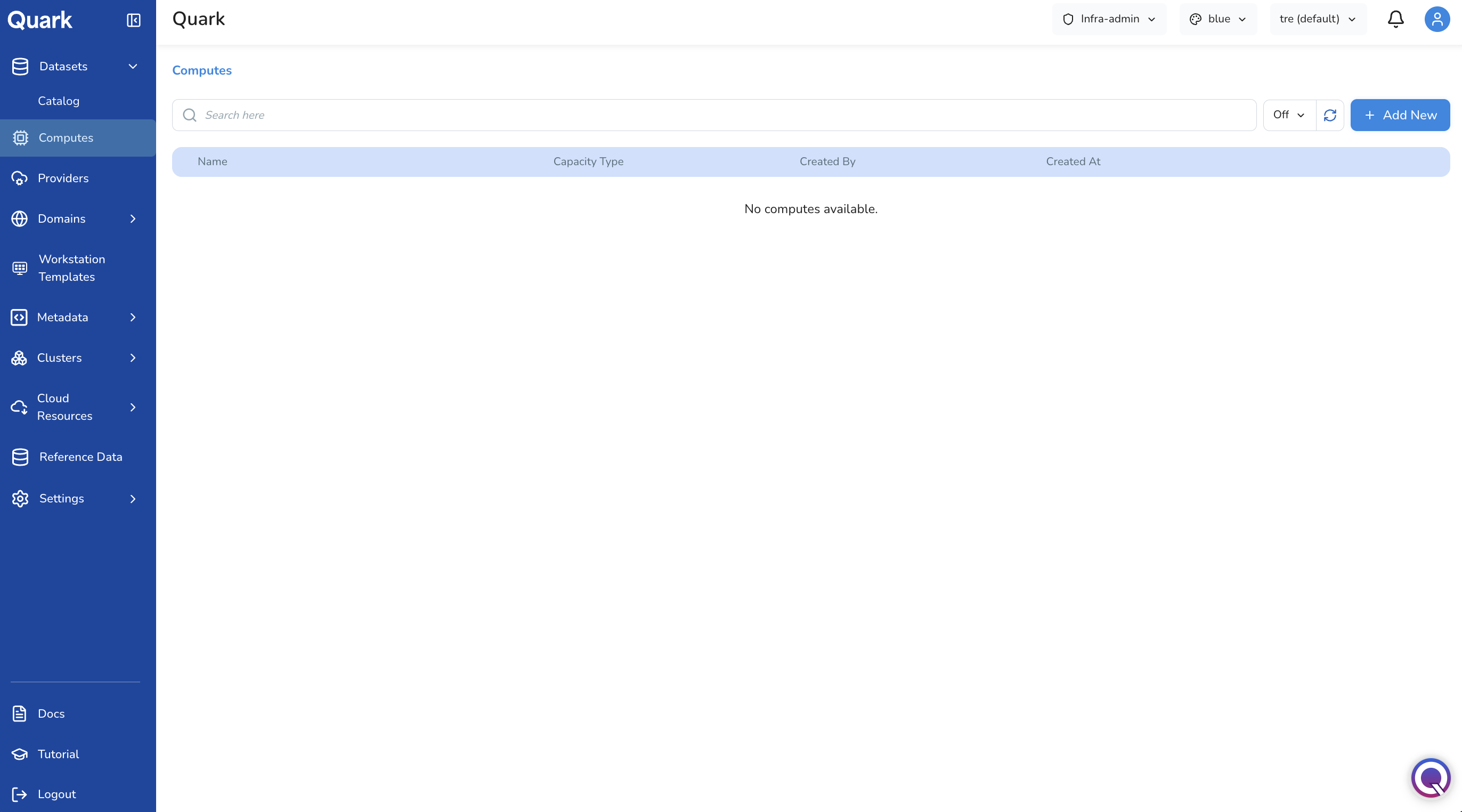
When you open Computes, the dashboard lists all compute configurations that have been created on the platform. Each row shows the compute name, its associated cluster, capacity type, and the projects it has been scoped to.
Use the search bar to filter by name, or click Refresh to pull the latest status from the cluster.
Tip: Each compute profile is referenced by name when platform workloads are scheduled. If a compute is edited or disabled, any workload that depends on it will be affected — review dependencies before making changes to an existing profile.
Creating a New Compute
To define a new compute configuration:
- Select Computes from the left-hand navigation pane.
- Click Add New in the top-right corner of the dashboard.
This opens the Create Compute form — a single scrolling page covering all configuration fields.
Name, Projects, and Cluster
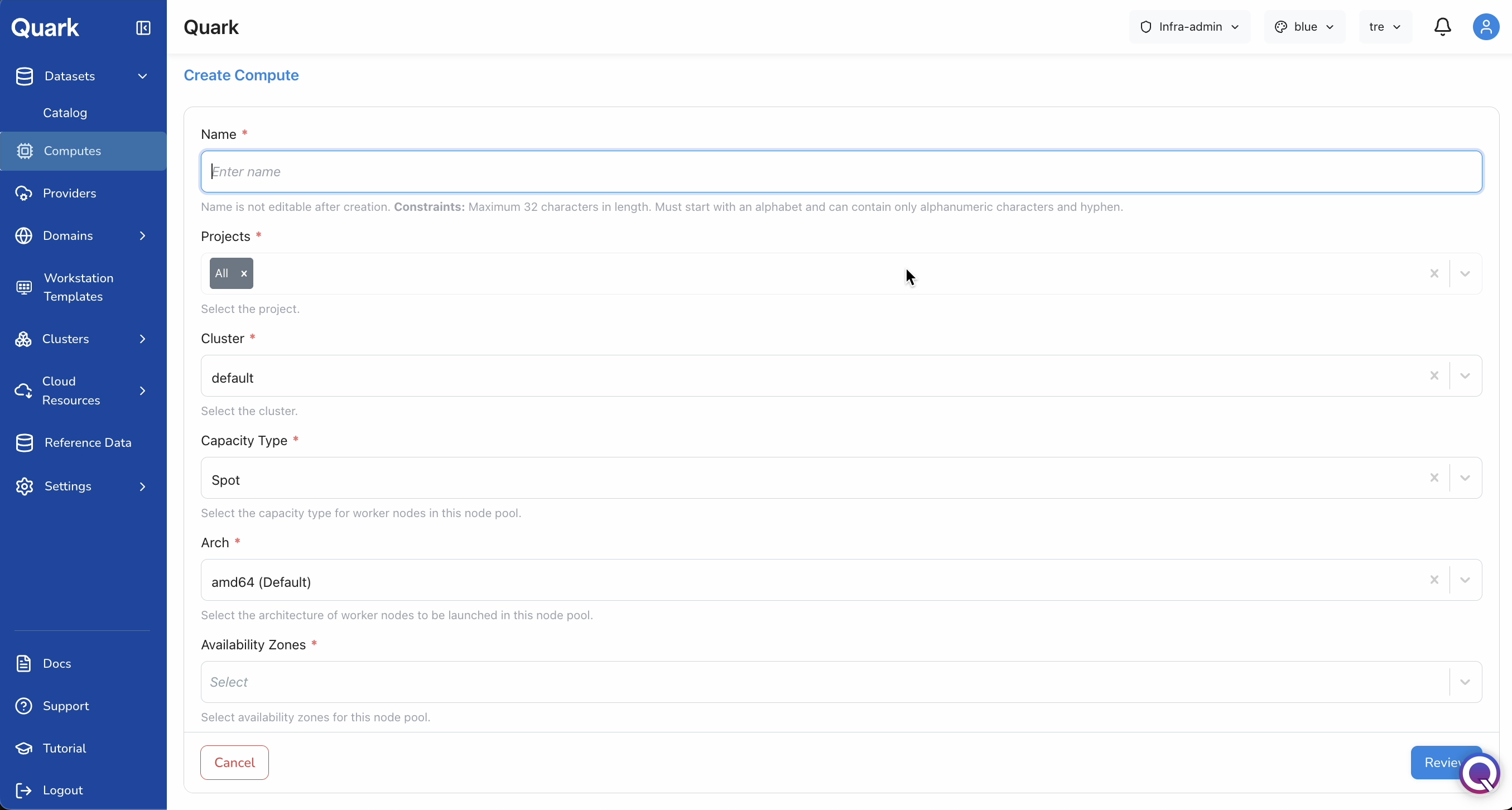
| Field | Description |
|---|---|
| Name (mandatory) | A unique identifier for this compute profile. Maximum 32 characters. Must start with a letter and contain only alphanumeric characters and hyphens (e.g., prod-cpu-ondemand, gpu-spot-east). |
| Projects (mandatory) | The project or projects that will have access to this compute. Select All to make it available platform-wide, or select one or more specific projects from the dropdown. |
| Cluster (mandatory) | The underlying Kubernetes cluster this compute will run on. Select from the clusters configured in Clusters. |
| Capacity Type (mandatory) | The pricing and availability model for the worker nodes in this compute's node pool: On-demand (guaranteed availability, higher cost) or Spot (lower cost, may be interrupted — best suited for fault-tolerant workloads such as batch pipelines). |
| Arch (mandatory) | The CPU architecture of the worker nodes: amd64 (Intel/AMD x86-64, default) or arm64 (ARM-based, typically lower cost per vCPU). |
| Availability Zones (mandatory) | The cloud availability zones this compute's node pool can use. Selecting multiple zones increases resilience — if one zone is unavailable, the scheduler can fall back to another. |
Important: The compute Name cannot be changed after creation. Choose a name that clearly conveys the compute's purpose, capacity type, and intended workload — for example,
genomics-ondemand-amd64orgpu-spot-us-east.
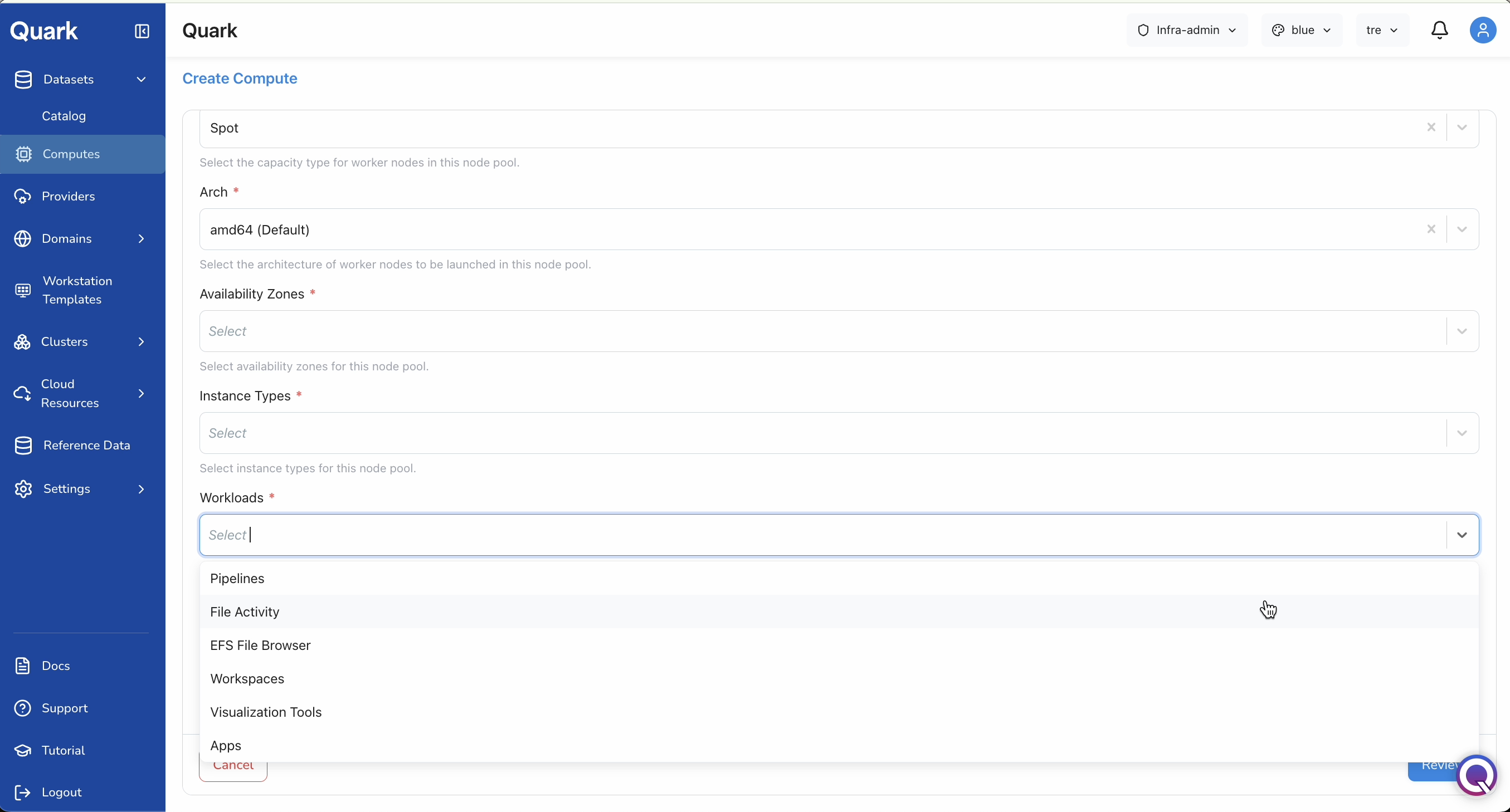
Instance Types and Workloads
| Field | Description |
|---|---|
| Instance Types (mandatory) | The cloud instance types available to this compute's node pool (e.g., c3.2xlarge, m5.4xlarge). Selecting multiple types gives the scheduler flexibility to use an available type when a preferred one is unavailable. |
| Workloads (mandatory) | The workload categories permitted to run on this compute. Select one or more from: Pipelines, File Activity, EFS File Browser, Workspaces, Visualization Tools, Apps. A compute only serves the workload types explicitly enabled here. |
Note: A compute can be extended to additional workload types at any time by editing its configuration. For example, a compute initially configured for Pipelines only can later be updated to also support Workspaces without recreating it.
Capacity Limits
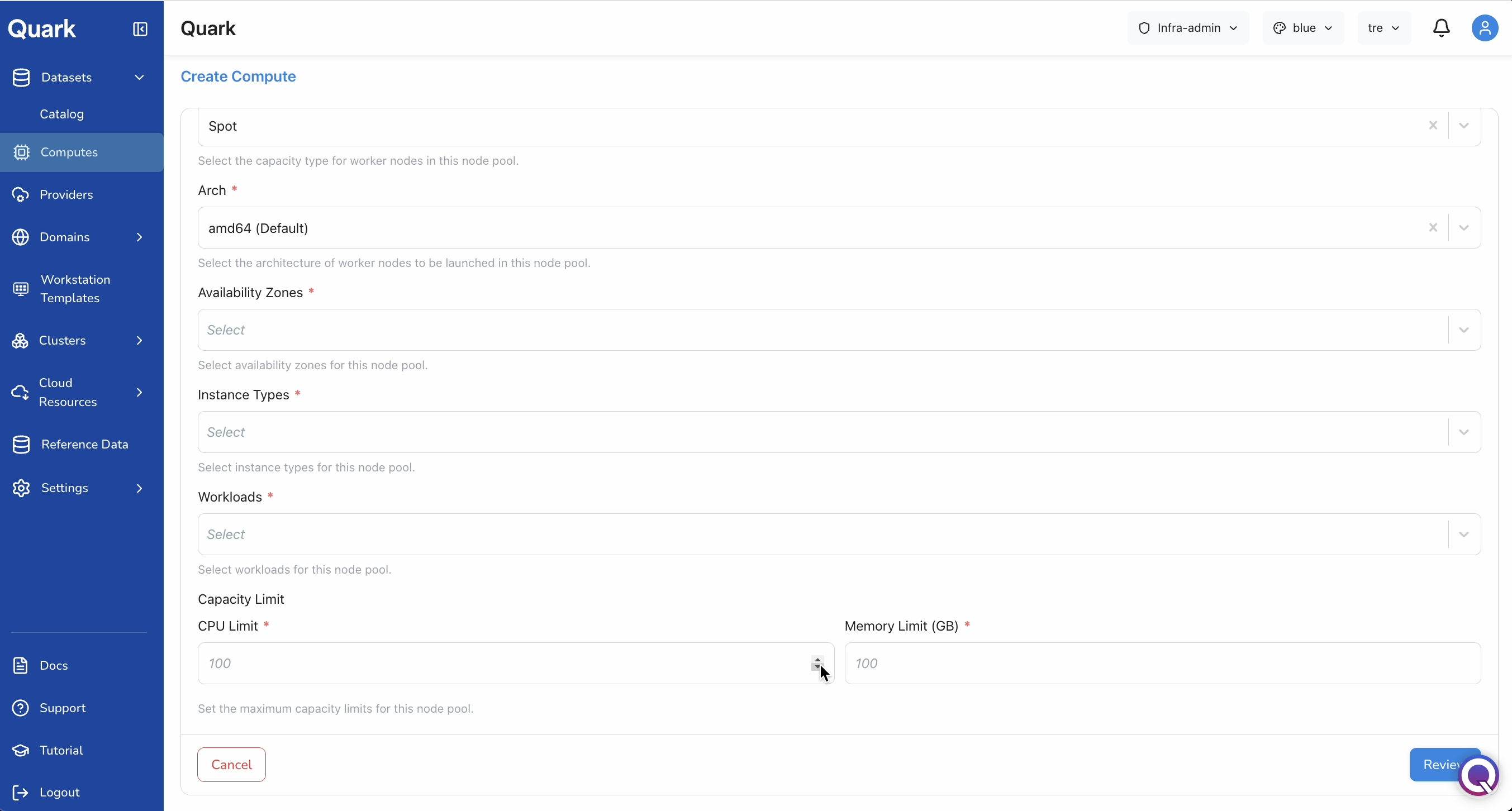
The Capacity Limit section sets upper bounds on the total resources this compute's node pool is allowed to consume across all workloads at once. These limits prevent runaway consumption and ensure that a single compute does not exhaust the cluster's available capacity.
| Field | Description |
|---|---|
| CPU Limit (mandatory) | The maximum number of vCPUs this compute is allowed to consume concurrently across all running workloads. Defaults to 100. |
| Memory Limit (GB) (mandatory) | The maximum total memory in gigabytes this compute is allowed to consume concurrently. Defaults to 100. |
| GPU Limit (GB) | The maximum GPU memory in gigabytes this compute is allowed to consume. Set this when configuring compute profiles that include GPU-capable instance types — required for workloads such as deep learning pipelines and GPU-accelerated analysis. |
Review and Create
Once all fields are filled, click Review in the bottom-right corner to verify the full configuration before provisioning.
Confirm that the cluster, instance types, workloads, and capacity limits are correct, then click Create. The compute profile is provisioned immediately and becomes available to the selected projects.
Managing Existing Computes
From the Computes list, each existing compute profile supports two actions:
- Edit — Modify any field except the Name. Use this to adjust instance types, extend workload permissions, update capacity limits, or change project scope. Changes take effect immediately.
- Disable — Suspend the compute profile without deleting it. Disabled computes cannot accept new workload scheduling but their configuration is preserved. Re-enable at any time to restore availability.
What's Next
- Clusters — Ensure the cluster selected for your compute is correctly provisioned and healthy before assigning workloads to it.
- Workstation Templates — Workstation templates reference compute profiles — confirm the right compute is available for each template's intended use case.
- Datasets — Verify that the projects receiving access to this compute also have the datasets they need available in the catalog.