My Files
My Files is the central file management area in the TRE. It is the place to upload input data before a pipeline run, access outputs after a run completes, and review a log of file activity across the platform.
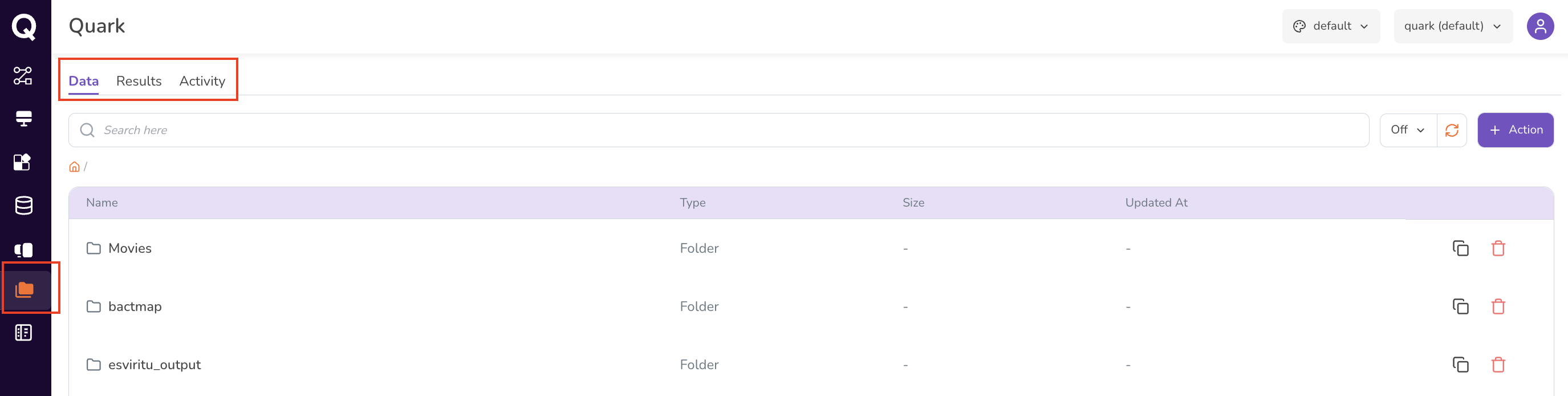
Navigation: Select My Files from the left-hand navigation pane.
Overview of Tabs
My Files is organised into three tabs:
| Tab | Purpose |
|---|---|
| Data | Upload and manage input files for use in pipeline runs. |
| Results | Access output files and artefacts from completed pipeline runs. |
| Activity | View a log of file-level actions and changes. |
Data Tab
The Data tab is where you store input files that pipelines will use as their source data. These might include files such as:
- Sequencing data (
.fastq,.fastq.gz) - Alignment files (
.bam,.sam) - Reference genomes or annotation files
Uploading Files
- Click the Data tab on top of the My Files screen.
-
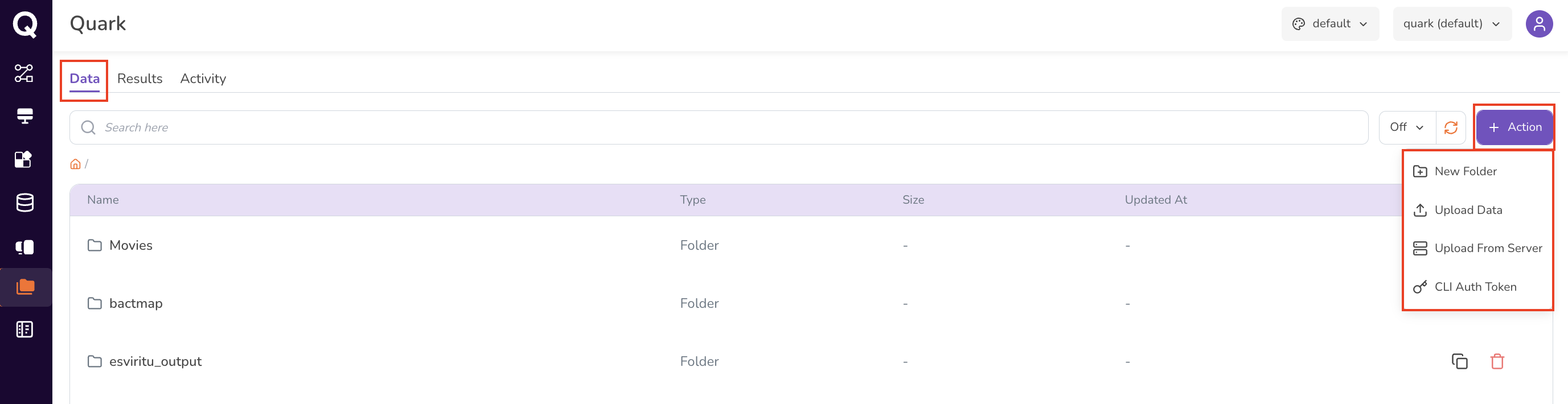
Click the Action button and, from the drop-down, select between New Folder (to create folders for your different projects), Upload Data, Upload from Server, and CLI Auth Token.
-
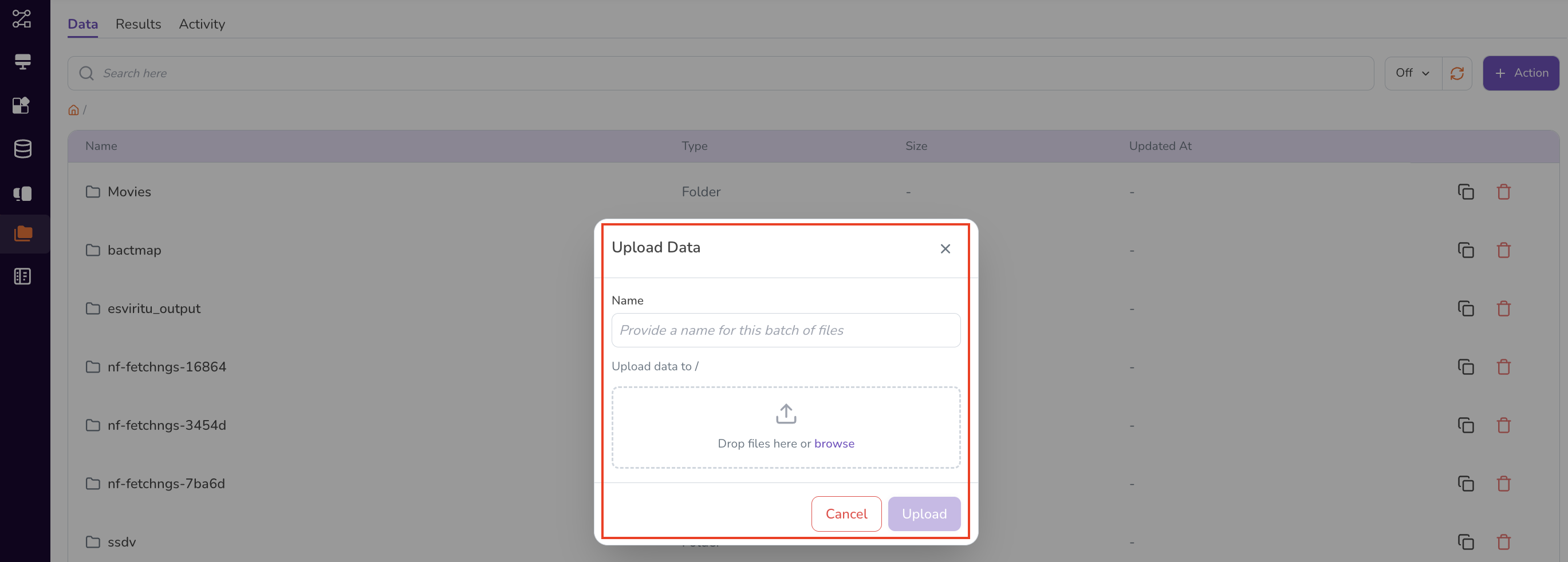
If you select Upload Data, choose the file(s) you wish to upload from your local machine. Uploaded files appear in the file list once approved by your project administrator.
-
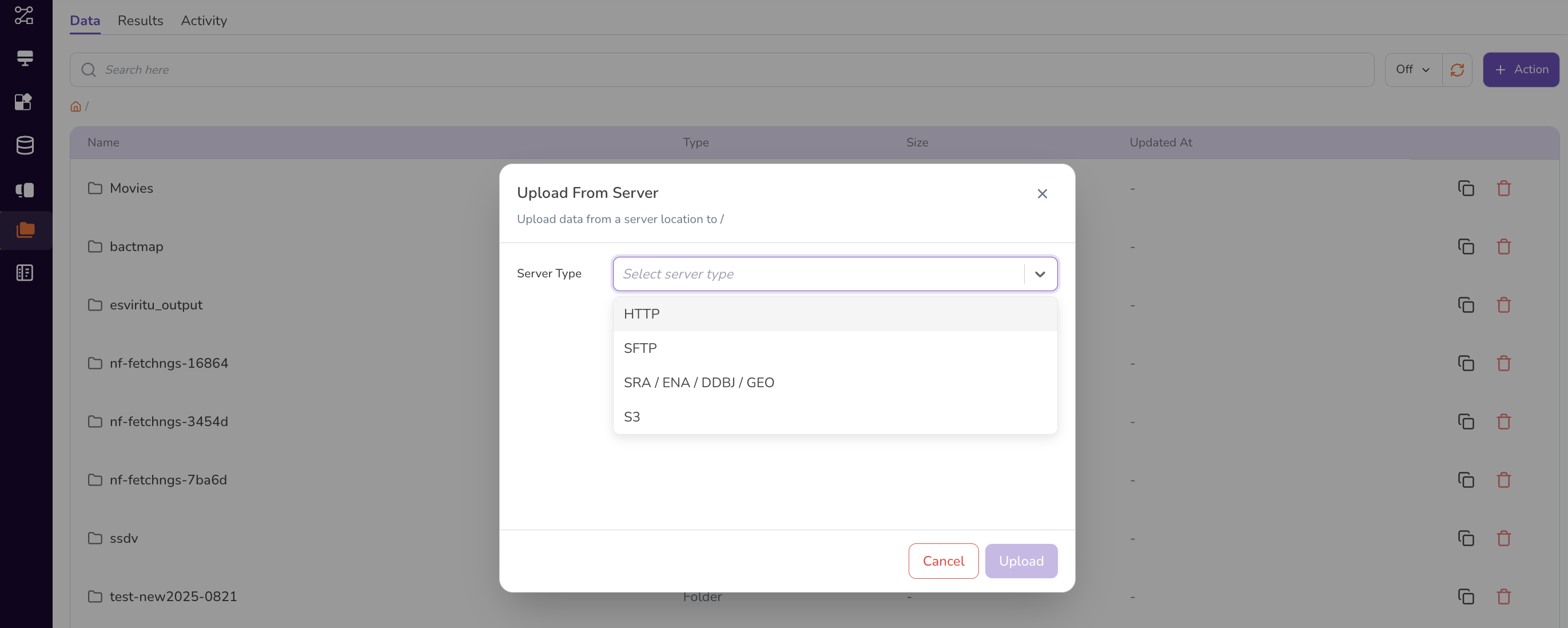
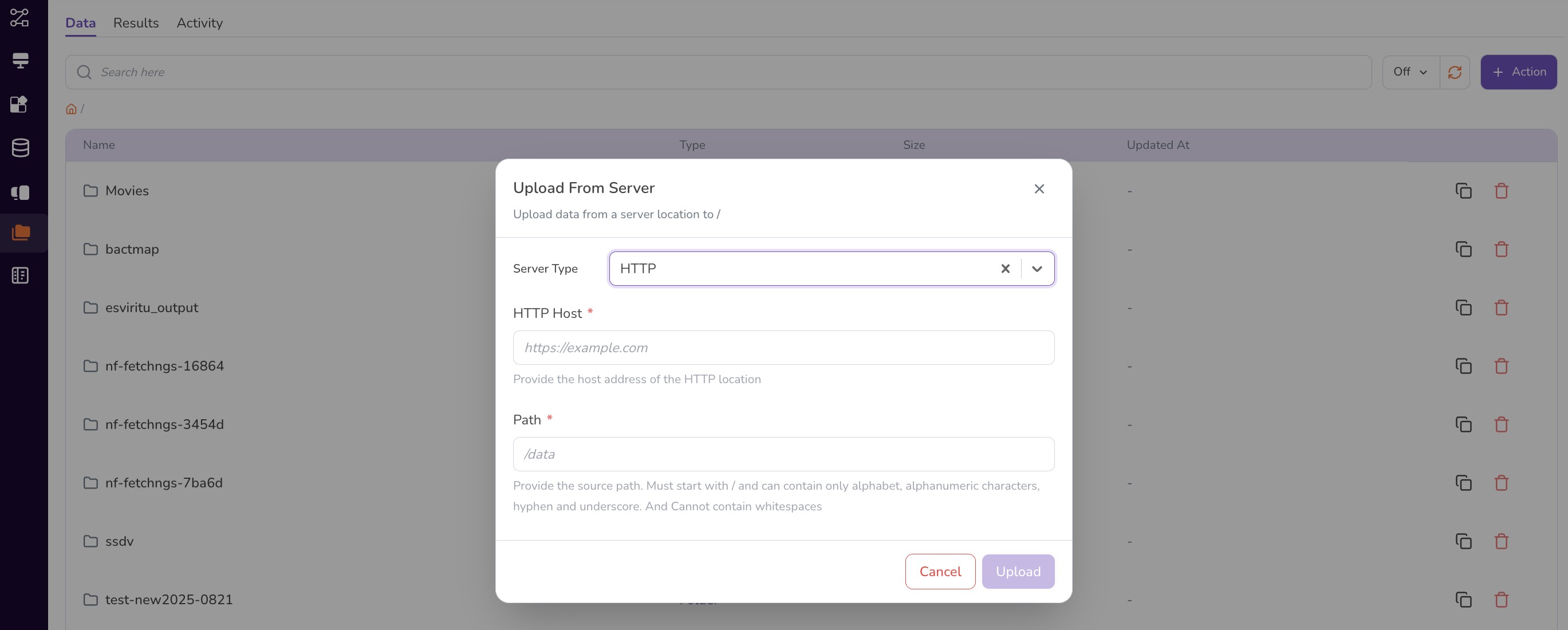
If you select Upload from Server, specify the Server Type (HTTP, SFTP, S3, SRA/ENA/DDBJ/GEO) and upload your data from the server location.
-
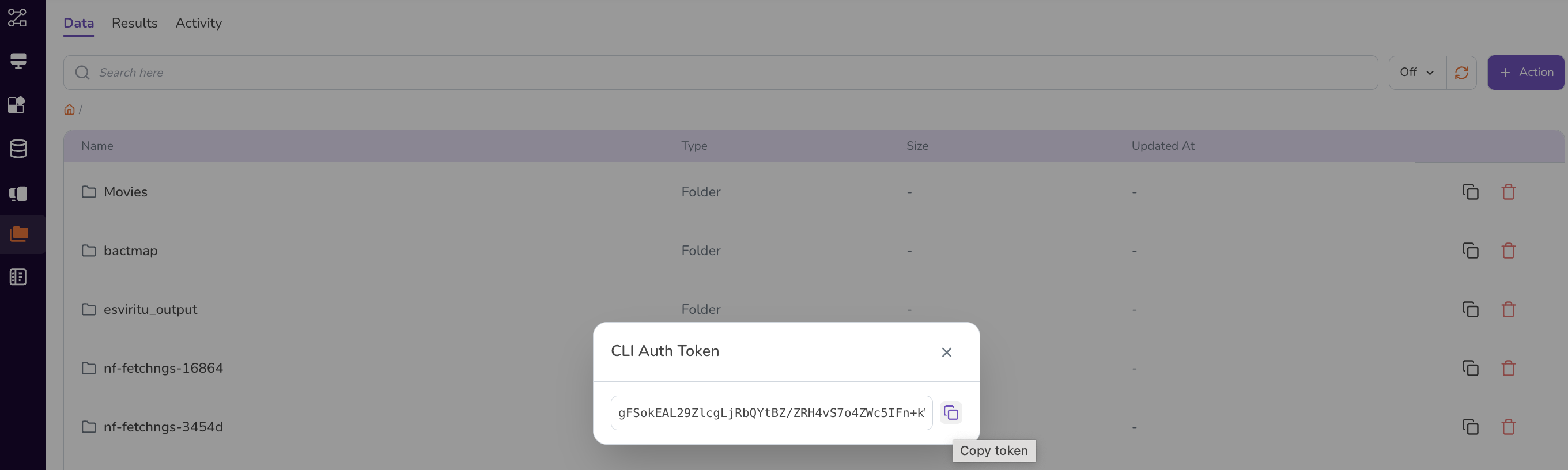
If you select CLI Auth token, you can copy the token for this location and follow the steps in My Files CLI to upload large files.
Tip: Upload your input files before configuring a pipeline run. When you reach the Inputs step, you'll be able to select files directly from My Files → Data.
Results Tab
The Results tab stores all output files and artefacts generated by completed pipeline runs. Results are organised by run, making it easy to locate outputs from a specific execution.
Accessing Results
-
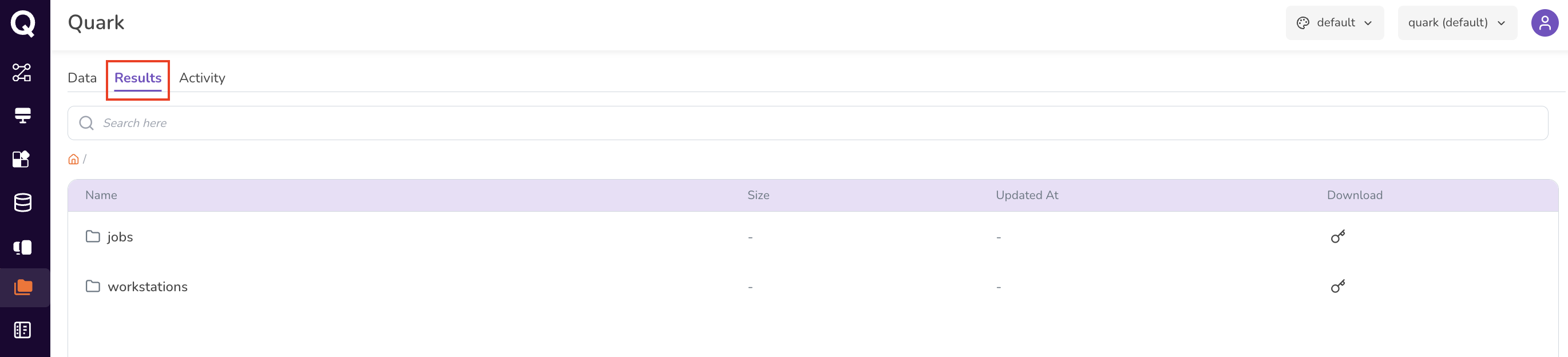
Navigate to My Files → Results.
-
Browse or search for the run whose outputs you need.
-
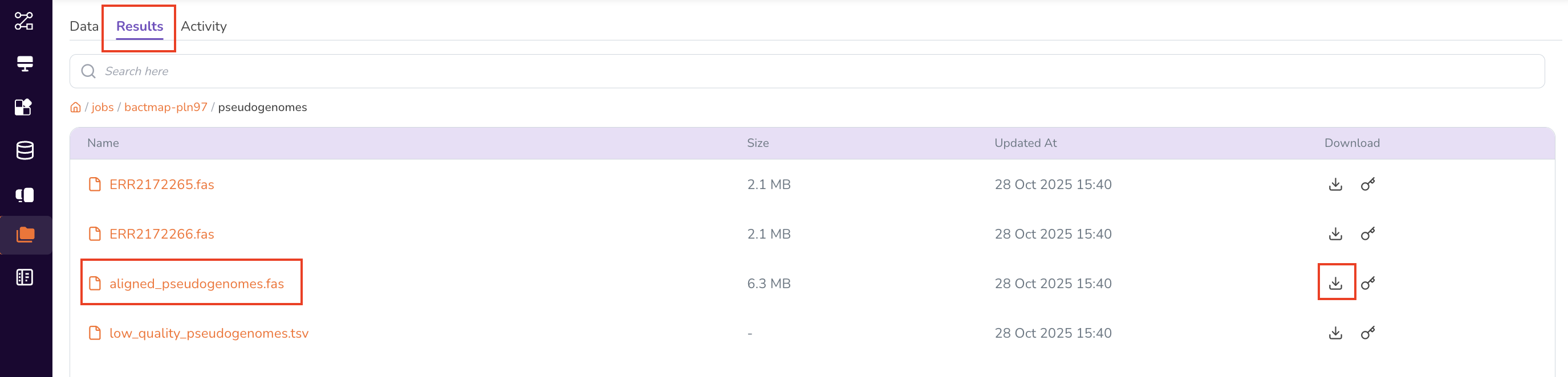
Click on a result entry to view or download the associated output files.
-
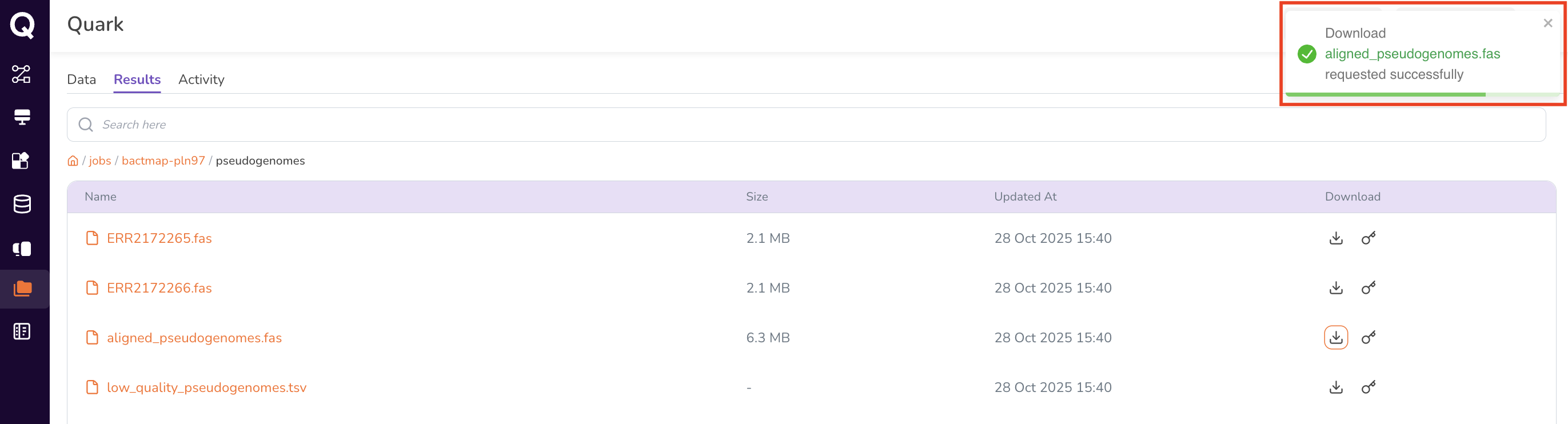
Clicking on the download icon will trigger a download request. The file is not downloaded immediately; data cannot be downloaded from the platform without explicit administrator approval. The download request will be sent to your administrator, as intimated in the notification that appears on the top-right of the screen.
-
You can track the request status under My Requests.
Status Description Pending Approval The request is awaiting review by your DS Administrator. Approved The request has been approved. Click the Download icon again to retrieve the file. Rejected The request was declined. Contact your DS Administrator for clarification. Downloading The file transfer is in progress. Downloaded The file has been successfully downloaded. Download Failed The transfer encountered an error.
Once approved, return to the Results tab and click the Download icon again to initiate the transfer.
Transferring large files: For large files or folders, use the My Files CLI tool.
Activity Tab
The Activity tab provides a chronological log of file-level actions taken within your My Files workspace, including uploads, deletions, and other modifications.
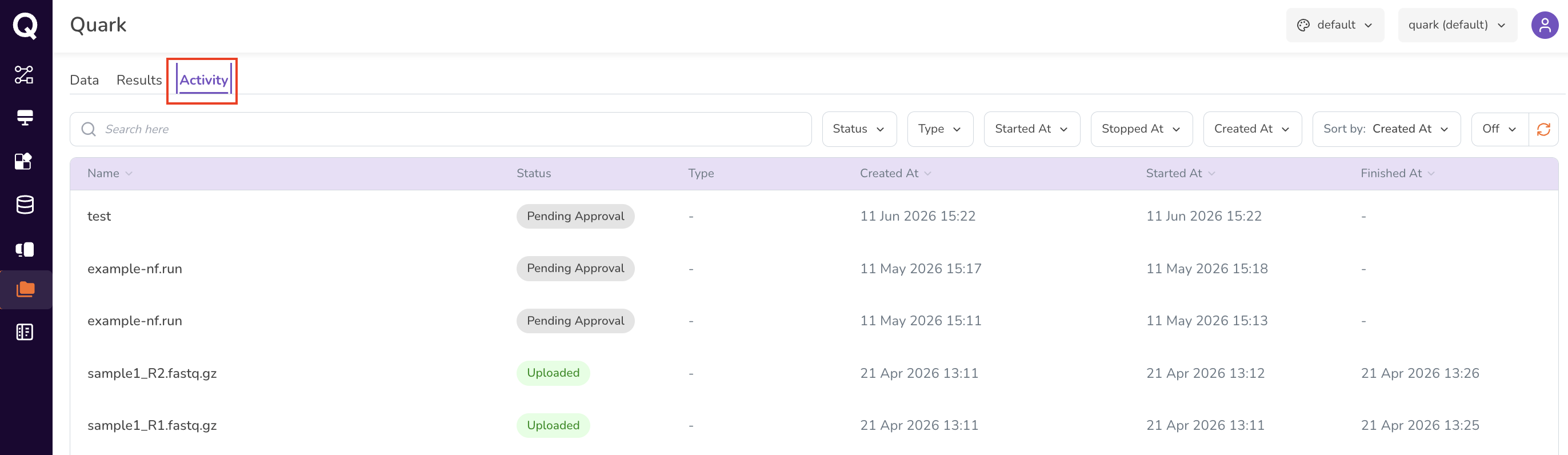
Activity logs are useful for:
- Auditing which files were uploaded and when.
- Tracking changes made to datasets over time.
- Troubleshooting issues related to missing or unexpected files.
Tips and Best Practices
- Name files clearly before uploading. Pipeline run history is easier to follow when input file names reflect the sample, date, or experiment (for example,
sample01_R1.fastq.gzrather thanfile1.fastq.gz). - Check the Data tab before starting a run. All required input files should be uploaded and visible in the Data tab before you begin configuring a pipeline run.
- Results are tied to runs. If you need to re-run a pipeline with different parameters, results from each run are stored separately and labelled by run name — use descriptive run names to keep things organised.
What's Next
- My Files CLI — transfer large files or folders with the command-line tool.
- Launching Ready-to-Run Pipelines — use uploaded files as pipeline inputs.
- My Requests — track the status of upload and download approvals.