Project Members
Overview
The Project Members section gives the DS Administrator visibility into who belongs to each project on the platform. This is a key oversight function needed for maintaining data governance and access control hygiene.
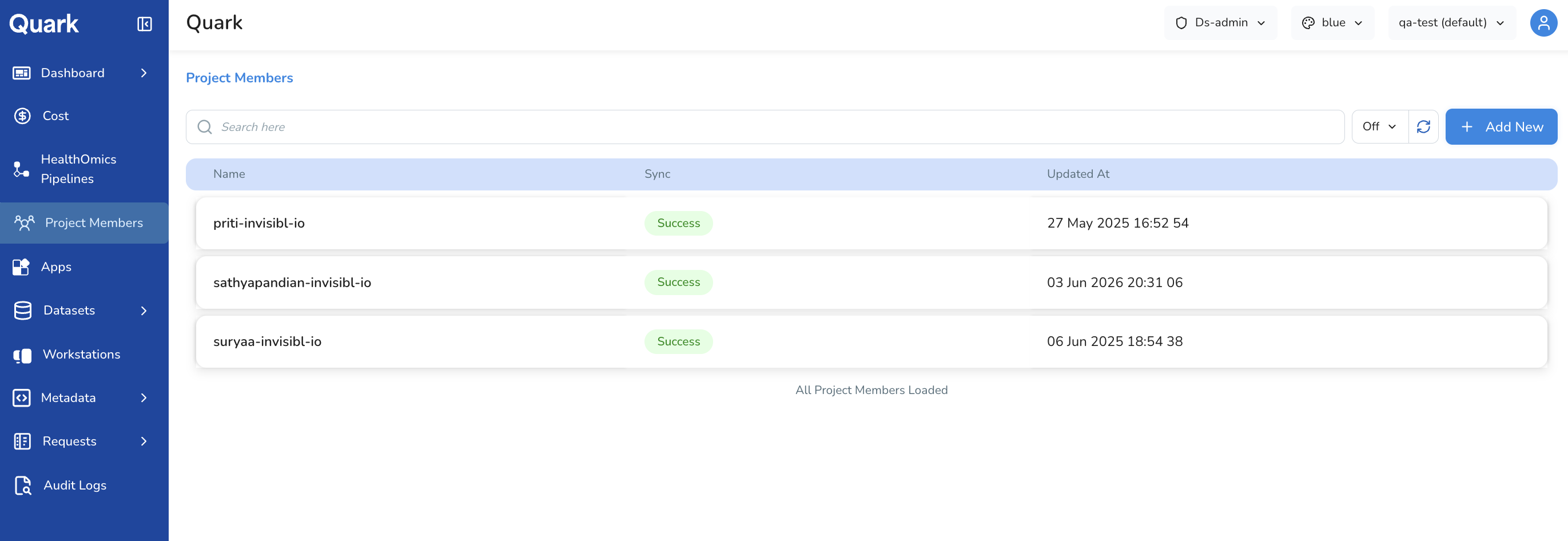
Navigation: Select Project Members from the left-hand navigation pane.
Selecting a Project
Project Members is scoped to a single project at a time. Before reviewing members, select the project you want to inspect using the project selector at the top of the screen.

The member list will update to reflect the users associated with the selected project.
Viewing Project Members
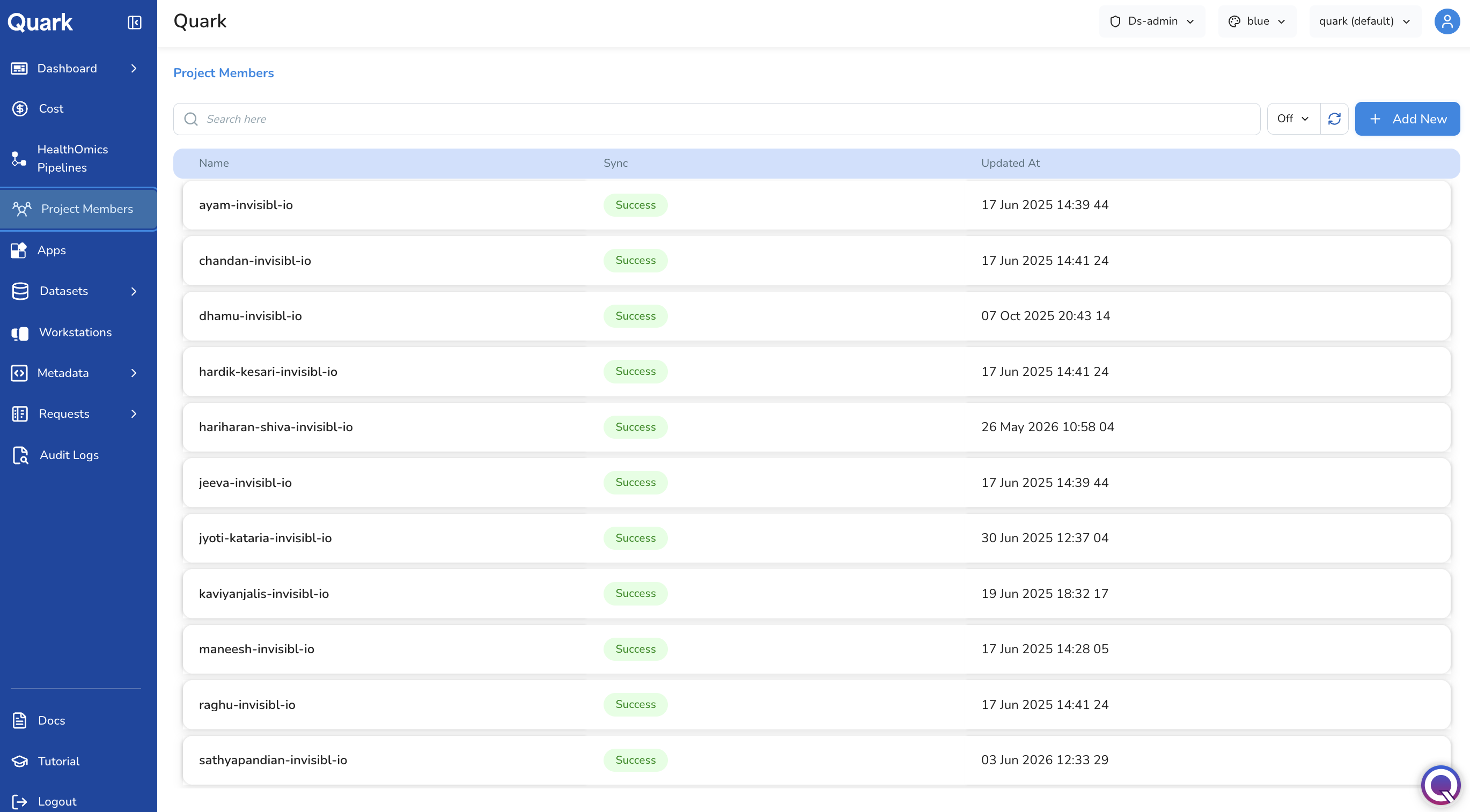
Once a project is selected, the Project Members list displays all users associated with that project. Clicking on each row in the list will open a side-panel that contains:
| Column | Description |
|---|---|
| User Name | The display name of the project member. |
| Email / User ID | The user's email address or platform identifier. |
| Status | The current membership status of the user (e.g., Active, Pending, Suspended). |
| Project | The project to which the user belongs to in the platform. |
Adding New Project Members
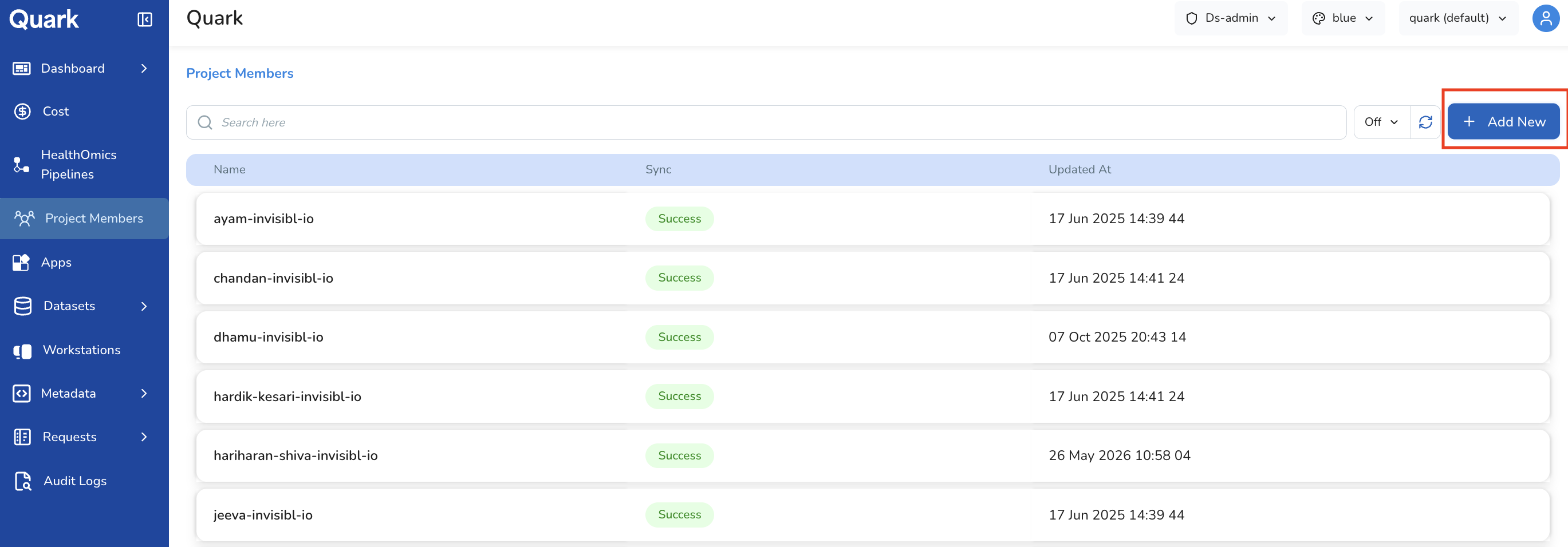
You can add users to the selected project by clicking on the Add New button.
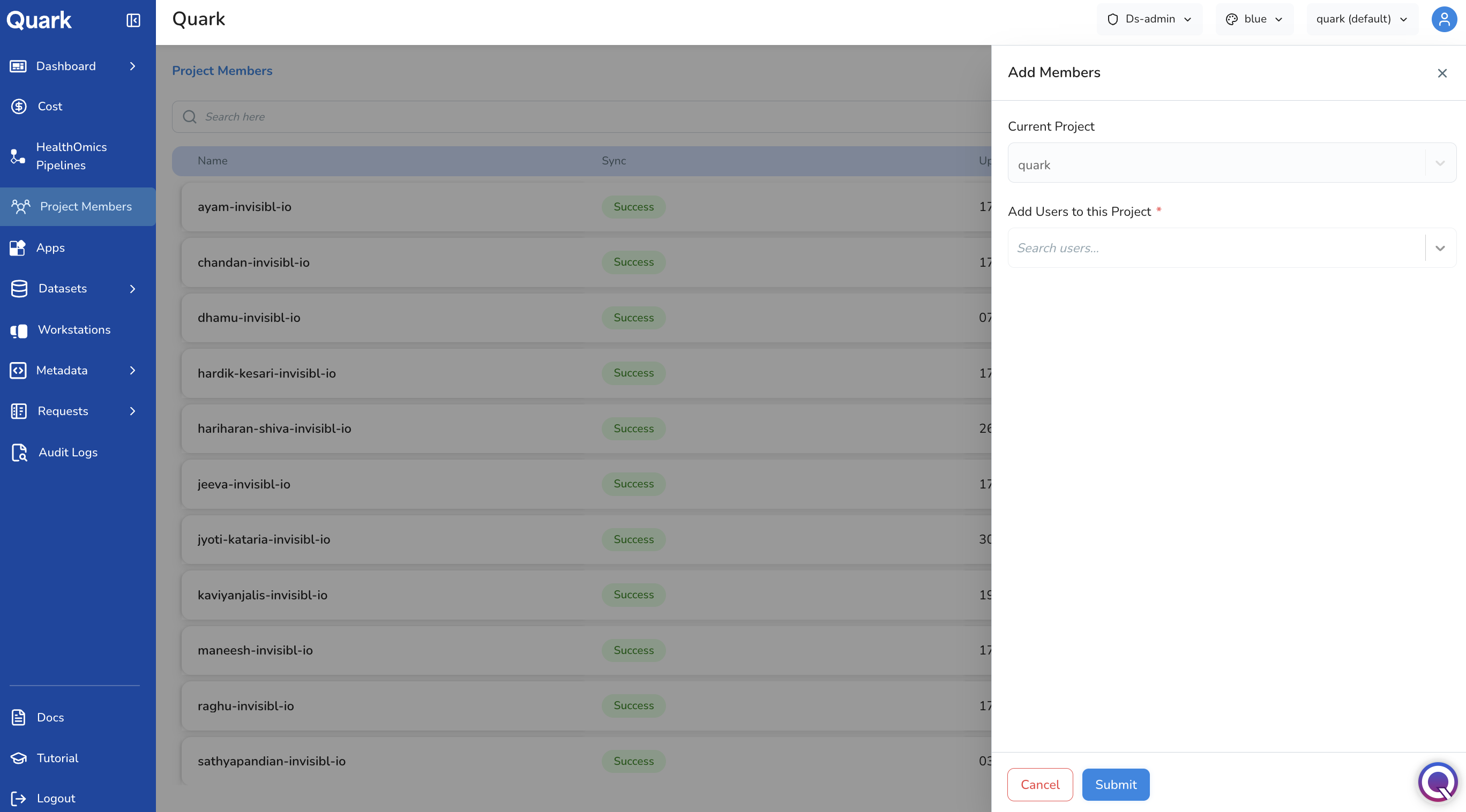
A side-panel opens, listing the Current Project. Under Add new users to the project, select the user you wish to add from the drop-down shown in the panel.
Searching for a User
Use the search field at the top of the member list to look up a specific user by name or email. This is particularly useful when:
- Verifying whether a specific user has access to a project.
- Checking when a user's status was last updated following a role change or access review.
- Auditing membership ahead of a project closure or data review.
Note: The DS Administrator has visibility over project membership but does not directly manage user onboarding or role assignment. Those responsibilities sit with the Administrator. If membership changes are required — adding users, changing roles, or removing access — coordinate with the Administrator.
What's Next
- Requests — Review pending user requests for data or workstation access within your projects.
- Audit Logs — If a user's status change looks unexpected, cross-reference with the audit log to see who made the change and when.
- Cost — Filter the Cost dashboard by user to review the resource consumption of specific project members.