Metadata
Overview
The Metadata section lets the DS Administrator attach structured, key-value metadata schemas to pipelines and to the platform as a whole — for governance, search, and discoverability. Configuring metadata validation rules ensures that the information stored about datasets and samples is consistent, searchable, and easily discoverable across all pipelines and projects.
Without enforced metadata standards, researchers using different terminology for the same property (e.g., recording patient sex as XX/XY in one place and female/male in another) will encounter data that is difficult to query, compare, or reuse.
Metadata schemas are how the DS Administrator imposes a uniform standard that makes data analysis reproducible and findings reliable.
Metadata is organised into two tabs: Global and Pipeline.
Navigation: Select Metadata from the left-hand navigation pane.
Why Metadata Validation Matters
Multi-omics datasets capture a wide range of information. Some properties are common across many datasets — such as identifiers, sample types, or basic patient attributes — while others are unique to a specific pipeline or data type (for example, protein sequence inputs for protein-folding pipelines like AlphaFold).
Metadata schemas address several recurring challenges:
- Unconsolidated terms: If the same property is recorded under different names or formats across datasets, a researcher searching or filtering on one term will miss records stored under a synonym. Defining synonyms consolidates these variants into a single canonical property.
- Restricted value sets: The Allowed Values field lets you restrict a property to a fixed list of acceptable entries — any value outside that list can be flagged.
- Pipeline-specific requirements: A genomics pipeline and a proteomics pipeline have fundamentally different input parameters. Pipeline-level schemas supplement Global schemas to accommodate this variation without sacrificing platform-wide consistency.
- Mandatory fields: Properties marked as mandatory must be present (and valid) for a run or record to proceed — helping prevent incomplete or inconsistent data.
Global Tab
The Global tab lists all metadata properties that apply platform-wide.
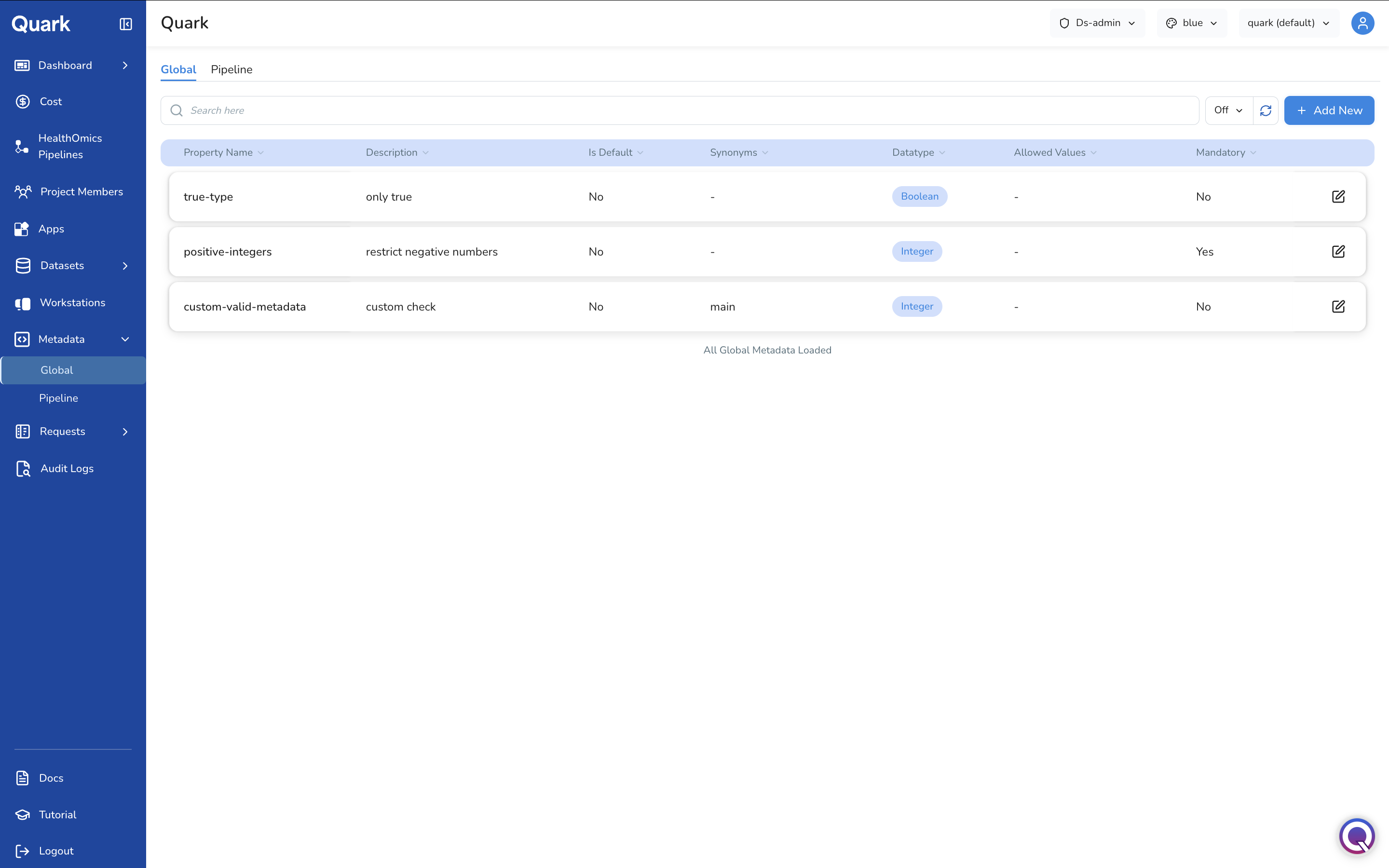
Each row in the table shows:
| Column | Description |
|---|---|
| Property Name | The canonical name of the metadata property (e.g., true-type, positive-integers, custom-valid-metadata). |
| Description | A short explanation of what this property represents or enforces. |
| Is Default | Whether this property is one of the platform's built-in default properties (Yes) or a custom property added by your organisation (No). |
| Synonyms | Alternative names that are consolidated into this property. Displays - if none are defined. |
| Datatype | The data type for this property — e.g., Boolean, Integer, String, or Float. |
| Allowed Values | A restricted list of acceptable values, if defined. Displays - if any value is permitted. |
| Mandatory | Whether this property must be present and valid (Yes) or is optional (No). |
Use the search bar to find a property by name, and the column header dropdowns to sort or filter the table. The footer confirms when All Global Metadata Loaded.
Adding a New Global Property
To define a new global metadata property:
- On the Global tab, click + Add New in the top-right corner.
- Complete the Create Global Metadata form (refer table below).
- Click Review, then save to create the property.
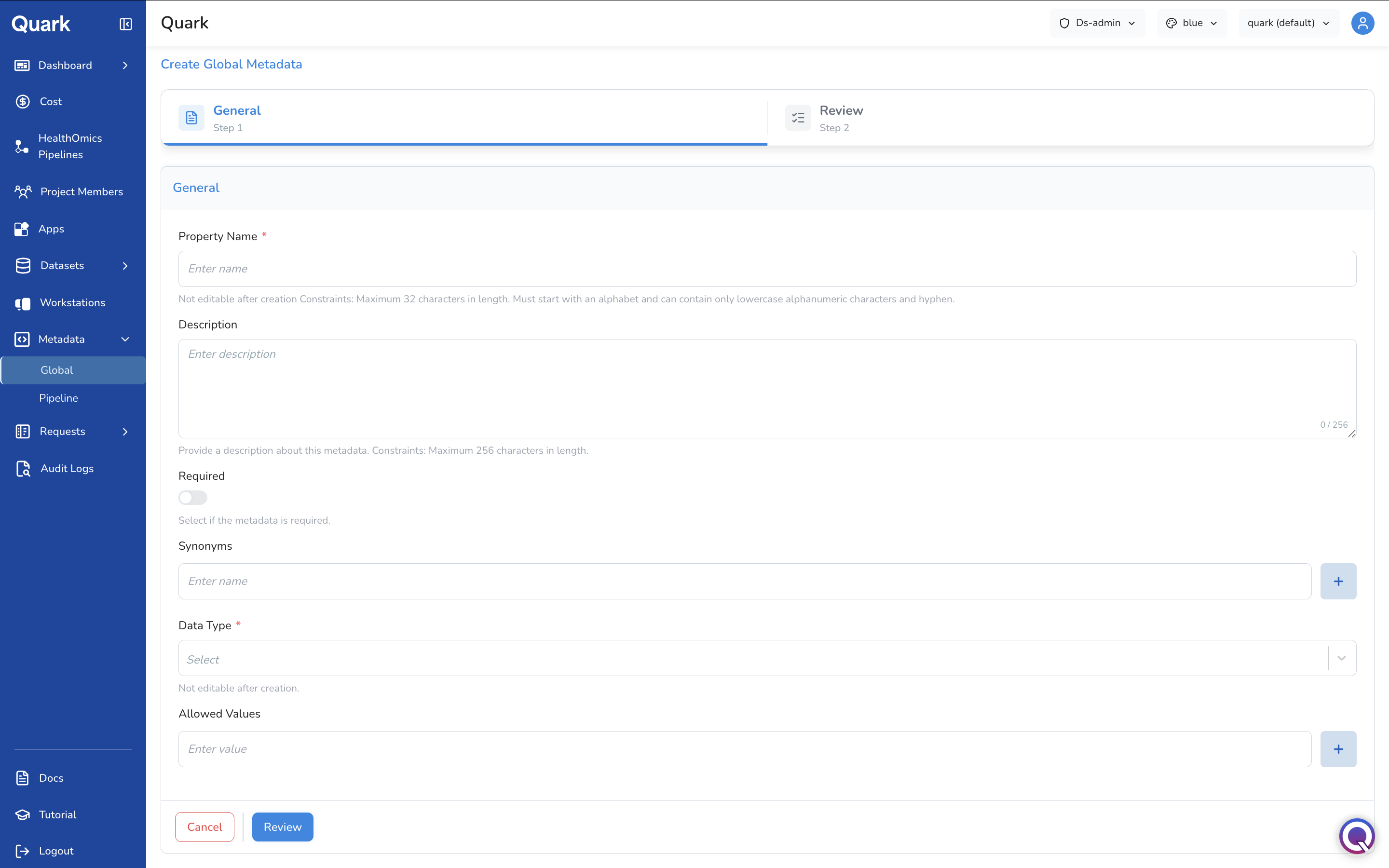
| Field | Description | Constraints |
|---|---|---|
| Property Name * | The canonical name for this property as it will be stored and validated. | Maximum 32 characters. Must start with a letter. Lowercase alphanumeric characters and hyphens only. Not editable after creation. |
| Description | A plain-language summary of what this property represents or enforces. | Maximum 256 characters. |
| Required | Toggle on if this property must be present for the data to be considered valid. | Off by default. |
| Synonyms | Alternative terms that should be consolidated into this property. Click + to add multiple synonyms. | Optional. |
| Data Type * | The expected data type for this property — e.g., String, Integer, Boolean, or Float. |
Not editable after creation. |
| Allowed Values | A restricted list of acceptable values for this property. Click + to add multiple values. If left empty, any value is permitted. | Optional. |
Editing a Global Property
Click the edit icon on any row in the Global tab to open the Edit Global Metadata form, pre-filled with the property's current configuration.
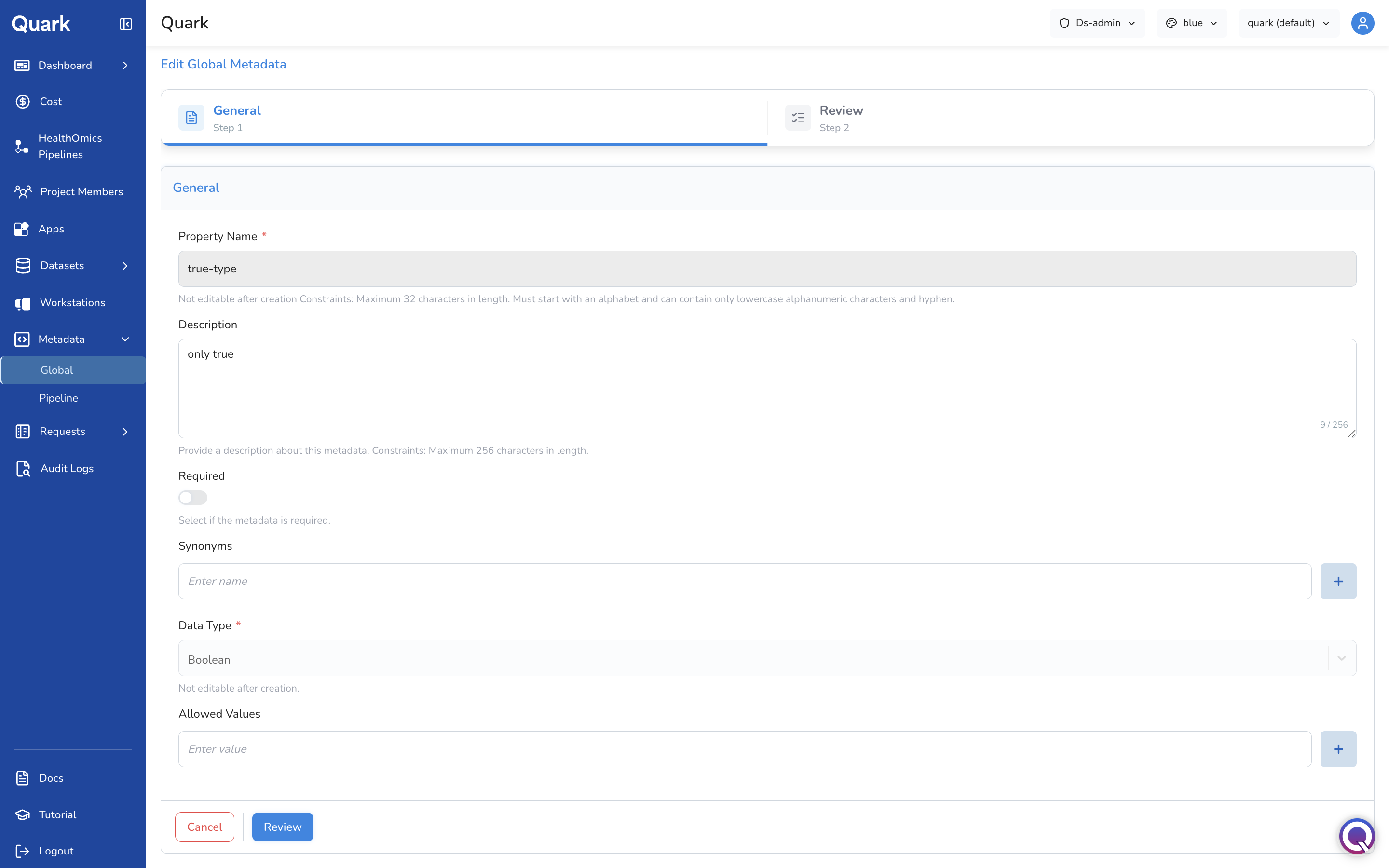
Note: Property Name and Data Type are locked once a property has been created and cannot be changed. If either needs to change, create a new property instead.
You can update the Description, Required toggle, Synonyms, and Allowed Values before clicking Review to save your changes.
Pipeline Tab
The Pipeline tab shows metadata schemas that have been defined for specific pipelines. Pipeline-level schemas are stored per run and supplement the Global schema. You can use them when a pipeline requires properties that have no global equivalent, or needs different validation rules for a shared property.
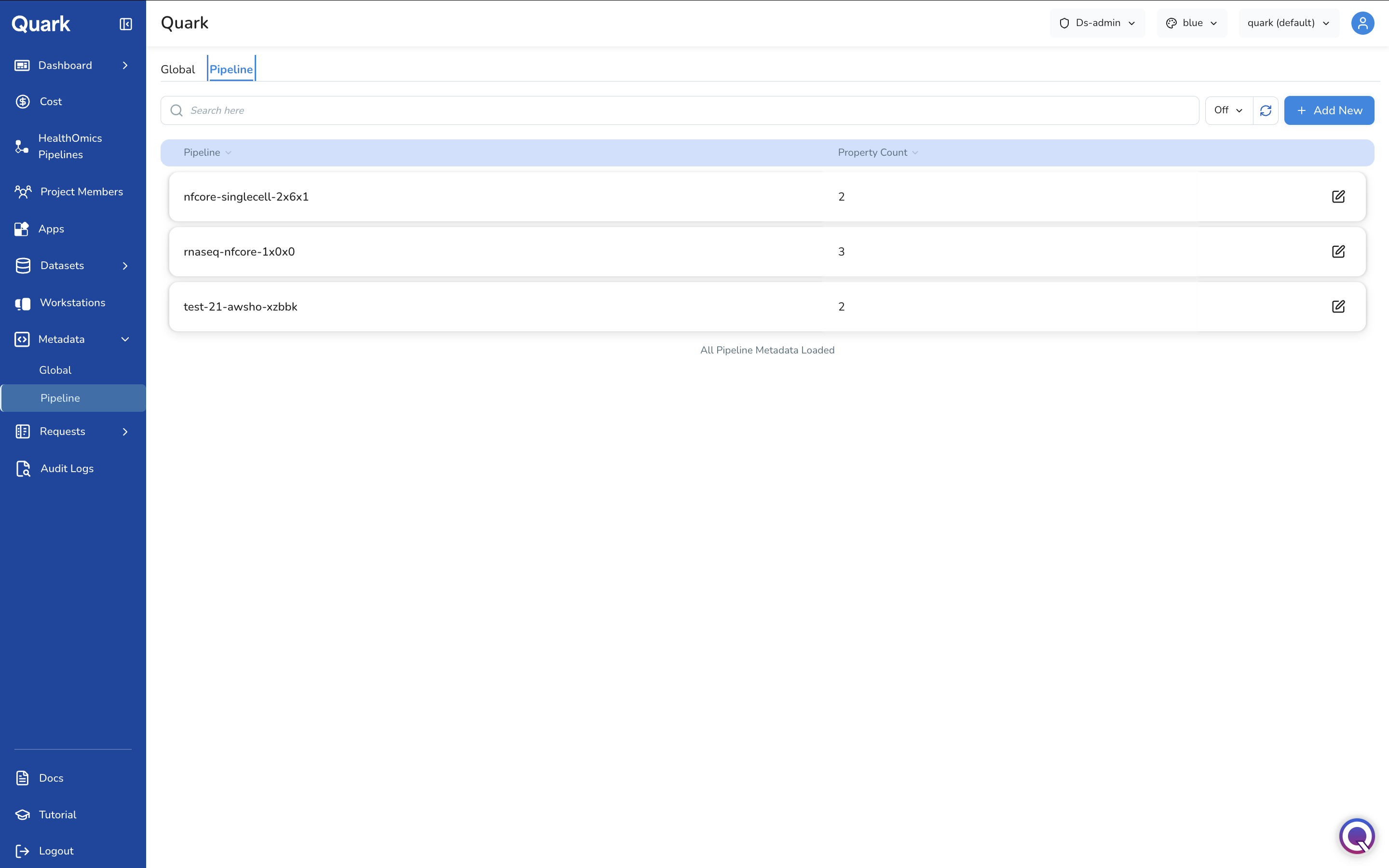
Each row shows:
| Column | Description |
|---|---|
| Pipeline | The name of the pipeline this metadata schema applies to. |
| Property Count | The number of metadata properties defined for this pipeline. |
Use the search bar to find a pipeline by name. The footer confirms when All Pipeline Metadata Loaded. Click + Add New to define a metadata schema for a pipeline that doesn't yet have one, following a similar General → Review workflow to the Global tab.
Viewing a Pipeline's Metadata Properties
Click the edit icon on a pipeline row to open its metadata schema in a side panel.
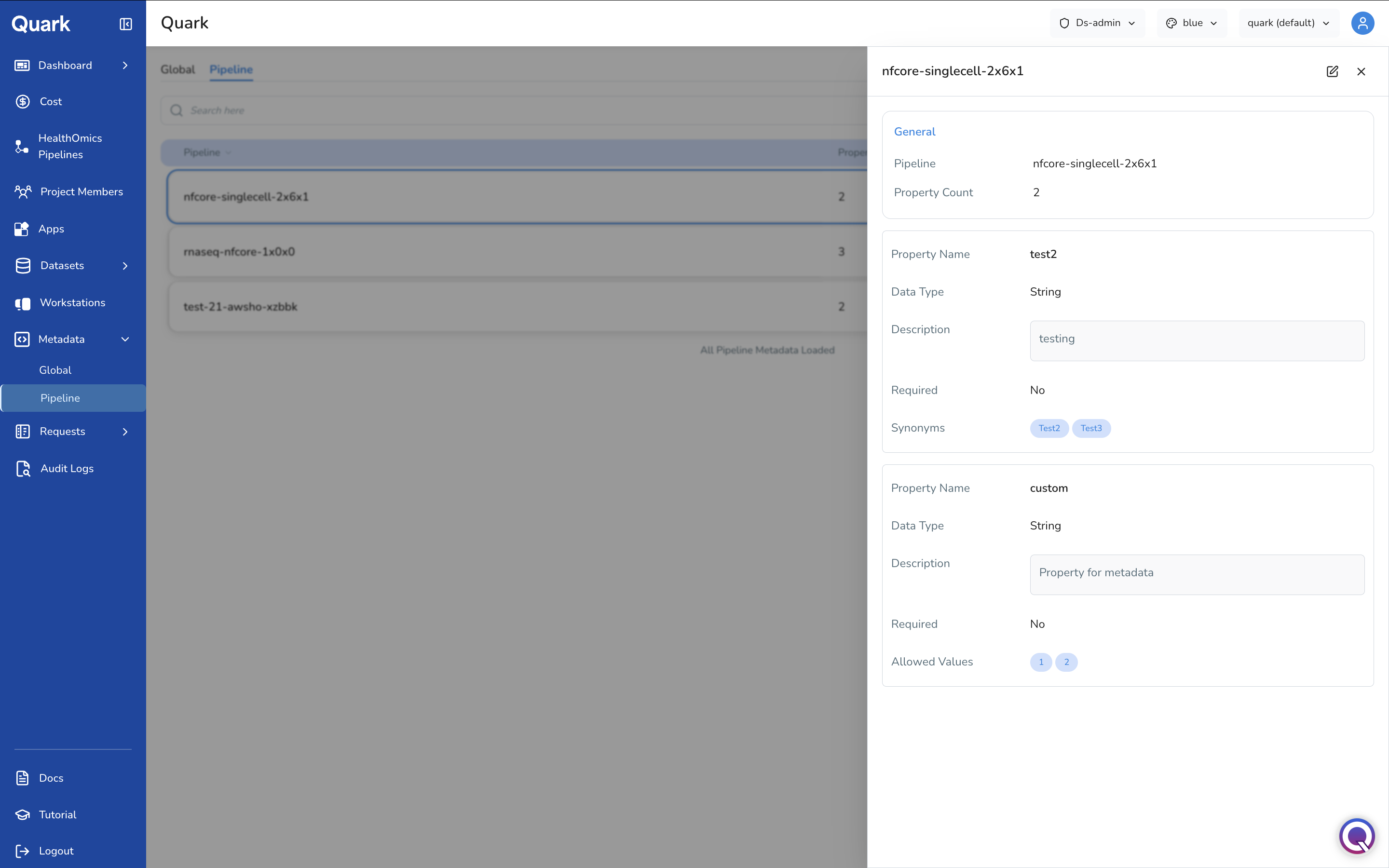
The panel header shows the Pipeline name and its Property Count, followed by a card for each property defined, including:
| Field | Description |
|---|---|
| Property Name | The name of this pipeline-specific property. |
| Data Type | The data type for this property — e.g., String, Boolean. |
| Description | A short explanation of what this property captures. |
| Required | Whether this property must be present for the pipeline run to proceed. |
| Synonyms | Alternative terms consolidated into this property, shown as tags. |
| Allowed Values | A restricted list of acceptable values, shown as tags, if defined. |
Use the edit icon in the top-right of the panel to modify the schema, or the close icon to return to the Pipeline tab.
How Metadata Validation Affects Users
Properties marked as Mandatory in either the Global or Pipeline tab are enforced when a user submits data or launches a pipeline run:
- Quark checks all mandatory fields against the schema you have configured.
- If a mandatory field is missing, or contains a value not in the Allowed Values list, the user is alerted before the run begins or the data is accepted.
- This prevents invalid or inconsistent data from entering the platform's analysis history, saving compute time and cost. Metadata schemas also power downstream data discovery: because data is stored with consistent, validated terms — including any configured synonyms — users can filter and query cohorts reliably regardless of how different users originally entered the data.
What's Next
- HealthOmics Pipelines — After importing a pipeline, return to Metadata to define pipeline-level schemas for it.
- Datasets — Consistent metadata directly improves the quality of cohort building and data discoverability across datasets.