Publishing a Dataset
Overview
Publishing a dataset makes it visible in the TRE Data Catalog, where researchers can browse its summary and submit data access requests. Datasets must be uploaded to a connected cloud storage location before they can be published — this guide assumes the upload step is complete.
Steps to Publish a Dataset
-
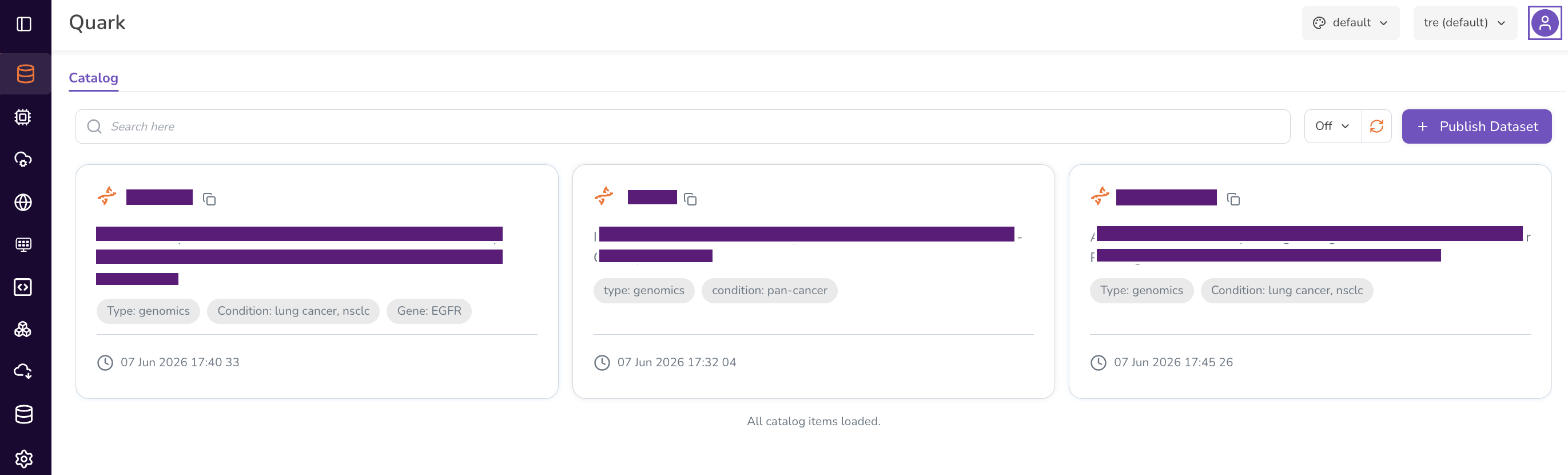
Navigate to Datasets in the left-hand navigation pane.
The Datasets dashboard displays all datasets previously published, along with their status and connected cloud accounts.
-
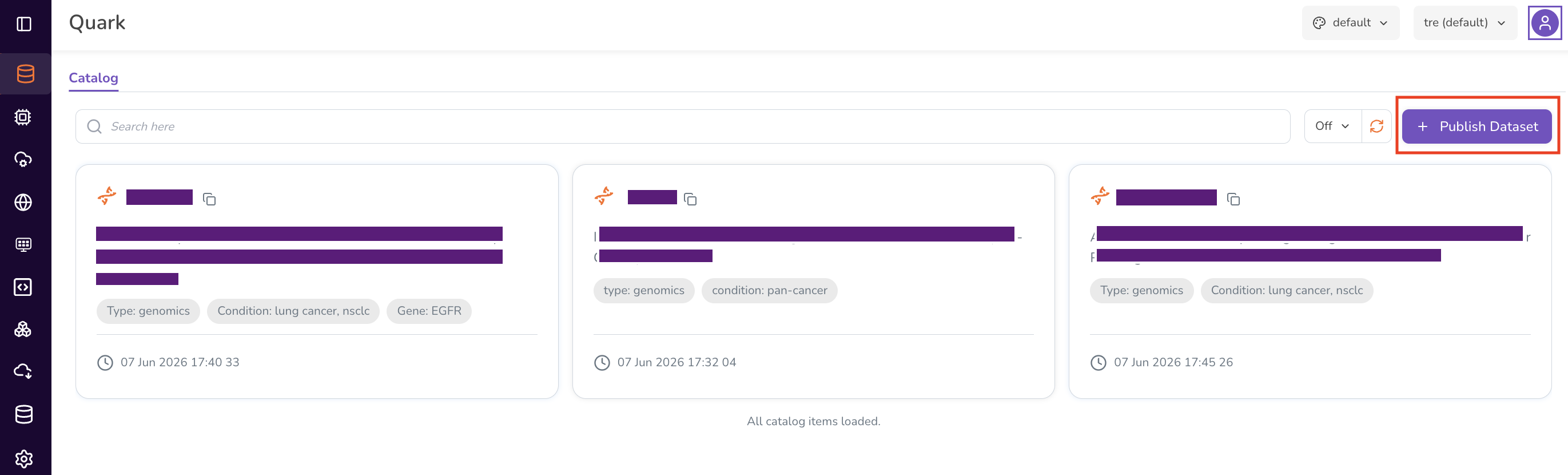
Click Publish Dataset in the top-right corner of the dashboard.
-
In the Publish Dataset window, fill in the following details:
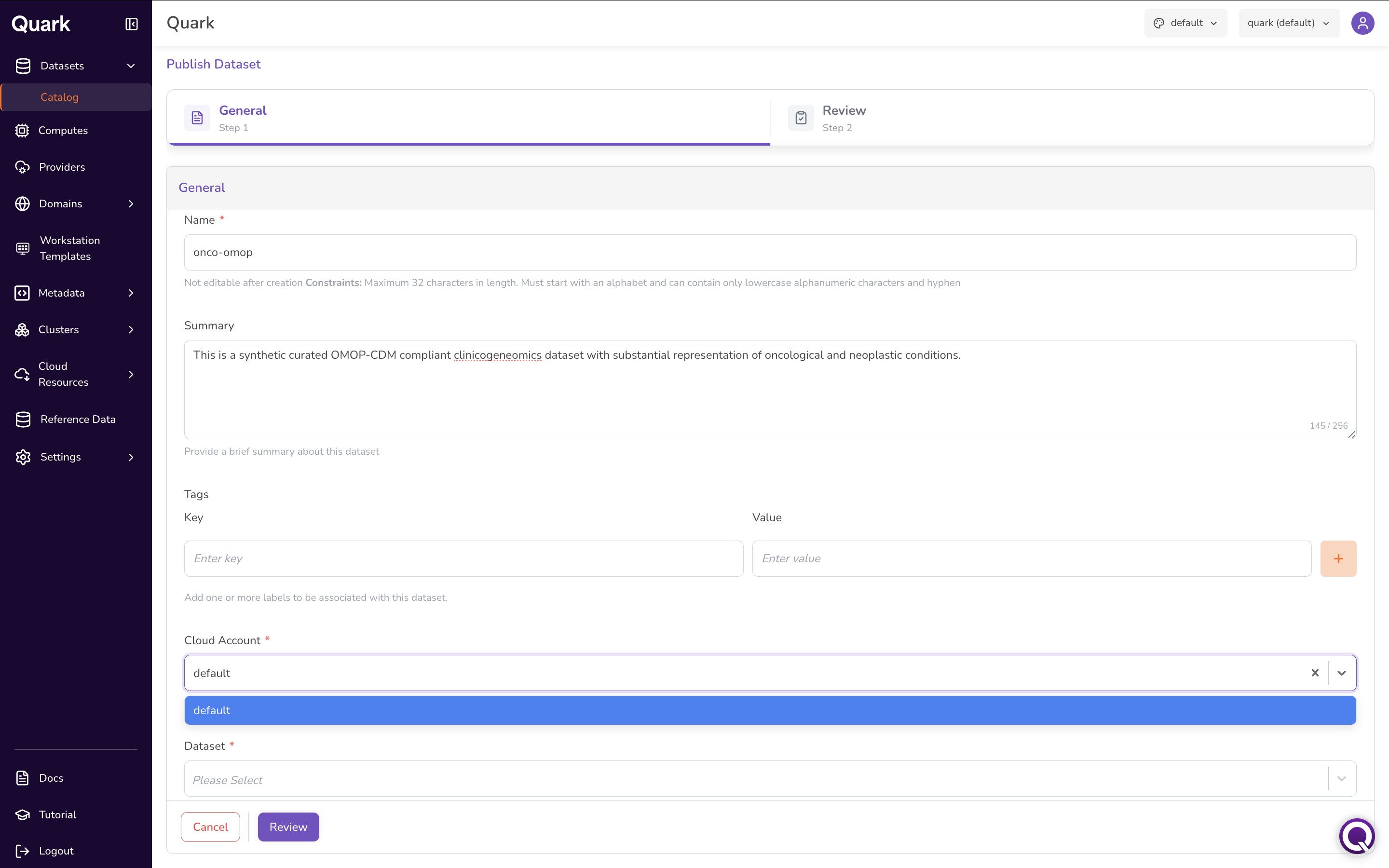
- Name (mandatory) — A unique name for the dataset as it will appear in the Data Catalog.
- Summary (mandatory) — A short description of the dataset's contents and any relevant context researchers should know before requesting access.
- Tags (optional) — Add searchable metadata as Key and Value pairs (for example,
disease: oncologyorcohort-size: 5000). Tags improve discoverability in the catalog. - Cloud Account — Select the cloud account where the dataset is stored, from the accounts registered under your platform's infrastructure configuration (for example, your organisation's primary account, or a public registry such as AWS iGenomes for reference genomes and shared resources).
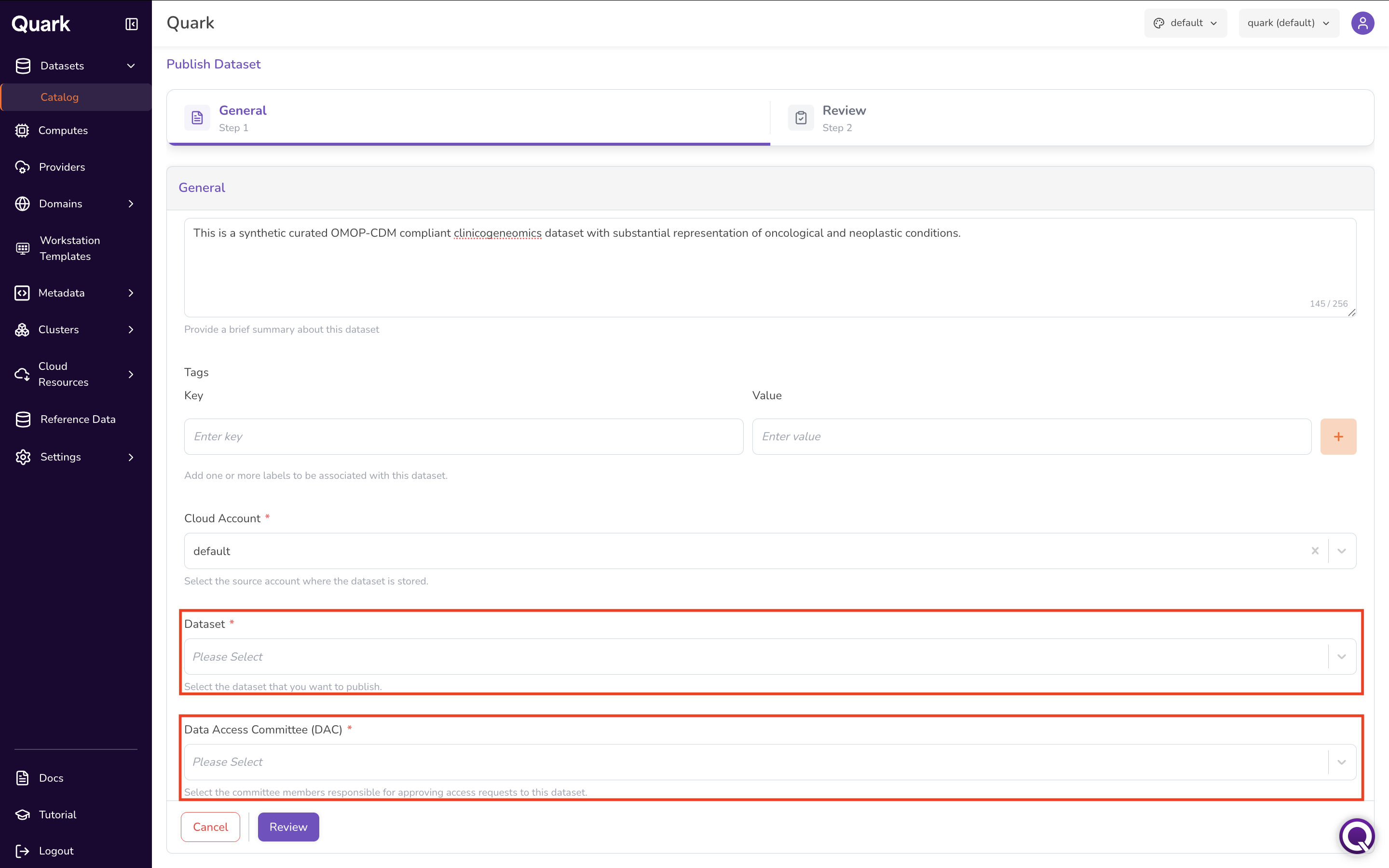
- Dataset — Once a Cloud Account is connected, this dropdown is populated with datasets available in that account. Select the dataset you want to publish.
- Data Access Committee (DAC) — Select one or more administrators from the dropdown list. These individuals will be responsible for reviewing and approving (or rejecting) any data access requests submitted by TRE users for this dataset.
-
Review your entries and click Create. The dataset now appears on the Datasets dashboard and becomes discoverable to researchers in the TRE Data Catalog.
-
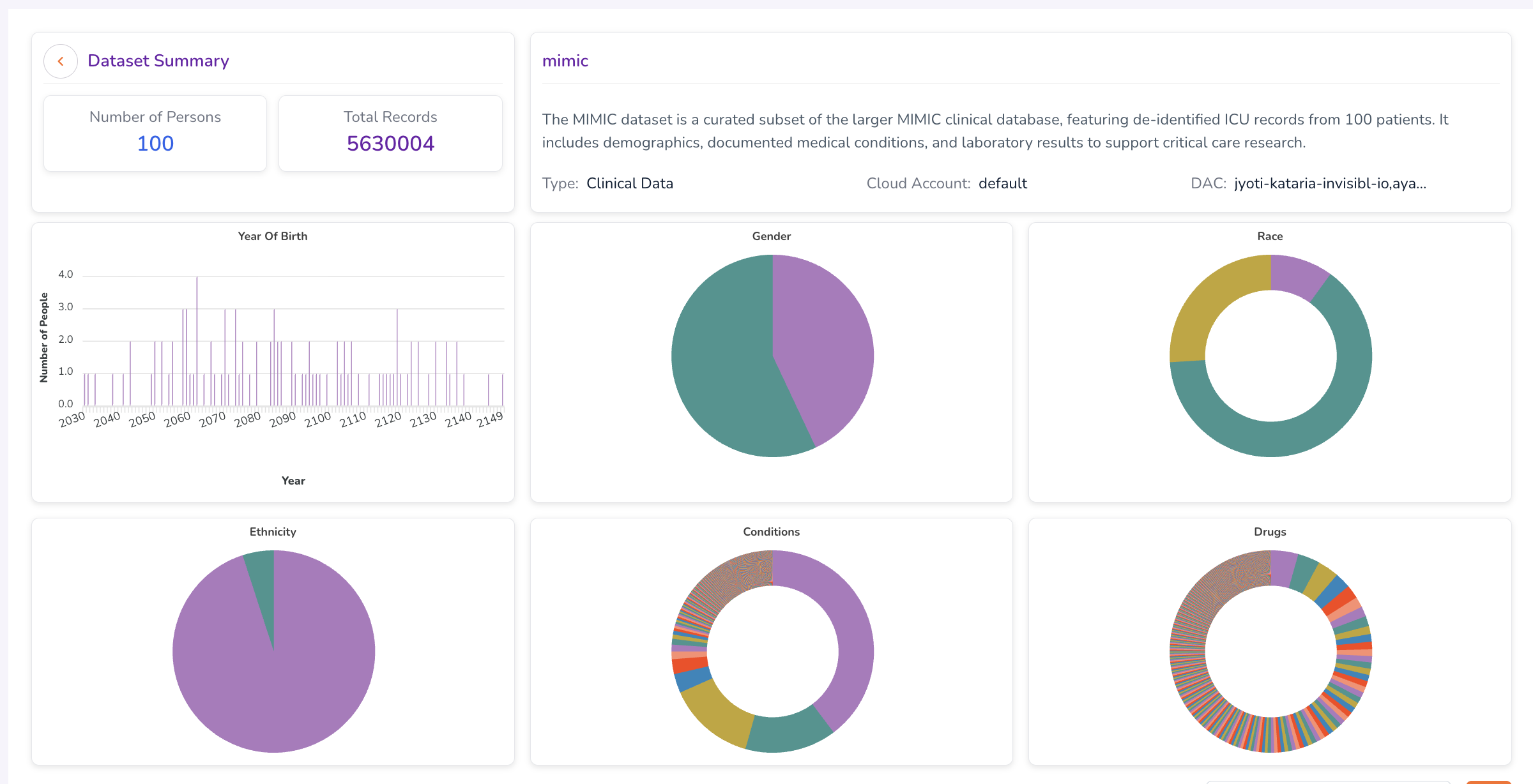
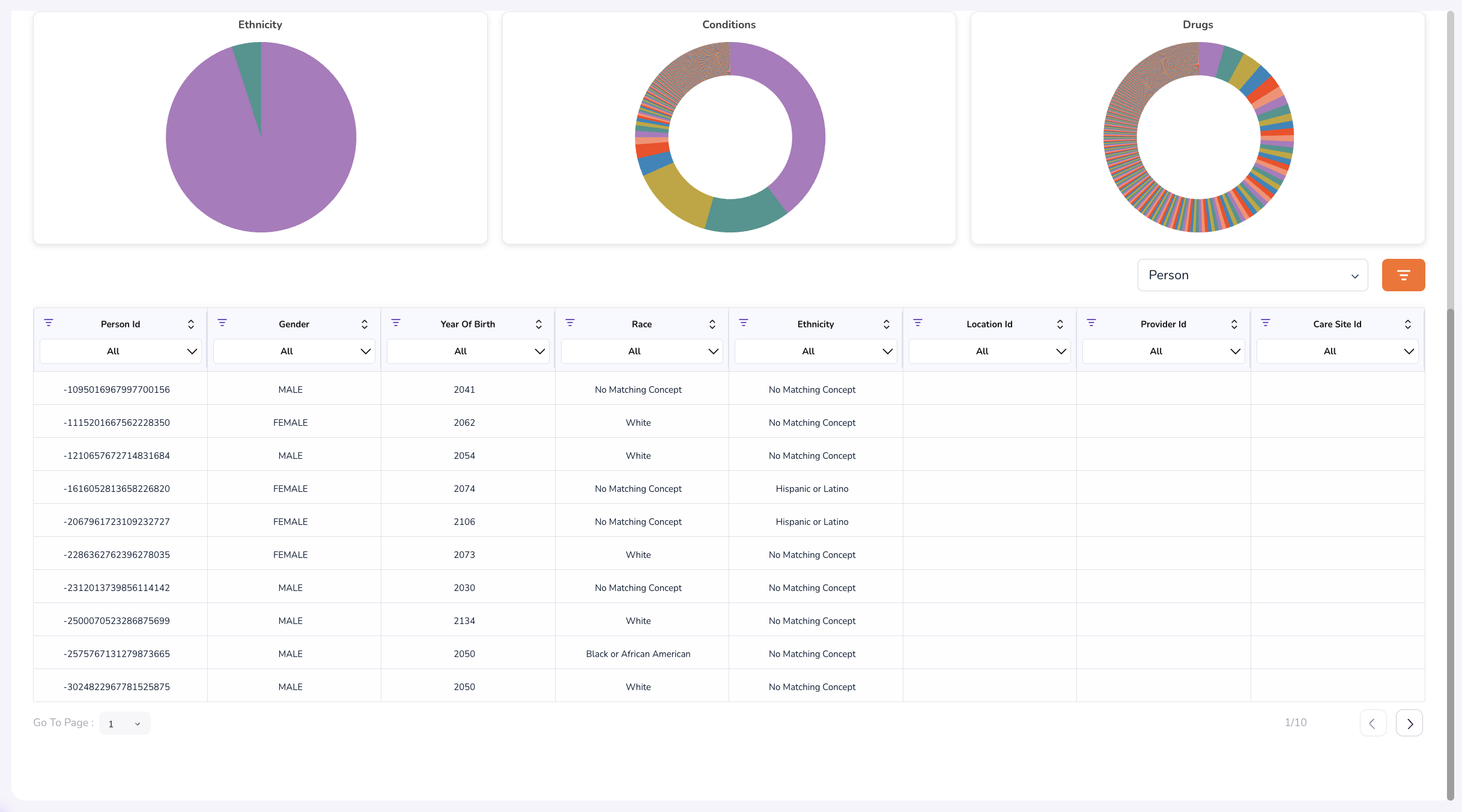
You can view and review your dataset's attributes by clicking on the published dataset in the dashboard. This opens the Dataset Summary dashboard, which displays data visualisations capturing demographics and aggregate statistics of the uploaded dataset — the same summary view researchers see when evaluating the dataset, plus access to the underlying record-level data (Person and Specimen tables) that remains hidden from researchers until the Data Access Committee approves their request.
Additional Notes for Datasets
- The Dataset dropdown remains disabled until a Cloud Account is successfully connected.
- At least one administrator must be assigned to the Data Access Committee — access requests cannot be processed without an assigned reviewer.
- Dataset tables (such as Person tables) are not visible to researchers before they're granted access by the Data Access Committee. Summary statistics and visualisations remain viewable so that researchers can create data subsets or cohorts that match their project requirements.
What's Next
- Workstation Templates — configure workstation templates that researchers can select and launch once they have data access.
- Managing Cohort Access — once a dataset is published, ds-admins and admins oversee the cohort and access requests built against it.