My Files CLI
The My Files CLI is a command-line tool for uploading and downloading large files and folders to and from My Files in the TRE. It is recommended for transfers where the standard browser-based upload may be impractical due to file size.
Audience: Bioinformaticians and researchers transferring large datasets.
When to use this: For large datasets, result folders, or batch outputs too large to transfer conveniently via the browser. For standard file management, see My Files.
Prerequisites
Before using the My Files CLI, download the binary for your operating system from the link provided by your platform administrator (Windows, Linux, and macOS builds are available).
Downloading Files and Folders
Use the following steps to download result files or folders from a completed pipeline run.
Step 1: Open the Runs Page
- Select Pipelines from the left navigation pane.
- Click the Runs tab.
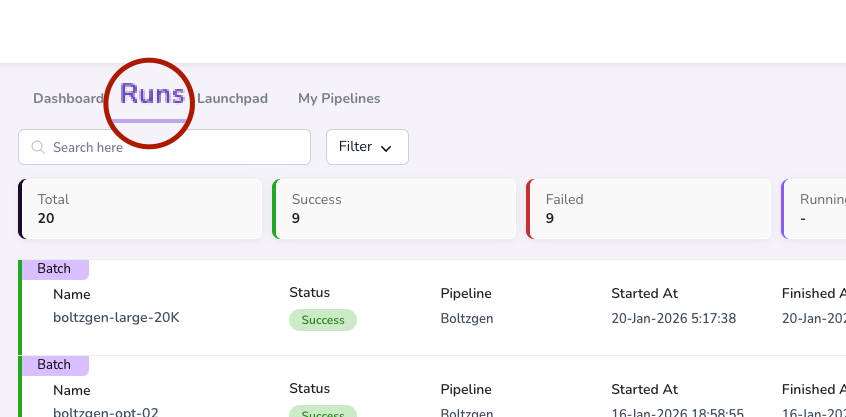
Step 2: Open the Results for Your Run
- Locate and click on the completed run you want to download results from.
- In the run details view, click the Results tab.
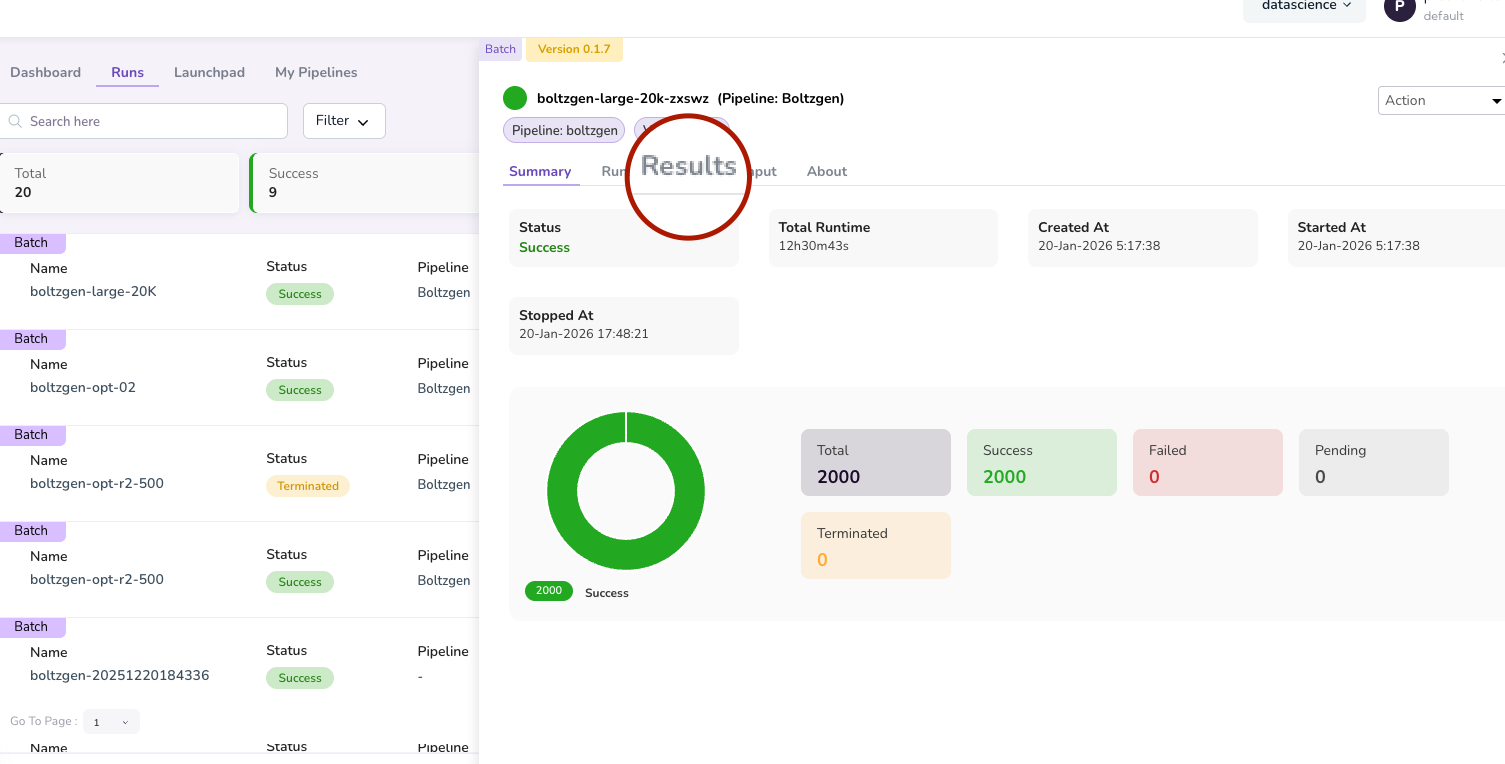
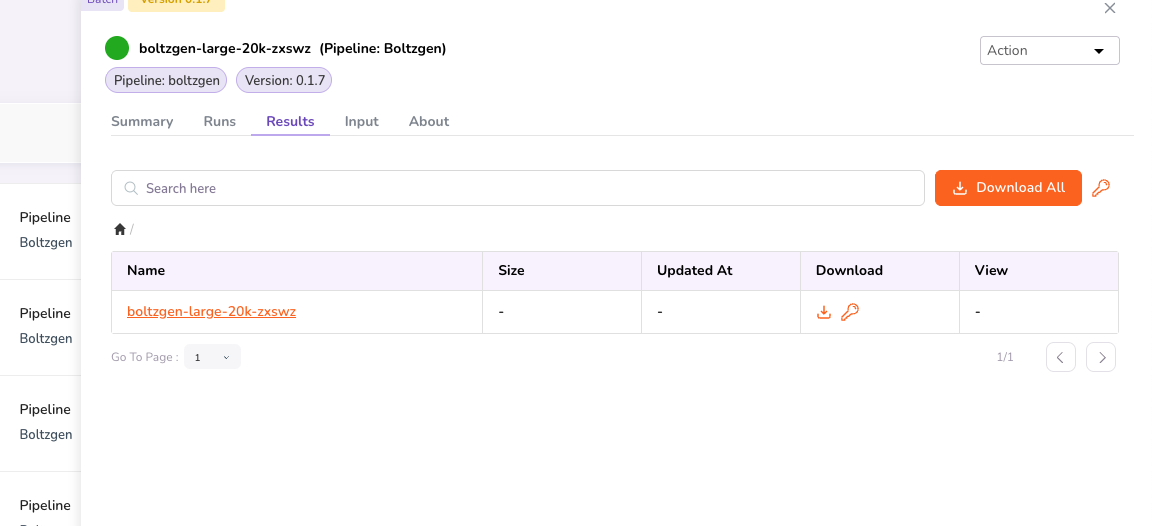
Step 3: Navigate to Your Results Folder
Click on the entry that matches your run name to open its results.
Note: The TRE runs jobs as batches. For example, a job of 10,000 designs may be split into sub-jobs of approximately 10 designs each for optimised processing. Results for all sub-jobs are aggregated into a folder called
merged_results. Click onmerged_resultsto access the consolidated output.
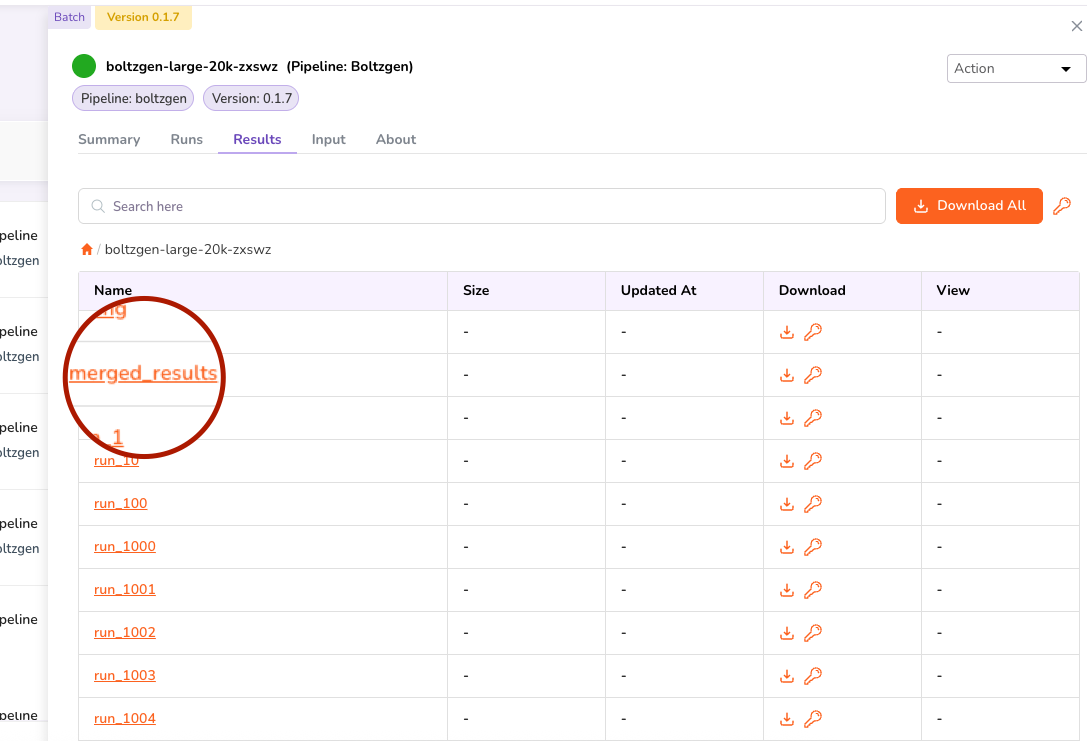
Step 4: Copy the CLI Auth Token for the Folder
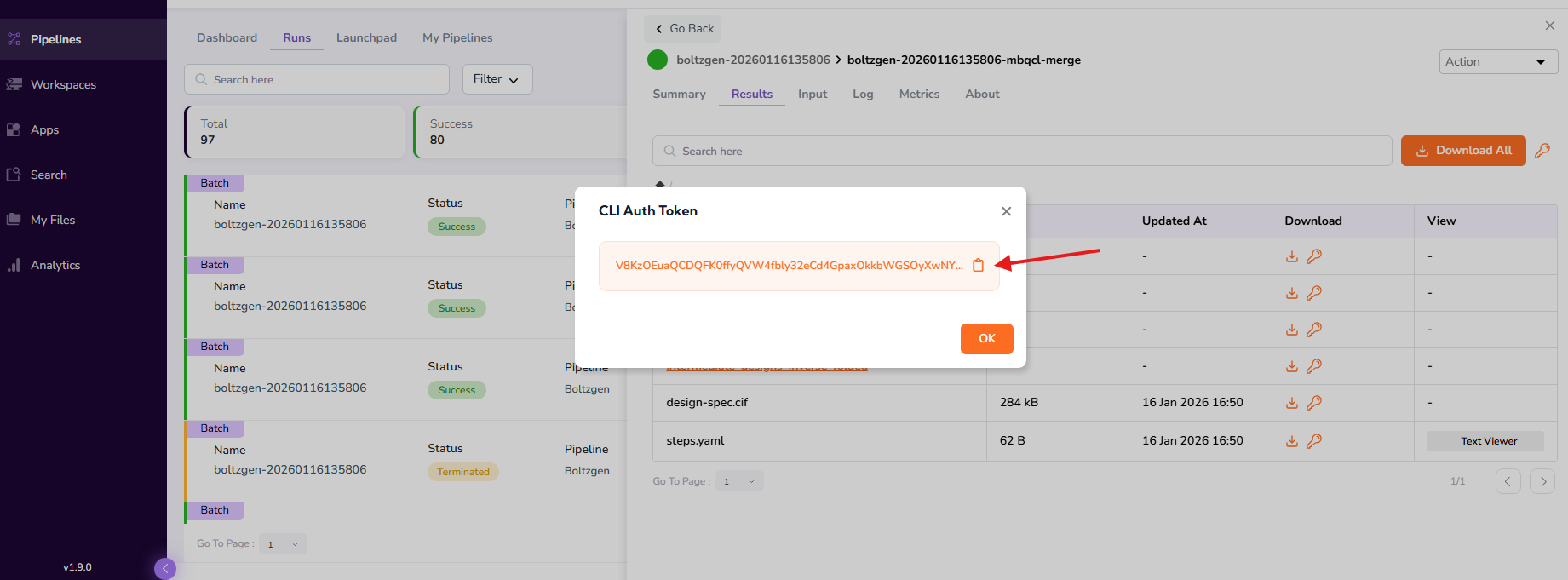
Navigate to the folder you want to download and copy its CLI Auth Token.
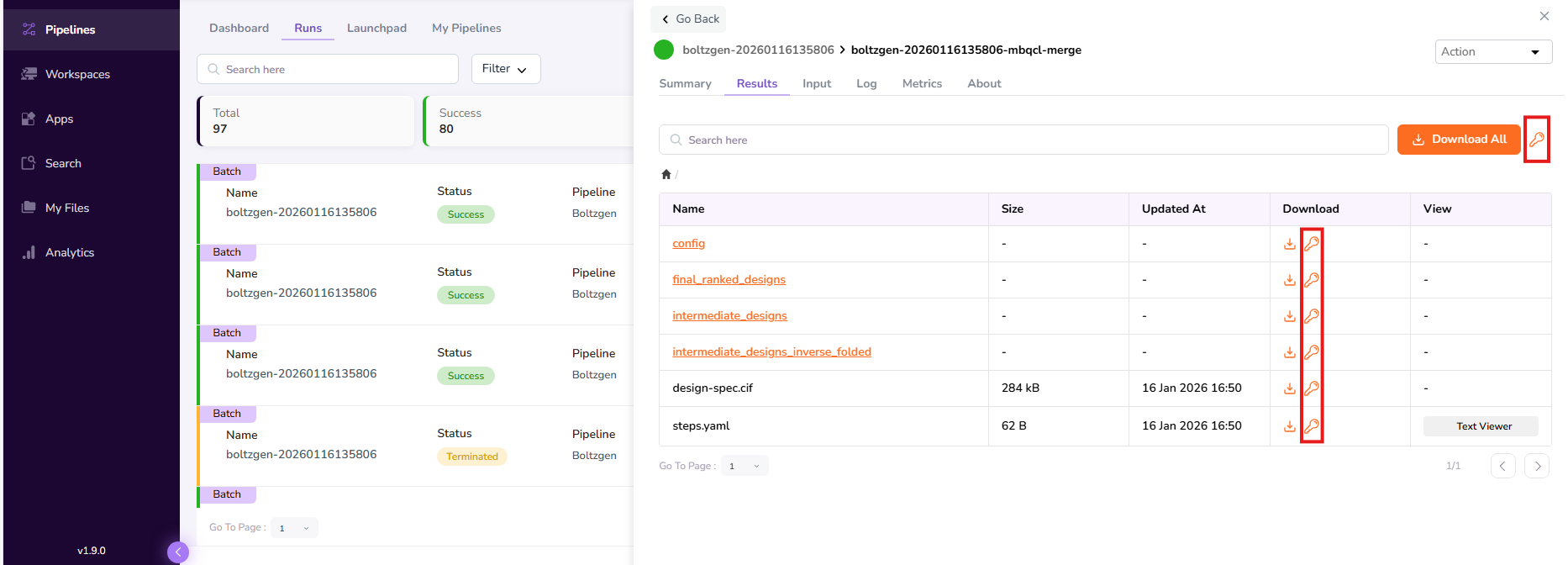
Tip: Paste the token into a text editor and save it temporarily — you'll need to paste it into the terminal in the steps below.
Step 5: Run the Download Command
In a terminal:
- Create a new directory for your downloaded files and navigate into it.
- Move the
myfiles-clibinary into that directory (Download the binary for your operating system from the link provided by your platform administrator). - Run the following command:
myfiles-cli download <local_directory>
To download into your current directory:
myfiles-cli download ./
When prompted, paste your CLI Auth Token from Step 4.
Uploading Files and Folders
Use the following steps to upload files or folders from your local machine or a remote location into My Files.
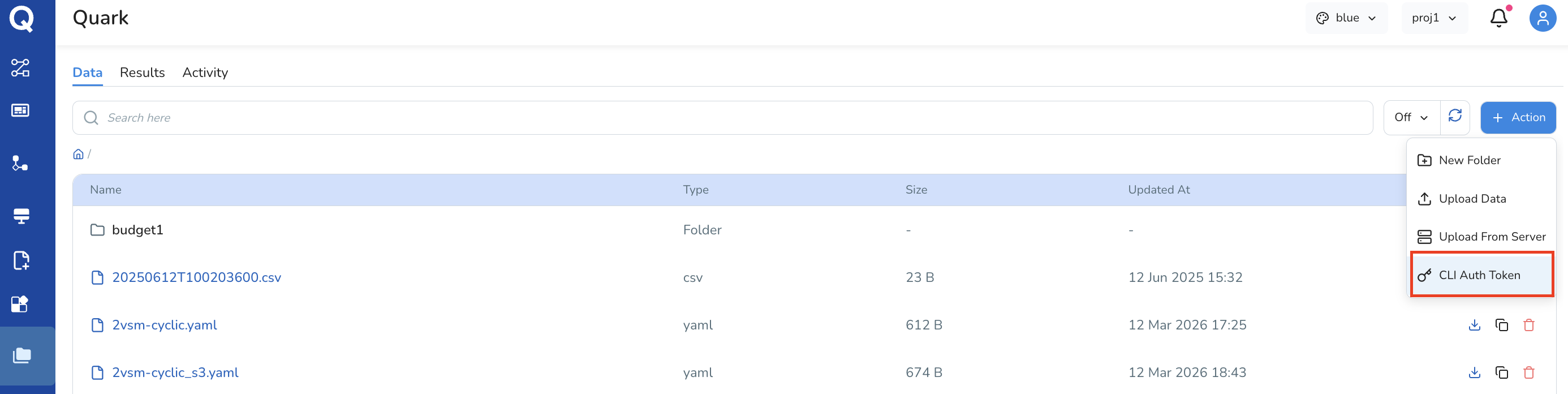
Step 1: Generate a CLI Auth Token for the Upload Location
- Navigate to the destination folder in My Files → Data.
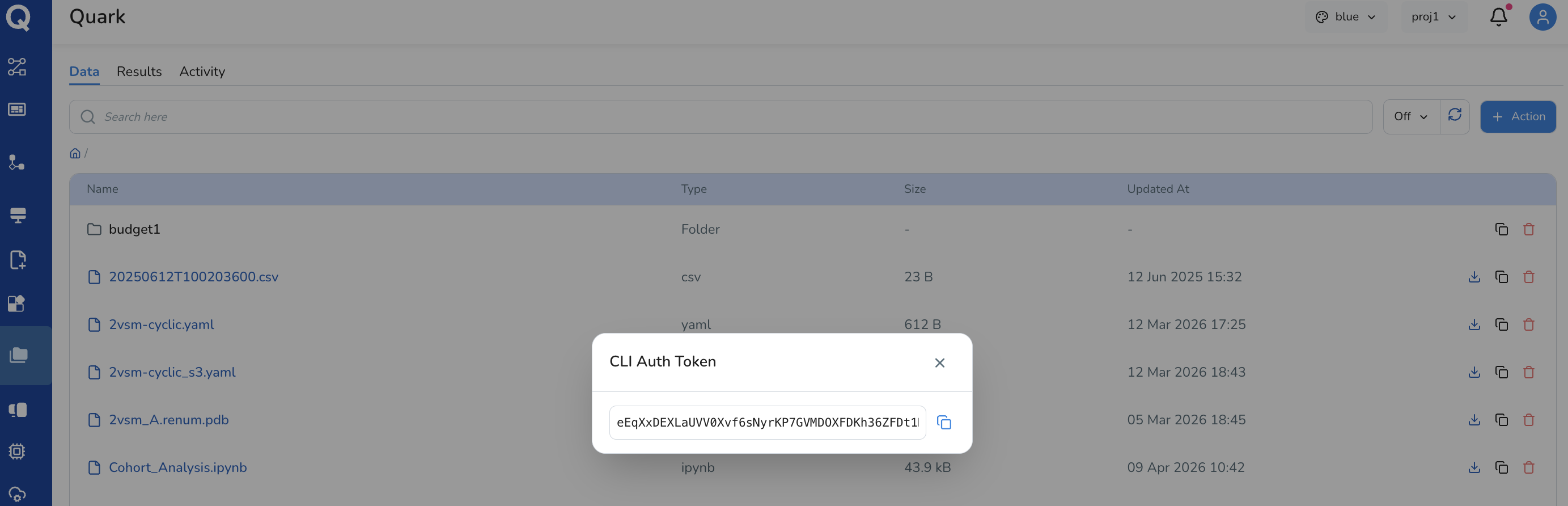
- Generate a CLI Auth Token for that location by clicking the Action button and selecting CLI Auth Token from the drop-down.
- Copy the token to your clipboard.
Step 2: Run the Upload Command
In a terminal, run the following command, replacing <local_file/directory> with the path to the file or folder you want to upload:
myfiles-cli upload <local_file/directory>
For example, to upload a folder called my-data:
myfiles-cli upload ./my-data
When prompted, paste your CLI Auth Token.
Command Reference
| Command | Description |
|---|---|
myfiles-cli download <local_directory> |
Download files from My Files into a local directory. |
myfiles-cli upload <local_file/directory> |
Upload a local file or folder into My Files. |
What's Next
- My Files — standard browser-based file upload, download, and the Activity log.