My Requests
Overview
My Requests provides a consolidated view of all your resource and access requests in the TRE — from initial submission through to an administrator's final decision. Use it to track pending requests, follow up on items awaiting review, withdraw requests you no longer need, and look back at past decisions.
The section is organised into two tabs: My Requests (your open, in-progress requests) and Archive (your resolved request history).
Navigation: Select My Requests from the left-hand navigation pane.
Types of Requests Tracked
My Requests consolidates requests submitted from across the platform. The Type column on each tab reflects the kind of resource being requested:
| Type | Description | Submitted From |
|---|---|---|
| Cohort | A request to access a cohort built from a sensitive dataset. | Datasets → Cohorts |
| Download | A request to download a file or data extract — for example, an output file from a workstation's Results tab. | Workstations → Results tab |
| Upload | A request to upload a file to a workstation, including vulnerability scanning and admin approval. | Workstations → Data tab |
| Create | A request to provision a new resource, such as a workstation. | Workstations |
Additional ad-hoc requests — for example, extra compute, storage, or tool access not covered above — can be submitted from their respective locations within the workstation or pipeline.
My Requests Tab
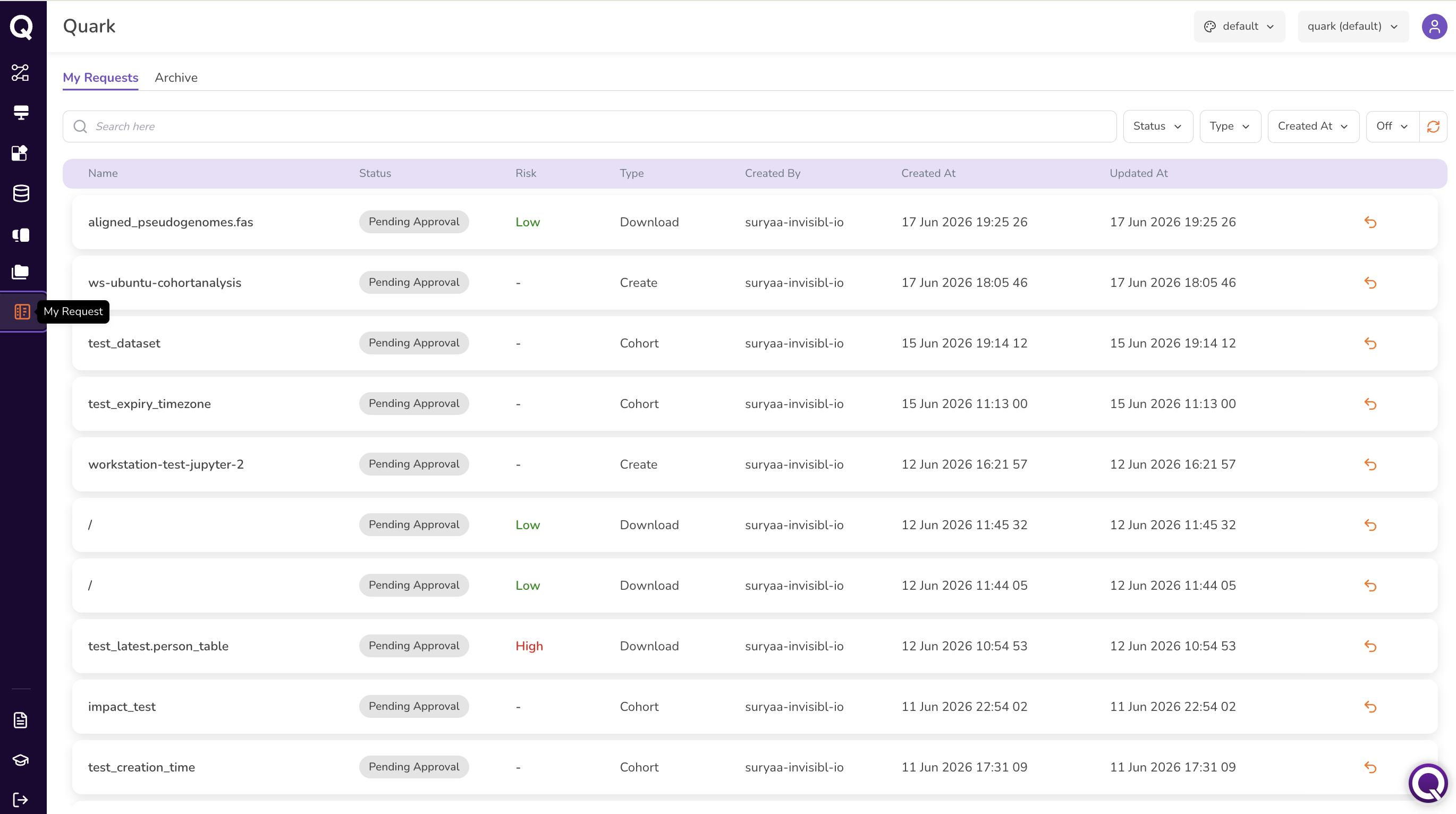
The My Requests tab shows all of your open requests that are currently pending review.
Filtering and Searching Requests
Use the search toolbar to narrow the list of requests:
- Search bar — search for a request by name.
- Status — filter by status, e.g., Pending Approval.
- Type — filter by request type.
- Created At — filter by creation date.
Click the refresh icon to check for status updates from your administrator.
Viewing Request Status
Each row in the table shows:
| Column | Description |
|---|---|
| Name | The name or description of the request — e.g., the cohort or file name. |
| Status | The current state of the request (see Request Statuses below). |
| Risk | An assessed risk level for the request, where applicable. Displays - if not assessed. |
| Type | The category of request — Cohort, Download, Upload, or Create. |
| Created By | Your username. |
| Created At | When the request was submitted. |
| Updated At | When the request was most recently updated. |
Once a request is approved, it moves to the Archive tab, where you can find a link or reference to the resource that was granted — for example, an approved cohort request can be reviewed in Datasets → Cohorts.
Request Statuses
| Status | Description |
|---|---|
| Pending Approval | The request has been submitted and is awaiting review by your administrator. |
| Approved | The request has been reviewed and approved. |
| Rejected | The request has been declined. |
| Request Withdrawn | You withdrew the request before a decision was made. |
Withdrawing a Request
If you no longer need a pending request — for example, you submitted it by mistake or your requirements have changed — you can withdraw it directly from the My Requests tab.
- Locate the request in the My Requests tab.
-
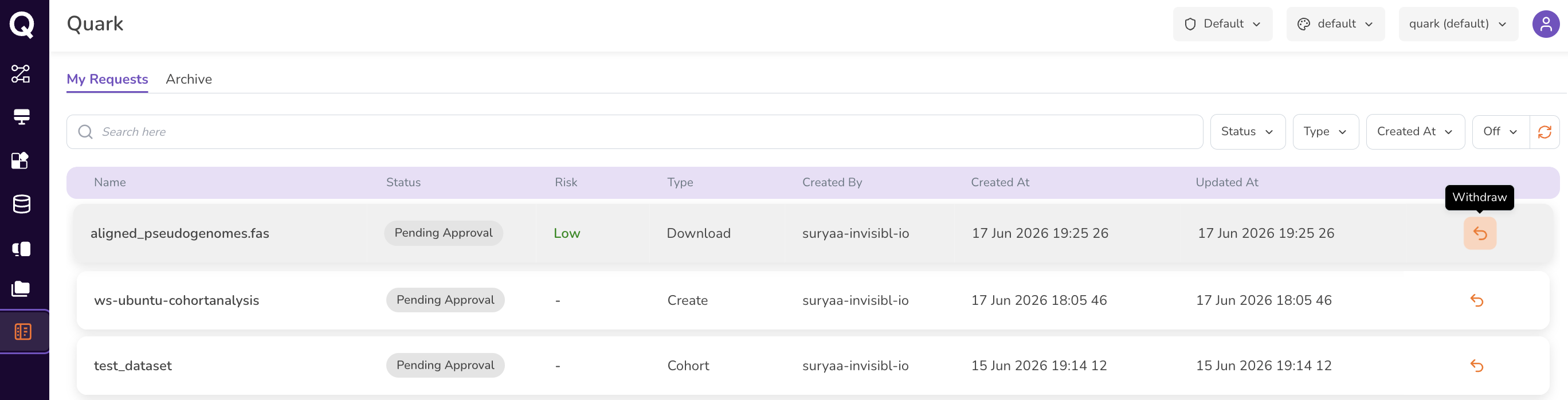
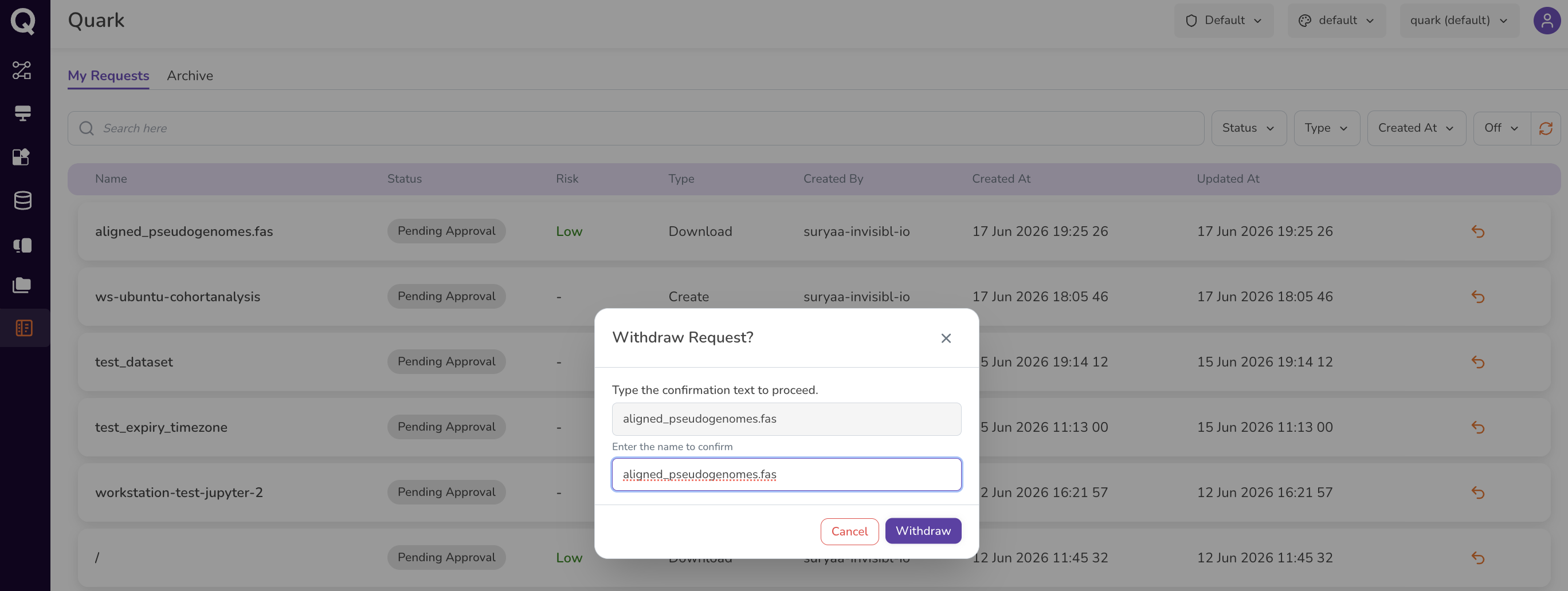
Click the Withdraw icon (circular arrow) at the end of the row. Fill the prompt to confirm your request.
-
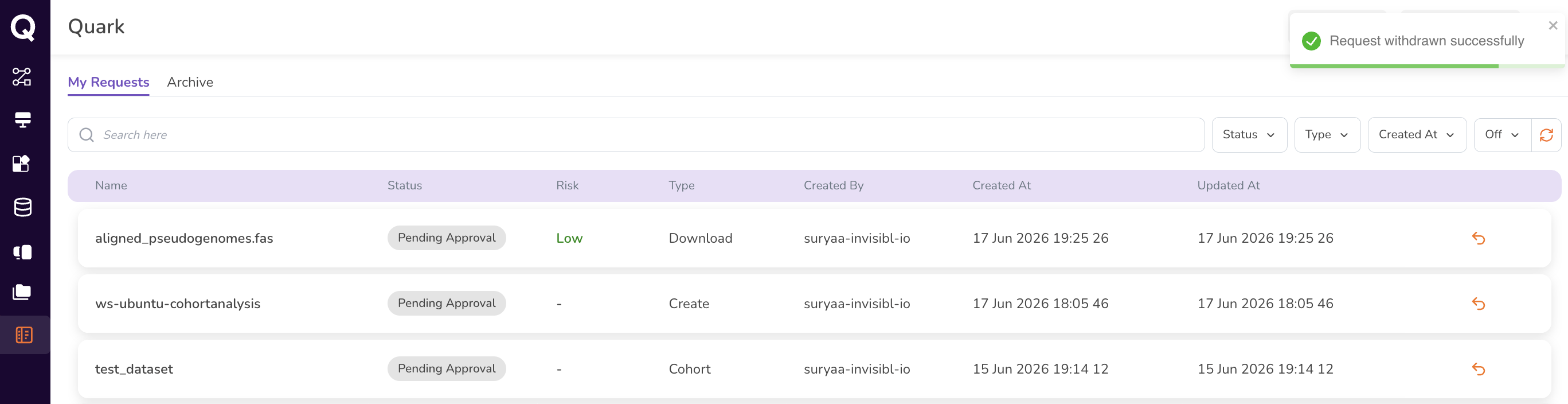
A notification will appear on the top right of the screen, confirming that your request has been withdrawn.
-
The request is removed from your active queue and moves to the Archive tab with a status of Request Withdrawn.
Note: Withdrawal is only available for requests that are still Pending Approval. Once a request has been approved or rejected, it can no longer be withdrawn.
Archive Tab
The Archive tab holds all of your resolved requests — approved, rejected, or withdrawn — for reference. The columns match the My Requests tab, with Status showing the final outcome: Approved, Denied, or Request Withdrawn.
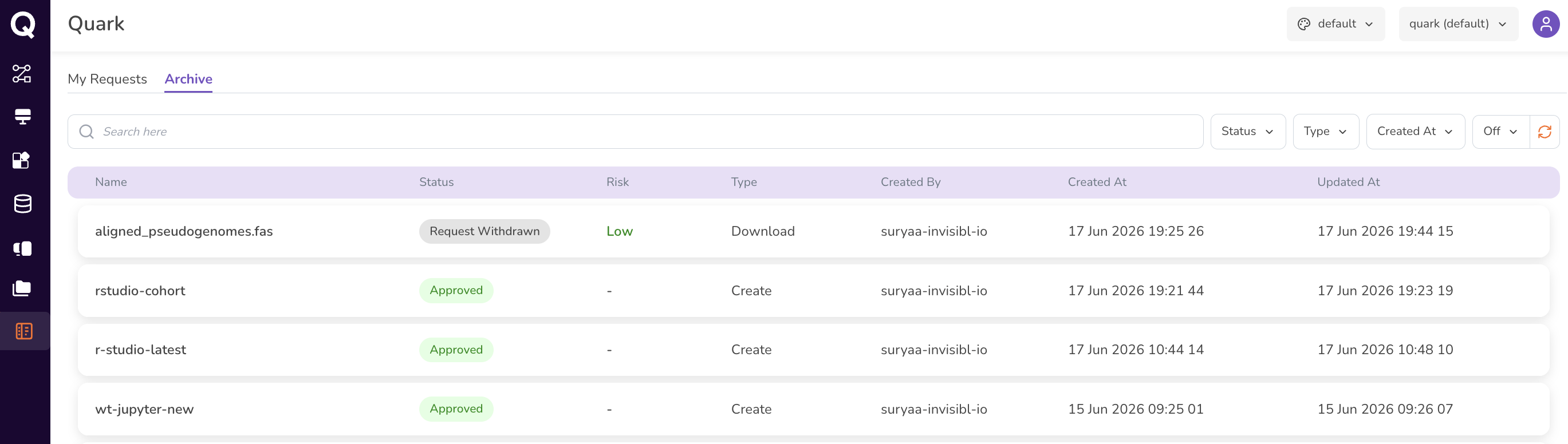
Use the search bar and Created At filter to locate a specific past request by name or date.
What's Next
- Workstation Overview — submit workstation provisioning, file upload, and file download requests.
- Requesting Data Access — submit cohort access requests from the Cohorts tab.