Cost
Overview
The Cost section gives the DS Administrator a consolidated, real-time view of budget allocation and resource expenditure across the platform. This is a read-only monitoring surface — budgets are allocated upstream by the Administrator.
Navigation: Select Cost from the left-hand navigation pane.
The Cost Dashboard
When you open the Cost section, the dashboard displays:
| Field | Description |
|---|---|
| Total Budget Available | The overall budget allocated to the platform, as set by the Infrastructure Administrator. |
| Total Budget Used | The cumulative spend to date against the allocated budget. |
| Remaining Budget | What remains of the allocation after current consumption. |
| Allocation Date | The date on which the current budget was allocated. |
| Alert Thresholds | Spend thresholds at which notifications are triggered. These are configured by the Infrastructure Administrator — contact them if thresholds need adjustment. |
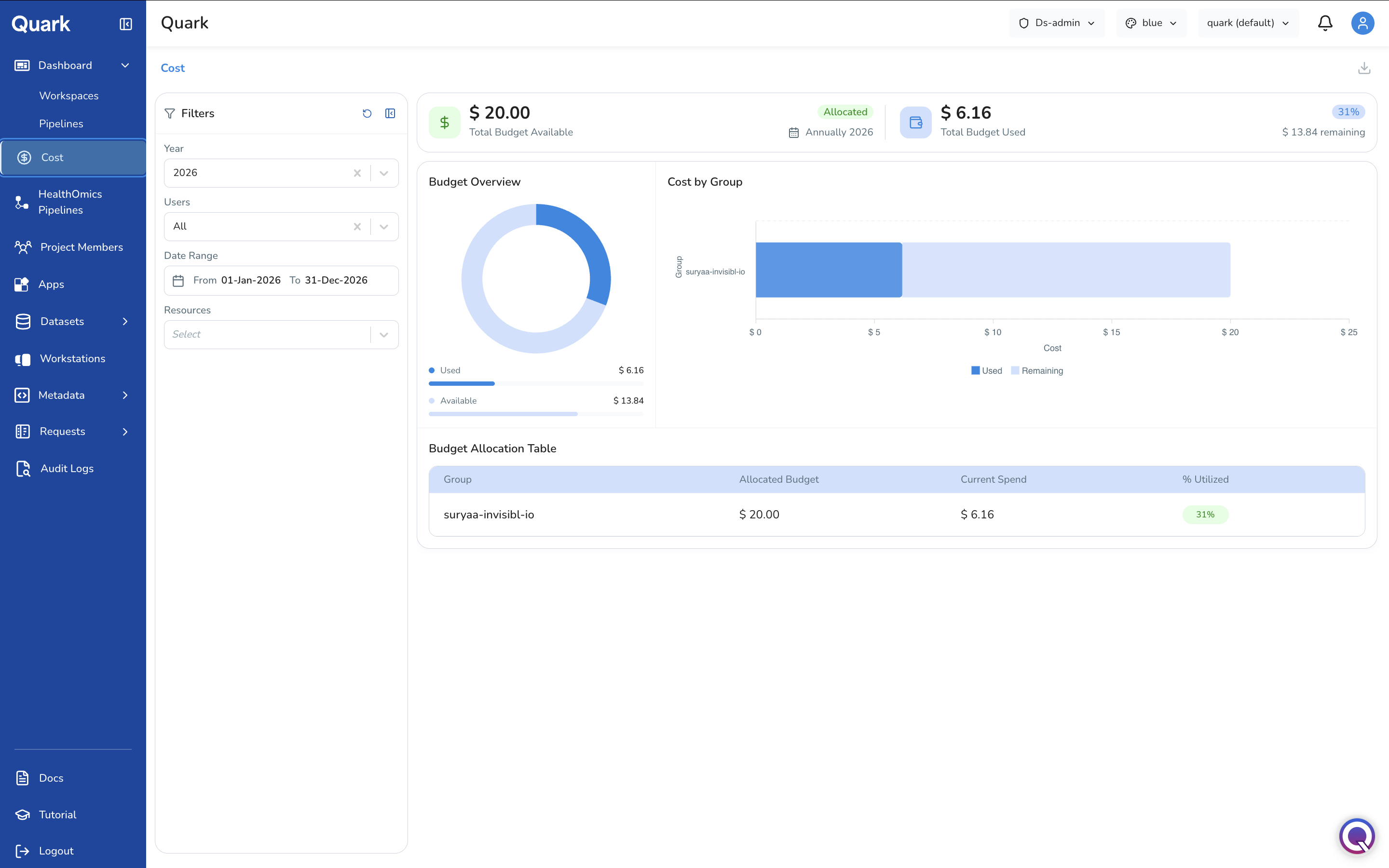
The left-hand filter panel lets you drill into expenditure at different levels of granularity, such as Team, Project, User, Date Range, and Resource Type. For example, use the resource type selector to break down costs by category:
- Pipelines — Compute costs from pipeline runs.
- Workstations — Costs from active and stopped workstation instances.
- Workspaces — Costs associated with JupyterLab and other workspace environments.
- Apps — Costs from running visualisation applications.
- All — A combined view of all resource types (default).
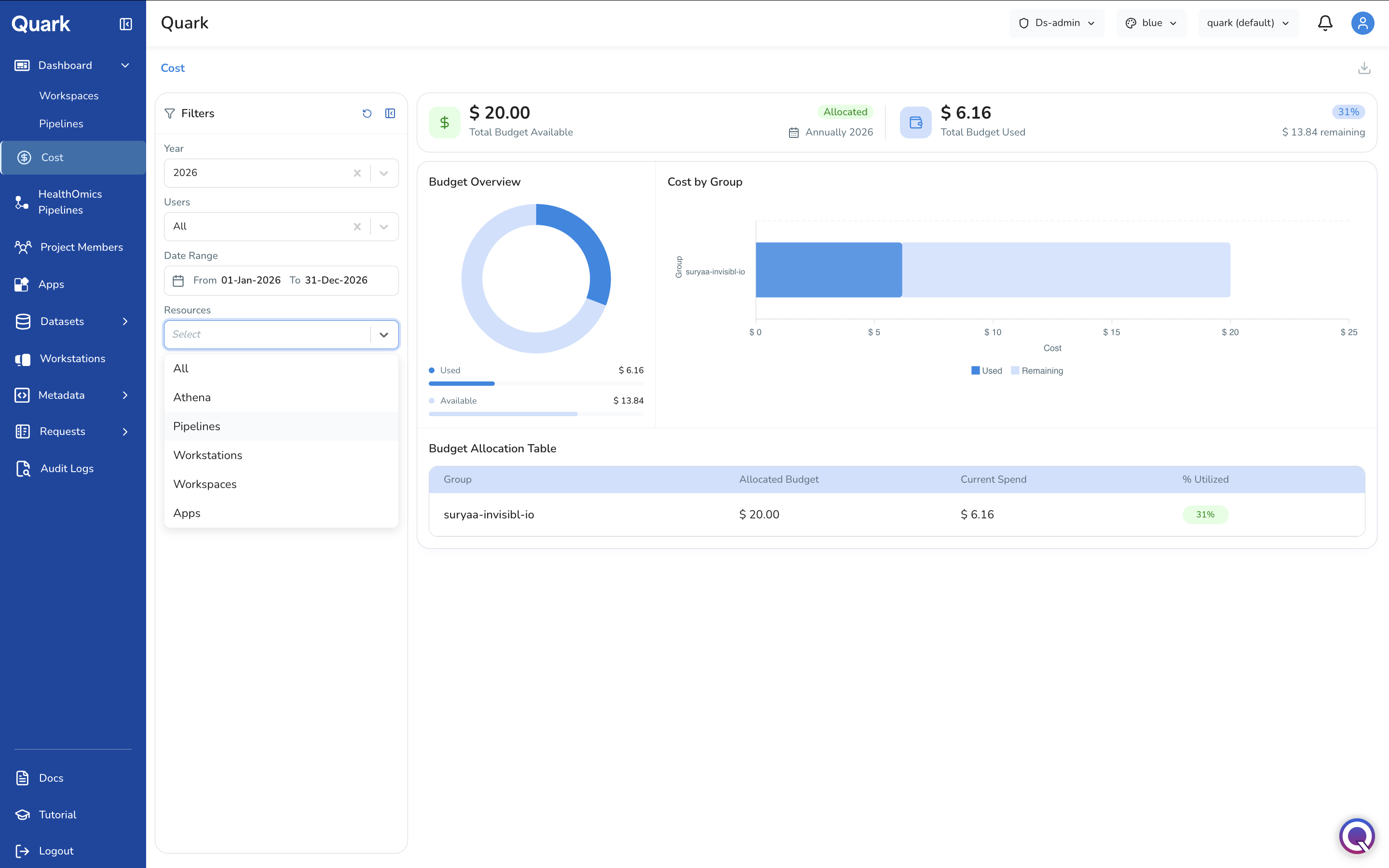
Selecting a specific resource type updates the budget overview, total used, and remaining figures to reflect only that category's consumption.
Reading Budget Against Spend
The Cost dashboard presents budget figures alongside actual spend, allowing you to assess how much headroom remains at any given level.
Important: Alert thresholds and hard stops when a budget is exhausted are configured by the Administrator.
What's Next
- Requests — If cost spikes correlate with unexpected resource requests, review and action them here.
- Audit Logs — Cross-reference anomalous spend patterns with specific user actions in the audit log.
- Workstations — Check for workstations that have been left running and are accruing unnecessary cost.