Reference Data
Overview
The Reference Data section is where the Infrastructure Administrator uploads and manages shared static files that pipelines across the platform can draw on — genome assemblies, model weights, annotation files, and any other dataset that needs to be centrally maintained and consistently versioned. Uploading reference data here makes it available to authorised projects without requiring individual users to manage their own copies.
Once uploaded, reference datasets also become visible in the Datasets → Catalog, where researchers can browse their contents and summary statistics.
Navigation: Select Reference Data from the left-hand navigation pane.
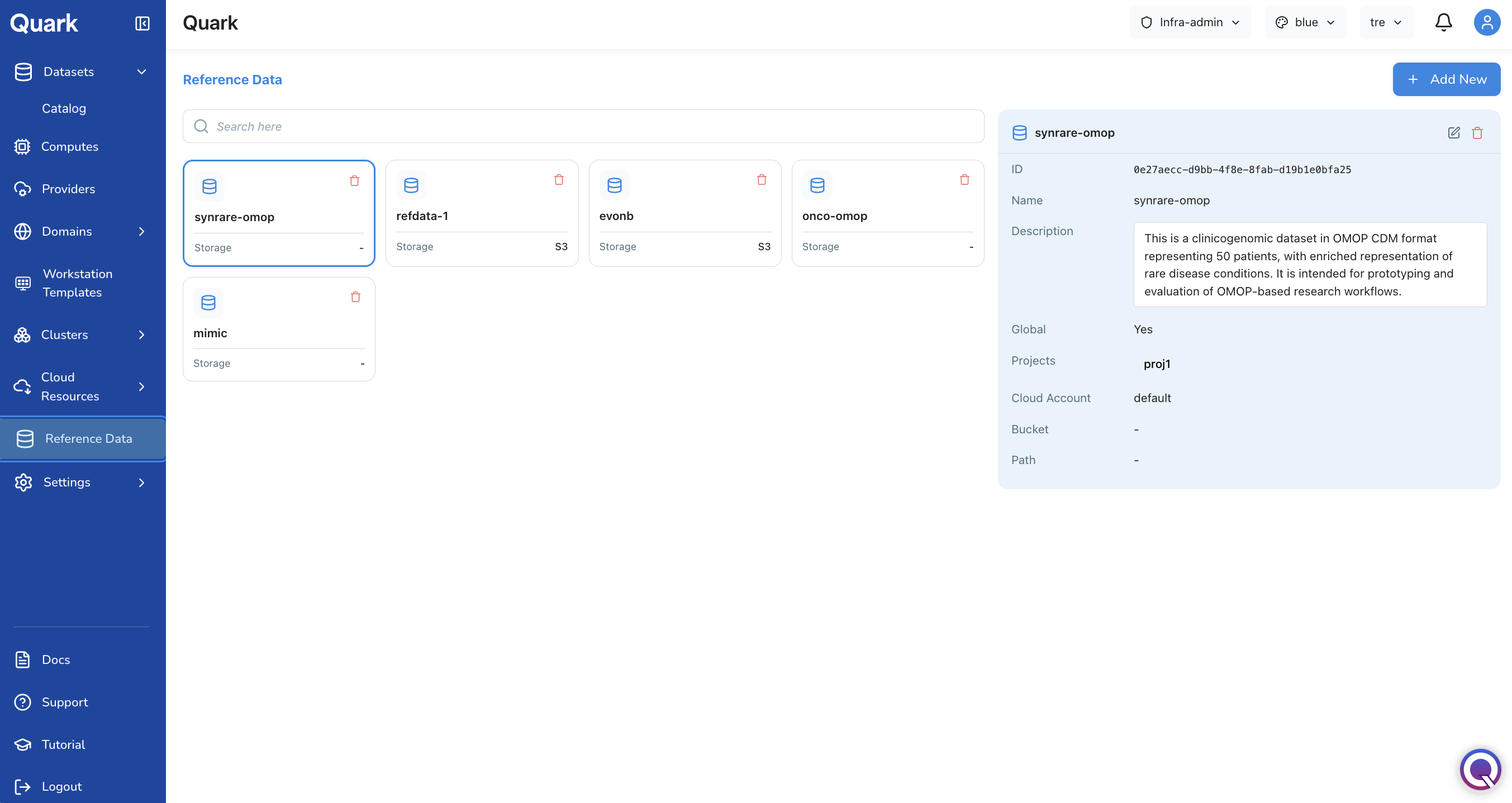
The Reference Data Screen
The Reference Data screen displays all datasets that have been uploaded to the platform as cards. Each card shows the dataset name, a brief description, and when it was last updated.
Click any card to open a flash card summary showing the dataset's upload details — source, cloud account, bucket, and the project it has been made available under.
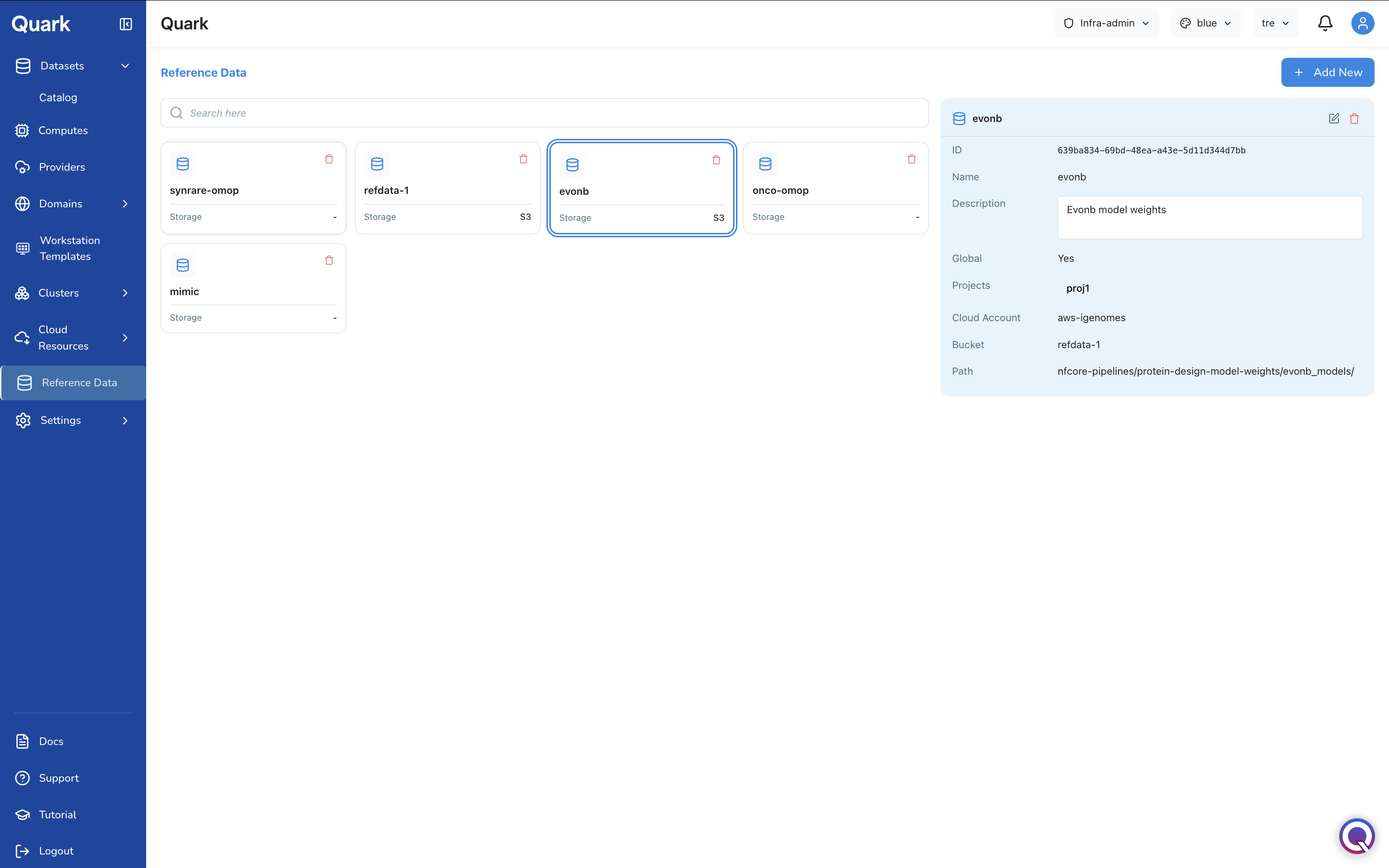
Adding New Reference Data
To upload a new reference dataset to the platform:
- Click + Add New in the top-right corner of the Reference Data screen.
- A source selection screen appears. Choose the cloud storage source from which you want to upload the reference data — for example, Amazon S3.
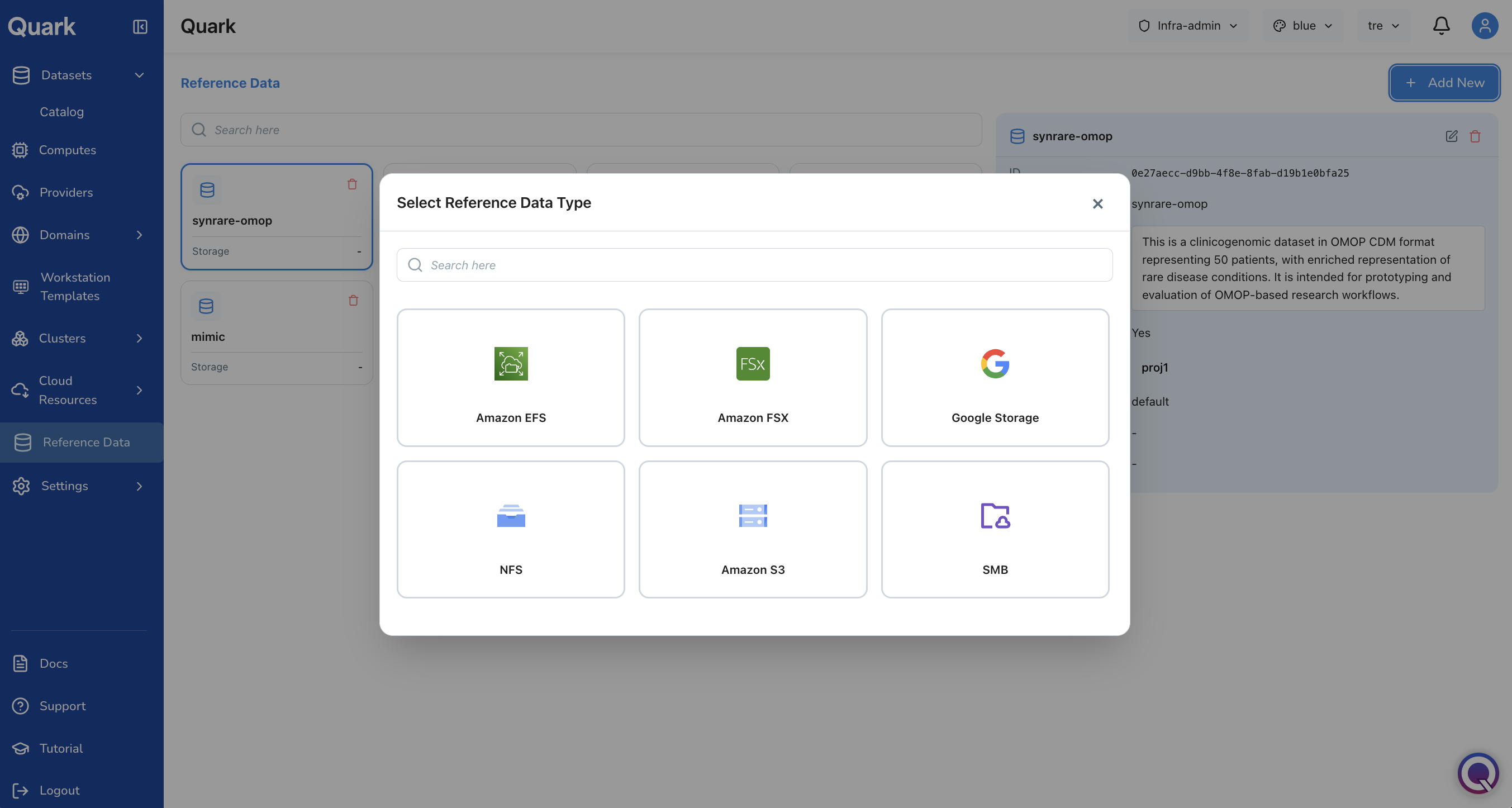
You will then be guided through two configuration steps before reviewing and creating the upload.
Step 1: General
Provide the identifying information for this reference dataset:
| Field | Description |
|---|---|
| Name | A clear, descriptive name for the reference dataset as it will appear in the catalog (e.g., EvoNb-Model-Weights-v2). |
| Description | A brief summary of what the dataset contains and what it is used for (e.g., EvoNb model weights for antibody sequence analysis). |
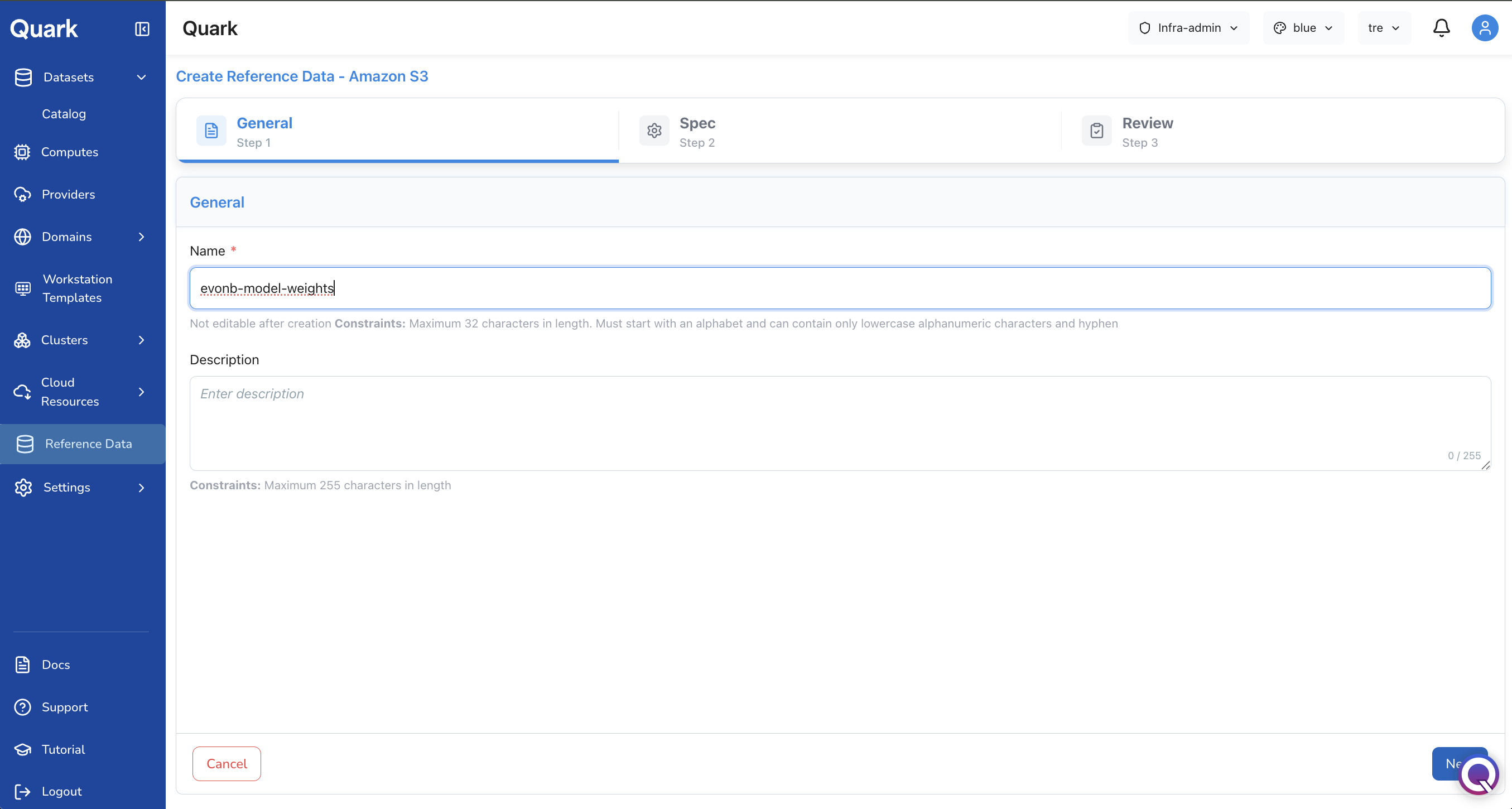
Tip: A precise name and description makes reference data easy to identify when researchers browse the catalog. Include the version or date in the name if this dataset will be updated over time.
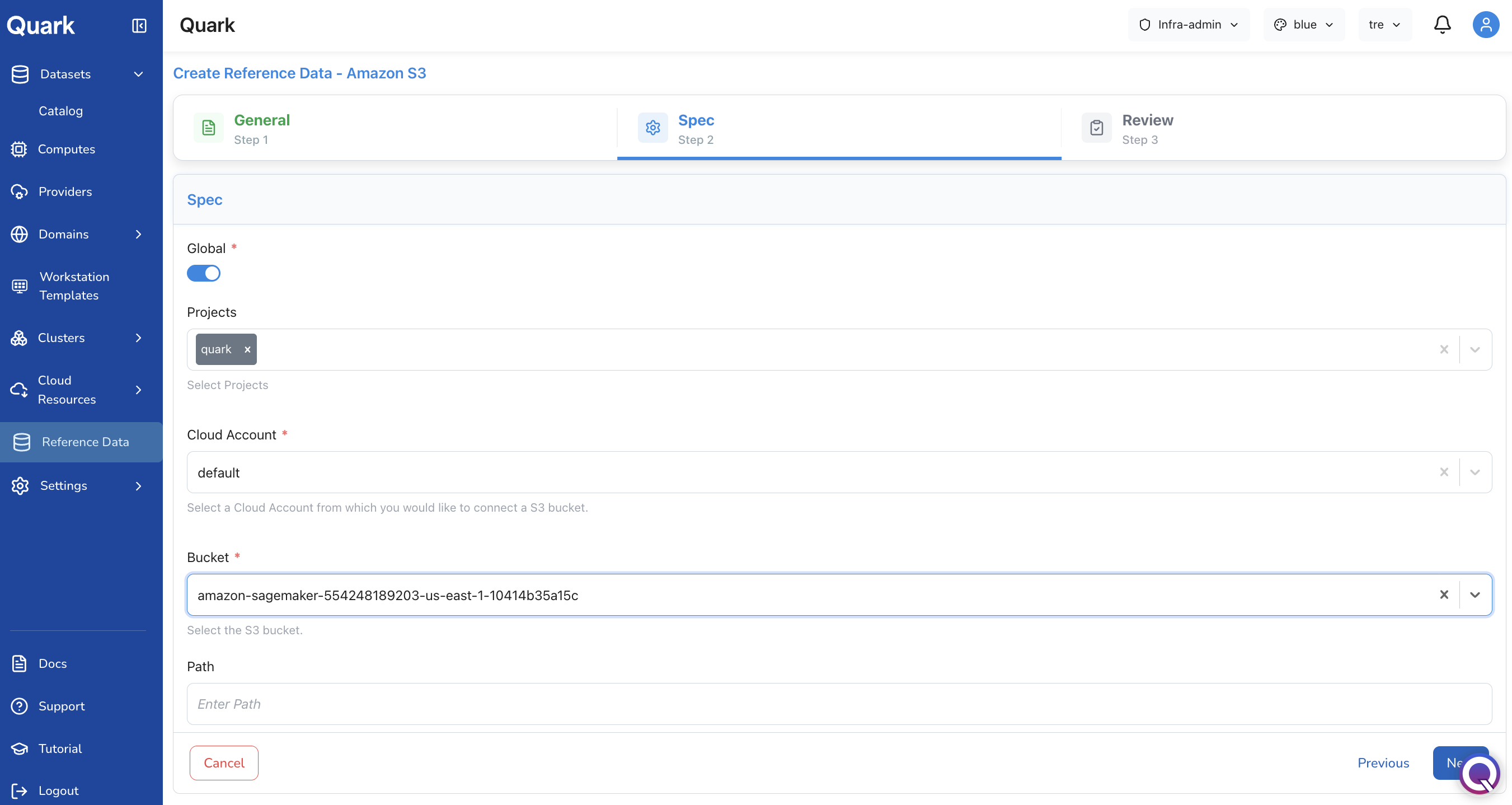
Step 2: Specs
Configure the source location and project scope for this dataset:
| Field | Description |
|---|---|
| Project | The project under which this reference dataset will be made available. Only users in the selected project will be able to access it. |
| Cloud Account | The connected cloud account that holds the source data. Defaults to default — your organisation's primary cloud account. |
| Bucket | The specific storage bucket within the selected cloud account where the reference data resides. This field is populated based on the cloud source selected in the previous step (e.g., an S3 bucket name for Amazon S3 uploads). |
| Path (optional) | A specific directory path within the bucket, if the reference data is located in a subdirectory rather than at the bucket root. |
Step 3: Review and Create
Review all configuration details before finalising the upload.
- Confirm the dataset name and description are correct.
- Verify the project, cloud account, and bucket are accurate.
- Click Create to upload the reference dataset to the platform.
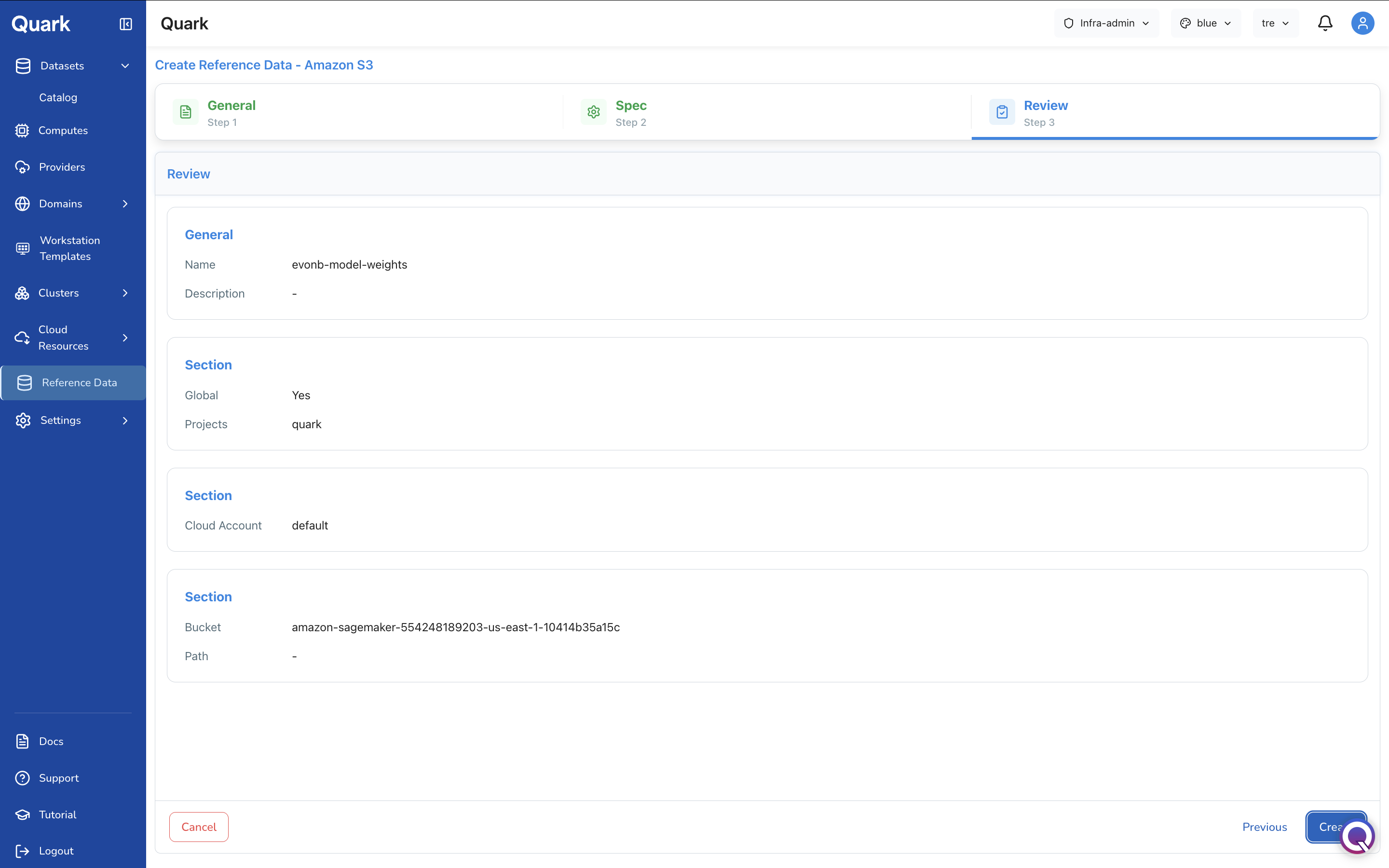
Once created, the dataset appears as a new card on the Reference Data screen and becomes accessible to users in the selected project.
Viewing Reference Data in the Catalog
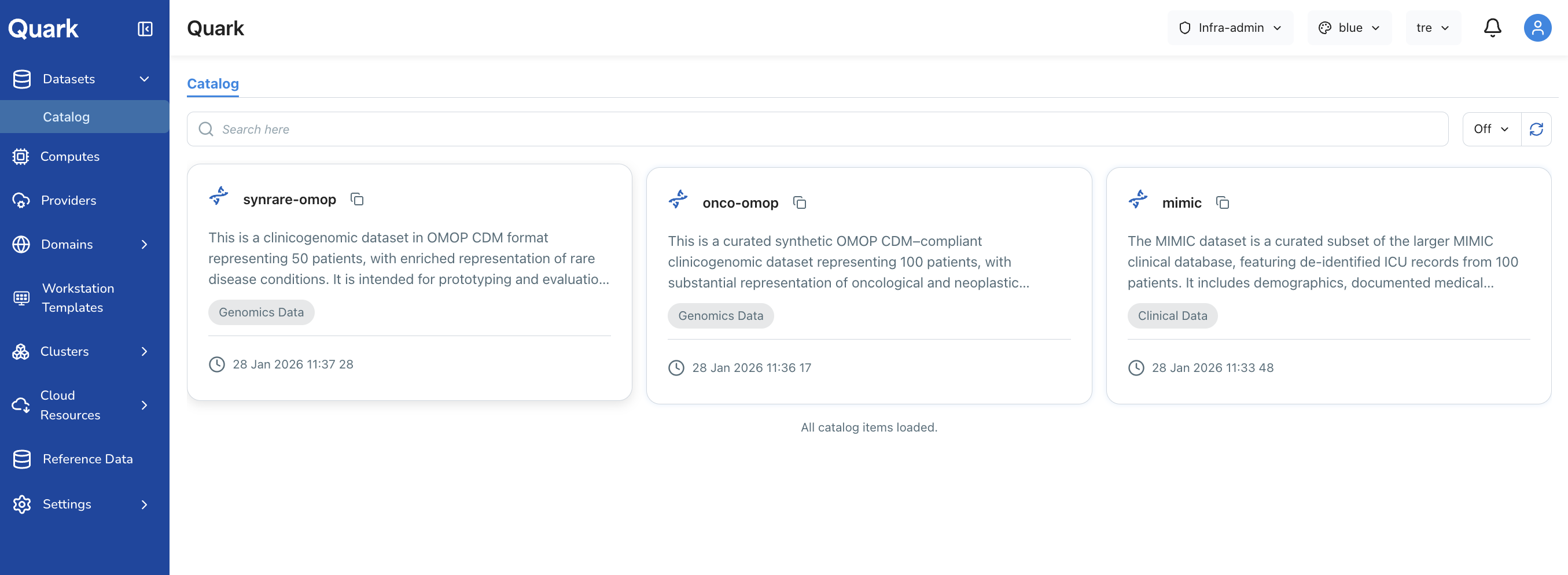
After uploading, the reference dataset is also discoverable in the Datasets → Catalog section. To navigate there:
- Select Datasets from the left-hand navigation pane.
- Click the Catalog tab.
- Use the project selector dropdown in the top-right corner of the screen to confirm which project's datasets you are viewing. Select the project you made the reference data available under.
Important: The person-level and specimen-level tables are visible to Infrastructure Administrators only. General users see the aggregate summary statistics on the dashboard, but the underlying record-level tables are hidden until they have received explicit approval. This ensures that sensitive patient and sample data is not exposed before appropriate access controls are in place.
What's Next
- Datasets — Browse all datasets published to the platform catalog to specific projects.
- Computes — Ensure the compute configurations that will run pipelines against this reference data are correctly provisioned.
- Workstation Templates — If researchers need direct workstation access to reference files, confirm the relevant templates have the appropriate storage paths configured.