Projects
Overview
The Projects section is where the Admin creates and manages the organisational units that structure all activity on the platform. Every pipeline run, workstation, dataset, and user access grant on Quark V3 exists within a project. Getting projects set up correctly — with the right name, team hierarchy, and configuration — is foundational to everything the DS Administrator and researchers will do downstream.
Navigation: Select Projects from the left-hand navigation pane.
The Projects List
When you open Projects, the dashboard displays all projects currently on the platform.
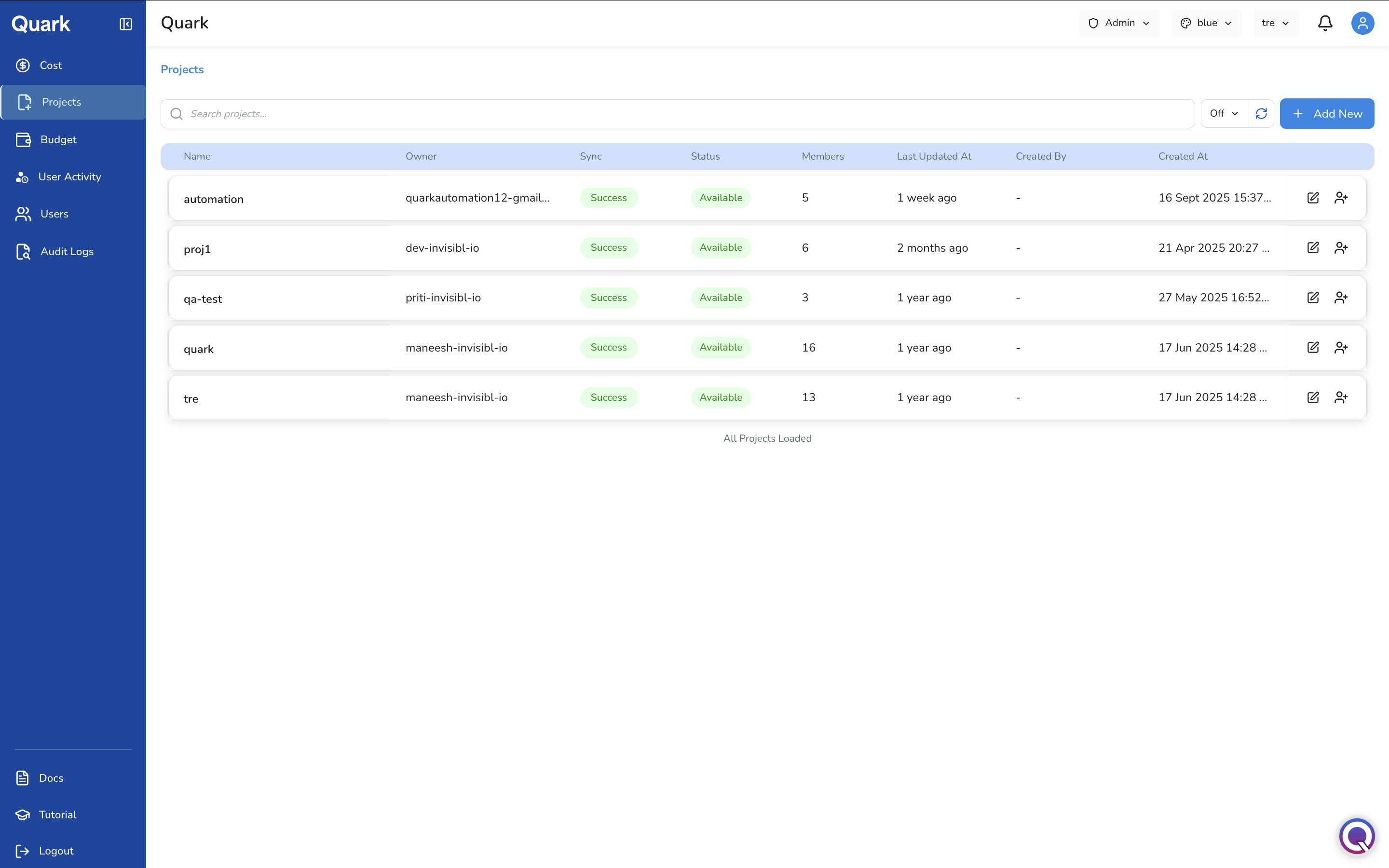
Each row in the list shows:
| Column | Description |
|---|---|
| Name | The project's unique identifier as set at creation. |
| Owner | The user account that owns the project. |
| Status | The current availability state of the project (e.g., Available). |
| Members | The number of users currently assigned to the project. |
| Last Updated At | When the project was most recently modified. |
| Created By | The user who created the project, if recorded. |
| Created At | The date and time the project was created. |
Search
Use the search bar at the top of the list to find a project by name. Results filter in real time as you type.
Row Actions
Each project row has two action icons on the right:
| Icon | Action |
|---|---|
| Edit (pencil) | Open the project's configuration and edit its details. Not all fields are editable after creation — see the Name field constraint in Step 1: General below. |
| Add Member (person+) | Add a user to the project directly from the list view without opening the full project configuration. |
Creating a New Project
To create a project:
- Click + Add New in the top-right corner of the Projects screen.
- Work through the four-step Create Project wizard: General, Organisation Hierarchy, Configuration, and Review.
Step 1: General
Provide the core identity information for the project.
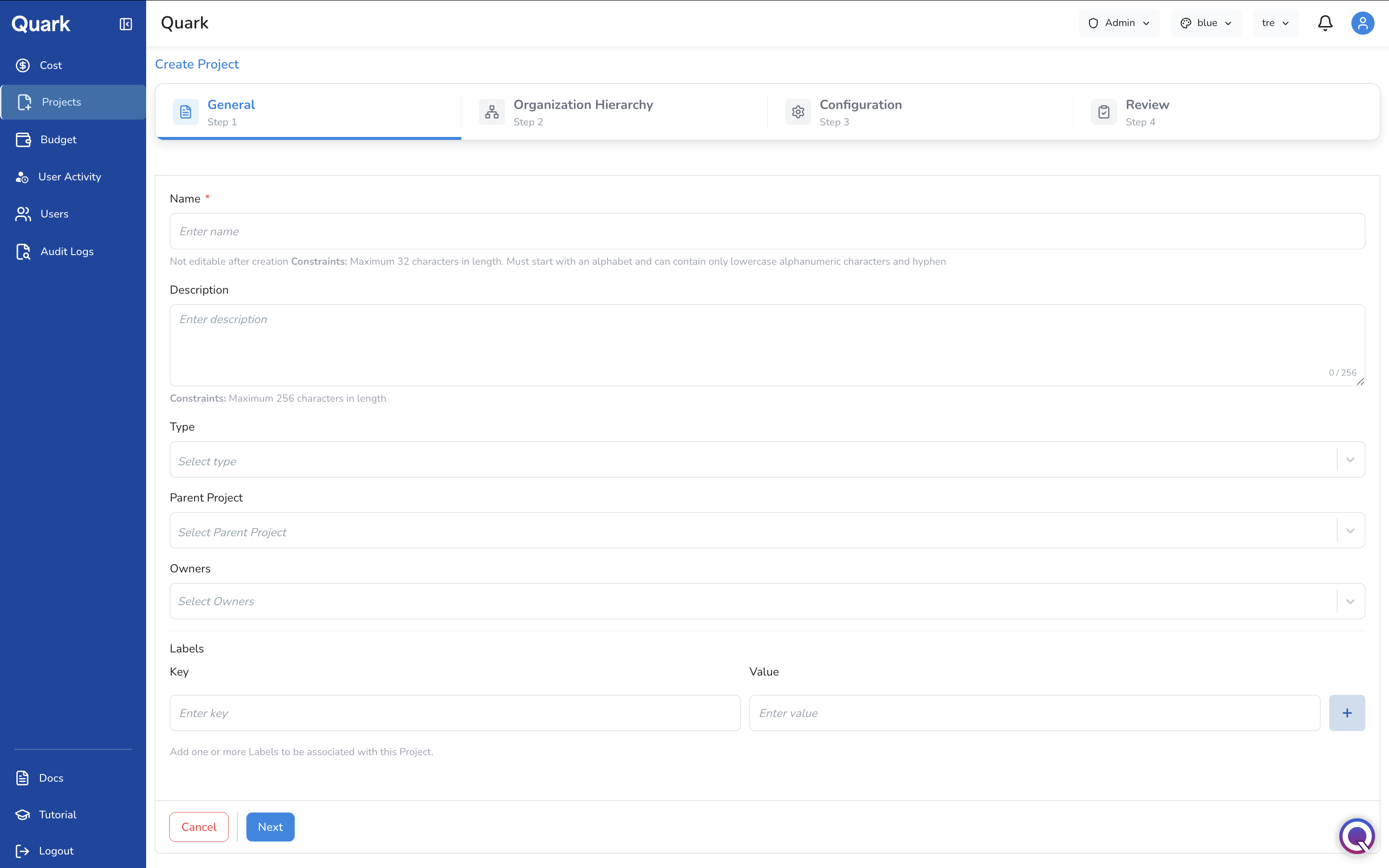
| Field | Description | Constraints |
|---|---|---|
| Name * | The unique identifier for the project as it will appear across the platform. | Maximum 32 characters. Must start with a letter. Lowercase alphanumeric characters and hyphens only. Not editable after creation. |
| Description | A plain-language summary of the project's purpose, scope, or team. | Maximum 256 characters. |
| Type | The category of project, used to organise and filter projects by their intended purpose. | Select from: All, Developer, DataScience. |
| Parent Project | If this project sits beneath another in a hierarchy, select the parent here. Leave blank for a top-level project. | Optional. |
| Owners | The user or users who will own and be responsible for this project. | Select one or more platform users. |
| Labels | Key-value metadata tags to associate with the project — useful for filtering, reporting, or integrating with external systems. | Add one or more key-value pairs using the + button. Optional. |
Important: The project Name cannot be changed after creation. Choose a clear, stable name that will remain meaningful as the project grows — for example,
genomics-cohort-2026rather thannew-project.
Click Next to proceed.
Step 2: Organisation Hierarchy
Assign the project to the correct position in your organisation's team structure. This determines how the project's costs and activity are attributed in the Cost and User Activity views.
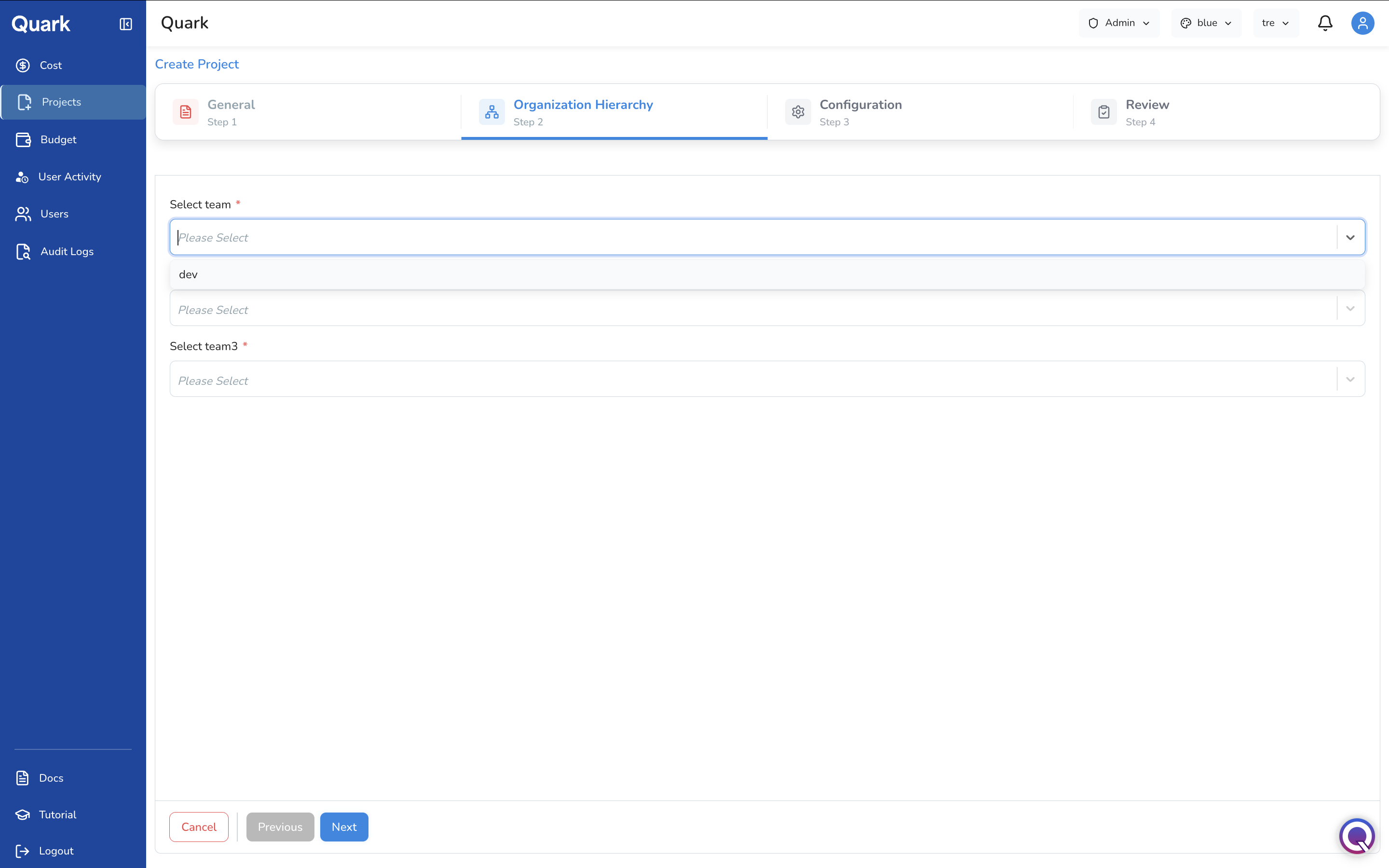
| Field | Description |
|---|---|
| Team * | The top-level team this project belongs to (e.g., a division or department). Required. |
| Team2 | The second-level team within the selected top-level team (e.g., a sub-department). |
| Team3 * | The third-level team, representing the most granular organisational unit. Required. |
The three levels mirror the team hierarchy used in the Cost filter panel — assigning a project correctly here ensures its spend appears under the right group in cost reporting.
Click Next to proceed.
Step 3: Configuration
Configure the networking, domain, and authentication settings for the project.
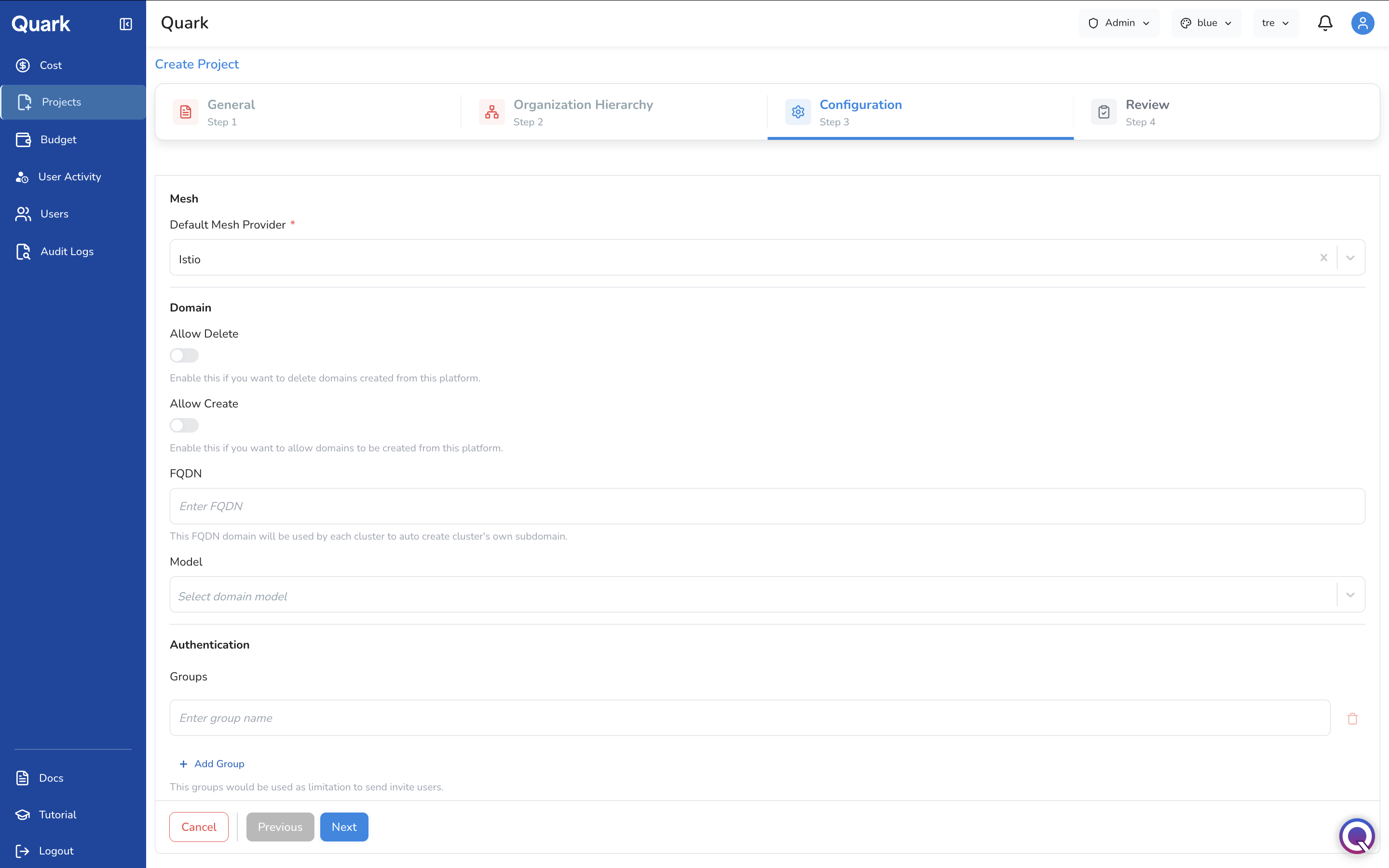
Mesh
| Field | Description |
|---|---|
| Default Mesh Provider * | The service mesh to use for this project's network traffic management. Defaults to Istio. Required. |
Domain
| Field | Description |
|---|---|
| Allow Delete | Toggle on to permit domains created within this project to be deleted from the platform. Disabled by default. |
| Allow Create | Toggle on to permit new domains to be created from within this project. Disabled by default. |
| FQDN * | The fully qualified domain name for this project. Each cluster in the project will use this FQDN to auto-create its own subdomain. Required. |
| Model | The domain model to apply to this project. Select from the available options in the dropdown. |
Authentication
| Field | Description |
|---|---|
| Groups | One or more authentication group names that will be used to restrict which users can be invited to this project. Click + Add Group to add additional groups. |
Note: Authentication groups act as an invitation filter — only users belonging to the specified groups will be eligible to receive project invitations. Leave this blank if you do not want to restrict invitations by group membership.
Click Next to proceed.
Step 4: Review
Review the full configuration summary before creating the project. Check that the name, team hierarchy, and configuration settings are correct — the project name cannot be changed after this point.
Click Create to finalise and publish the project. It will immediately appear in the Projects list and be available for DS Administrators to assign pipelines, workstations, and members to.
What's Next
- Budget — Once a project is created, allocate a budget to it so the DS Administrator and researchers can operate within a defined spend limit.
- Users — Invite users to the platform and assign them to projects.
- Cost — Monitor spend attributed to the project once activity begins.
- Audit Logs — All project creation and configuration changes are captured in the audit log.