Building a Cohort
Overview
A cohort defines a subset of a dataset that meets the specific phenotypic and/or genotypic criteria required by your research study. The Query Builder provides an interface for constructing cohort criteria without requiring knowledge of database query languages.
Once approved, cohorts serve a dual purpose: they provide access to de-identified, person-level data for analysis, and they can be passed directly as inputs to pipeline runs.
Navigation: Select Datasets from the left-hand navigation pane. The section opens on the Cohorts tab by default. To browse source datasets first, see Browsing the Catalog.
The Cohorts Tab
The Cohorts tab displays all cohorts you have saved or requested, each represented as a card.
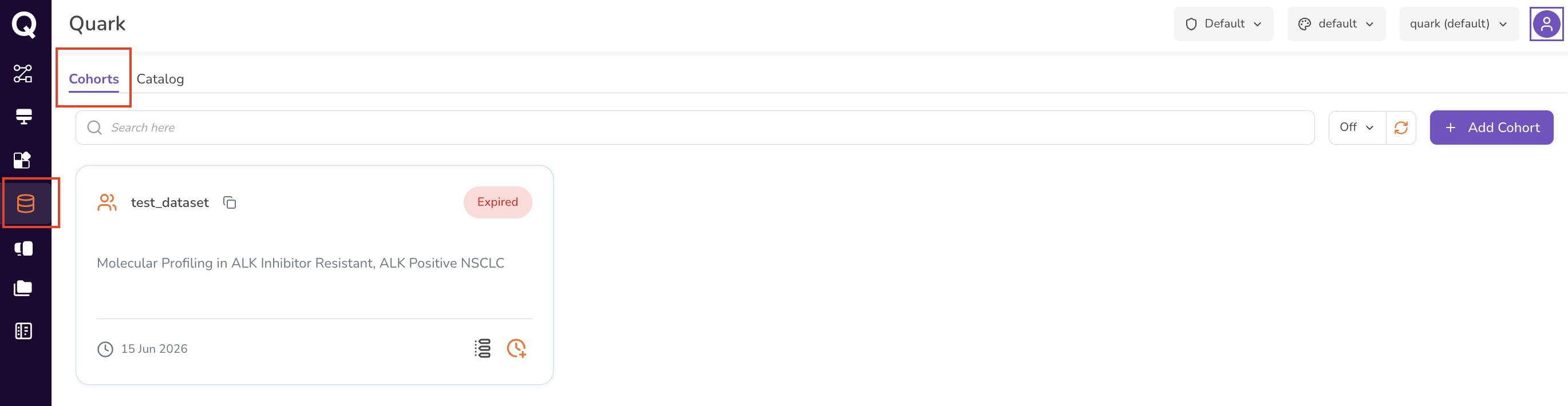
Click a card to view its composition, edit the definition, or use it as an input when launching a pipeline run. Use the search bar to find an existing cohort by name.
Cohort Building Workflow
| Step | Description |
|---|---|
| 1. Create a Cohort | Define your cohort's criteria using the Query Builder. |
| 2. Visualise the Cohort | Review aggregate statistics and visualisations. Refine criteria until the cohort meets your study requirements. |
| 3. Request Cohort Access | Submit an access request to your DS Administrator for review — see Requesting Data Access. |
Step 1: Creating a Cohort
Accessing the Query Builder
- Select Datasets from the navigation menu.
- Navigate to the Cohorts tab.
- Click Add Cohort in the top-right corner.
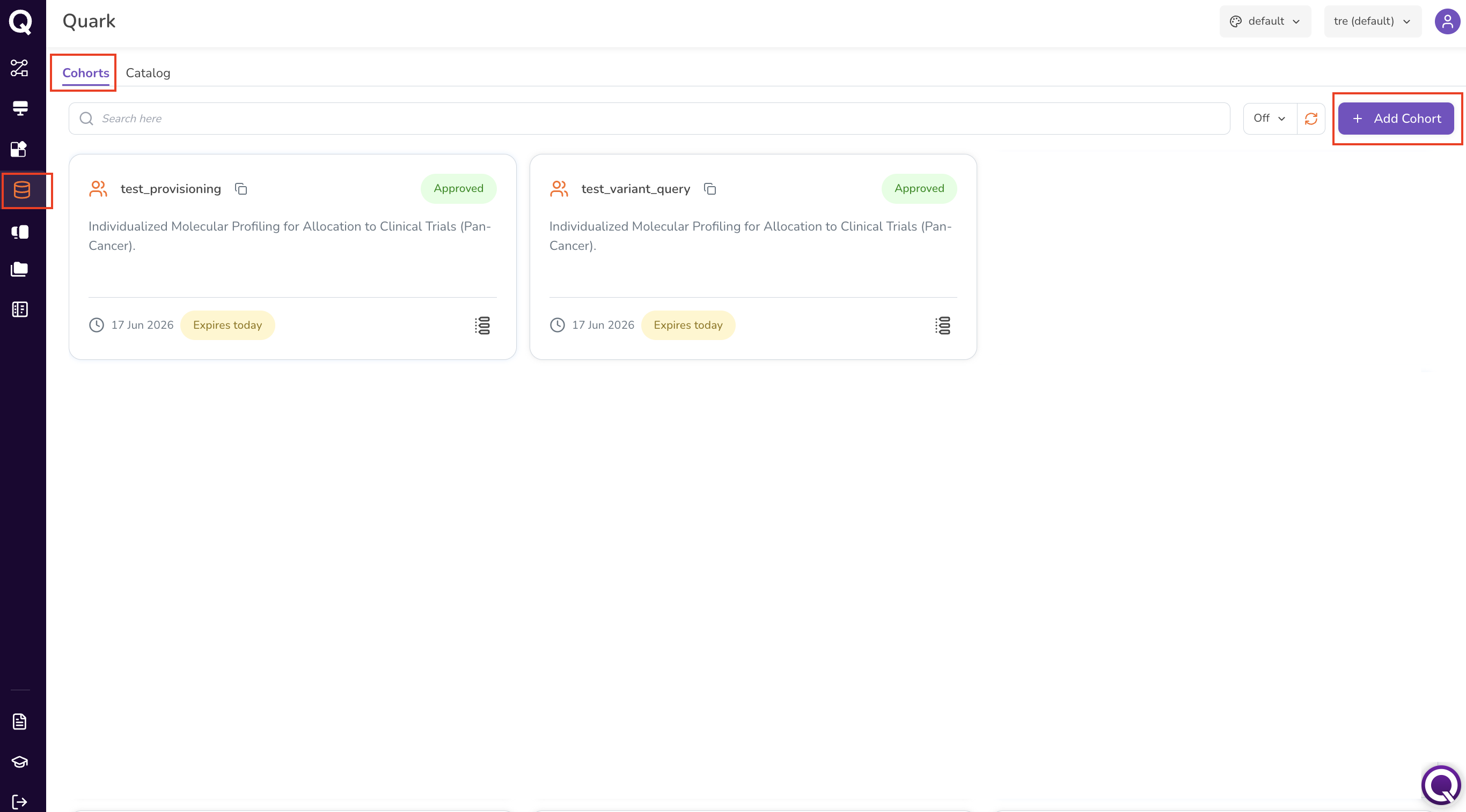
This opens the Query Builder interface.
Defining Cohort Criteria
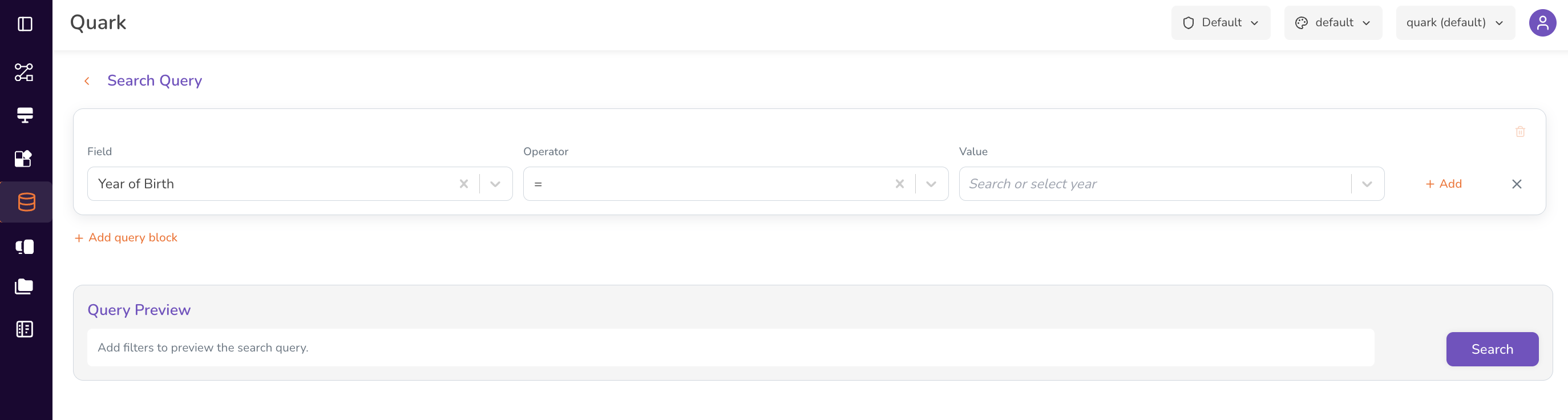
The Query Builder constructs cohorts using a row-based filtering interface. For each criterion, define:
- Field — the data attribute to filter on (e.g.,
Year of Birth,Gender,Condition,Drug). - Operator — the logical comparison to apply (e.g.,
=,!=,>,>=,<,<=). - Value — the specific value or range to filter for (e.g.,
1980,Atrial Fibrillation).
Adding Multiple Criteria
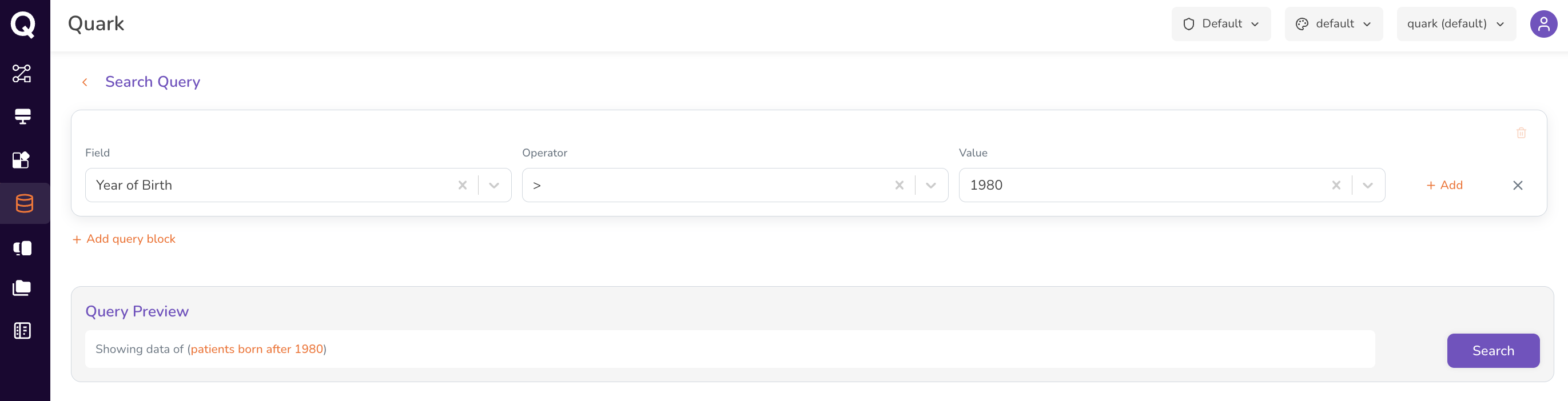
Click + Add Query Block below the existing criterion row to add additional filters. Criteria are combined to narrow the cohort to the exact population your study requires. For example:
| Field | Operator | Value |
|---|---|---|
| Year of Birth | > |
1980 |
| Conditions | = |
Atrial Fibrillation |
| Drug | = |
metoprolol tartrate |
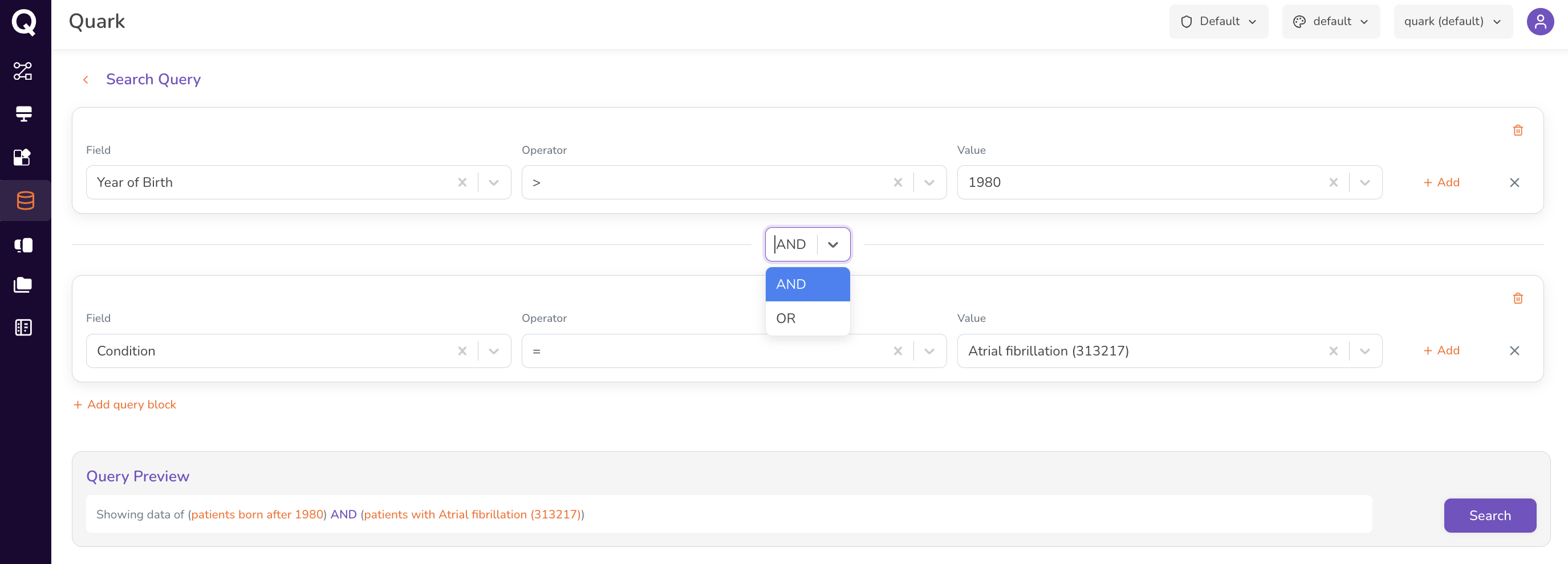
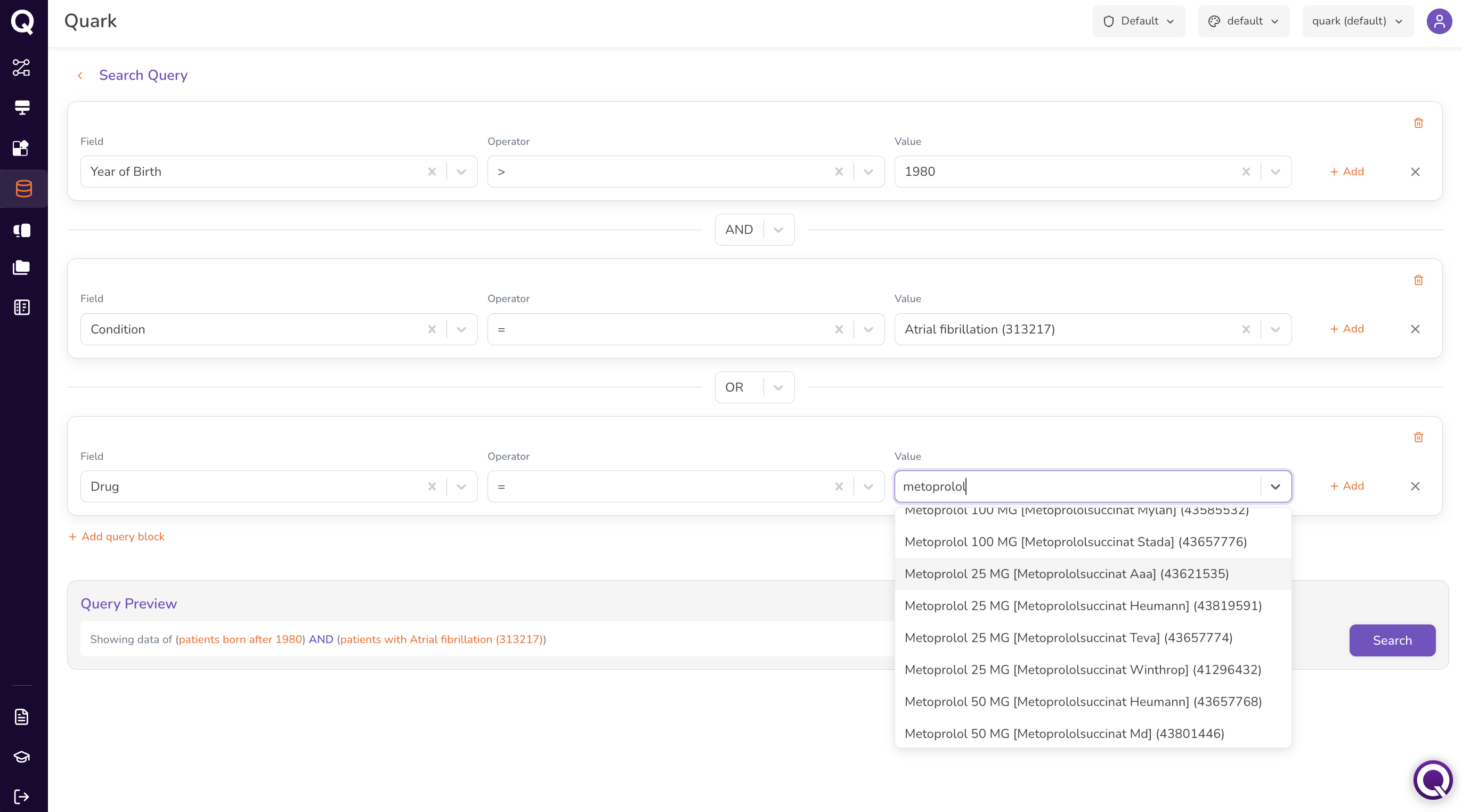
Tip: When entering values for Conditions or Drug fields, begin typing the name and select the appropriate entry from the drop-down suggestions.
Running the Search
Once all criteria are defined:
- Review each row to confirm accuracy.
- Click Search at the bottom-right of the Query Builder.
The search retrieves matching records from all datasets available to you.
Step 2: Visualising the Cohort
Running a search generates a Cohort Summary dashboard. Use this to validate your cohort before requesting access.
Cohort Summary Dashboard
The Cohort Summary includes:
- Search query string — the criteria used to generate the cohort, displayed for easy review and modification.
- Aggregate statistics — key demographic and clinical metrics for the retrieved population.
- Dynamic charts — graphical distributions across cohort attributes.

Reviewing Cohort Attributes
The summary dashboard covers:
- Age Distribution — age distribution of patients in the cohort (recorded at time of first drug administration).
- Gender Distribution — breakdown by gender.
- Condition Prevalence — distribution of medical conditions.
- Drug Exposure — summary of drug prescriptions or exposures.

Refining the Cohort
If the cohort does not yet meet your requirements:
- Click the Modify Query icon next to the search query string at the top of the dashboard.
- Adjust, add, or remove criteria in the Query Builder.
- Click Search to regenerate the summary.
- Review the updated results. Repeat until the cohort size and composition are satisfactory.
- Request Cohort Access.
What's Next
- Requesting Data Access — submit your cohort for access approval, and see what's available once it's granted.
- Browsing the Catalog — go back and evaluate a different source dataset.