Audit Logs
Overview
The Audit Logs section gives the Admin an immutable, platform-wide record of every API call and UI action taken on Quark V3. User actions, resource changes, access events, and administrative decisions are all captured, as essential for SOC 2, HIPAA, and internal security reviews.
Unlike the DS Administrator's audit view, which is scoped to their assigned projects, the Admin sees the full log across all projects and all users on the platform.
Navigation: Select Audit Logs from the left-hand navigation pane.
The Audit Log
When you open Audit Logs, the log lists entries in reverse chronological order — the most recent events appear at the top.
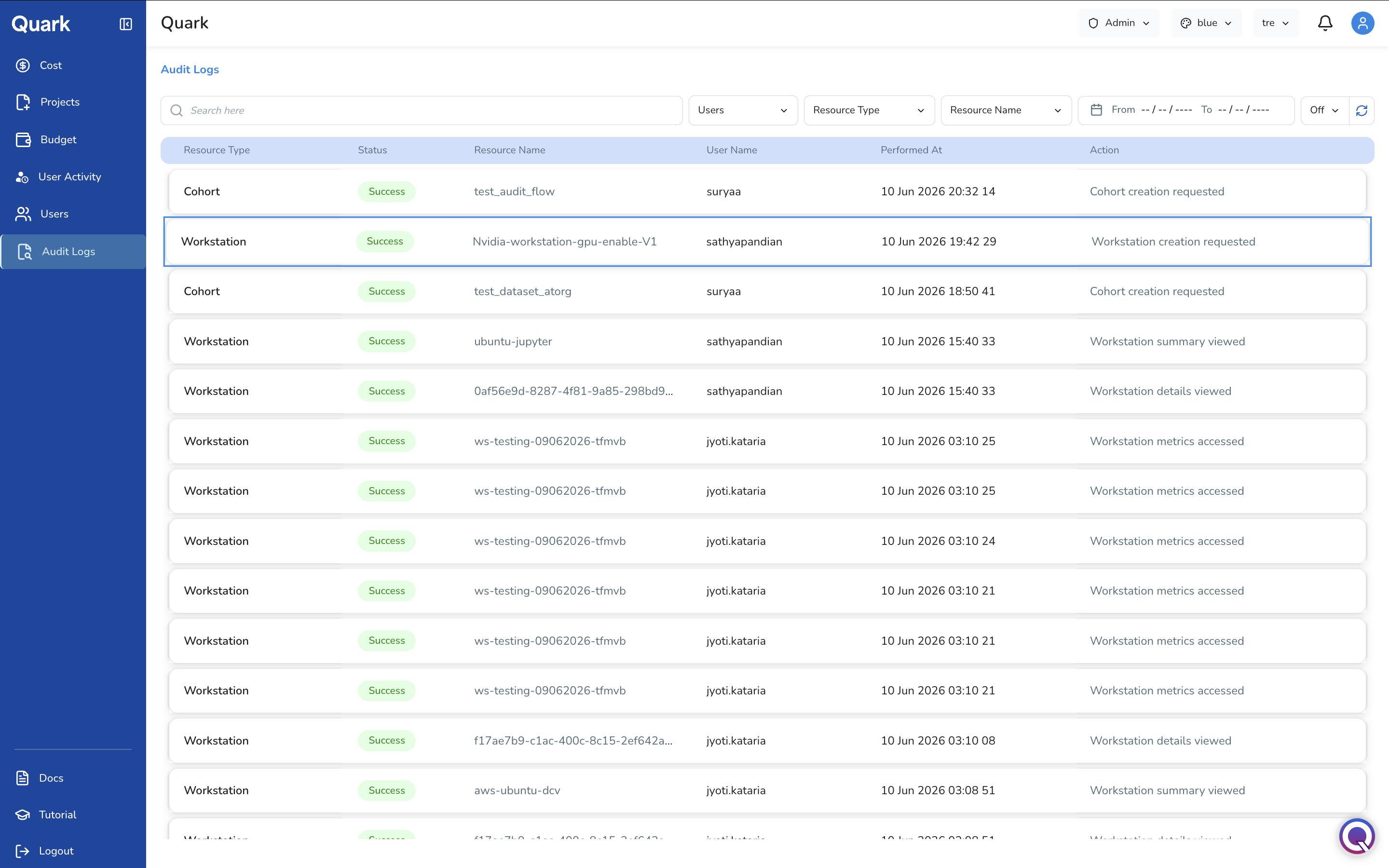
Each row in the log shows:
| Column | Description |
|---|---|
| Resource Type | The category of resource the action was performed on (e.g., Workstation, Cohort, Project, User). |
| Status | Whether the action succeeded or failed, shown as a colour-coded badge. |
| Resource Name | The specific resource the action was performed on. |
| User Name | The user who performed the action. |
| Performed At | The exact date and time the action occurred. |
| Action | A description of what was done (e.g., Workstation creation requested, Cohort creation requested, Workstation metrics accessed). |
The log can contain a high volume of entries. You can use the filter controls in the toolbar by User, Resource Type, Resource Name, or Date Range. For example, select a resource category from the Resource Type dropdown to focus the log on a specific class of platform object, such as all Workstation events or all Cohort events.
You can also use the Search bar to filter your audit log.
Reviewing a Log Entry
Click any row in the audit log to open its full detail view as a side panel.
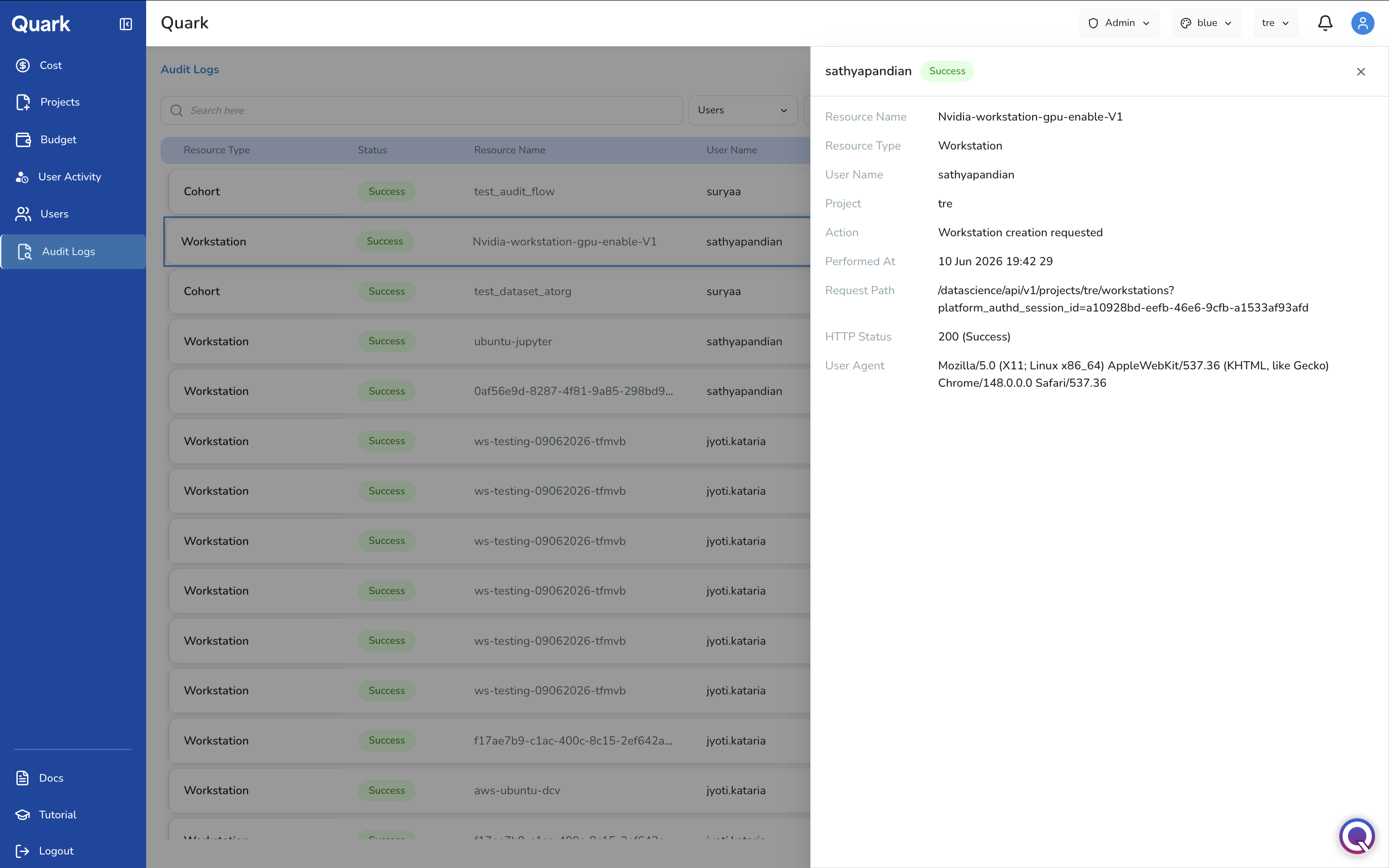
Each log entry contains:
| Field | Description |
|---|---|
| Resource Name | The specific resource the action was performed on. |
| Resource Type | The category of the resource (e.g., Workstation, Cohort). |
| User Name | The user who performed the action. |
| Project | The project context in which the action occurred. |
| Action | The action that was taken. |
| Performed At | The exact date and time of the action. |
| Request Path | The API endpoint that handled the action — useful for technical investigation of platform behaviour. |
| HTTP Status | The response code for the request. Use this to distinguish successful actions (e.g., 200) from failed attempts (e.g., 403 Forbidden, 500 Internal Server Error). |
| User Agent | The client from which the action originated — browser type, OS, and version. |
Tip: A 4xx status indicates a failed or unauthorised attempt; a 5xx status points to a platform-side error.
Common Audit Tasks
Correlating with a Cost Anomaly
- Identify the date range of the anomaly in Cost.
- Apply the same date range in the Audit Logs date picker.
- Filter by Resource Type to match the resource category driving the cost spike (e.g., Workstation or Pipeline).
- Review the actions in that window to identify the user and resource responsible.
Preparing a Compliance Report
- Apply a Date Range matching your reporting period.
- Export using the download icon (top-right of the Audit Logs screen) if available, or review entries directly for the period in question.
- Use the Resource Type filters to produce focused views for specific resource categories as needed.
Important Notes
- Audit log entries are immutable — they cannot be edited or deleted by any role, including the Admin.
- The log captures both successful and failed actions. Failed actions (4xx and 5xx HTTP status codes) may warrant investigation, particularly if they represent repeated unauthorised access attempts.
- The Admin's audit log covers all projects and all users on the platform. This is broader than the DS Administrator's audit view, which is scoped to their assigned projects.
What's Next
- User Activity — For a higher-level view of user engagement trends, use User Activity alongside the granular Audit Log.
- Cost — Correlate audit events with cost anomalies to trace unexpected spend to specific users or actions.
- Users — If audit findings reveal suspicious or unauthorised activity, review and act on the relevant user account.