Monitoring Workstations
Overview
The Workstations section lets you monitor the status of user workstations across your project. Workstations are secure, isolated compute environments — typically Ubuntu or other OS-based virtual machines — within which researchers conduct their data analysis.
Ensuring users have the right compute resources, and that workstations are not left running unnecessarily, is an ongoing operational responsibility.
Navigation: Select Workstations from the left-hand navigation pane.
The Workstations Page
The Workstations dashboard lists every workstation in your project, along with its current status and ownership details.
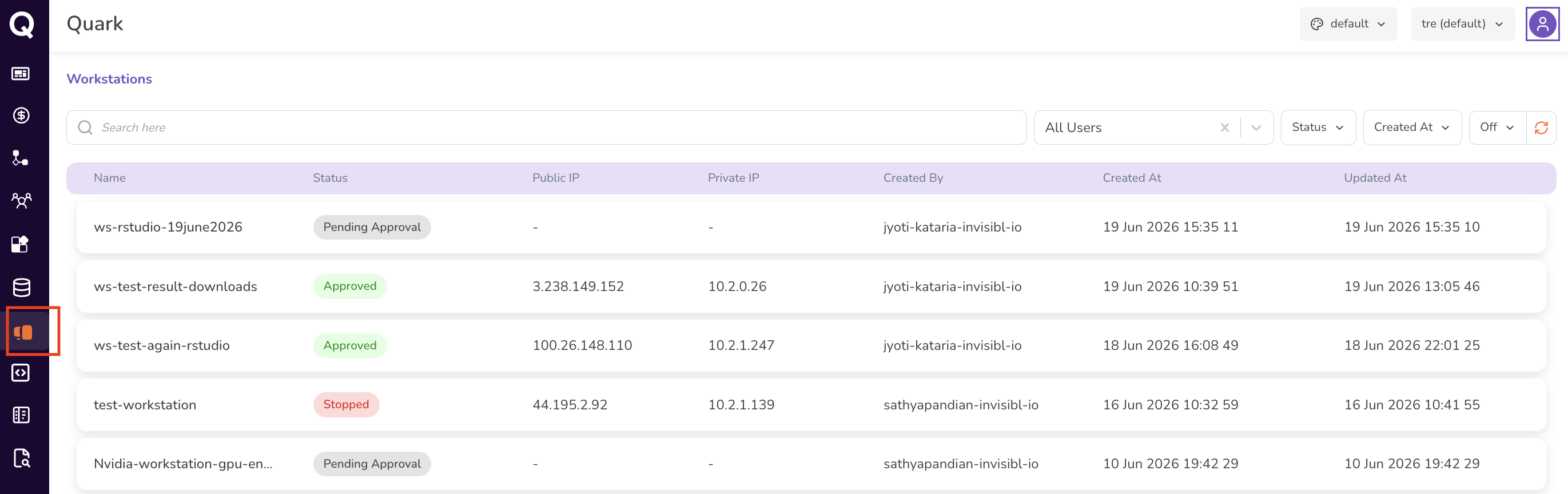
For each workstation, the list shows:
| Column | Description |
|---|---|
| Name | The name of the workstation as configured. |
| Status | The current state of the workstation — e.g., Running, Stopped, Pending Approval, Approved, or Error. |
| Public IP | The public IP address of the workstation, once provisioned. Displays - if not yet assigned. |
| Private IP | The private IP address within the platform's network. Displays - if not yet assigned. |
| Created By | The user who requested or created the workstation. |
| Created At | When the workstation was created. |
| Updated At | When the workstation's status was last updated. |
Use the search bar to find a workstation by name. Use the All Users filter to scope the list to a specific user, and the Status and Created At filters to narrow the list further. Click the refresh icon to load the latest status for all workstations.
Monitoring Workstation Status
Review workstations across your project to assess:
- Which workstations are currently Running and accruing compute costs.
- Which workstations are Stopped and may be candidates for cleanup if no longer needed.
- Workstations that are Pending Approval or Approved but not yet launched.
- Whether any workstations are in an Error state that may require attention.
Tip: Cross-reference running workstations with Project Cost to identify instances that may be contributing disproportionately to resource spend.
Workstation Detail View
Click on any workstation's name in the list to open its detail view. The detail view is organised into seven tabs: Summary, Data, Results, Monitoring, Cost, Lifecycle, and Events.
Summary Tab
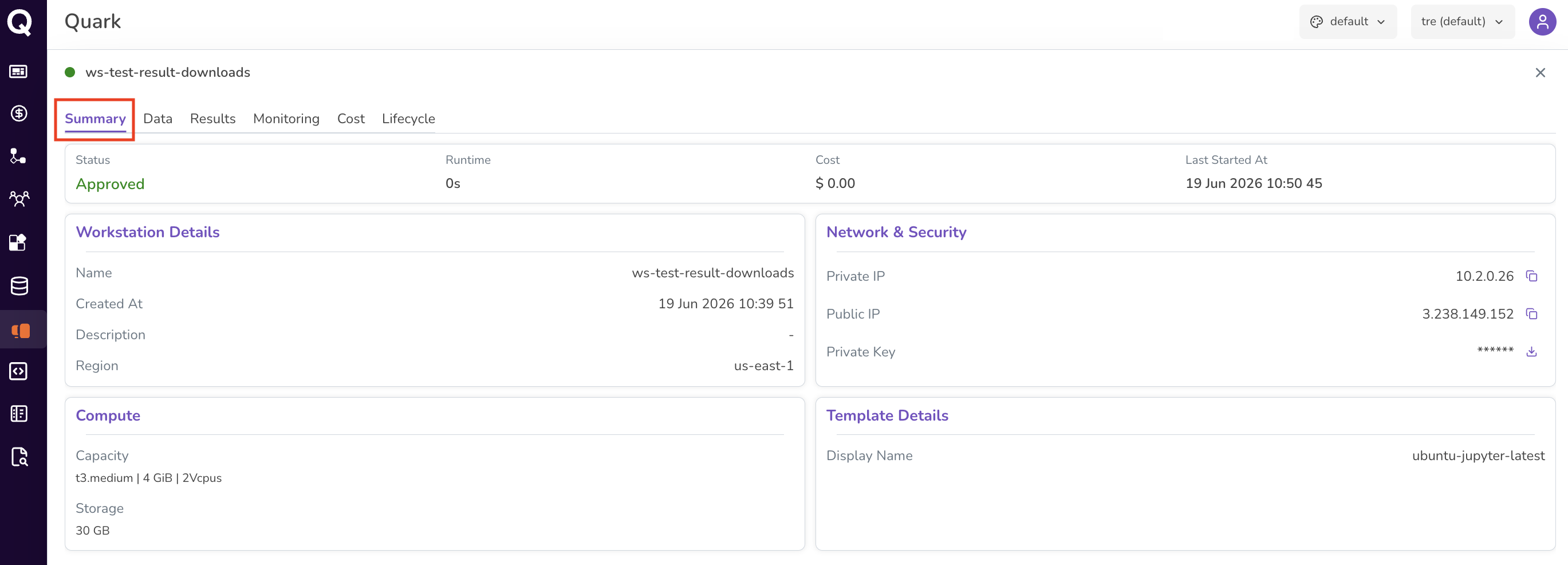
Provides a complete snapshot of the workstation's configuration and current state:
| Section | Fields |
|---|---|
| Header | Status (e.g., Running), Runtime, Cost (accrued for the current session), and Last Started At. |
| Workstation Details | Name, Created At, Description, and Region. |
| Network & Security | Private IP and Public IP (each with a copy icon), and a masked Private Key with a download icon. |
| Compute | The Capacity (instance type, memory, vCPUs) and Storage allocated to the workstation. |
| Template Details | The display name of the image the workstation was built from. |
Note: Unlike the end-user workstation view, the administrator's Summary tab surfaces the workstation's Private Key (downloadable) rather than a password — reflecting an oversight role rather than direct interactive use.
Data Tab
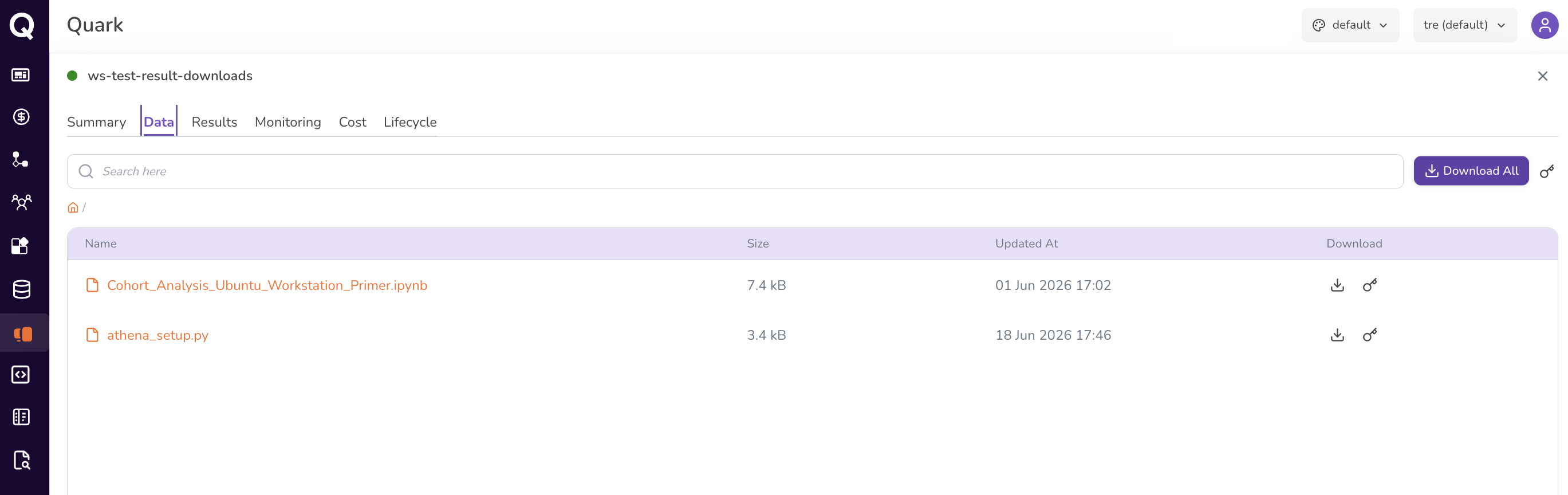
Shows the files and folders associated with the workstation's working directory: name, size, and last-updated time. Use the search bar to locate a specific file or folder.
You can use the Download column icon to request download of an individual file, and Download All to request download of everything in the current directory.
Please note that the download will not initiate immediately; all file exports from the platform will need to be reviewed and approved. So when you click the download icon, you'll be notified that your request has been sent to a fellow admin for approval.
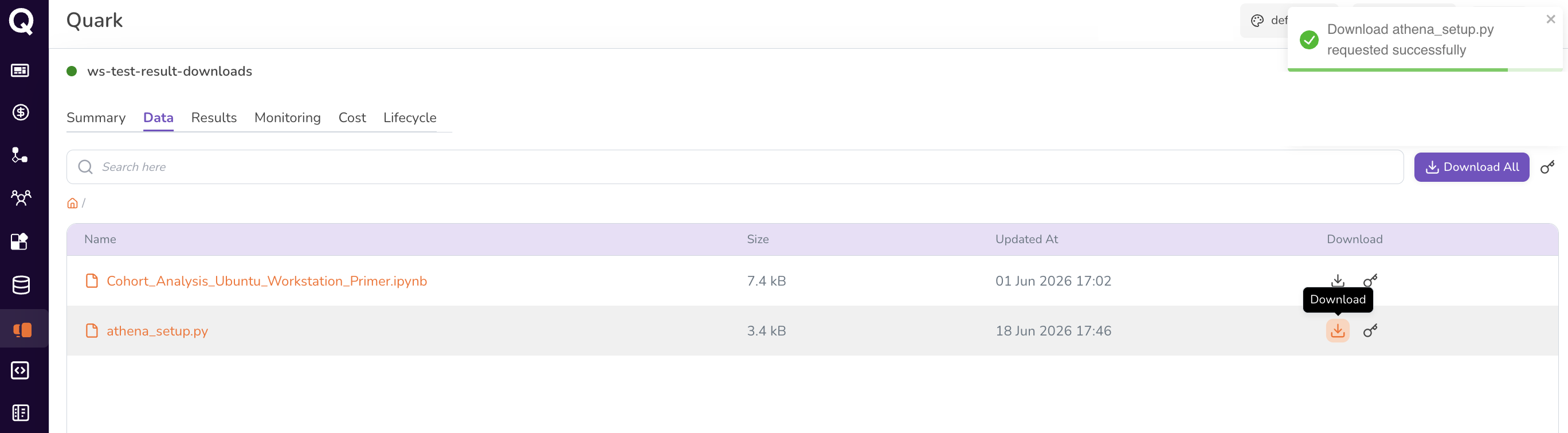
Please check My Requests to track the status of your request.
Results Tab
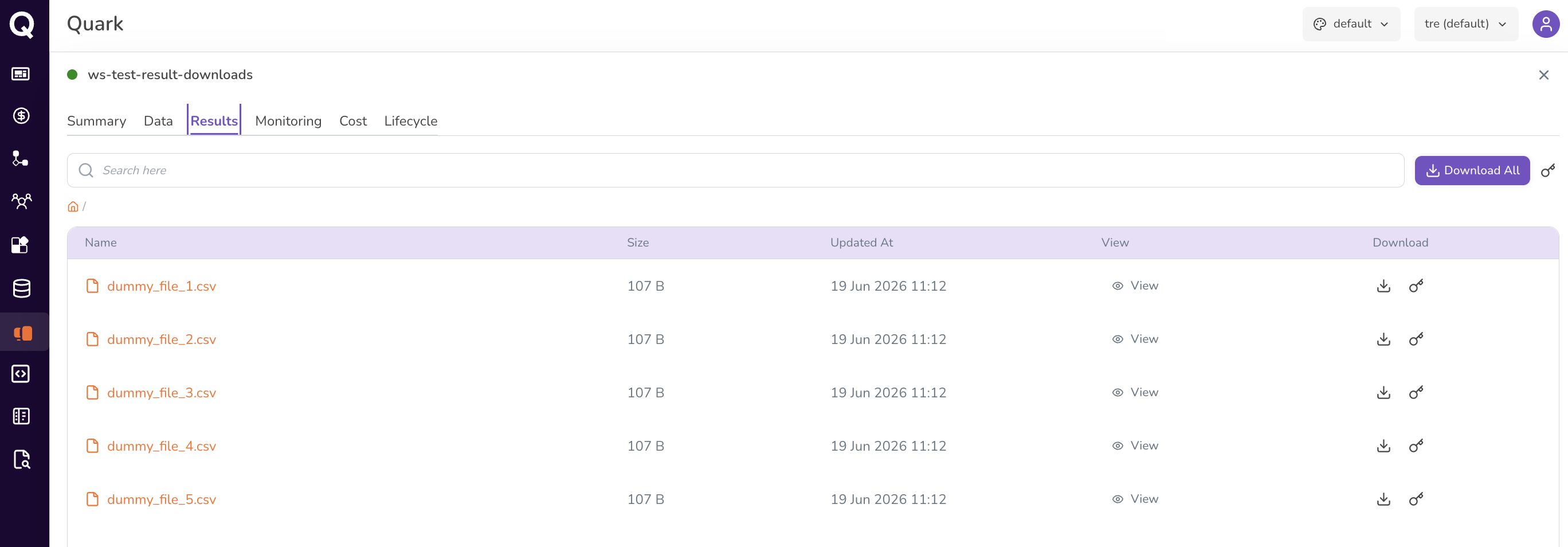
Lists output files generated by the user's analysis on this workstation, supporting routine oversight of project activity.
You can use the Download column icon to request download of an individual file, and Download All to request download of everything in the current directory.
Please note that the download will not initiate immediately; all file exports from the platform will need to be reviewed and approved. When you click the download icon, you will first need to confirm that your download request does not contain sensitive data.
For example, if you click Download All, a prompt will appear on the screen, asking you to confirm that the data does not contain patient identifiable information. Confirm all that apply and proceed to request download.
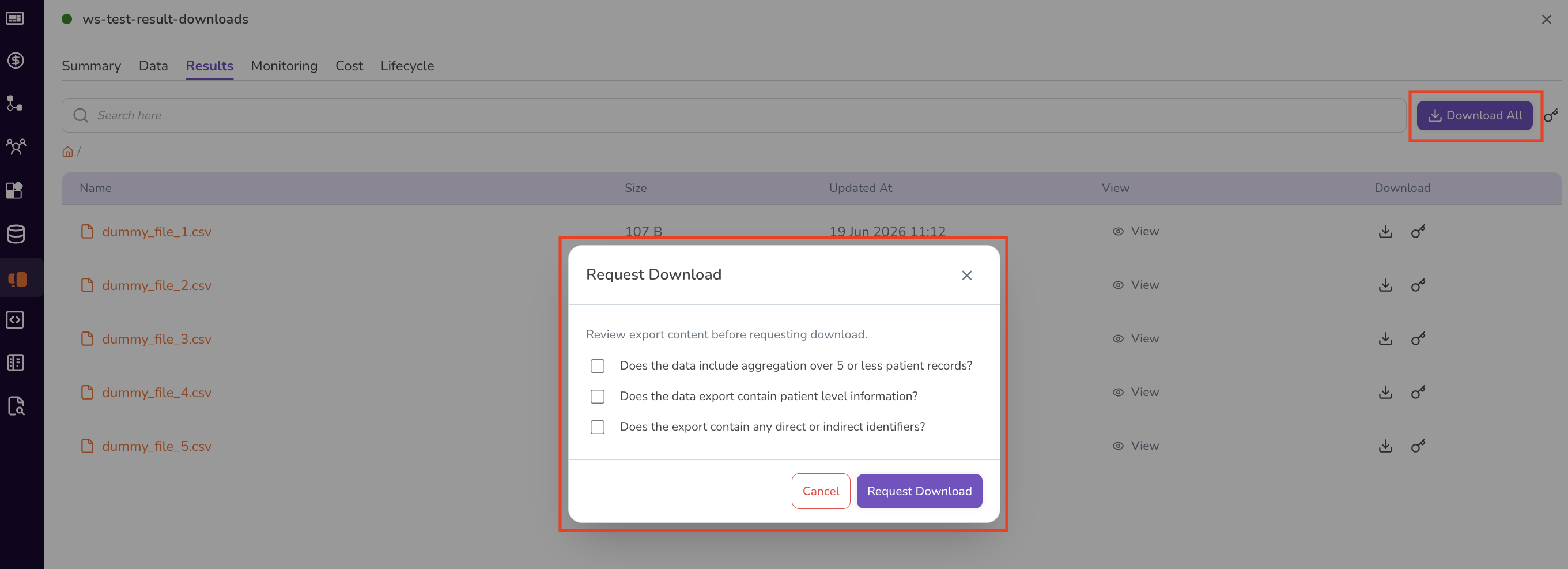
Please check My Requests to track the status of your download request.
Monitoring Tab
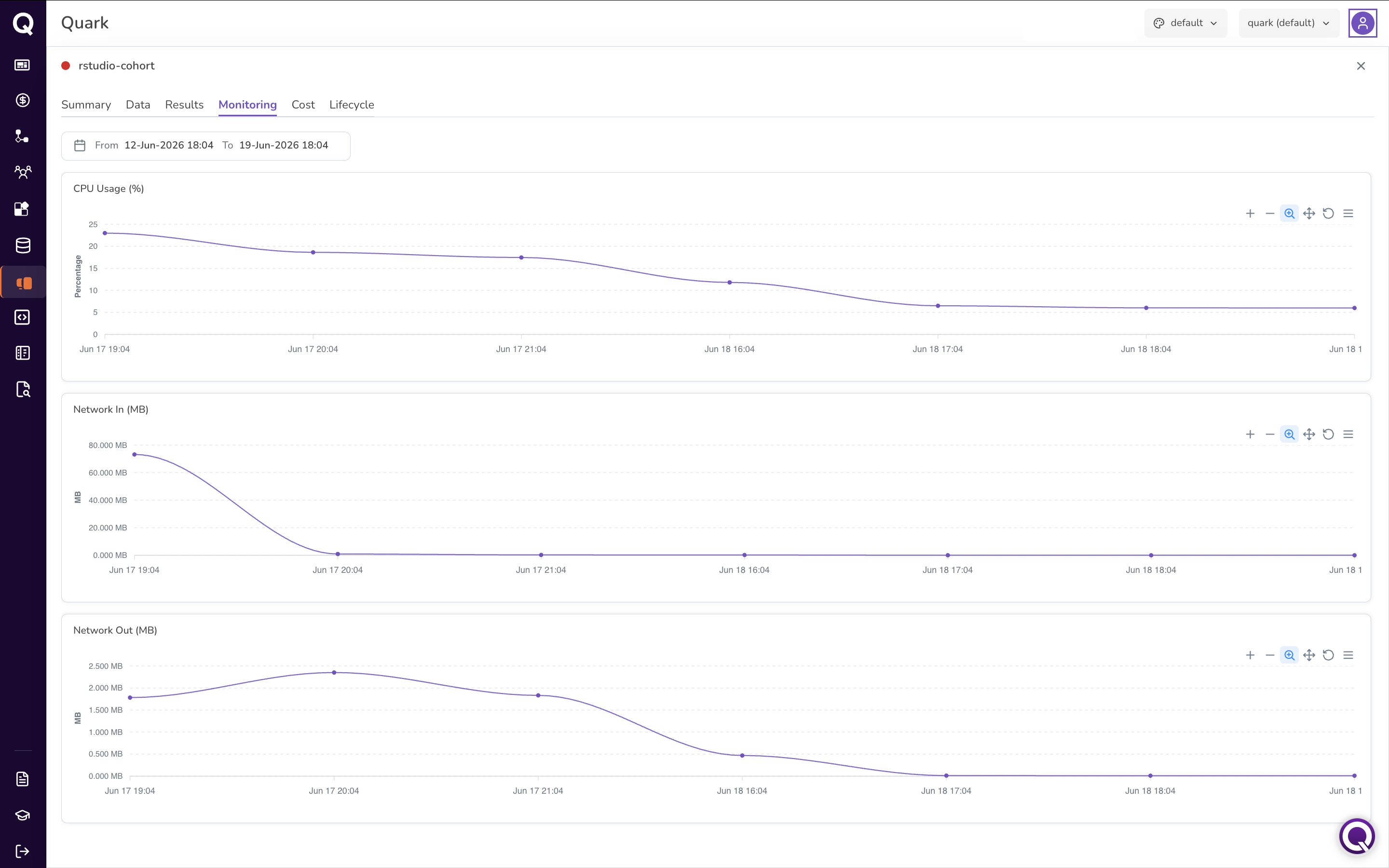
Provides resource utilisation charts for the workstation over a selectable date range. Use the From / To date picker to set the monitoring window. Three charts are displayed: CPU Usage (%), Network In (MB), and Network Out (MB). Each chart supports zooming, panning, and resetting.
Cost Tab
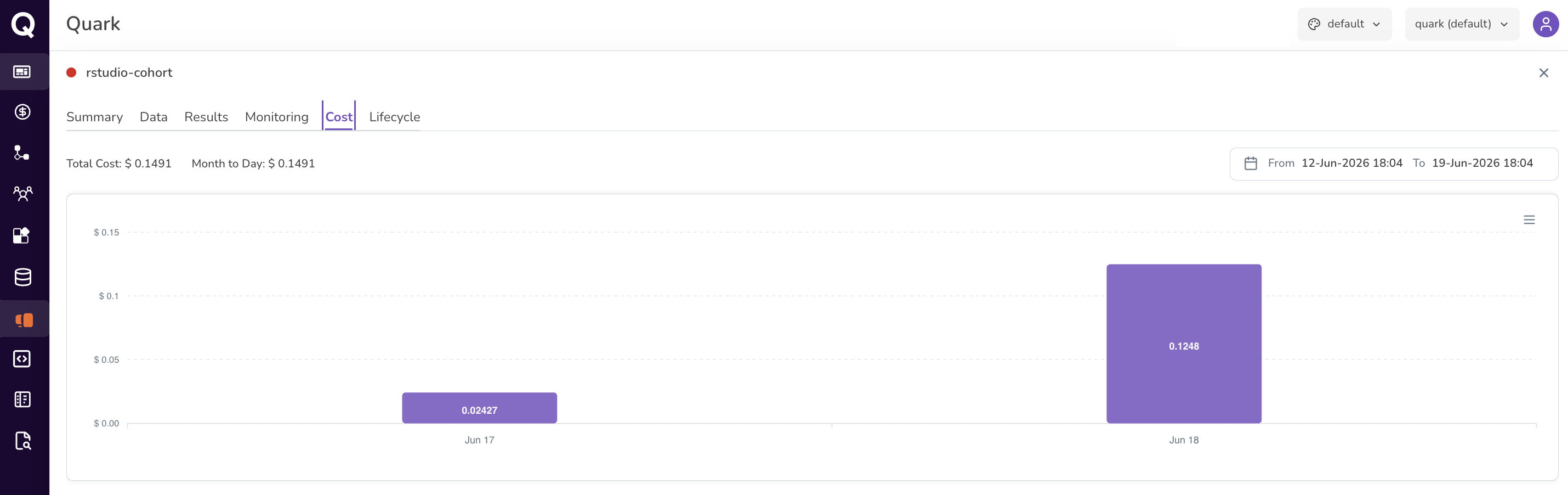
Shows the cost breakdown for this workstation. You can use it alongside Project Cost to understand how an individual workstation contributes to overall project spend.
Lifecycle Tab
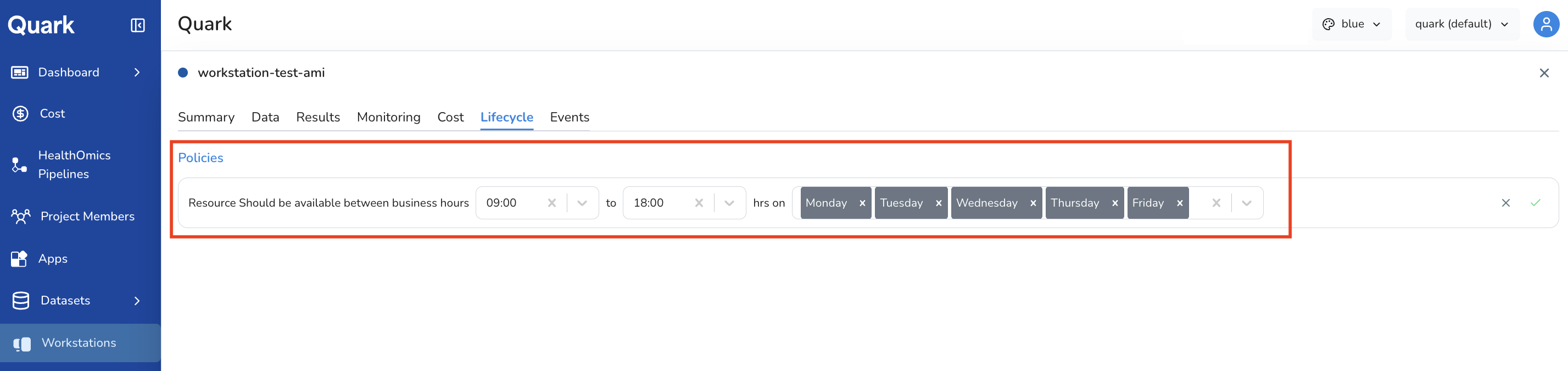
Shows any automated start/stop policies configured for the workstation. Each policy row describes a rule in plain language — for example, "Resource should be available between business hours 09:00 to 18:00 hrs on Monday, Tuesday, Wednesday, Thursday, Friday" — along with the time range and days the policy applies to.
Tip: If you notice a workstation running outside expected hours in Project Audit Logs, check whether a lifecycle policy is missing or misconfigured.
What's Next
- Project Cost — filter by Workstations to monitor compute spend from active workstation instances.
- Reviewing & Approving Requests — review user requests for workstation access, including approvals for new workstation provisioning.
- Project Audit Logs — review workstation launch, access, and termination events for compliance purposes.