Launching Ready-to-Run Pipelines
This guide explains how to launch and configure a pipeline from the TRE Launchpad, without needing any coding experience. It covers locating a pipeline, reviewing its details, configuring inputs and run settings, and submitting a run.
Before you begin: Make sure any input files your pipeline requires have been uploaded to My Files → Data. See My Files.
Overview
Running a pipeline in the TRE involves five steps:
- Open the Launchpad
- Find your pipeline
- Configure run settings
- Provide pipeline inputs
- Review and submit
Step 1: Open the Launchpad
Navigate to the Pipelines tab in the navigation pane, then select Launchpad to view all available pipelines. The Launchpad displays a brief overview of every pipeline available to you on the platform.
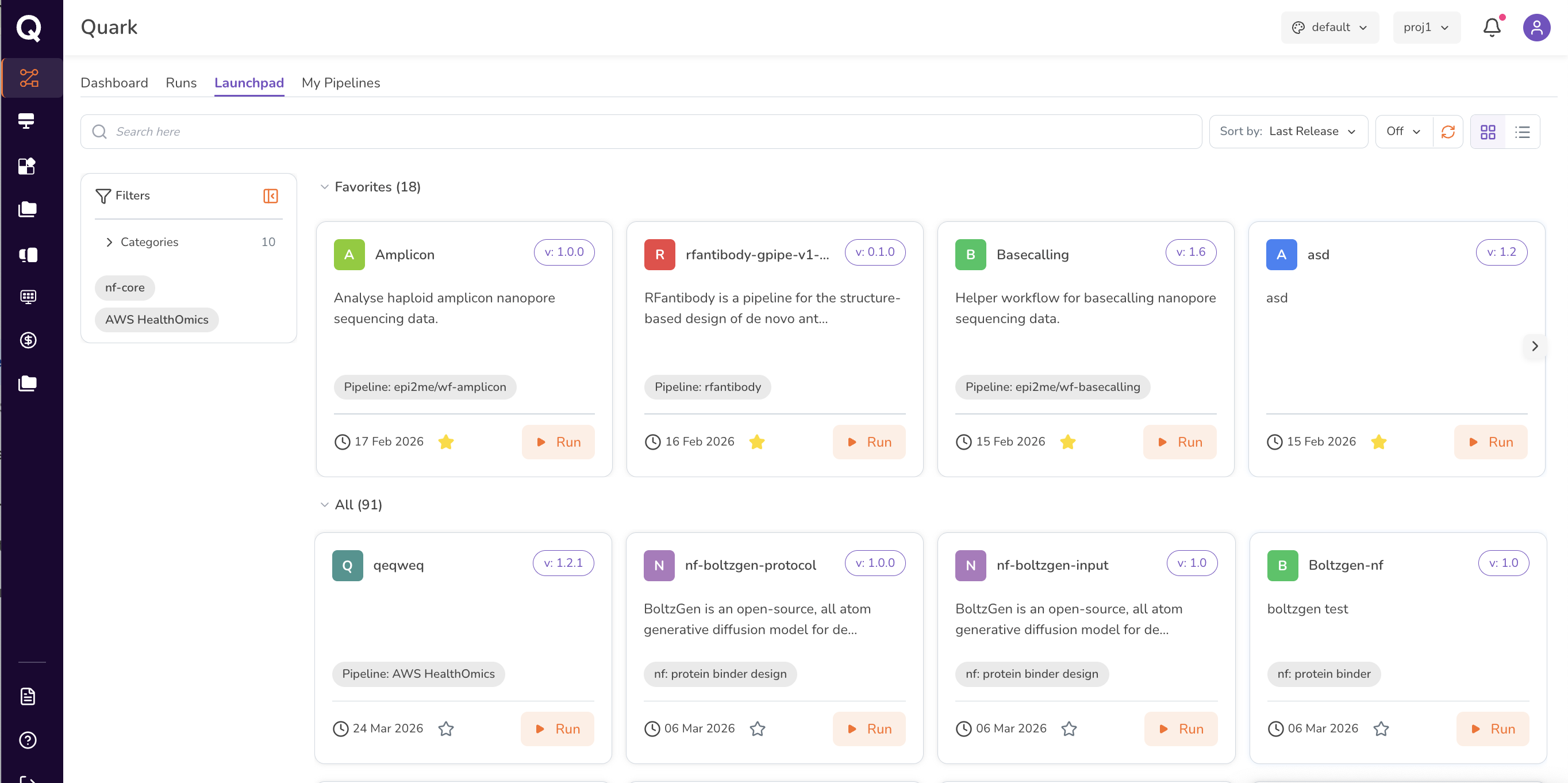
Step 2: Find Your Pipeline
You can locate a pipeline in two ways:
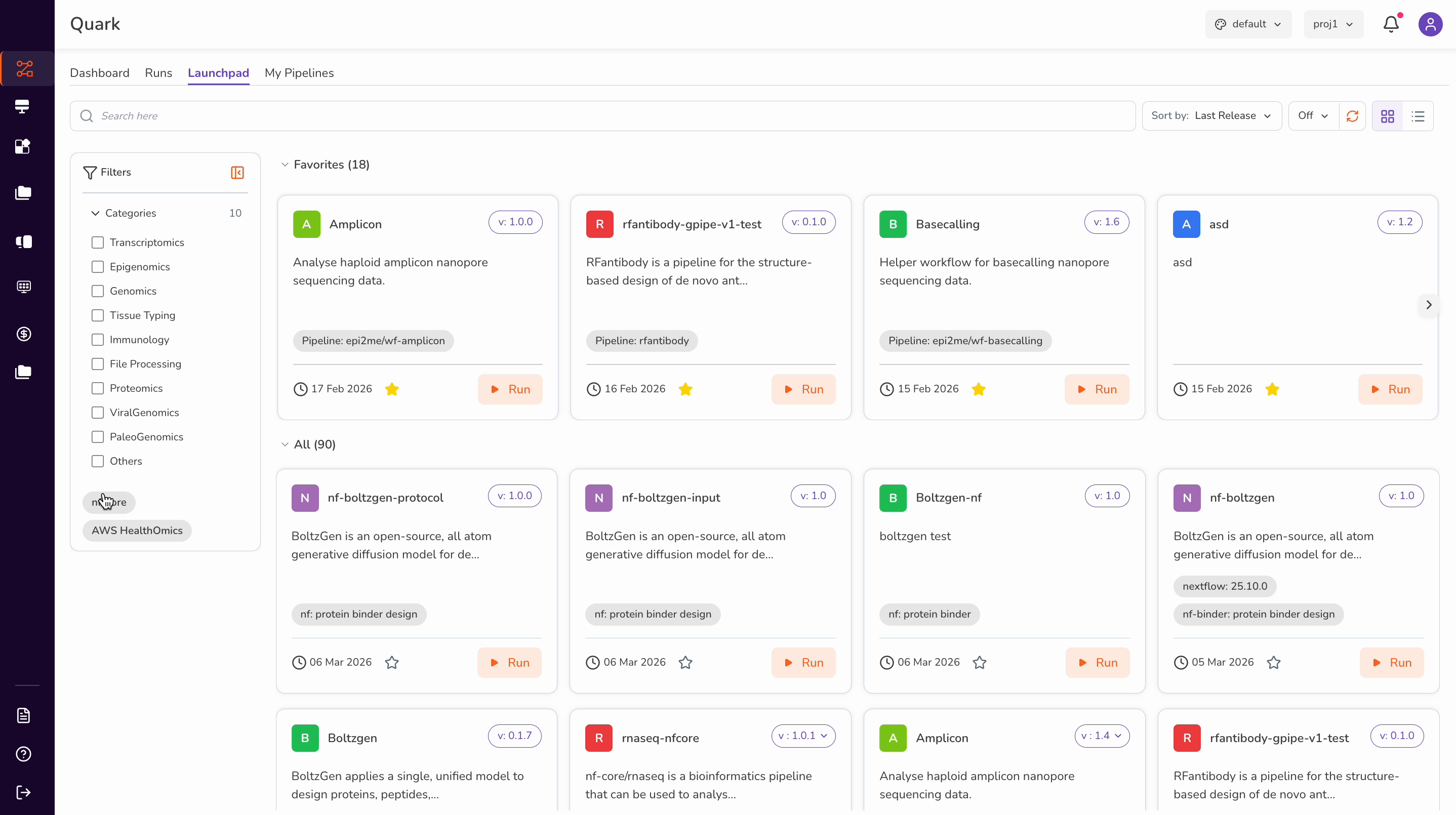
Browse by category: Use the Filter option next to the search bar to narrow results by category — for example, select nf-core to find all nf-core-based pipelines. Sort results by Name or Last Release using the Sort By control.
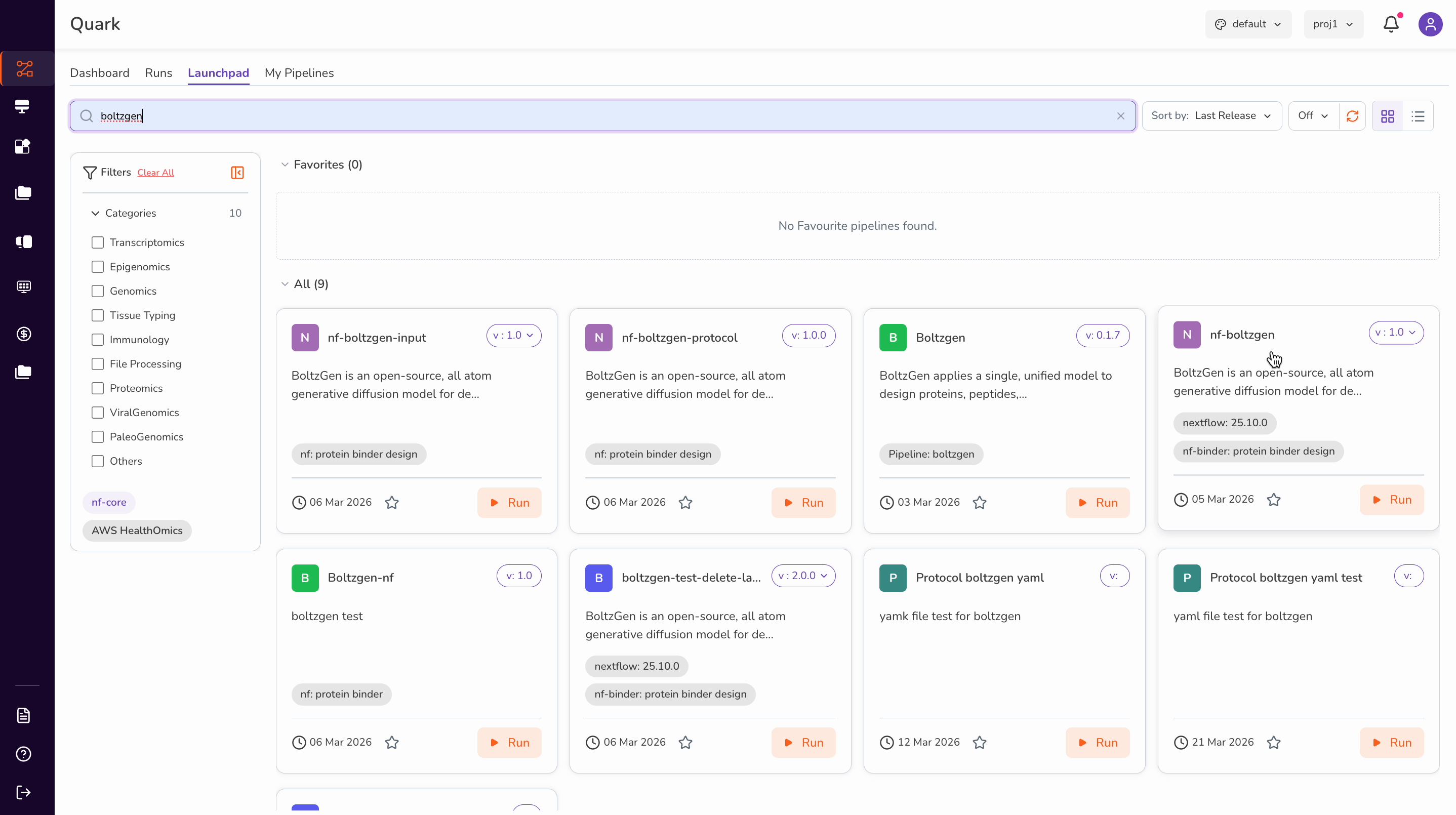
Search by name: You can also find a pipeline by searching by its name. Use the search bar at the top of the Launchpad to type a pipeline name directly.
Once you locate a pipeline, click on it to open the About panel, which displays a brief overview of what the pipeline does, the requirements needed to run it, its current version, and tags indicating its category and type.
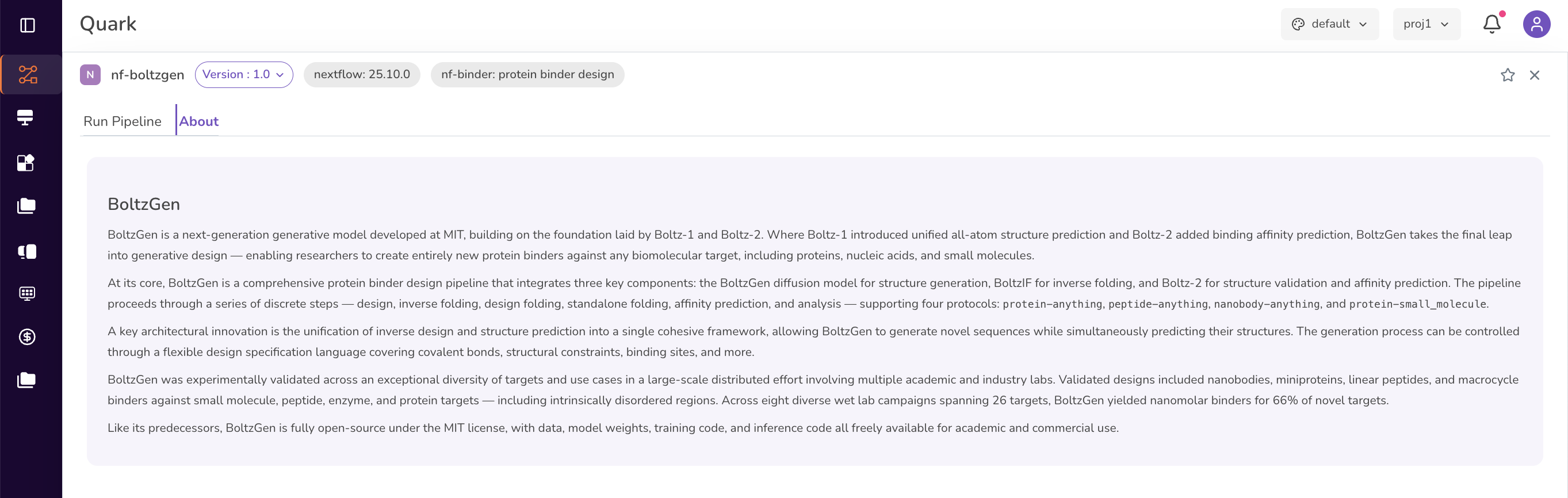
Click Run Pipeline to configure your run settings.
Step 3: Configure Run Settings
-
Provide a descriptive Run Name — this is how your run will appear in the Runs history. Choose something meaningful, such as
cohort-variant-call-trial-01.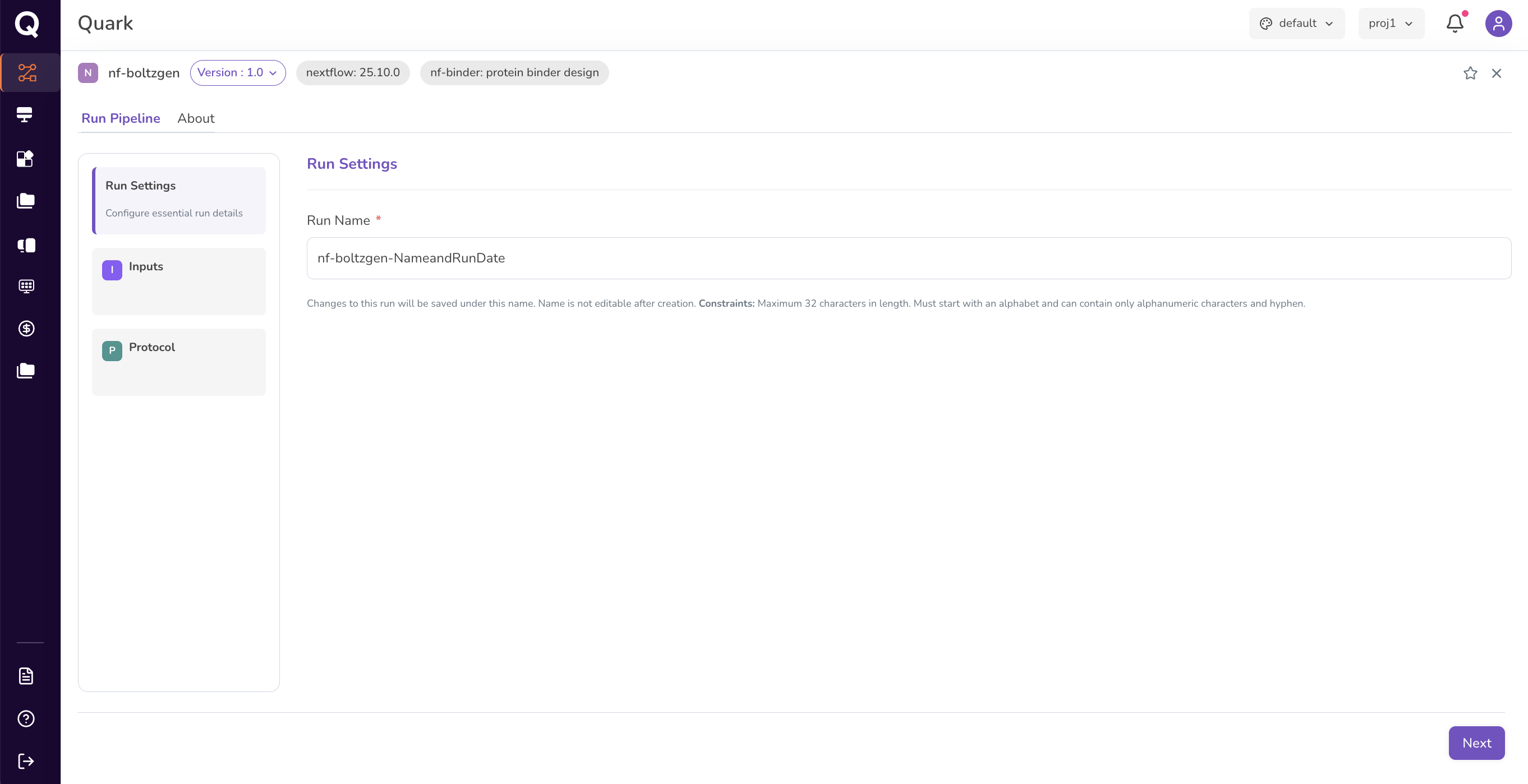
-
Click Next to proceed to the Inputs page.
Tip: A clear, descriptive run name makes it much easier to find and compare runs later in the Runs tab.
Step 4: Provide Pipeline Inputs
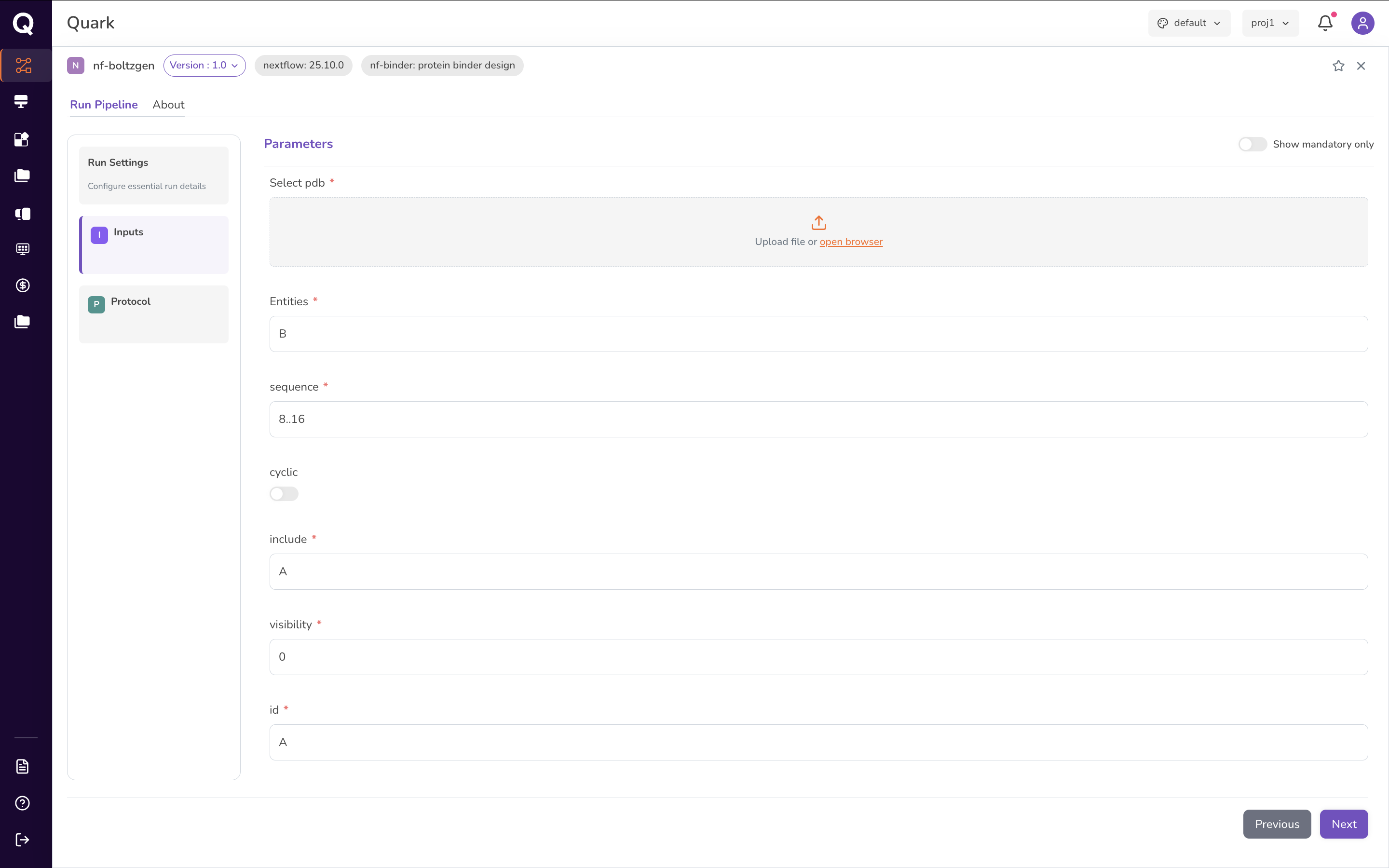
On the Inputs page, configure all required parameters for your run. Exact inputs vary by pipeline, but generally fall into two groups:
- Scientific inputs — the data the pipeline will operate on, such as a reference file, sequence, or an approved cohort selected from Datasets → Cohorts. Files are selected from what you have already uploaded to My Files → Data.
- Protocol and run parameters — pipeline-specific settings such as the analysis protocol, number of iterations, or batch size. Larger batches may reduce total runtime but require more compute resources.
Step 5: Review Inputs and Submit the Pipeline Run
When you have finished configuring all inputs, click Review to validate your setup before submitting. If any required inputs are missing — for example, if a required input file has not yet been uploaded — an error message is displayed. Review all input parameters carefully and correct any issues before proceeding.
Once you have confirmed that all parameters are accurate and complete, click Next to submit your pipeline run.
Tip: After submission, your run appears in the Runs tab, where you can monitor its progress and access results once it completes.
Tracking Your Run
After submission, your run is queued and begins executing on the platform. To monitor its progress:
- Select Pipelines from the left navigation pane.
- Click the Runs tab.
- Locate your run by name, or use the Search bar or Filter options to find it.
Each run entry shows its current Status, the pipeline it used, and its Start and Finish times. Once the run completes, results are accessible from My Files → Results.
Summary
| Step | Action |
|---|---|
| 1 | Open Pipelines → Launchpad |
| 2 | Search or filter for your pipeline |
| 3 | Set a descriptive Run Name and click Next |
| 4 | Configure scientific inputs and run parameters |
| 5 | Review, resolve any errors, and submit |
| Post-run | Track status in Runs; access outputs in My Files → Results |
What's Next
- Viewing Pipeline Results — review the outputs, logs, and visualisations from a completed run.
- My Files — access your result files once a run completes.