Managing Cohort Access
Overview
The Datasets section gives you visibility into all cohorts that researchers have requested for their projects, and the full catalog of datasets registered on the platform.
This section is central to data governance. You can monitor what sensitive data is being surfaced, review the status and history of cohort access, revoke access where appropriate, and browse the underlying dataset catalog that cohorts are built from.
Datasets is organised into two tabs: Cohorts and Catalog. The section opens on the Cohorts tab by default.
Navigation: Select Datasets from the left-hand navigation pane.
Catalog Tab
Select the Catalog tab to view the full list of datasets registered on the platform. Each card shows:
| Field | Description |
|---|---|
| Name | The dataset's identifier, with a copy icon — useful for exporting the identifier for pipeline inputs. |
| Description | A plain-language summary of the dataset's contents and scope. |
| Tags | Key-value metadata describing the dataset (e.g., type: genomics, condition: lung cancer, nsclc, gene: EGFR). |
| Last Updated | The date the dataset entry was last updated. |
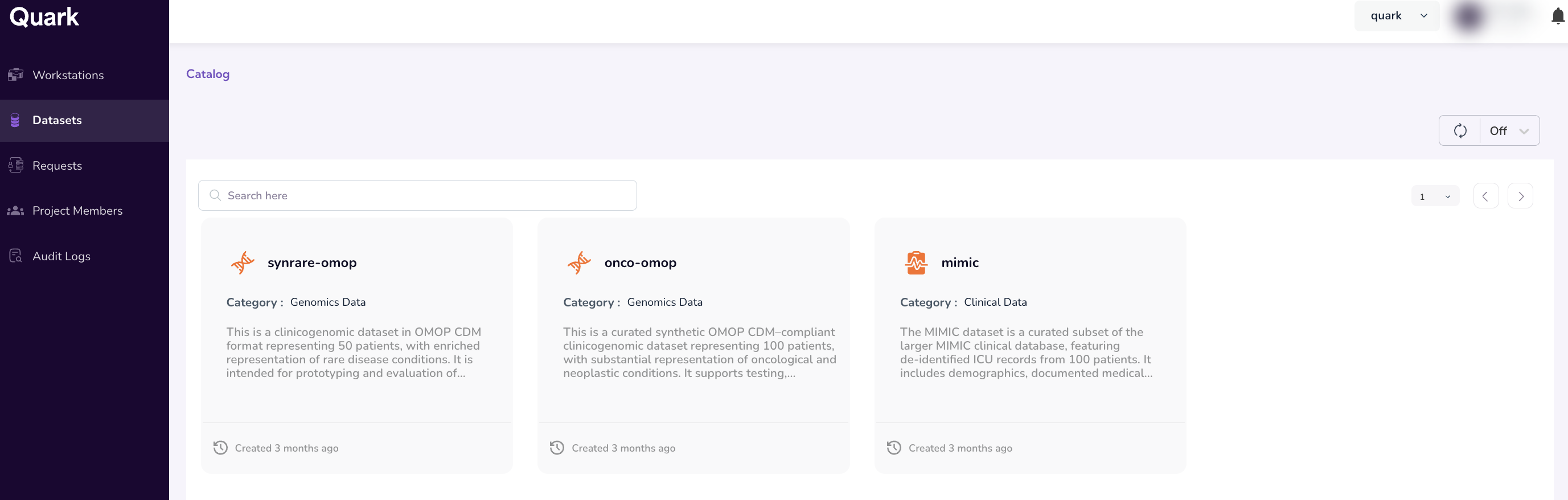
Use the search bar to find a dataset by name or description.
Note: Publishing new datasets to the platform catalog is a platformadmin responsibility — see Publishing a Dataset.
Dataset Summary Dashboard
Click on any dataset card to open its summary dashboard, showing the dataset name and description, Number of Persons and Total Records aggregate tiles, and distribution charts for Gender, Race, Ethnicity, and Top Conditions across the entire dataset.
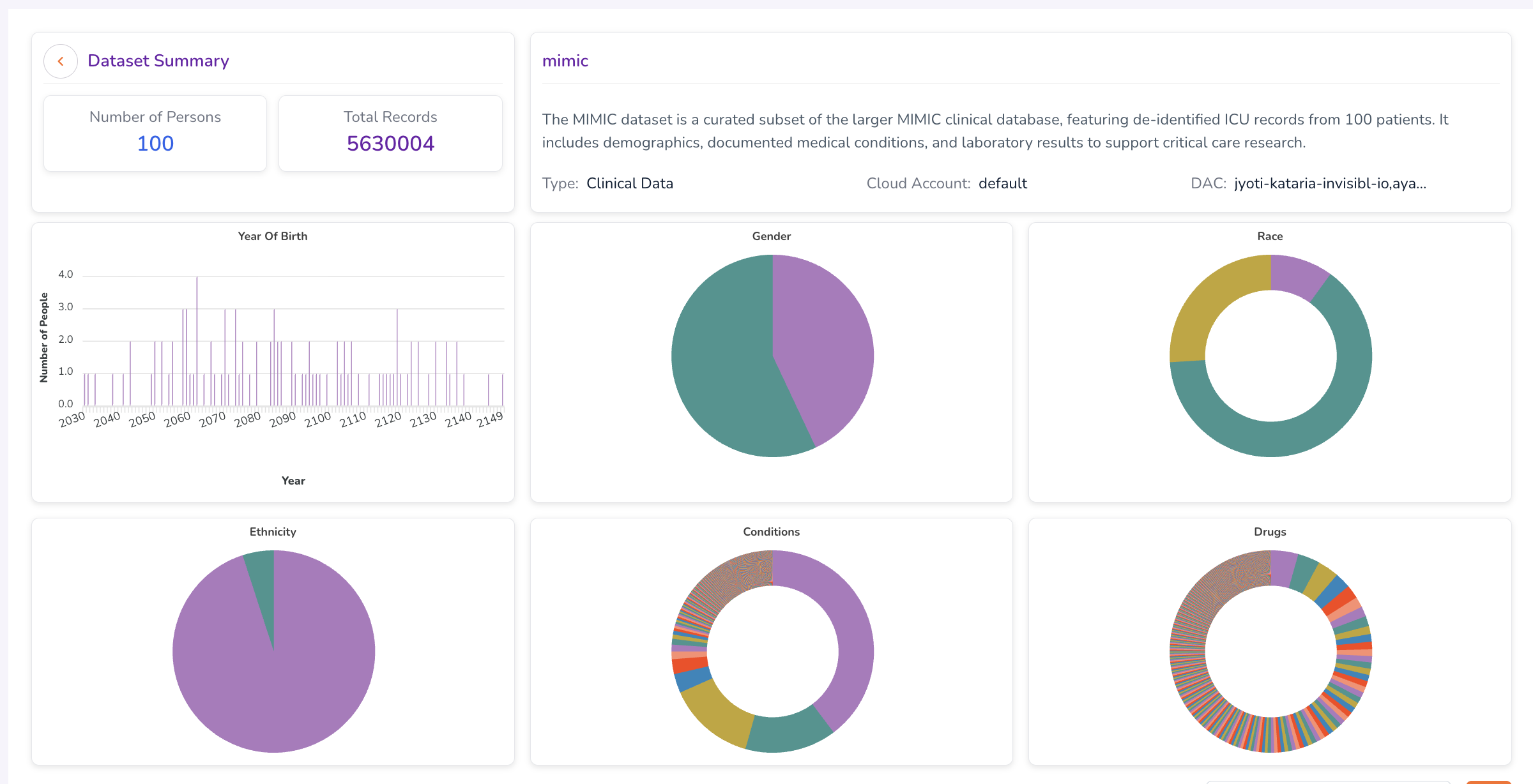
This gives you a high-level picture of a dataset's scope and population — useful for assessing its relevance to active projects before users build cohorts from it.
Cohorts Tab
The Cohorts tab lists every cohort that has been requested across your projects, displayed as cards.
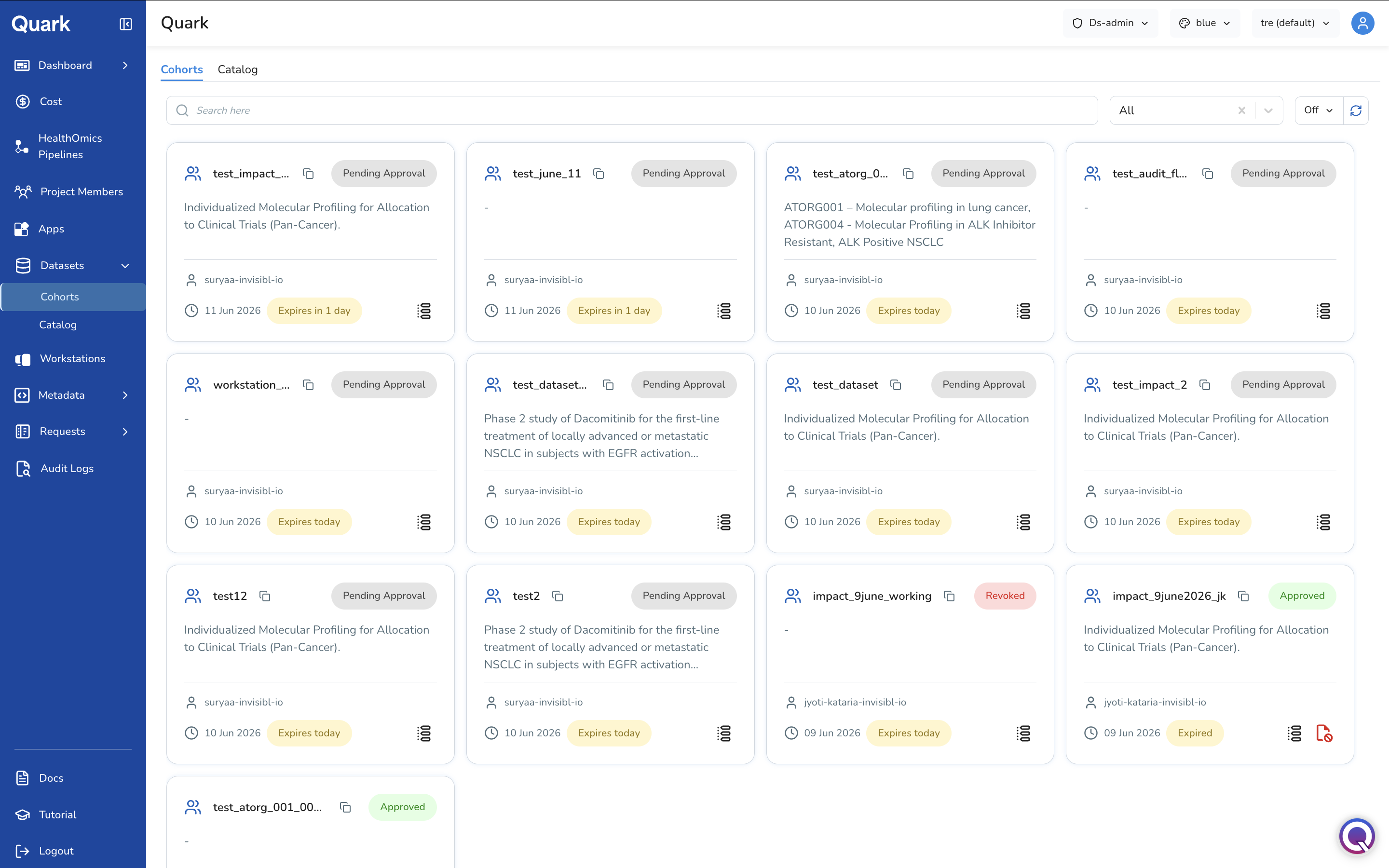
You can use the search bar to find a cohort by name, or use the status dropdown (defaults to All) to filter the list to a specific cohort status.
Reading a Cohort Card
| Field | Description |
|---|---|
| Name | The cohort's name, with a copy icon. |
| Status badge | The current status of the cohort access request — see Cohort Statuses below. |
| Description | A summary of the cohort's composition, where provided. |
| Requesting User | The user who submitted the cohort request. |
| Created Date | The date the cohort request was created. |
| Expiry Tag | How much longer the cohort's access grant remains valid — Expires in X day(s), Expires today, or Expired. |
Tip: The icon next to the cohort name indicates the type of access request — a single-user icon typically represents a request for an entire dataset, while a group icon represents a derived cohort built from a subset of a dataset.
Cohort Statuses
| Status | Description |
|---|---|
| Pending Approval | The request has been submitted and is awaiting review. |
| Approved | The request has been approved and the requesting user has access to the cohort data. |
| Revoked | Access to the cohort has been manually revoked by an administrator. |
| Expired | The cohort's access grant has passed its expiry date. |
Card Actions
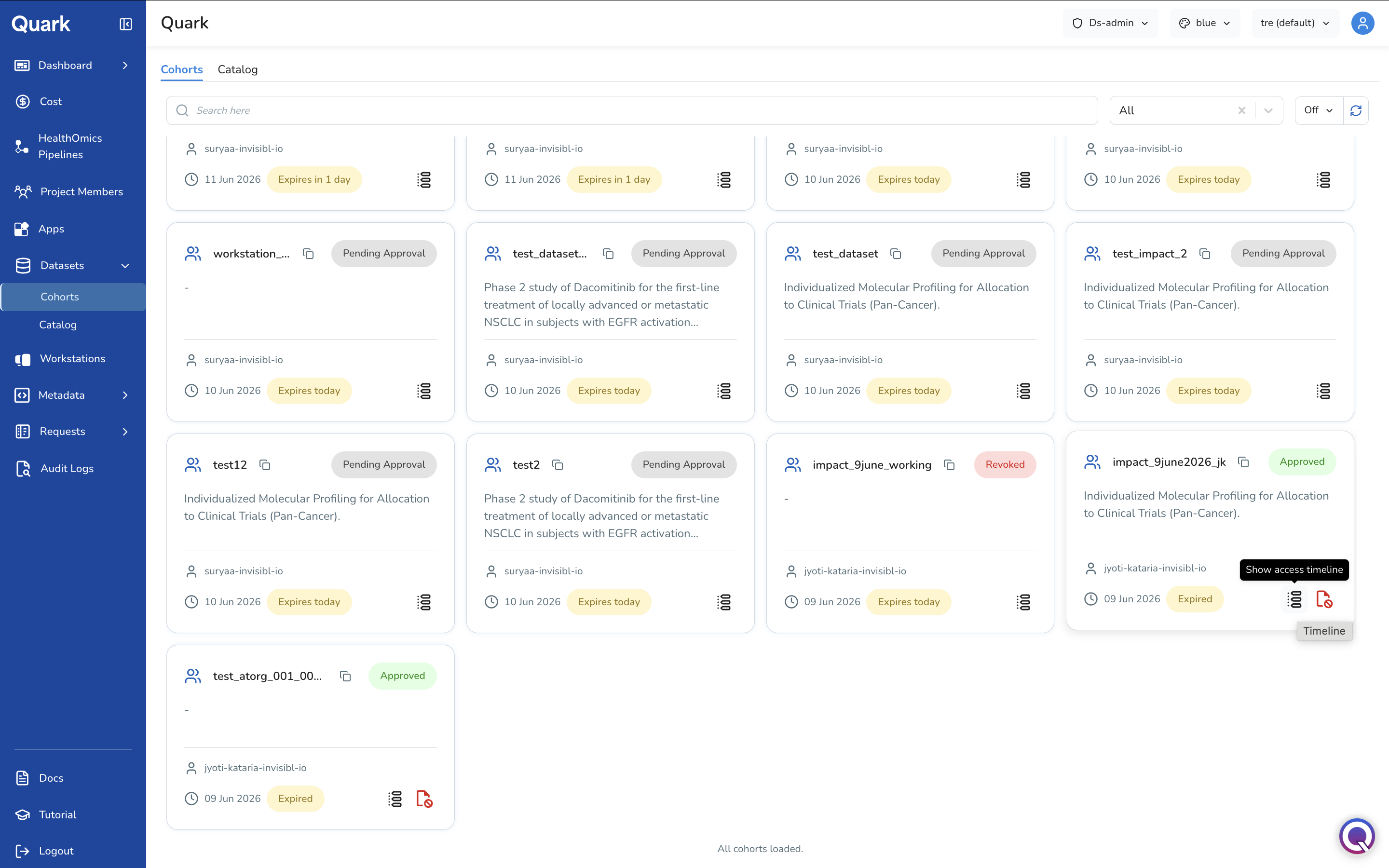
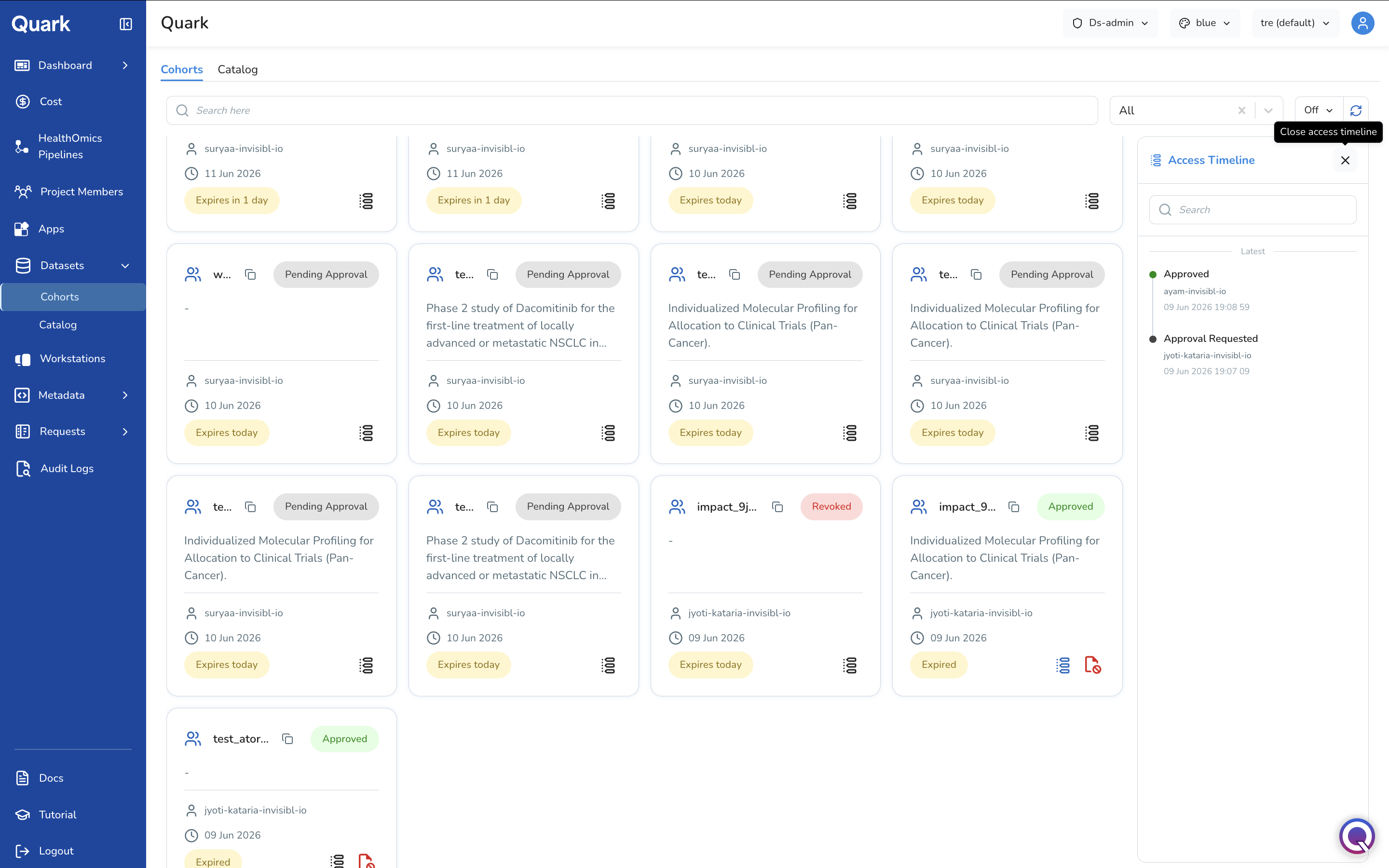
Each cohort card has one or two action icons in the bottom-right corner: a Timeline icon (always available) to open the Access Timeline panel, and a Revoke icon (available when the cohort is Approved or Expired) to revoke the user's access.
Access Timeline
Click the Timeline icon on any cohort card to open the Access Timeline panel, showing a reverse-chronological history of status changes for the cohort — including who approved or requested the access, and when. Use the search field at the top of the panel to filter the timeline if it contains a long history.
Revoking Cohort Access
If a user no longer requires access to a cohort — for example, their project has concluded, or a governance concern has been identified — you can revoke access directly:
- Locate the cohort card with Approved or Expired status.
- Click the red Revoke icon in the bottom-right corner of the card.
- Confirm the action when prompted.
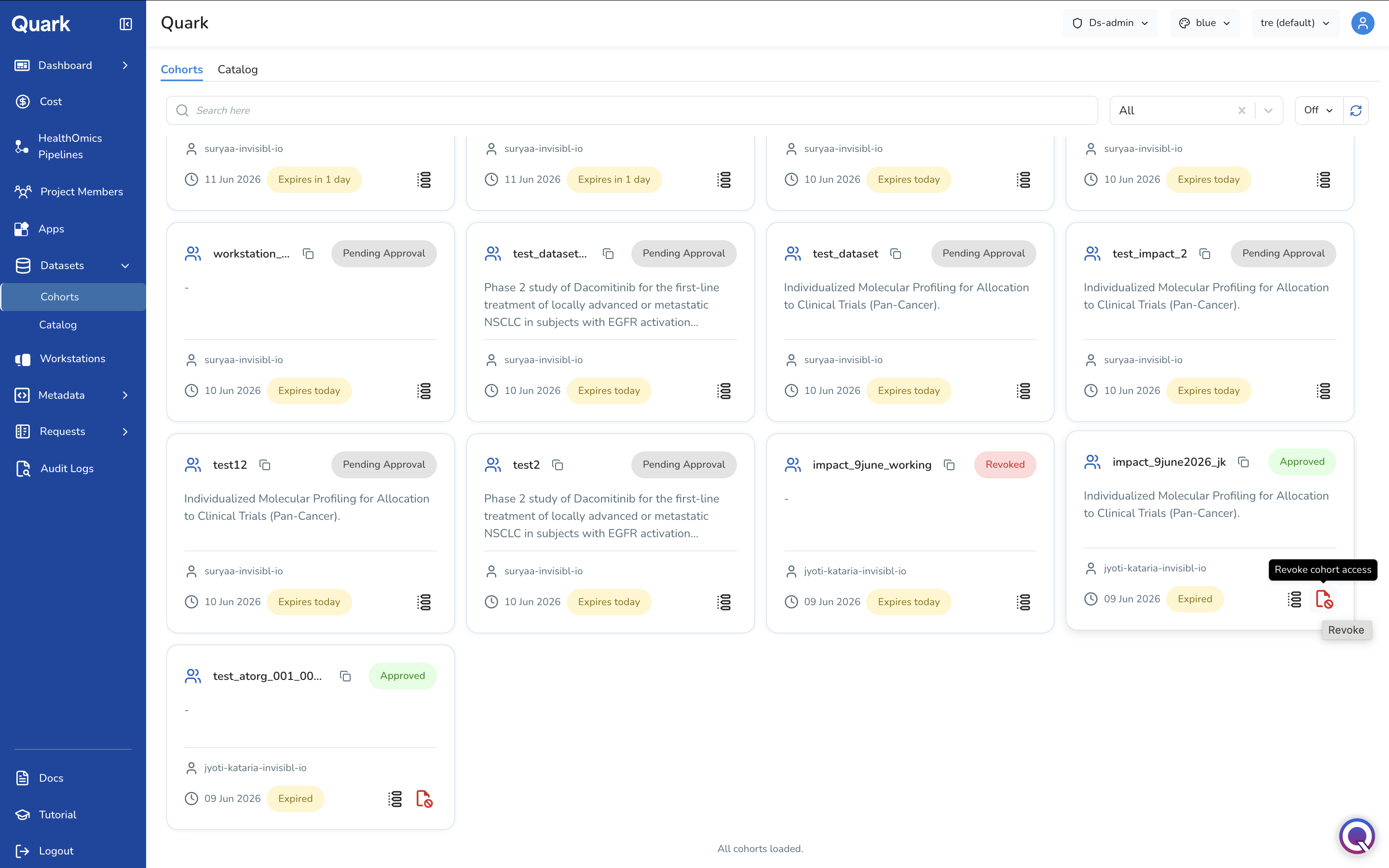
Once revoked, the cohort's status badge updates to Revoked, the revocation is recorded in the Access Timeline, and the requesting user loses access to the cohort's underlying data.
Note: Revoking access does not delete the cohort definition itself — it only removes the user's access to the underlying data. The cohort remains visible in the Cohorts tab for audit purposes.
Approved Cohort Summary
Click on any approved cohort card (other than its action icons) to open the Cohort Summary dashboard for that cohort, including the search query used to define the cohort, the requesting user, aggregate statistics (Number of Persons, Total Records), distribution charts, an Age Plot and KM Survival curve for cohorts with active data access, and a Cohort Table of individual person-level or specimen-level records.
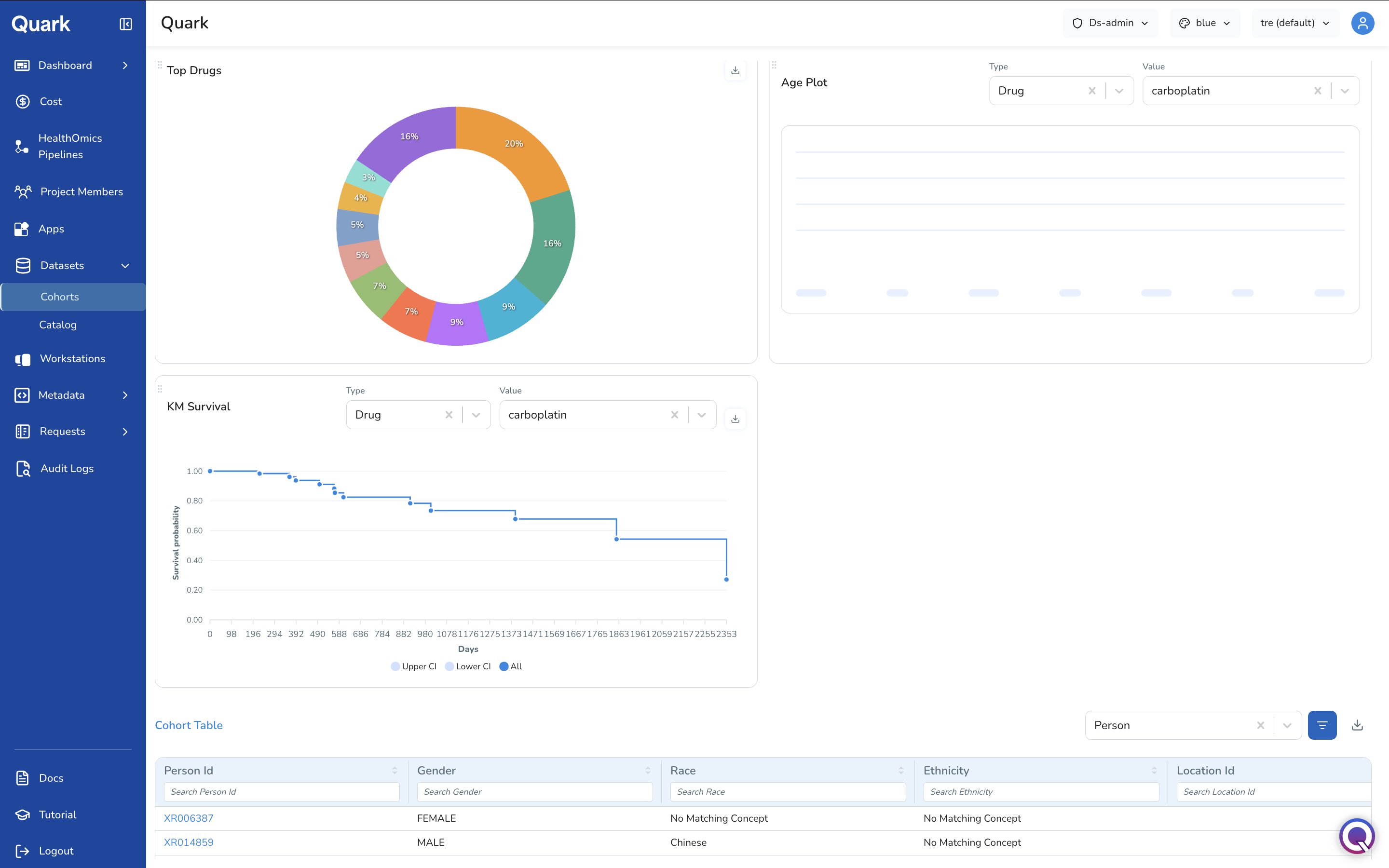
Note: For cohorts with Revoked status, the Cohort Summary dashboard may display its charts and tables as empty placeholders, reflecting that the underlying data is no longer accessible.
What's Next
- Reviewing & Approving Requests — new cohort and dataset access requests are reviewed and actioned here; the Cohorts tab reflects the resulting status and provides ongoing oversight, including revocation.
- Project Audit Logs — review access events for datasets and cohorts, including approvals and revocations, to support compliance and data governance reporting.