Budget
Overview
The Budget section is where the Admin defines the financial structure of the platform — setting top-level budget and distributing them as allocations across teams, projects, and users. The budgets configured here can be monitored in real time from the Cost section.
The Budget section has two tabs: Organization Structure and Budget. Setting up your organisation's hierarchy first is the recommended starting point — budget allocations reference the team levels you define here.
Navigation: Select Budget from the left-hand navigation pane.
Organization Structure
The Organization Structure tab defines the team hierarchy that underpins cost attribution and budget allocation across the platform. The levels you create here appear as the Team, Team2, and Team3 selectors throughout Projects, Users, and Budget Allocation.
Start here if you are setting up the platform for the first time. Budget allocations and project assignments will reference the structure you define in this tab.
The Hierarchy Diagram
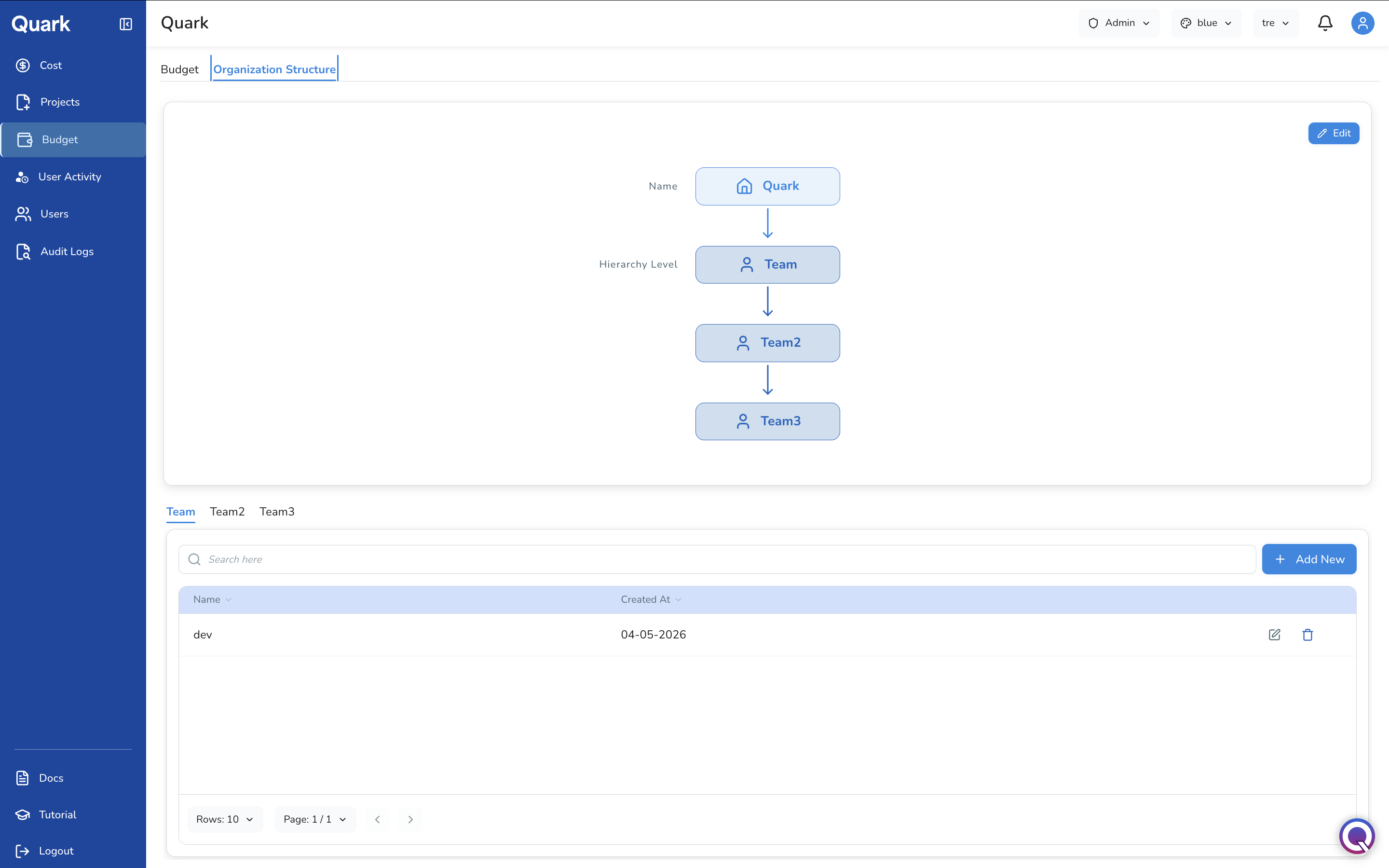
The upper portion of the tab displays a visual tree of your organisation's structure, from the top-level organisation name down through each hierarchy level. The default structure ships with three levels — Team, Team2, and Team3 — but additional levels can be added to match your organisation's shape.
Managing Teams at Each Level
Below the diagram, three tabs — Team, Team2, and Team3 — each display the named groups that exist at that level of the hierarchy. For example, the Team tab might list your divisions, while Team2 lists departments within each division.
Each tab shows:
| Column | Description |
|---|---|
| Name | The name of the group at this hierarchy level. |
| Created At | The date the group was added. |
Use the edit and delete icons on each row to rename or remove a group. Use + Add New to add a new group at that level.
Editing the Organisation Structure
Click Edit in the top-right corner of the diagram to open the Edit Organization Structure panel.
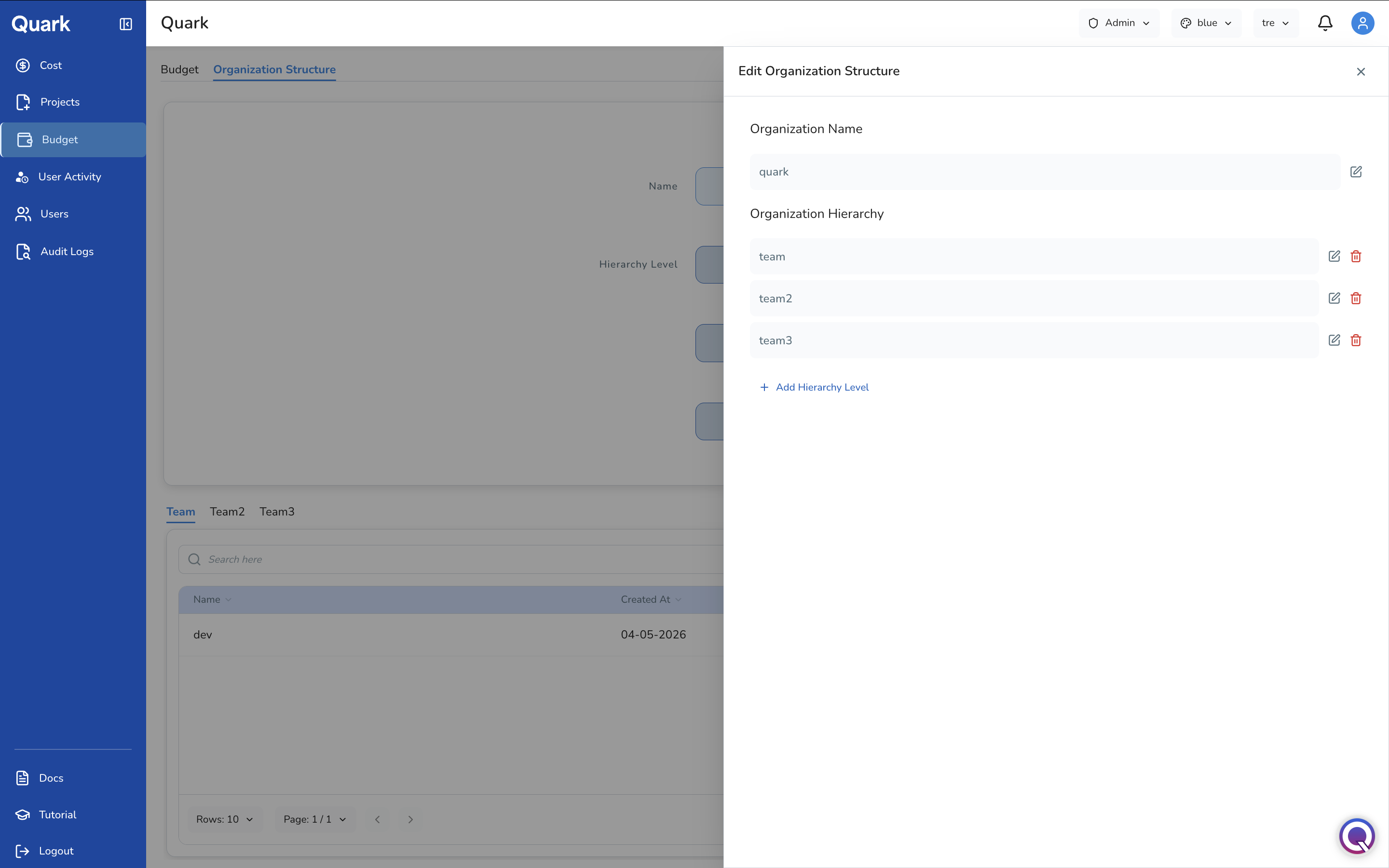
From this panel you can:
- Rename the organisation — update the top-level organisation name displayed at the root of the hierarchy diagram.
- Rename or delete hierarchy levels — use the edit and delete icons next to each level (team, team2, team3) to adjust their labels or remove a level that is no longer needed.
- Add a new hierarchy level — click + Add Hierarchy Level to insert an additional tier below the existing ones. New levels become available immediately as selectors in Projects, Users, and Budget Allocation.
Note: Deleting a hierarchy level will affect any projects, users, and budget allocations that reference it.
Budget Tab
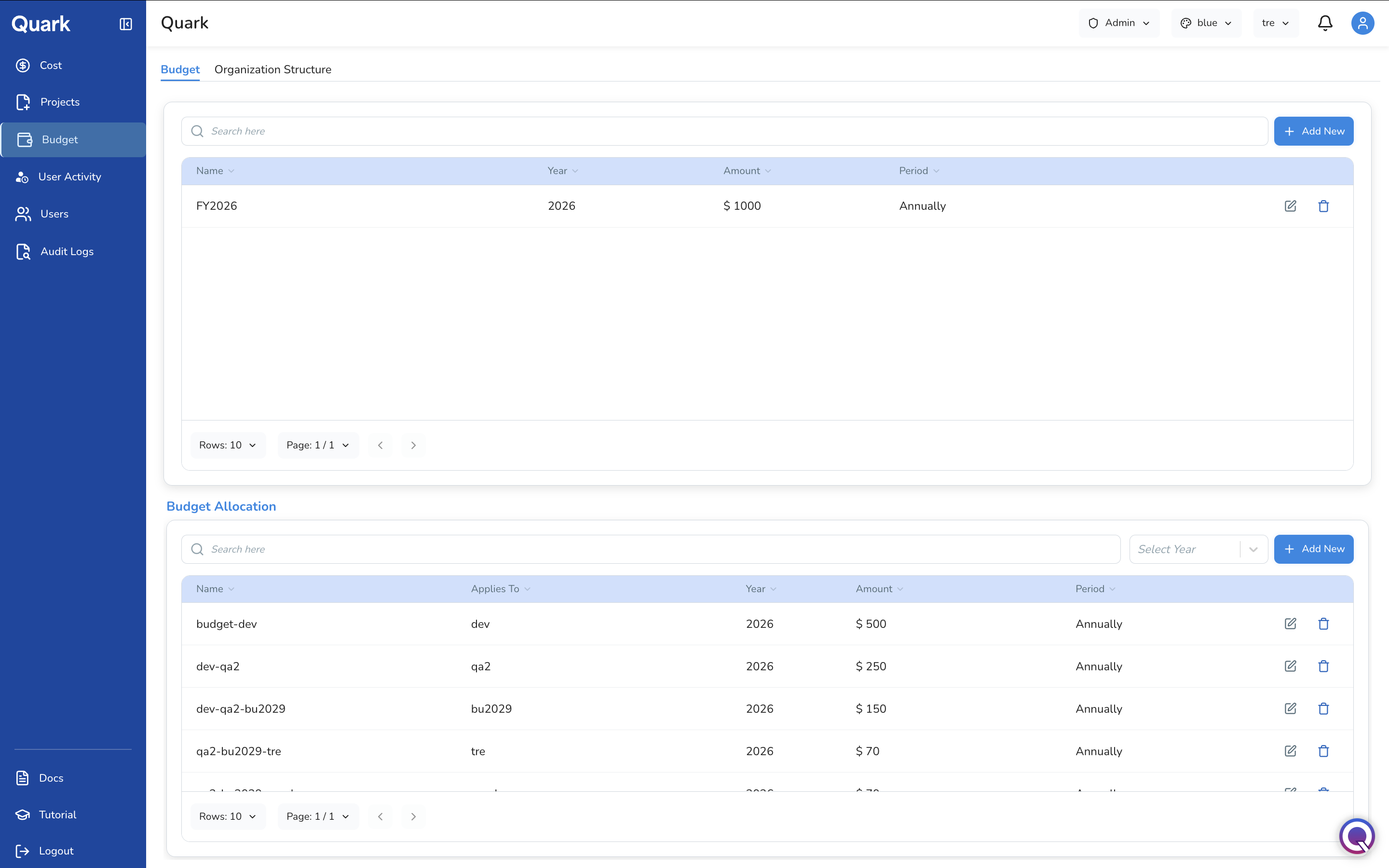
The Budget tab is divided into two sections: Budgets (the top-level financial envelopes) and Budget Allocation (how the budget is distributed to specific parts of the organisation).
Budgets
The upper section lists all top-level budgets on the platform. Each budget defines a total financial envelope for a given year and period.
| Column | Description |
|---|---|
| Name | The budget's identifier (e.g., FY2026). |
| Year | The calendar year this budget applies to. |
| Amount | The total value of the budget envelope. |
| Period | How the budget is structured over time — Annually, Quarterly, or Monthly. |
Use the edit and delete icons on each row to modify or remove a budget. Use the search bar to locate a specific budget by name.
Creating a New Budget
Click + Add New in the Budgets section to open the Create Budget wizard.
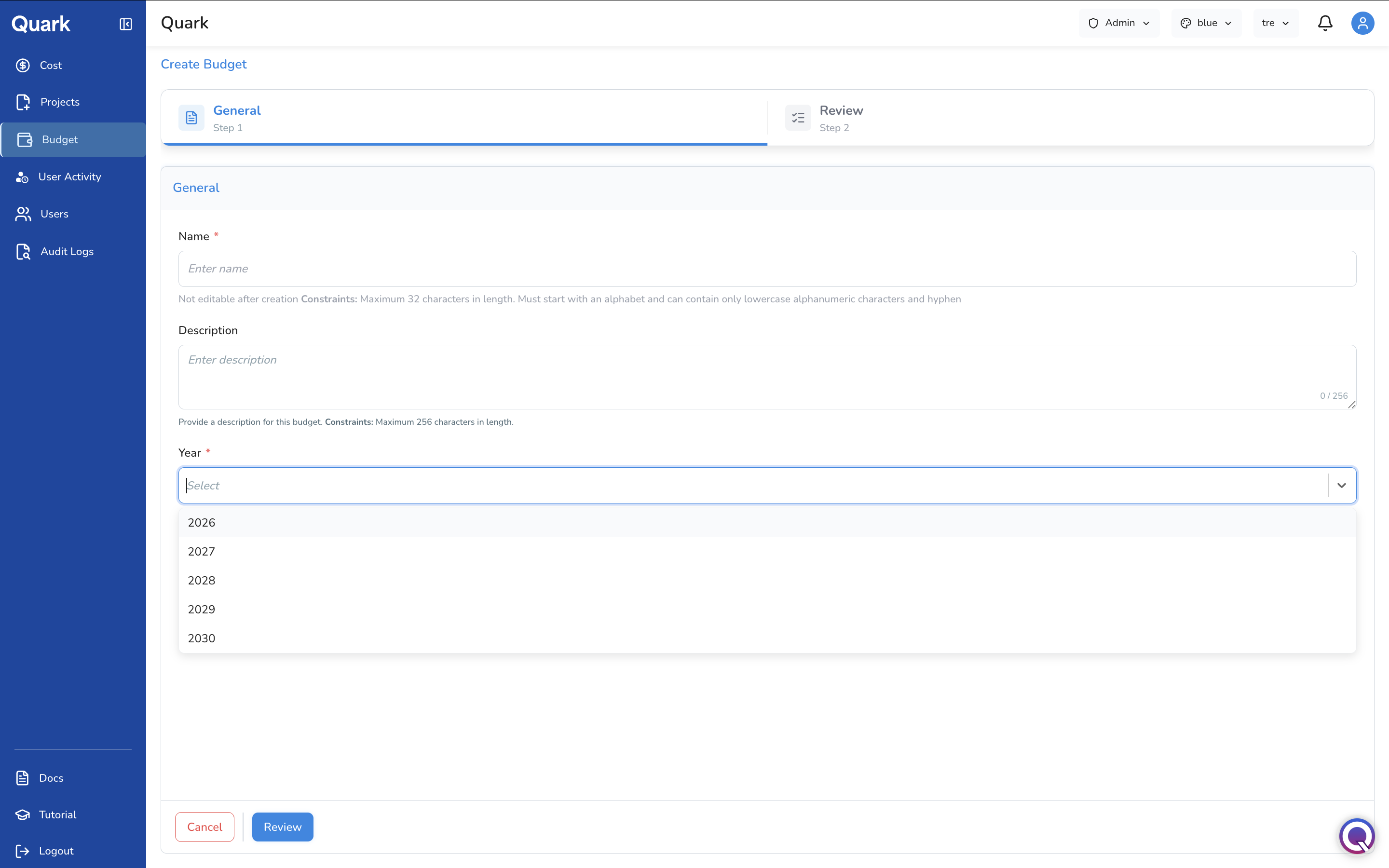
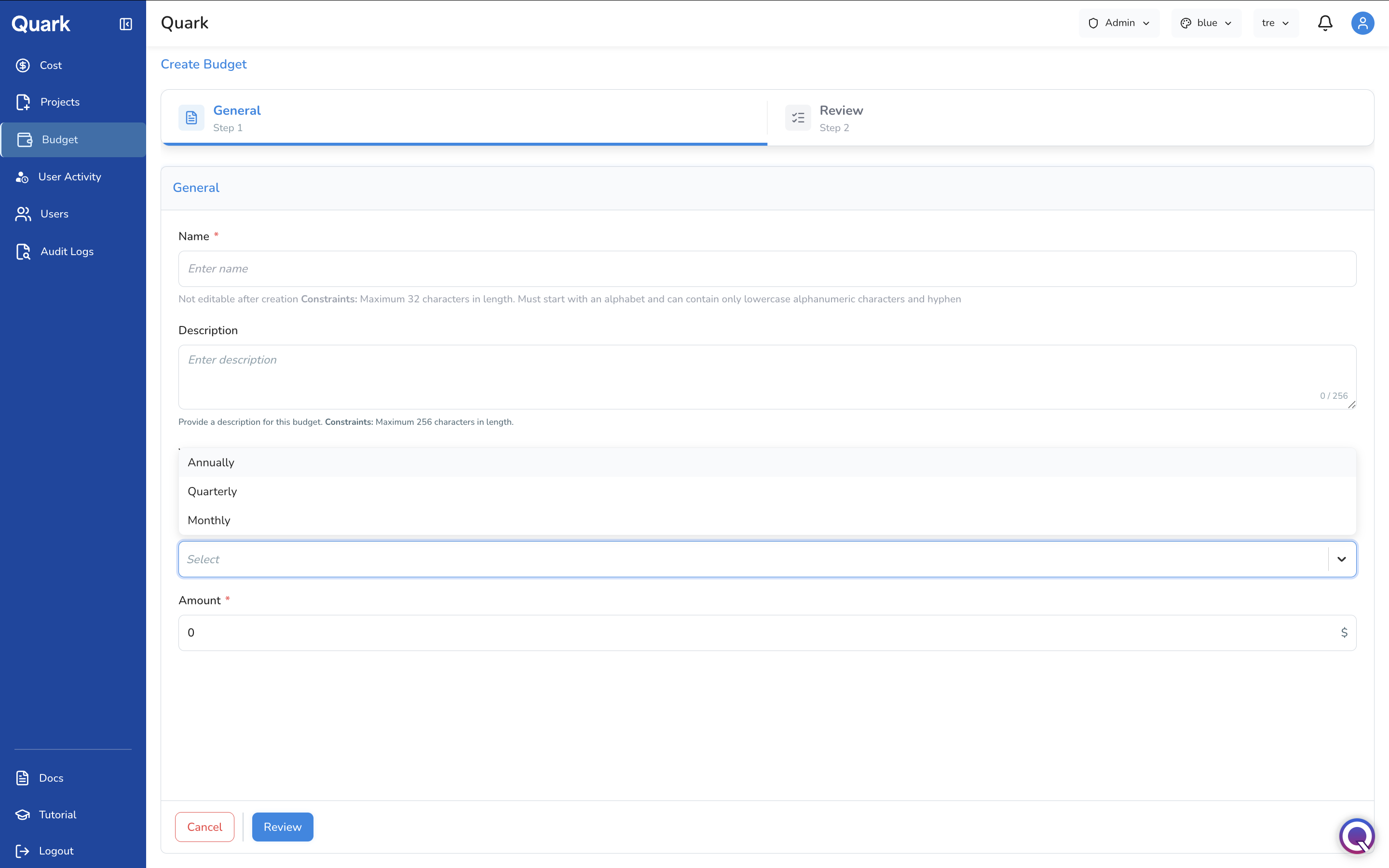
| Field | Description | Constraints |
|---|---|---|
| Name * | A unique identifier for this budget (e.g., FY2026). |
Maximum 32 characters. Must start with a letter. Lowercase alphanumeric characters and hyphens only. Not editable after creation. |
| Description | A plain-language summary of what this budget covers. | Maximum 256 characters. |
| Year * | The year this budget applies to. | Select from: 2026, 2027, 2028, 2029, 2030. |
| Period * | How the budget amount is distributed over time. | Select from: Annually, Quarterly, Monthly. |
| Amount * | The total value of the budget envelope in dollars. | Numeric value greater than zero. |
Click Review to confirm, then Create to publish the budget. It will appear immediately in the Budgets table and become available to reference when creating budget allocations.
Budget Allocation
The lower section distributes the top-level budget envelope across specific parts of the organisation — teams, projects, or individual users. Allocations are how the Admin ensures each group has a defined spending limit.
| Column | Description |
|---|---|
| Name | The allocation's identifier. |
| Applies To | The specific team, project, or user this allocation is assigned to. |
| Year | The year this allocation applies to. |
| Amount | The dollar value allocated to this group. |
| Period | The period cadence, inherited from the parent budget. |
Use the Select Year filter to view allocations for a specific year. Use the search bar to find an allocation by name. Use the edit and delete icons on each row to modify or remove an allocation.
Creating or Editing a Budget Allocation
Click + Add New in the Budget Allocation section to create a new allocation, or click the edit icon on an existing row to modify it. Both open the same form.
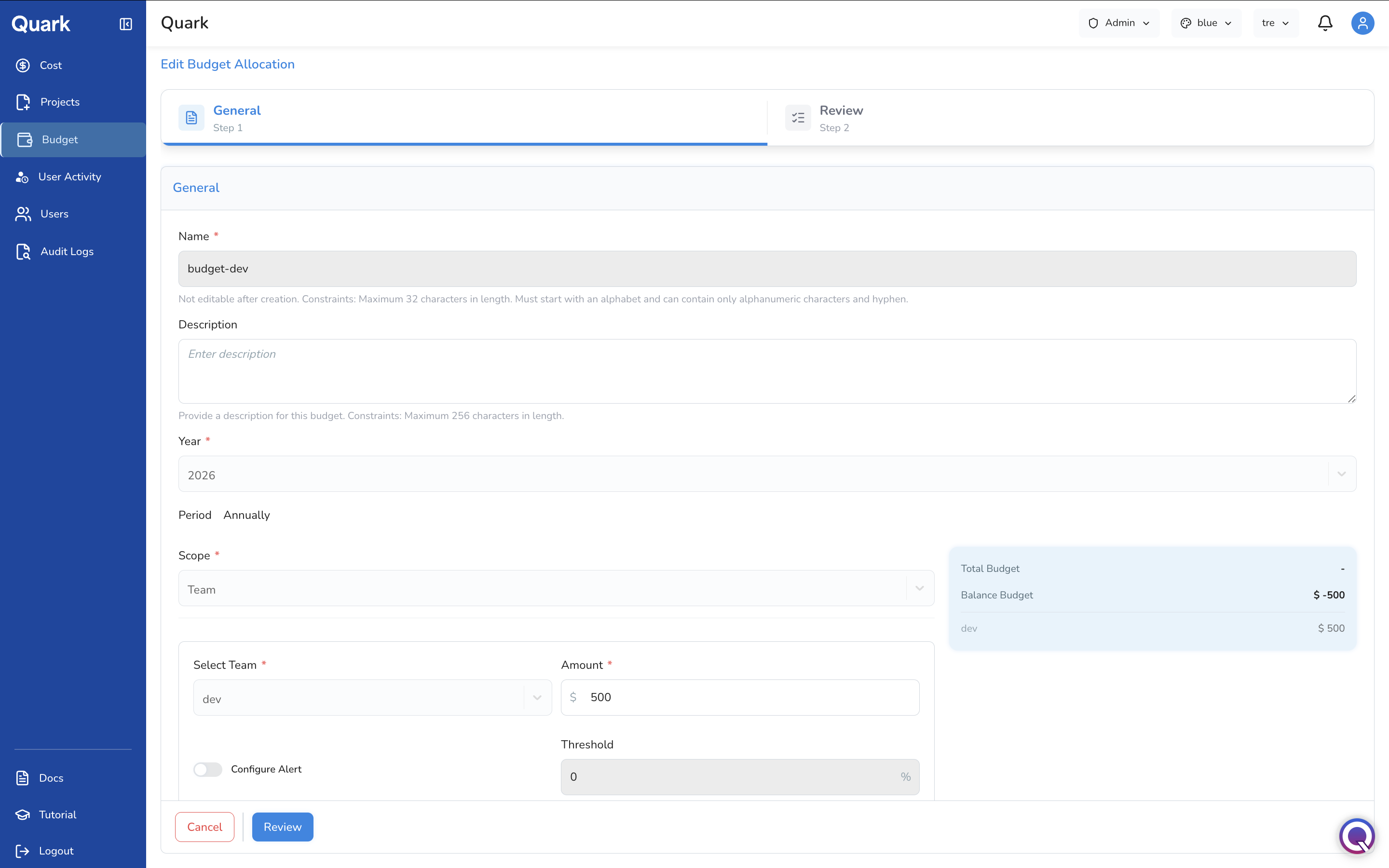
General fields:
| Field | Description | Constraints |
|---|---|---|
| Name * | A unique identifier for this allocation (e.g., budget-dev). |
Maximum 32 characters. Must start with a letter. Lowercase alphanumeric characters and hyphens only. Not editable after creation. |
| Description | A summary of what this allocation covers. | Maximum 256 characters. |
| Year * | The year this allocation applies to. | Must match the parent budget's year. |
| Period | The period cadence. Derived from the parent budget — not editable here. | |
| Scope * | The type of entity this allocation applies to. | Select from: any of your organisation's hierarchy levels (e.g., Team, Team2, Team3), Project, or User. |
Scope-specific fields (appear once Scope is selected):
| Field | Description |
|---|---|
| Select [Scope] * | The specific team, project, or user to allocate the budget to. For example, if Scope is set to Team, select the team name here. |
| Amount * | The dollar value to allocate to the selected entity. |
Alert configuration:
| Field | Description |
|---|---|
| Configure Alert | Toggle on to activate spend alerting for this allocation. |
| Threshold | Visible when Configure Alert is enabled. Set the percentage of the allocation at which a spend alert is triggered (e.g., 80 to alert at 80% utilisation). |
Live Budget Summary
As you configure an allocation, a summary panel on the right of the form updates in real time to show:
| Field | Description |
|---|---|
| Total Budget | The total value of the parent budget envelope. |
| Balance Budget | The remaining unallocated balance after the current allocation is applied. A negative value indicates the total allocations exceed the budget envelope. |
| Per-entity amounts | A breakdown of how much has been allocated to each entity under the current scope. |
Important: If the Balance Budget shows a negative value, the sum of your allocations exceeds the total budget envelope. Adjust allocation amounts before saving to avoid over-commitment.
Click Review to confirm, then save to apply the allocation.
What's Next
- Cost — Monitor how spend is tracking against the budgets and allocations you have configured.
- Projects — Assign projects to the team hierarchy you have defined in Organisation Structure.
- Users — Assign users to the team hierarchy so their activity is correctly attributed in cost and activity reporting.
- Audit Logs — All budget creation and allocation changes are captured in the audit log.