Providers
Overview
The Providers section is where the Infrastructure Administrator connects the external accounts and credentials the platform needs to provision infrastructure and access source code. Every cluster, compute node, and storage bucket the platform creates runs inside a connected provider account.
Providers fall into two broad categories:
| Category | Purpose | Examples |
|---|---|---|
| Cloud Providers | Connect cloud accounts used for provisioning Kubernetes clusters, compute nodes, and storage. The provider name is referenced whenever a workload is launched to control where compute and storage are deployed. | AWS, Azure, GCP |
| Credentials & Registries | Connect Git repositories, container registries, and TLS certificate authorities that the platform draws on for source code access and image pulls. | Git - SSH Key, Git - Login, TLS Certificate Provider, ACR, DockerHub, ECR |
Navigation: Select Providers from the left-hand navigation pane.
The Providers Page
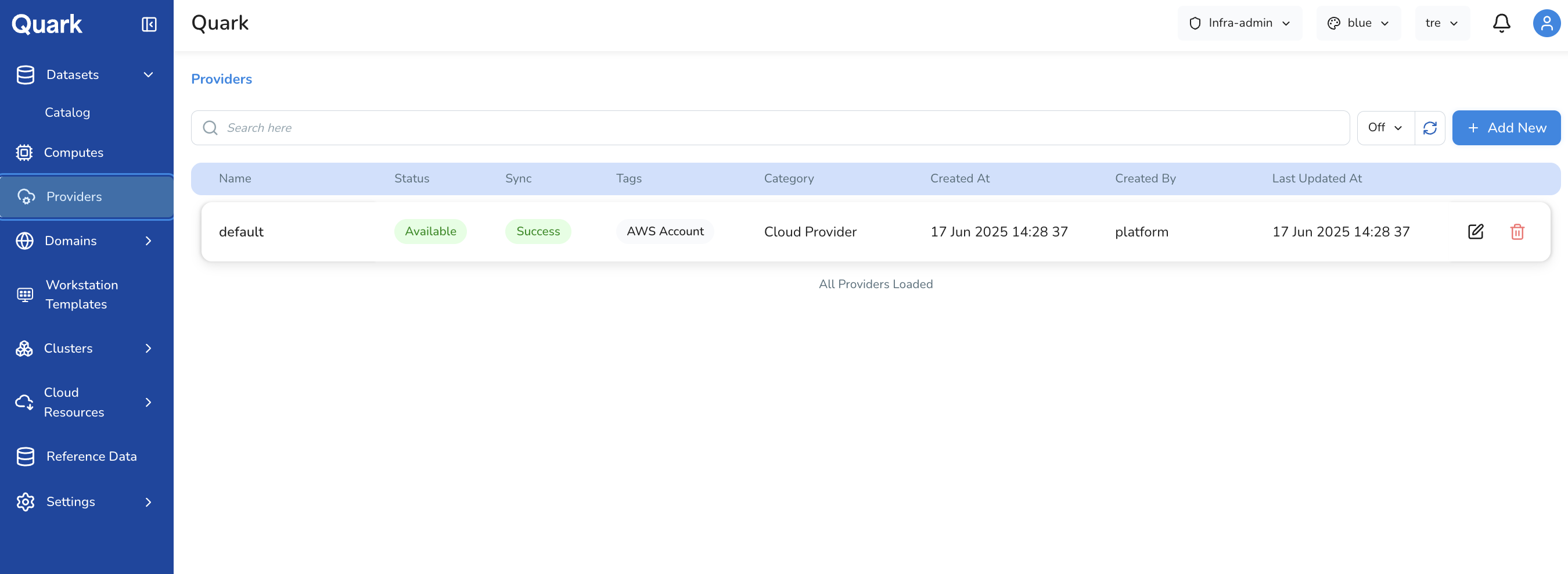
The Providers page lists all connected providers in a table. Each row shows:
| Column | Description |
|---|---|
| Name | The unique identifier for this provider, as entered at creation time. |
| Status | Whether the provider is currently Available (connected and operational) or in an error state. |
| Sync | The result of the last synchronisation with the provider account — Success or a failure state. |
| Tags | The provider type label (e.g., AWS Account). |
| Category | The broad category of the provider (e.g., Cloud Provider). |
| Created At | The date and time the provider was registered. |
| Created By | The user who registered the provider. |
| Last Updated At | The date and time the provider configuration was most recently modified. |
Adding a New Provider
To register a new provider:
- Click + Add New in the top-right corner of the Providers page.
-
The Select Provider modal appears, displaying all available provider types as tiles.
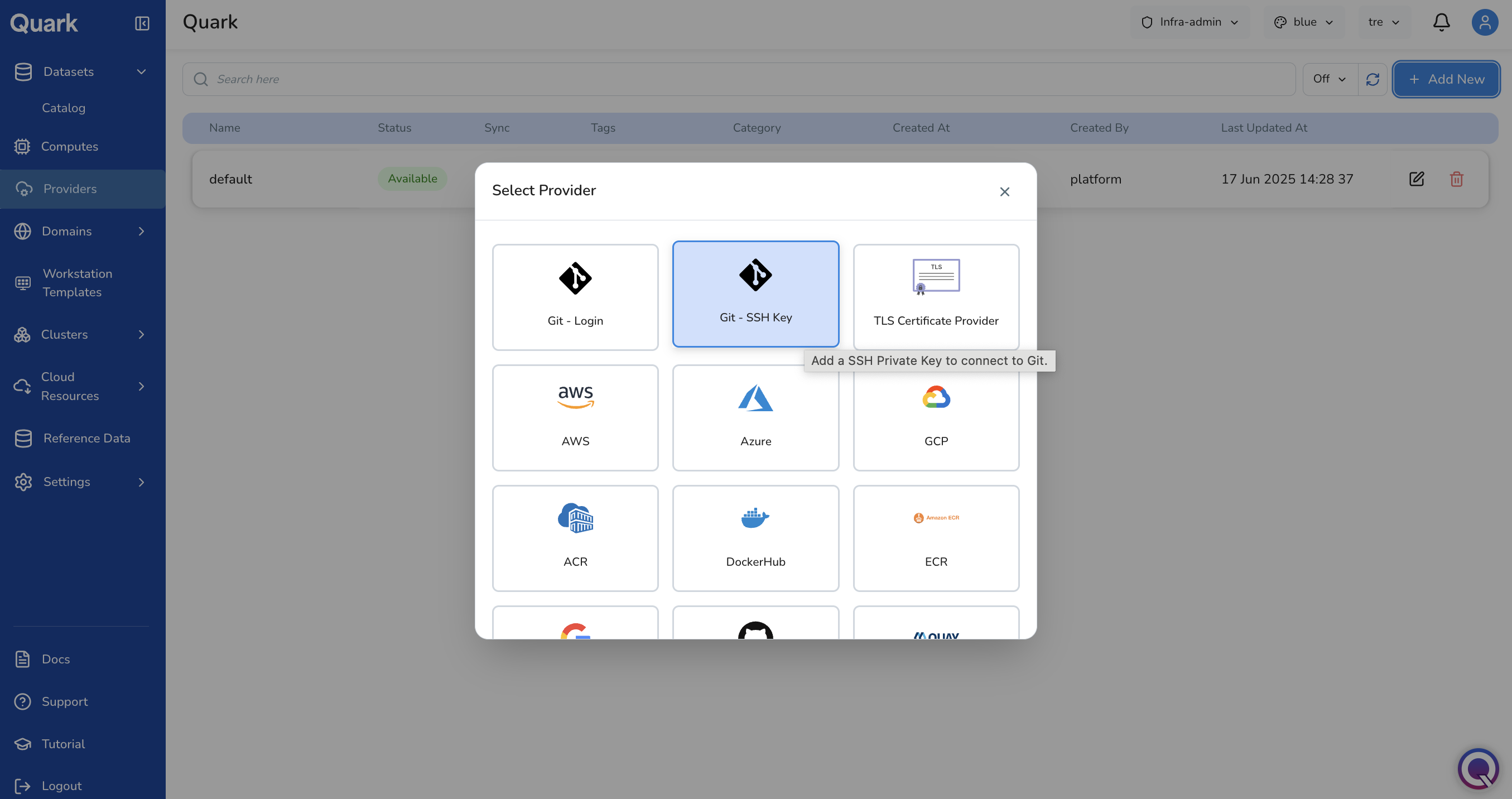
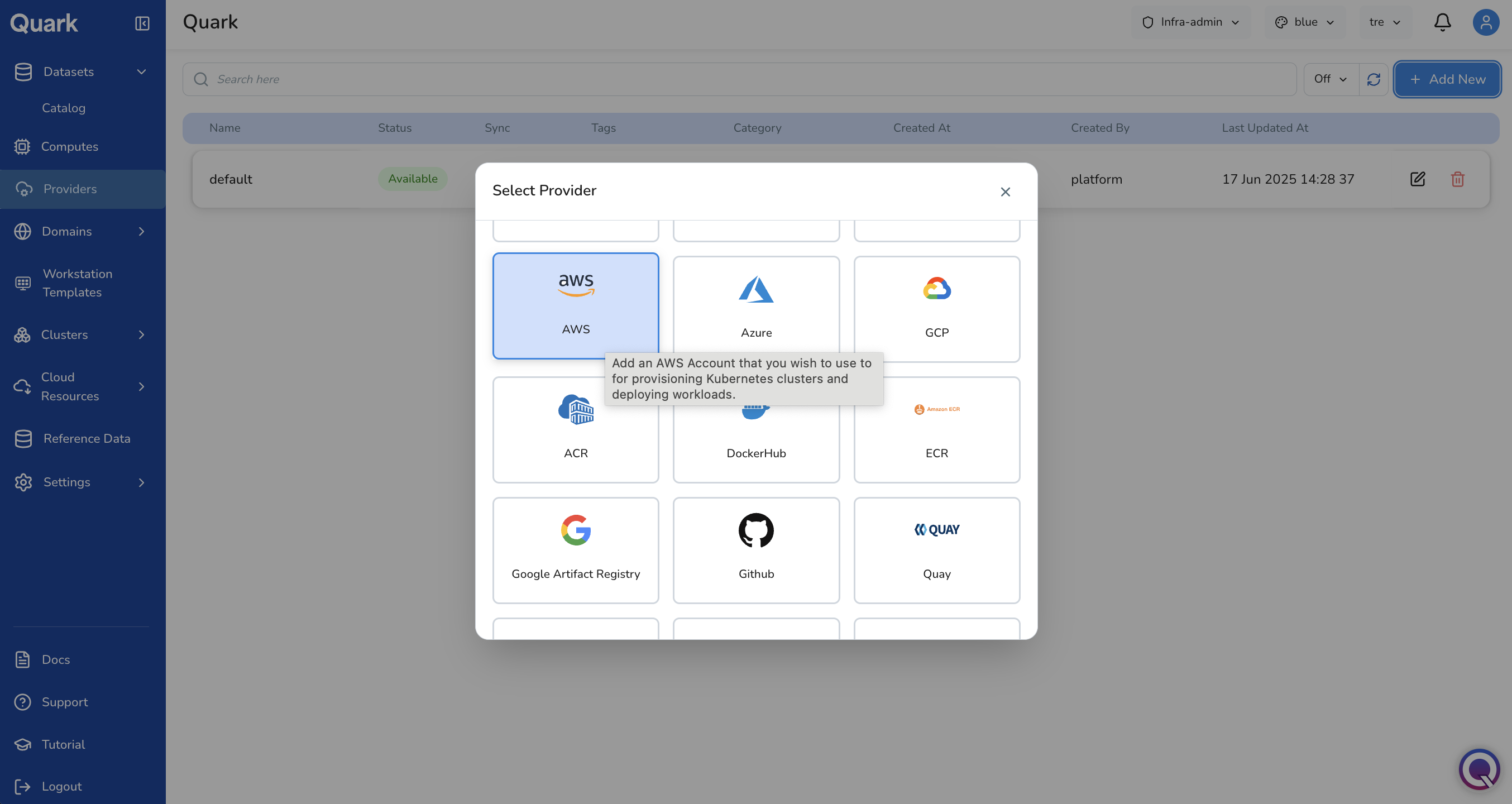
Available provider types include Git - Login, Git - SSH Key, TLS Certificate Provider, AWS, Azure, GCP, ACR, DockerHub, and ECR, among others. Hovering over a tile displays a brief description of what that provider type connects.
-
Click the tile for the provider type you want to add. This opens a configuration wizard specific to that provider type.
The sections below walk through the wizard for the two most commonly configured provider types: AWS and Git - SSH Key.
Example: Adding an AWS Provider
The AWS wizard has five steps: General → Credentials → Properties → Options → Review.
Step 1: General
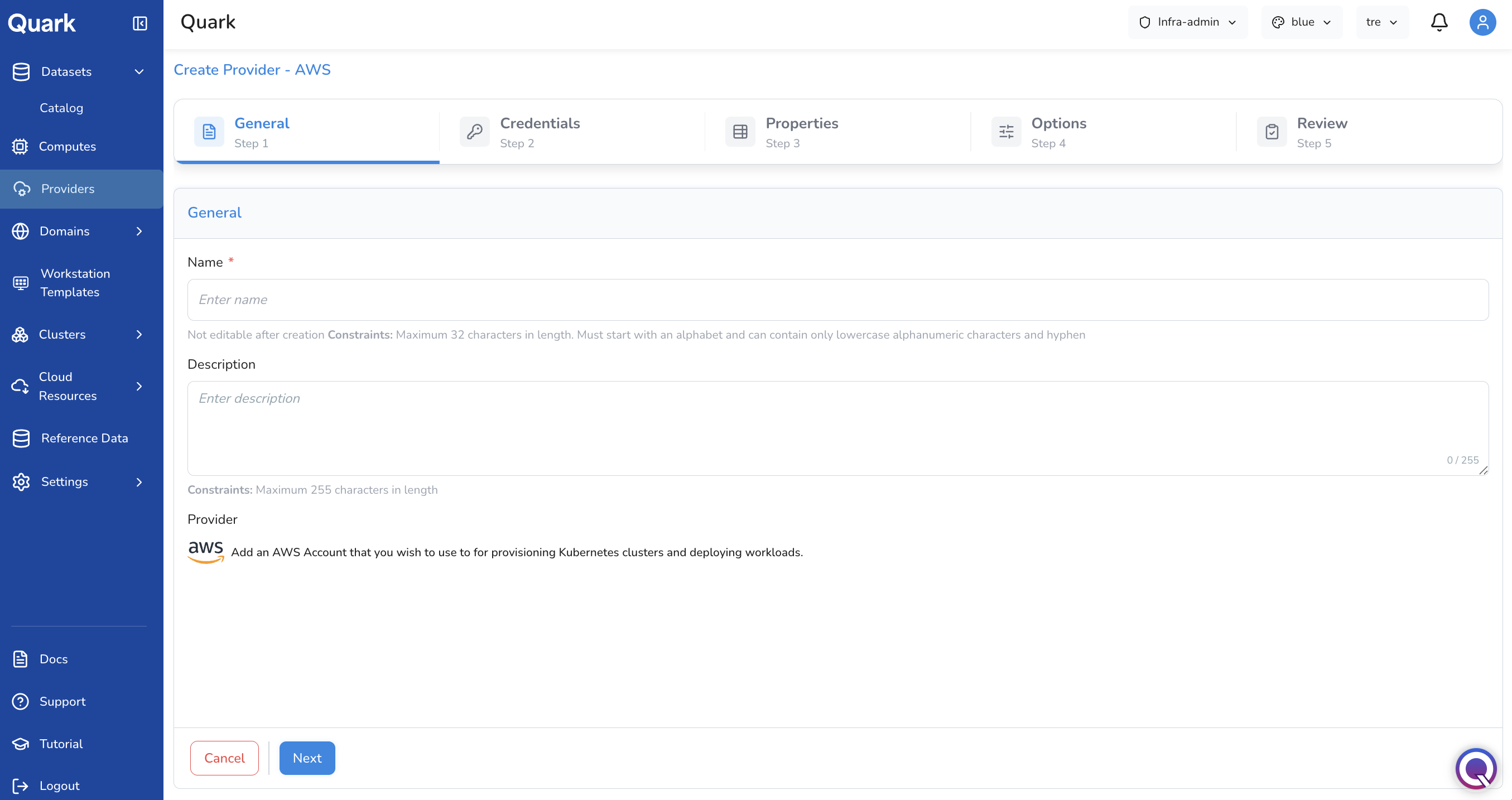
| Field | Description |
|---|---|
| Name (mandatory) | A unique name for this AWS provider. Maximum 32 characters. Must start with a letter and contain only lowercase alphanumeric characters and hyphens. |
| Description | An optional description of this provider's purpose or scope (e.g., which AWS account or environment it represents). Maximum 255 characters. |
Important: The provider Name cannot be changed after creation. Use a name that clearly identifies the AWS account or environment — for example,
aws-prod-us-eastoraws-genomics-dev.
Step 2: Credentials
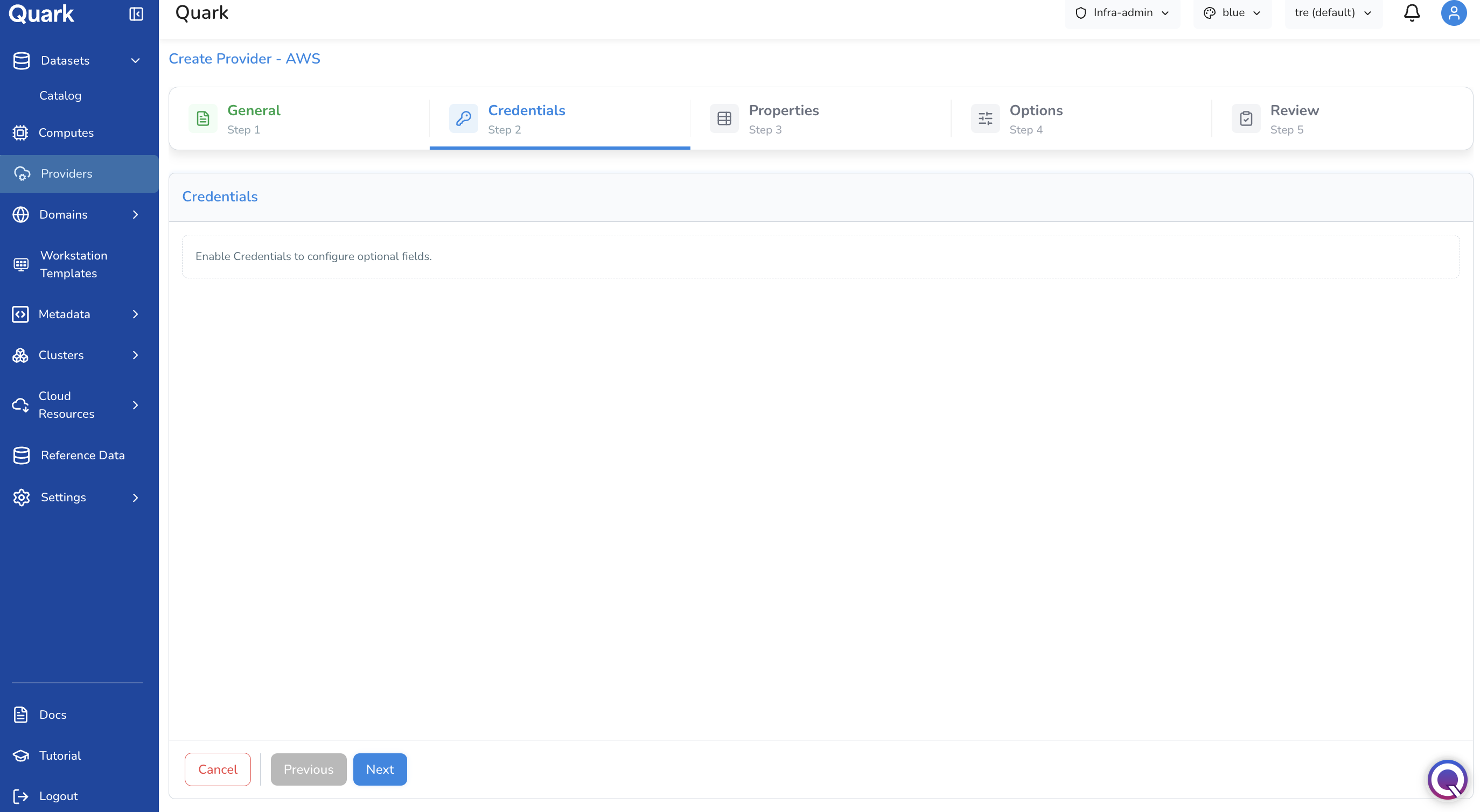
In this step, administrators may enable Credentials to configure optional fields.
AWS authentication on Quark primarily uses IAM role assumption via the Role ARN configured in the next step (Properties), which does not require stored credentials. The Credentials step provides an optional path to supply additional authentication — like Access Key ID and Secret Access Key — for cases where role assumption alone is insufficient.
Step 3: Properties
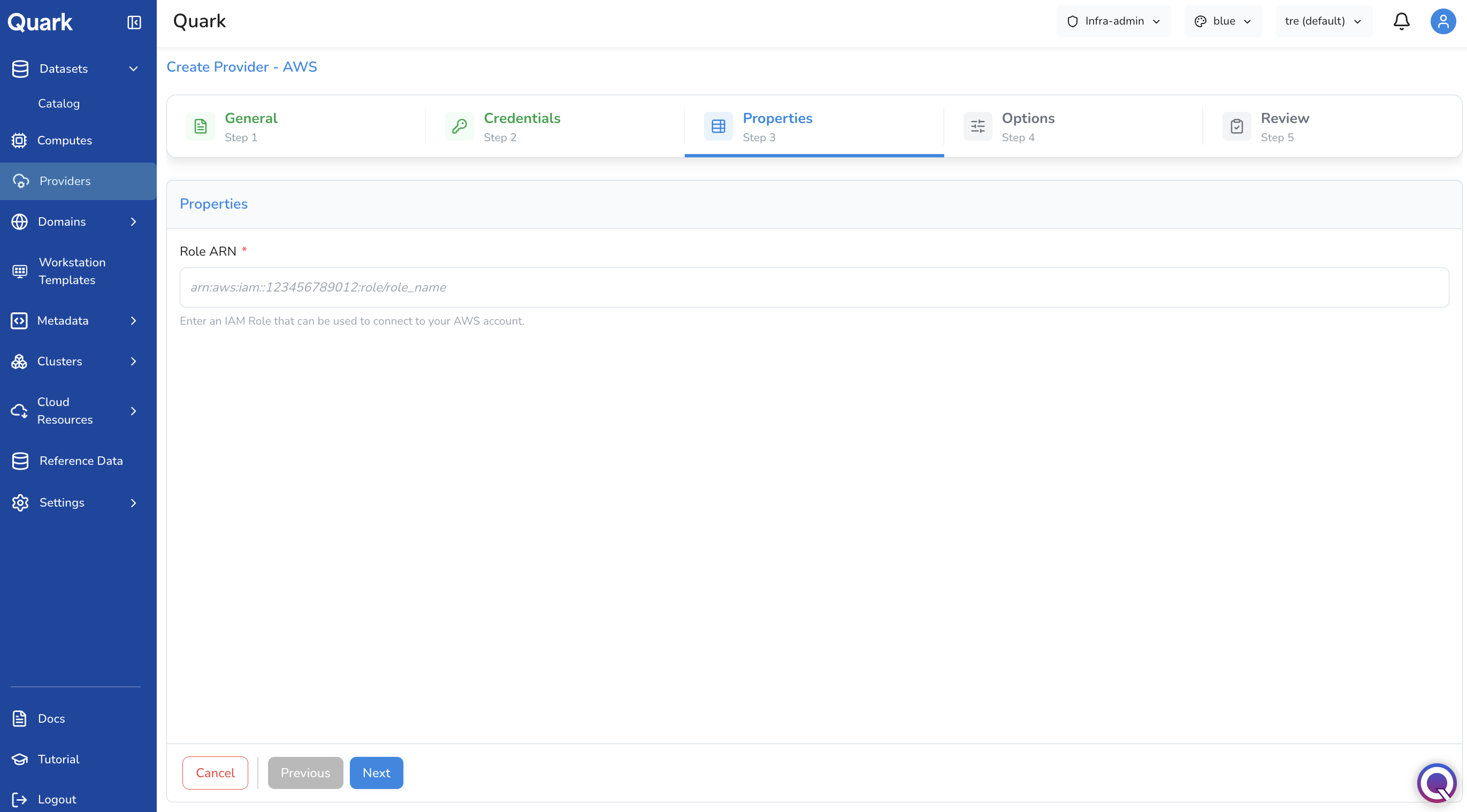
| Field | Description |
|---|---|
| Role ARN | The Amazon Resource Name of the IAM role Quark will assume to act within this AWS account (e.g., arn:aws:iam::123456789012:role/quark-provider). This role must be created in your AWS account and trust the Quark platform's identity. |
Step 4: Options
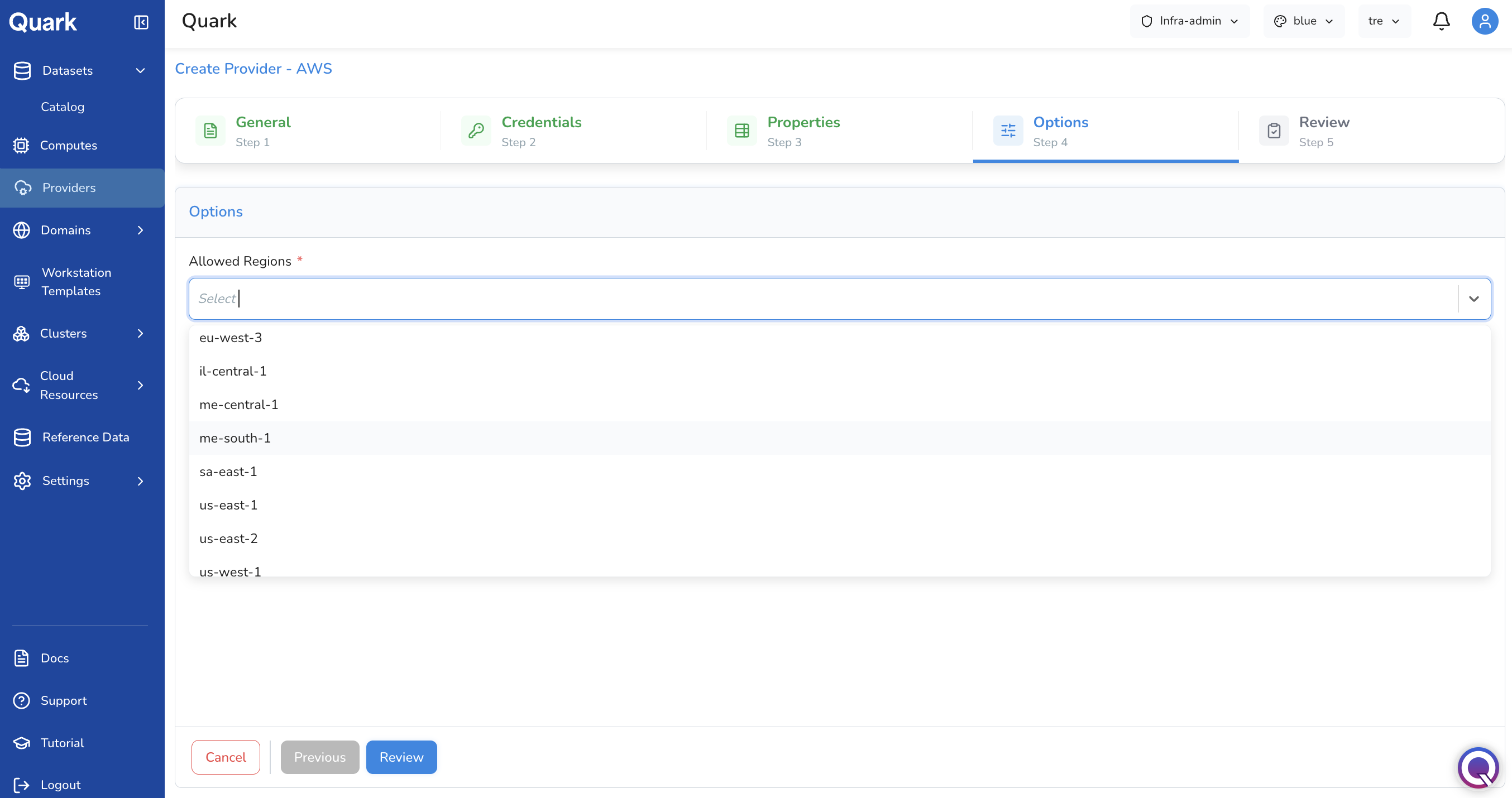
| Field | Description |
|---|---|
| Allowed Regions (mandatory) | The AWS regions this provider is permitted to operate in. Select one or more regions from the dropdown (e.g., us-east-1, eu-west-3). Clusters and compute resources will only be provisioned in the regions selected here. |
Step 5: Review
Review all configuration details, then click Create to register the AWS provider.
Once created, the provider appears in the Providers list and is immediately available for use when provisioning clusters and compute resources.
Example: Adding a Git - SSH Key Provider
The Git - SSH Key wizard connects a Git repository to the platform using a private SSH key. This is used when the platform needs to pull pipeline definitions or workflow code from a private Git repository.
The wizard has four steps: General → Creds → Options → Review.
Step 1: General
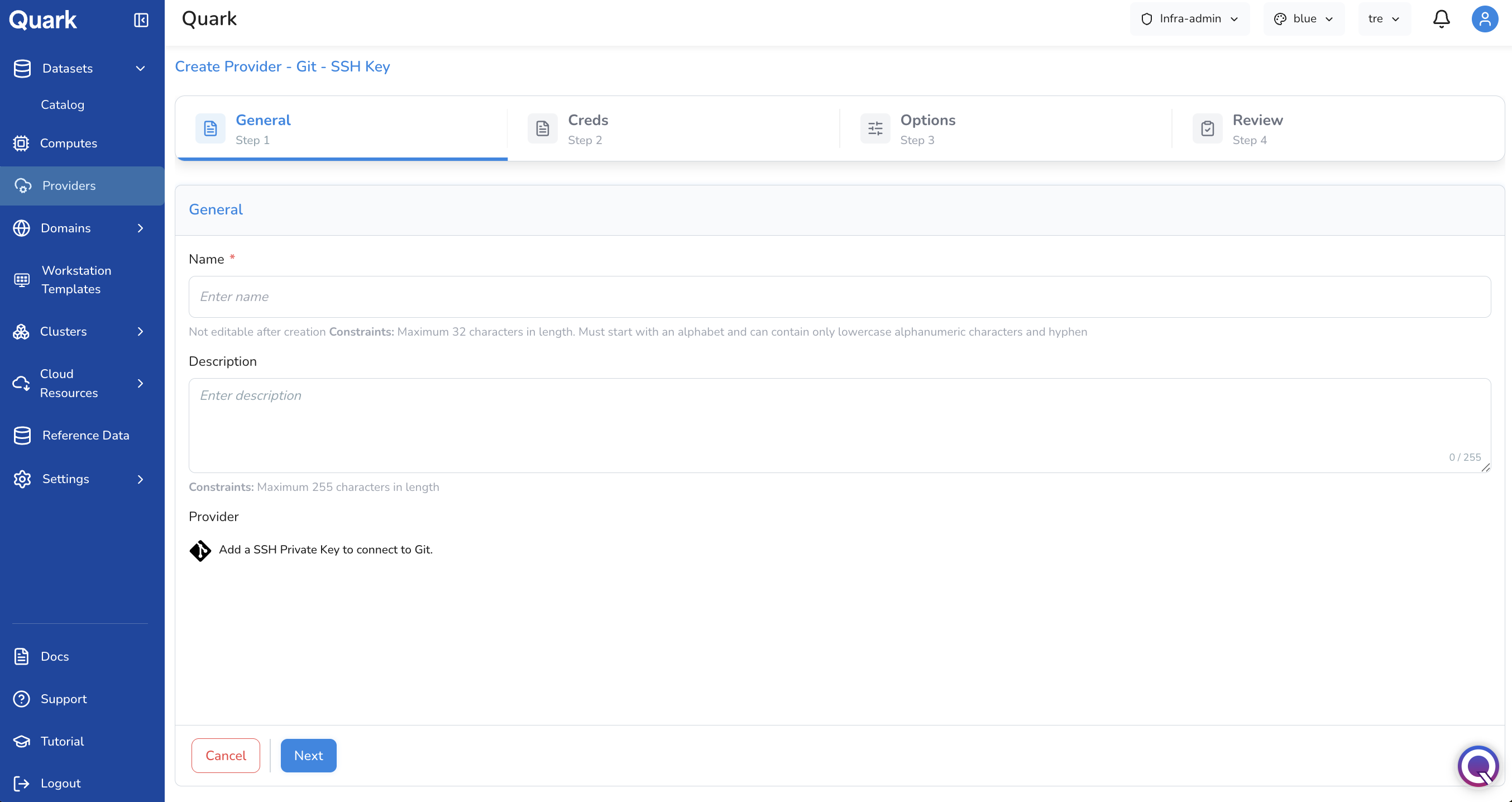
| Field | Description |
|---|---|
| Name (mandatory) | A unique name for this Git credential. Maximum 32 characters. Must start with a letter and contain only lowercase alphanumeric characters and hyphens. |
| Description | An optional description (e.g., which repository or organisation this key is for). Maximum 255 characters. |
Step 2: Creds
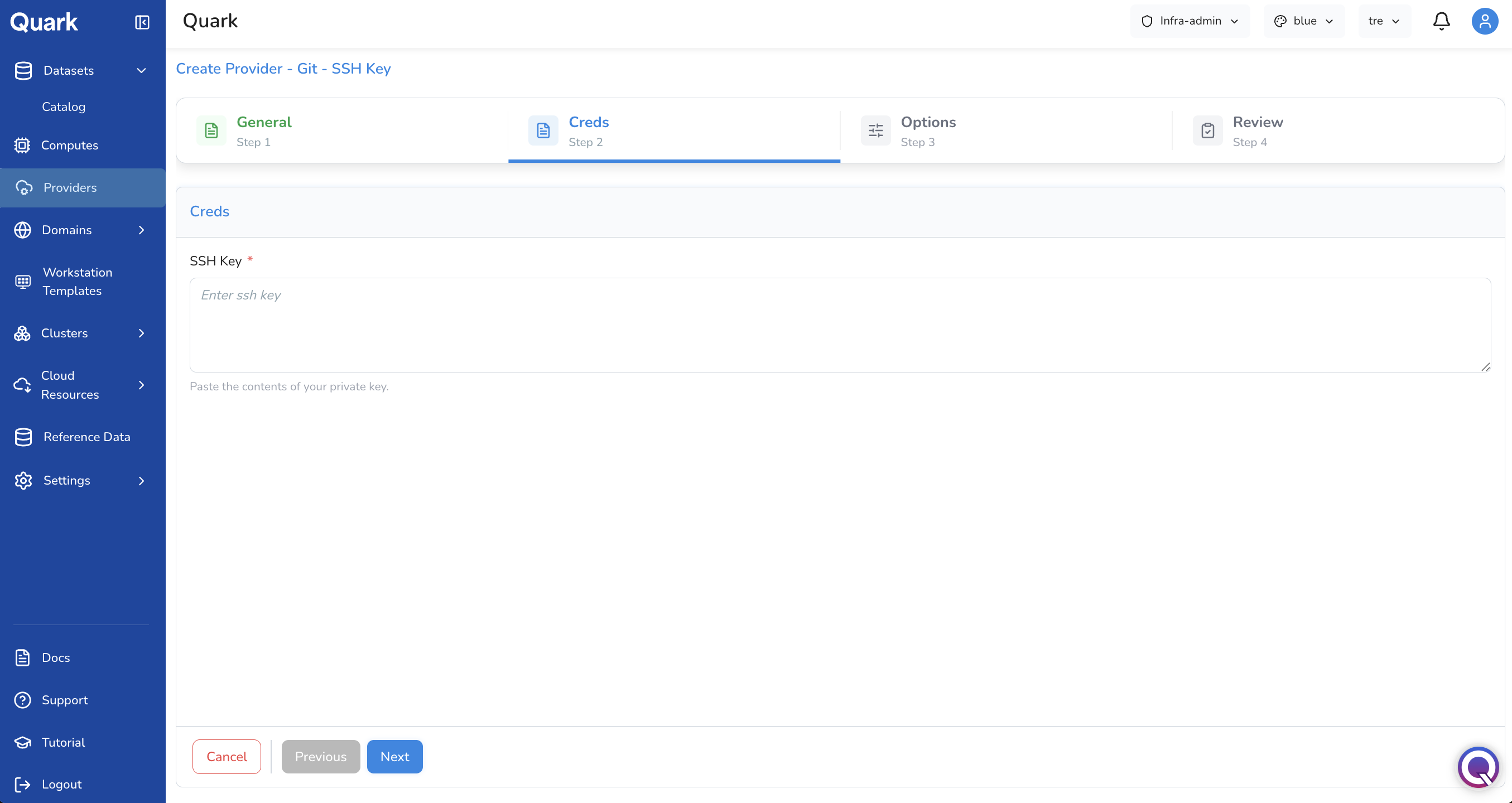
| Field | Description |
|---|---|
| SSH Key (mandatory) | Paste the full contents of the SSH private key that has been authorised to access the target Git repository or organisation. |
Step 3: Options
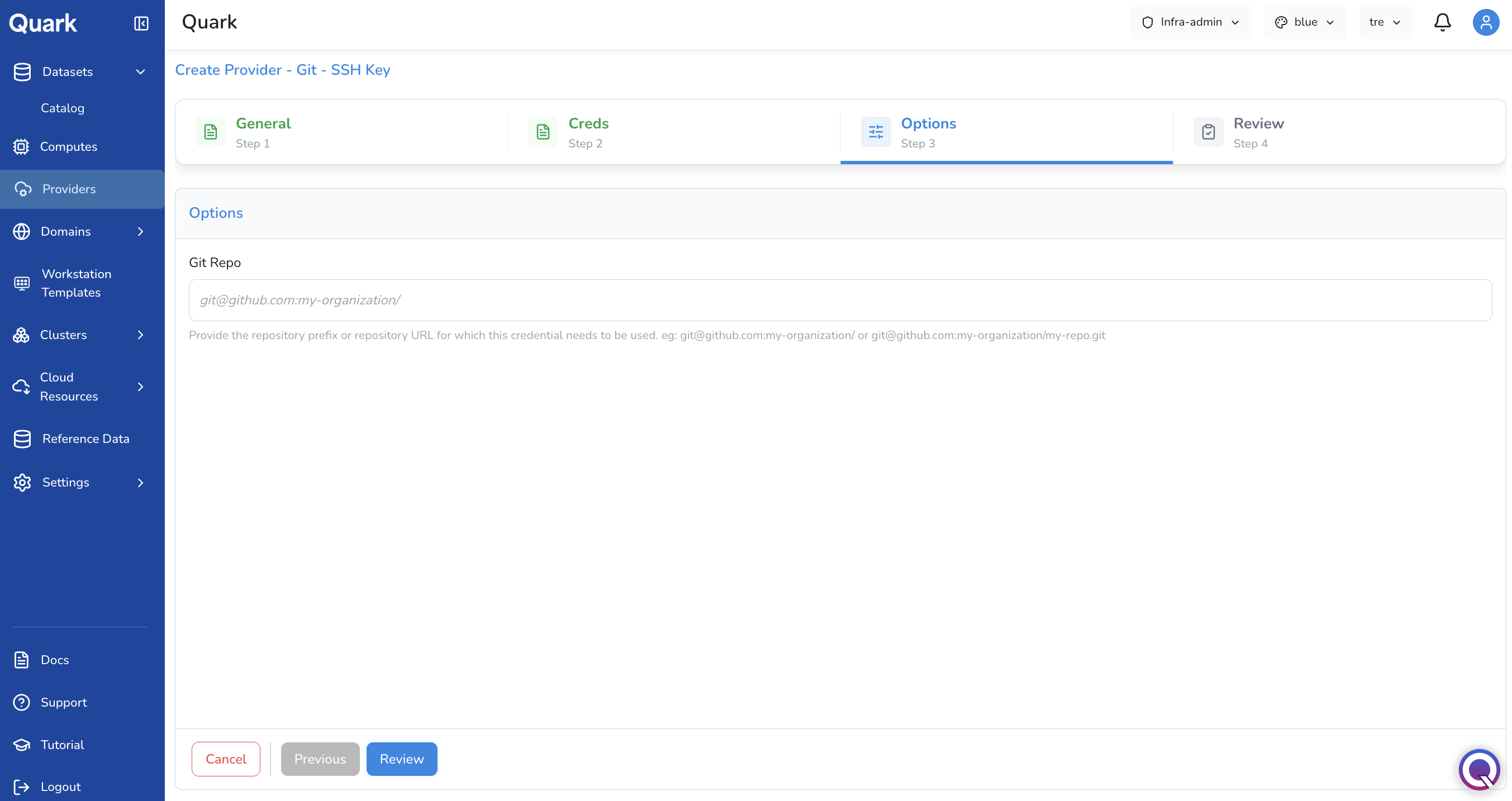
| Field | Description |
|---|---|
| Git Repo | The repository prefix or full repository URL this SSH key credential applies to. Scopes the credential so it is only used for matching repositories. Accepts either an organisation-level prefix (e.g., git@github.com:my-organization/) or a specific repository URL (e.g., git@github.com:my-organization/my-repo.git). Leave blank to apply the credential to all Git connections. |
Step 4: Review
Review all configuration details, then click Create to register the Git - SSH Key provider.
Viewing a Provider
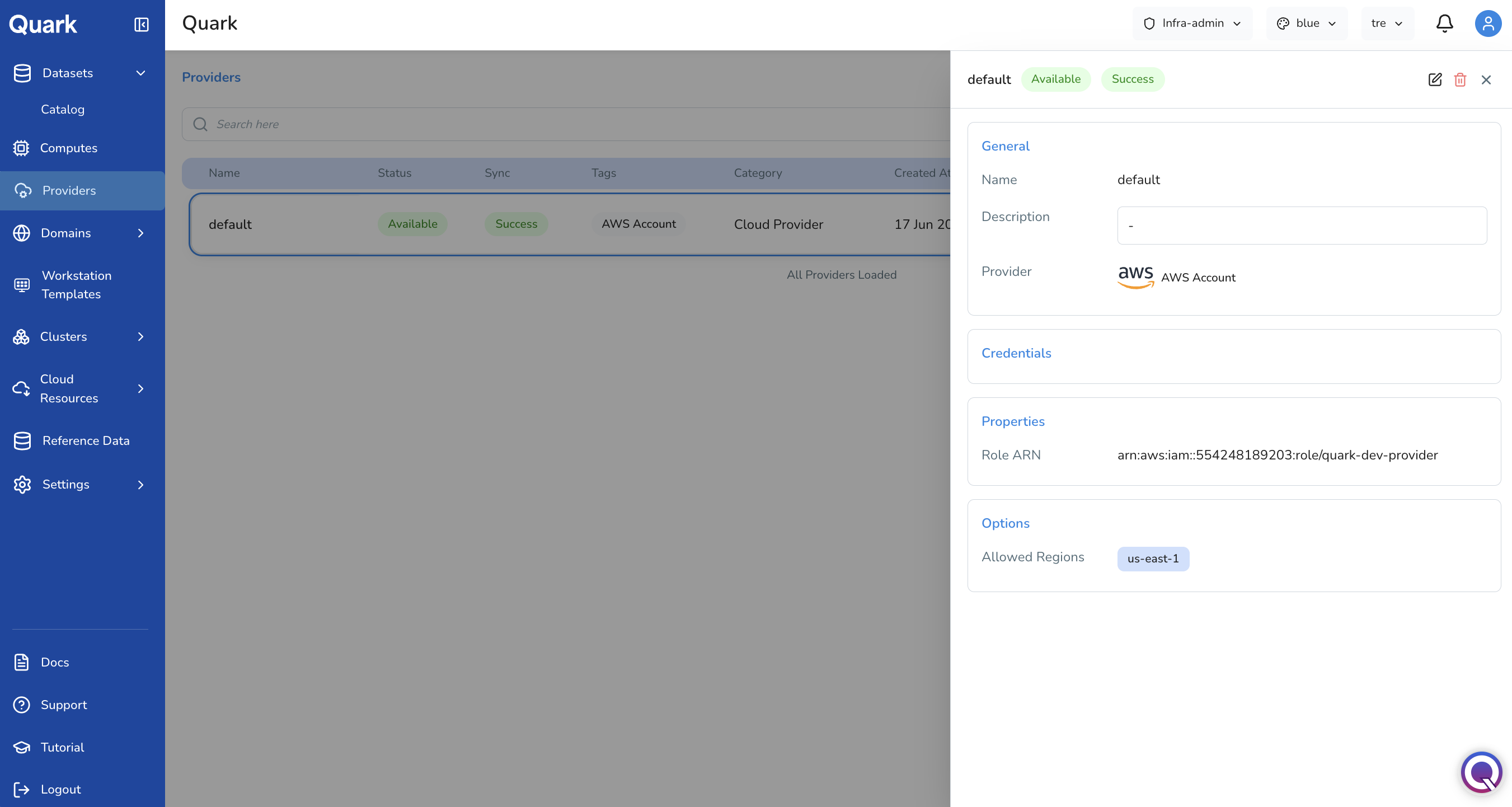
Click any row in the Providers list to open a detail pane on the right side of the screen. The pane shows the provider's full configuration, organised into the same sections as the creation wizard:
- General — Name, description, and provider type.
- Credentials — Credential values are hidden for security.
- Properties — Provider-specific properties (e.g., Role ARN for AWS providers).
- Options — Configuration options such as Allowed Regions.
Managing Existing Providers
Each row in the Providers list has two actions, accessible via the icons on the right of the row:
- Edit (pencil icon) — Returns to the full configuration wizard, pre-populated with the current values. All fields except the Name can be updated.
- Delete (red trash icon) — Removes the provider. A confirmation prompt appears before deletion is finalised.
Important: Deleting a provider that is actively referenced by a cluster or compute configuration will disrupt those resources.
What's Next
- Clusters — Clusters are provisioned against a connected cloud provider. Ensure your AWS or other cloud provider is registered and available before creating a cluster.
- Computes — Compute configurations run on clusters backed by a connected provider. Verify your provider is healthy if compute workloads fail to schedule.
- Domains — TLS Certificate Provider connections registered here are used when configuring certificate issuers for platform domains.