Managing Workstation Resources
Managing Resources and Costs
Lifecycle Management
Workstations support automated lifecycle management, enabling researchers to define schedules for automatic starting and stopping:
- Open your workstation's details pane.
- Navigate to the lifecycle management section.
- Click Add New Policy.
- Define a schedule or set of conditions (e.g., start at 9:00 AM, stop at 6:00 PM on weekdays).
- The workstation will automatically start and stop according to the defined schedule.

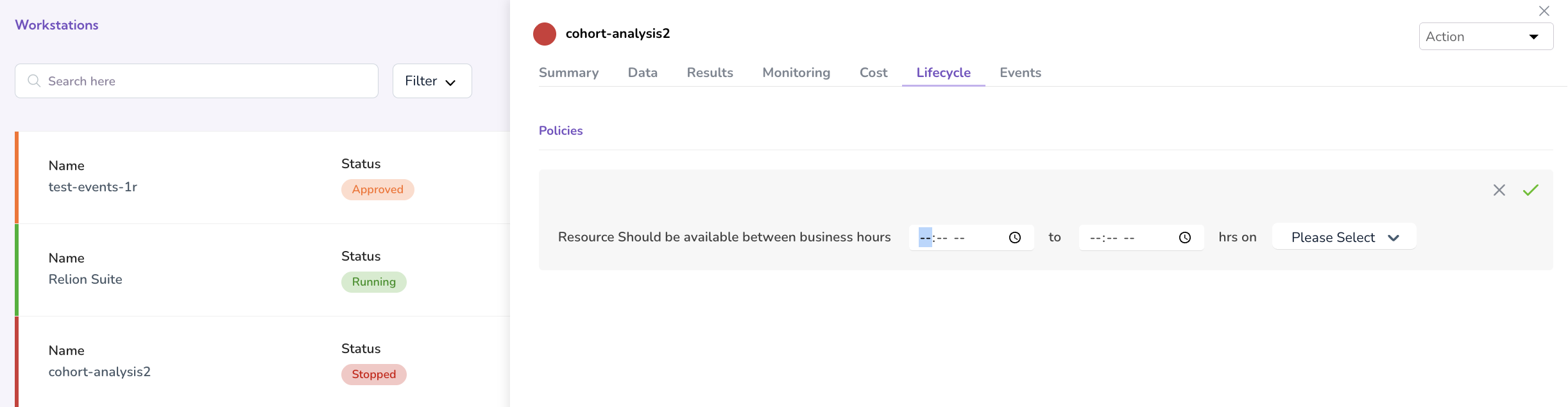
This feature helps optimise resource consumption and manage costs by ensuring workstations are not left running outside of active research hours.
Resource Monitoring
The Monitoring tab within the workstation details pane provides real-time metrics on:
- CPU usage
- Memory consumption
- Disk space utilisation
- Other relevant performance statistics
Use these metrics to identify resource bottlenecks and optimise your analysis workflows.
Cost Tracking
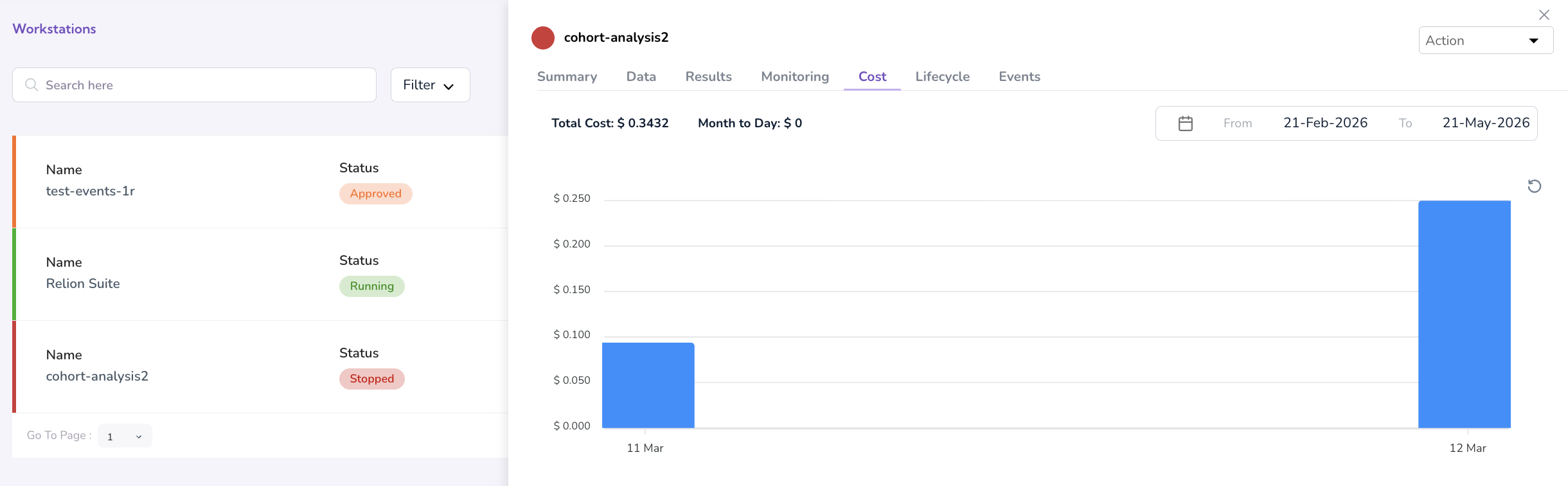
The Cost Chart within the workstation details pane provides detailed cost breakdowns:
- Daily, weekly, and monthly cost views based on resource consumption.
- Cost estimations for different configuration options, helping researchers manage budgets.
Event Logging
The Event Log automatically records all workstation activities:
- Workstation creation, launch, start, stop, and termination events.
- Each event includes a timestamp, user information, and status updates.
- The event log is available for auditing and troubleshooting purposes.
What's Next
- Explore datasets — Navigate to Datasets on Quark to browse datasets available to you.
- Run a pipeline — See Pipelines to launch a bioinformatics workflow.