TRE Infrastructure Administrator
Publishing a Dataset
Publishing a dataset makes it visible in the TRE Data Catalog, where researchers can browse its summary and submit data access requests. Datasets must be uploaded to a connected cloud storage location before they can be published — this guide assumes the upload step is complete.
Steps to Publish a Dataset
-
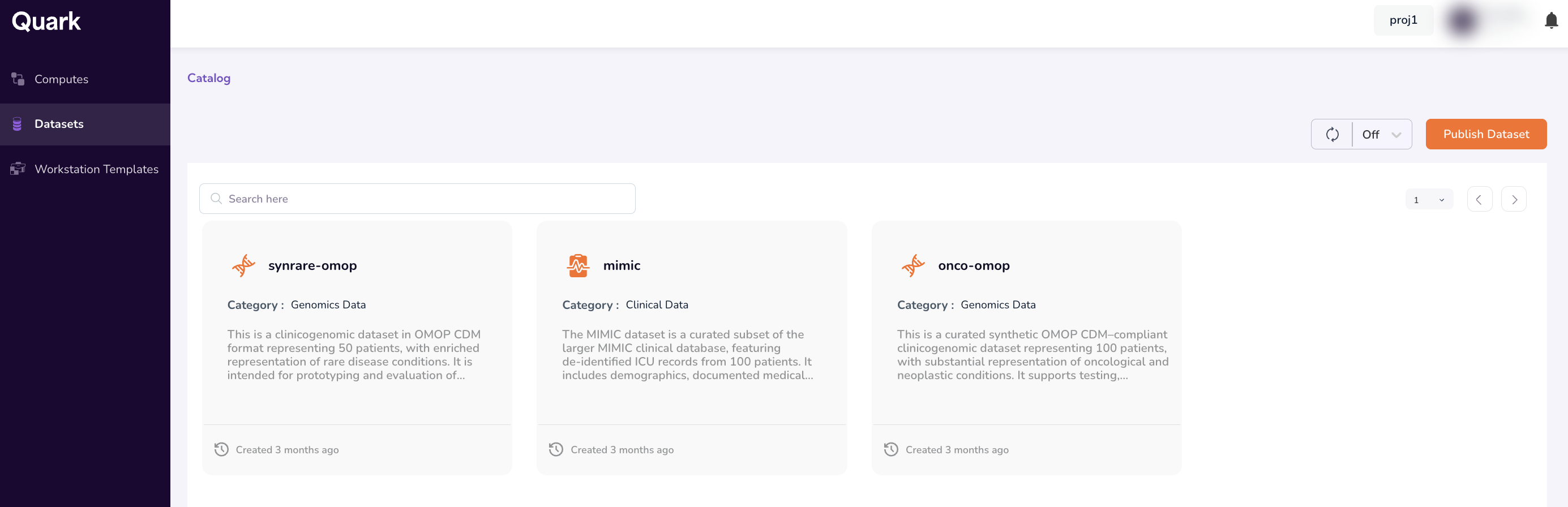
Navigate to Datasets in the left-hand Navigation Menu of the TRE Infrastructure Administrator app.
The Datasets dashboard displays all datasets previously published by the TRE-Infra-Admin, along with their status and connected cloud accounts.
-
Click Publish Dataset in the top-right corner of the dashboard.
-
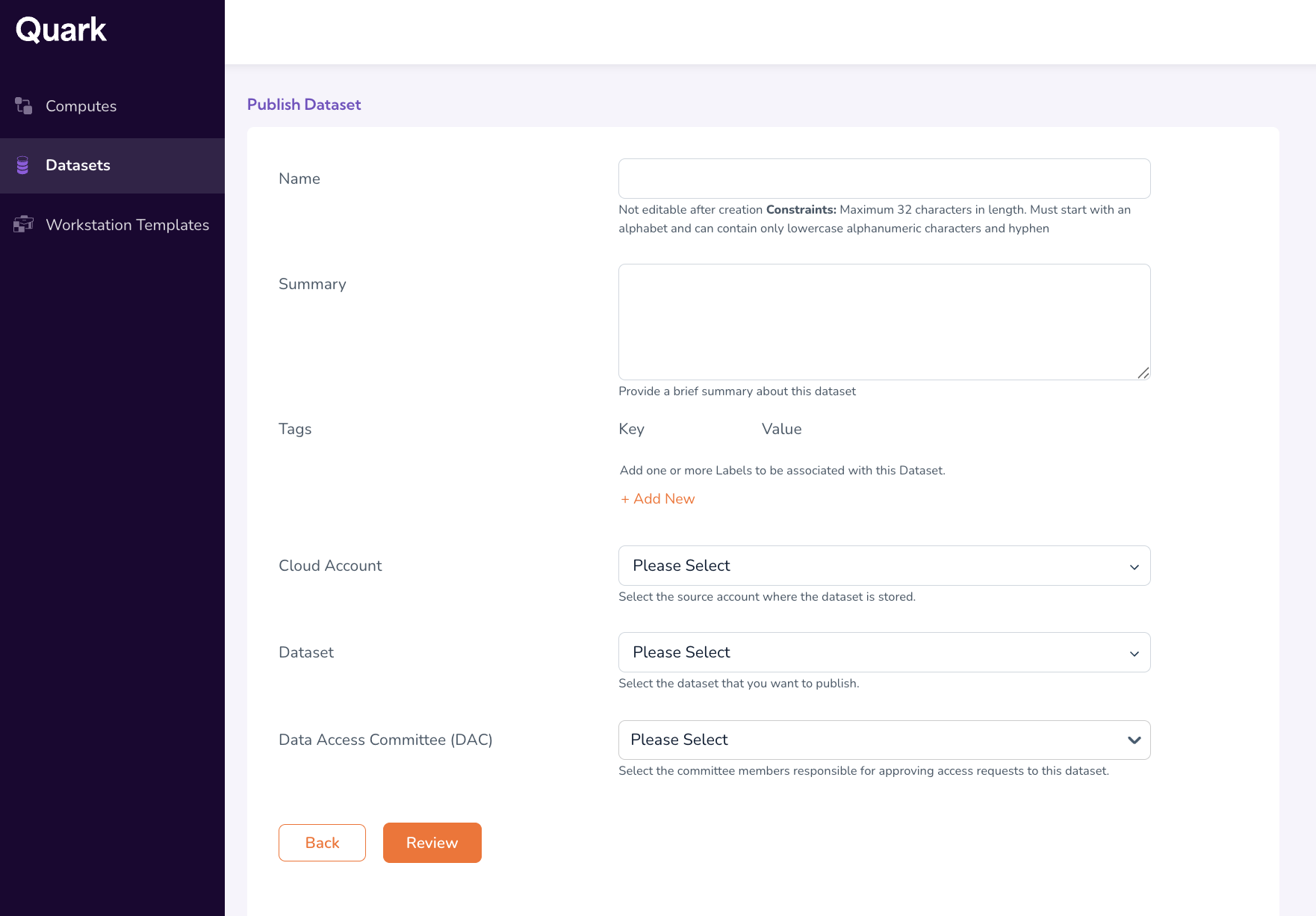
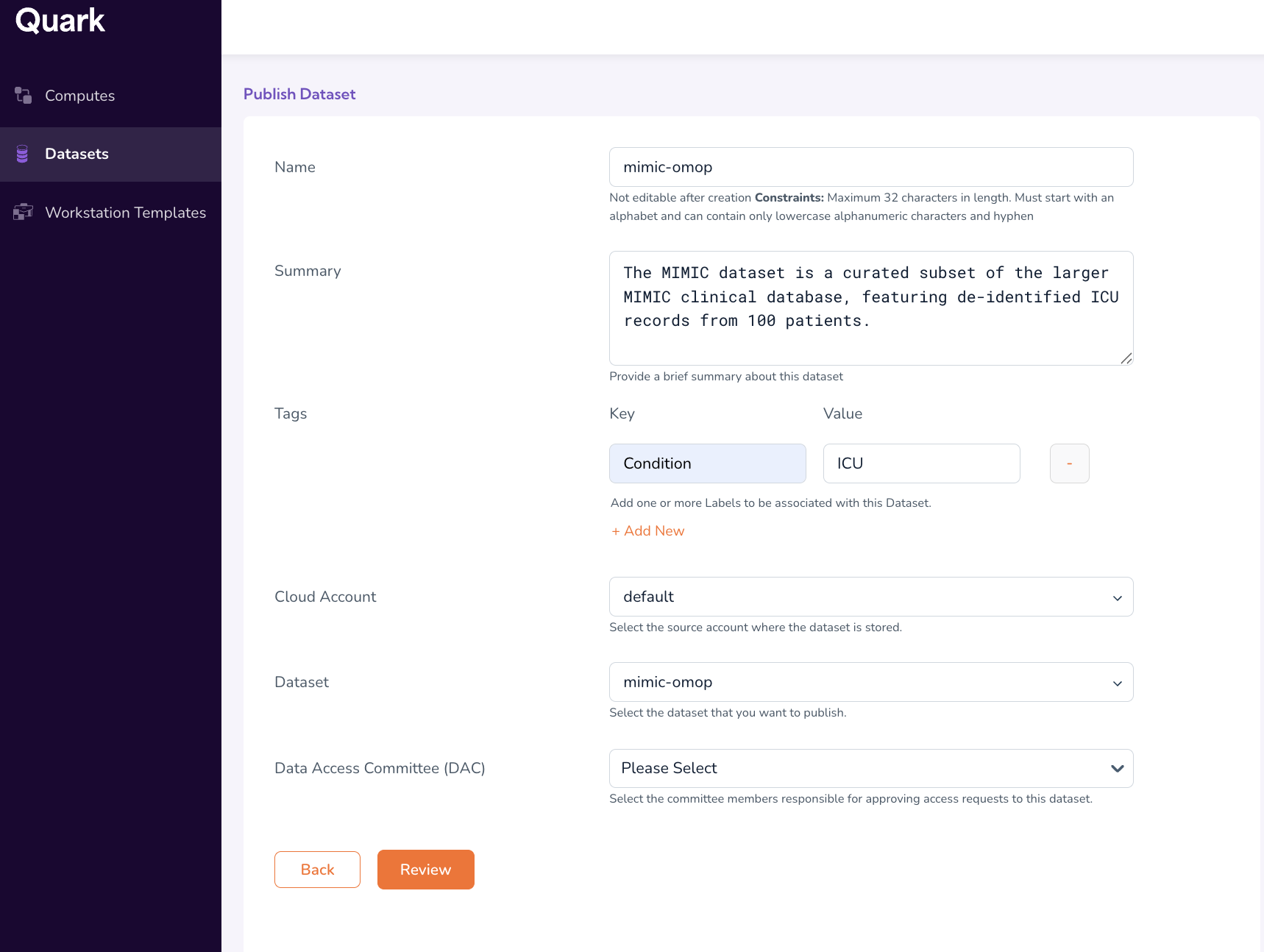
In the Publish Dataset window, fill in the following details:
-
Name (mandatory) — A unique, human-readable name for the dataset as it will appear in the Data Catalog.
-
Summary (mandatory) — A short description of the dataset's contents, intended audience, and any relevant context researchers should know before requesting access.
-
Tags (optional) — Add searchable metadata as Key and Value pairs (for example,
disease: oncologyorcohort-size: 5000). Tags improve discoverability in the catalog. -
Cloud Account — Select the cloud account where the dataset is stored. Choose between:
- default — Your organisation's primary cloud account.
- aws-igenomes — The public AWS iGenomes registry (for reference genomes and shared resources).
-
Dataset — Once a Cloud Account is connected, this dropdown is populated with datasets available in that account. Select the dataset you want to publish.
-
Data Access Committee (DAC) — Select one or more administrators from the dropdown list. These individuals will be responsible for reviewing and approving (or rejecting) any data access requests submitted by TRE users for this dataset.
-
-
Review your entries and click Create.
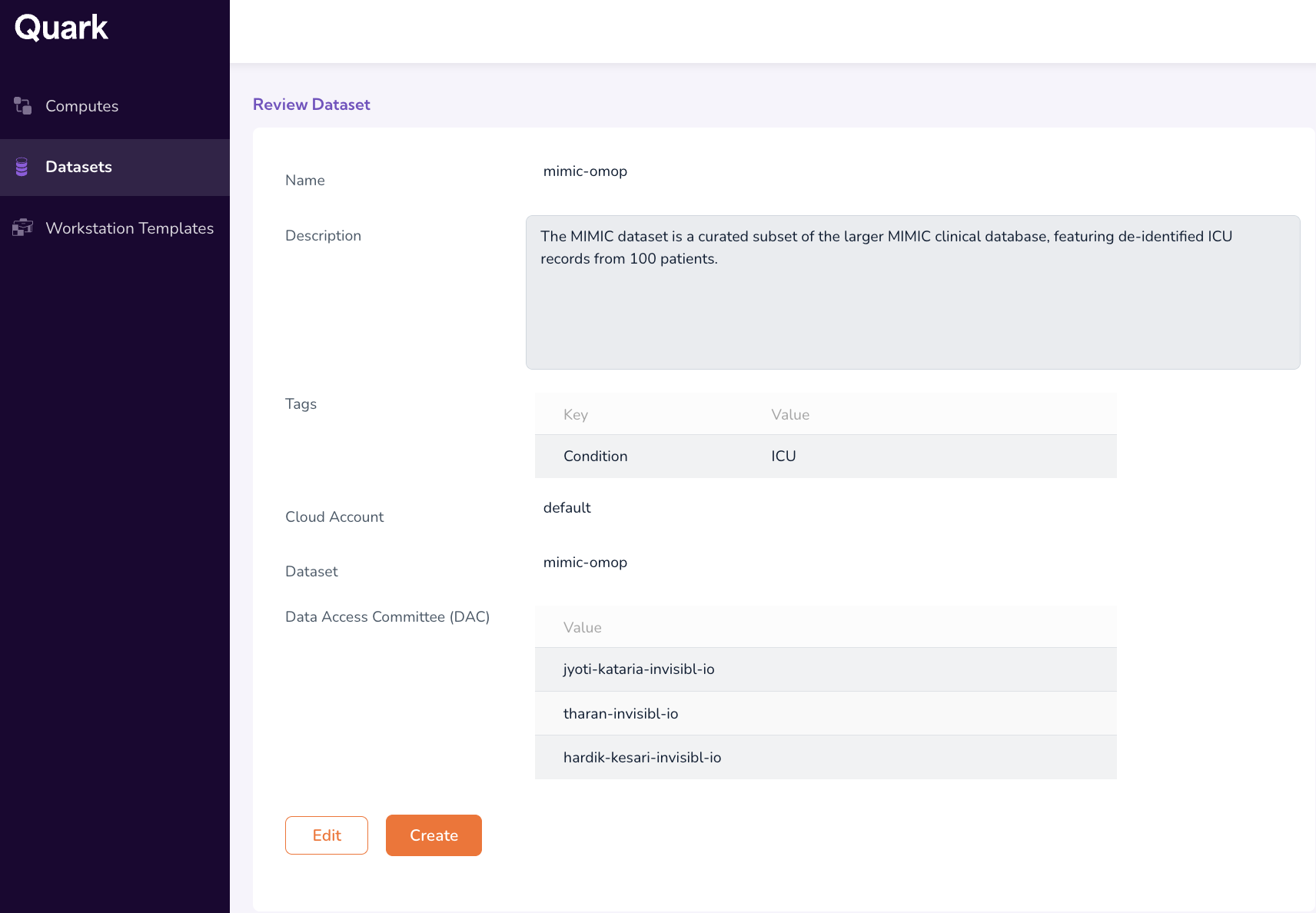
The dataset will now appear on the Datasets dashboard and become discoverable to researchers in the TRE Data Catalog.
-
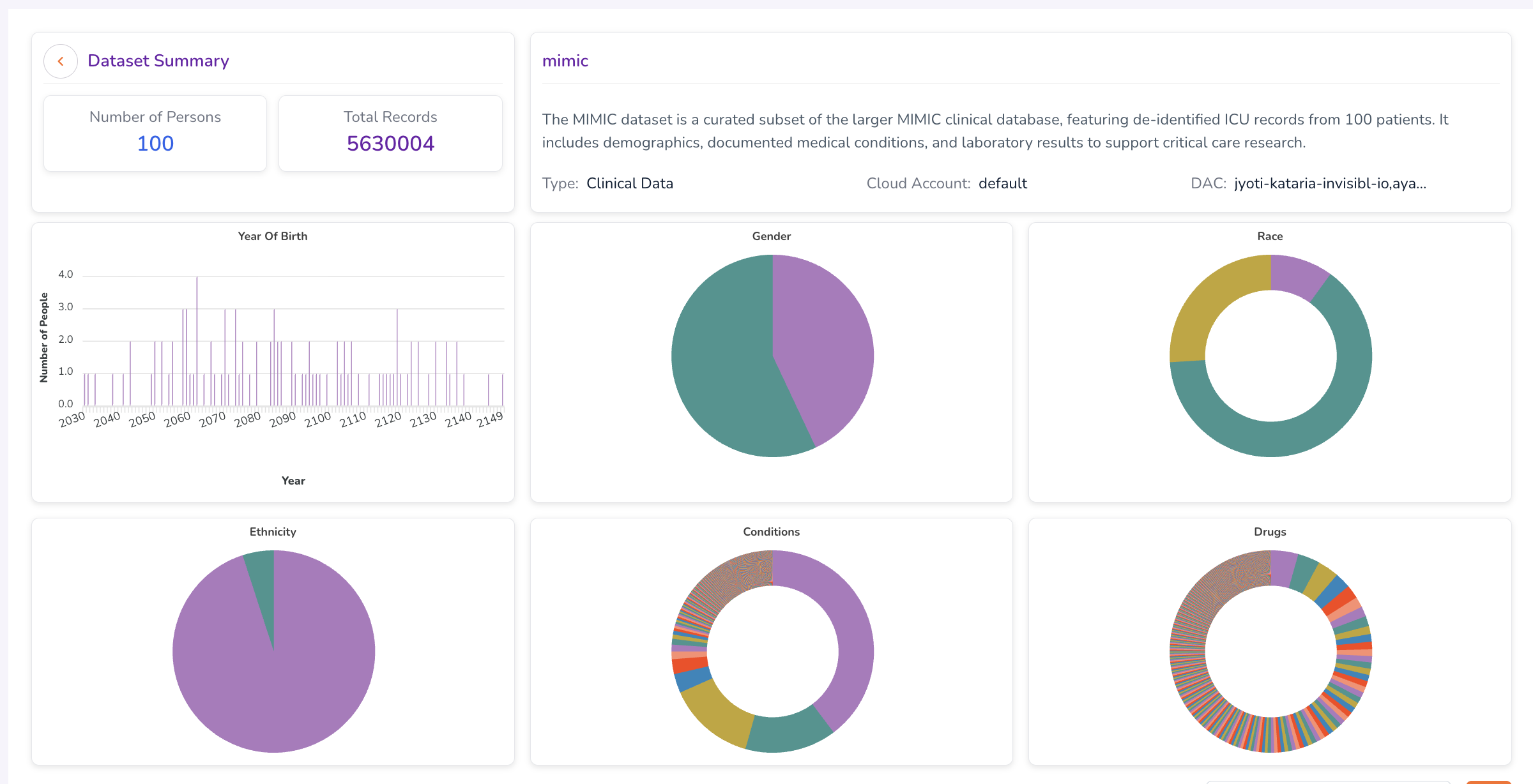
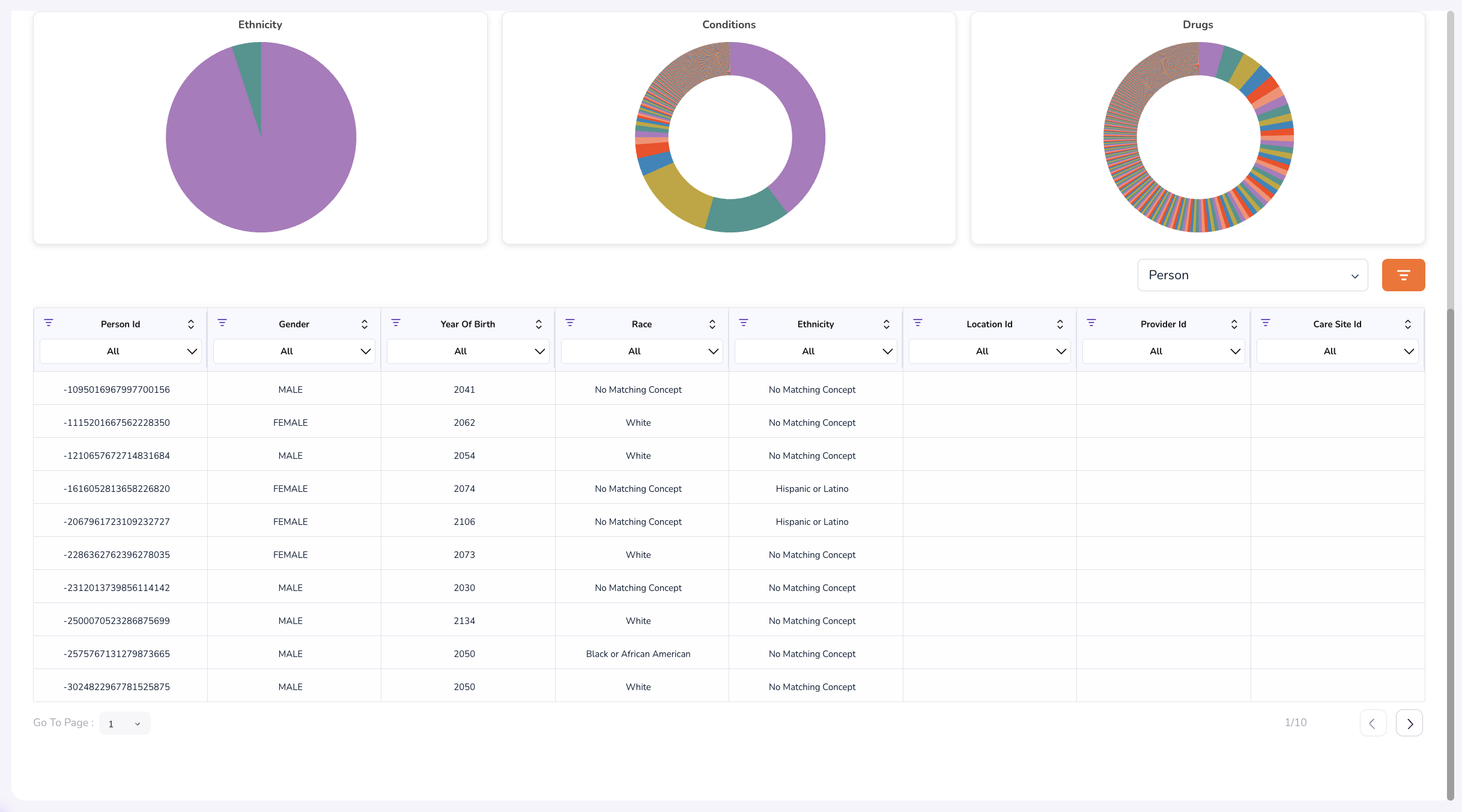
TRE Infrastructure Administrators can view and review their dataset attributes by clicking on the published dataset in their dashboard. This will open the Dataset Summary dashboard, which displays data visualisations that capture demographics and aggregate statistics of the uploaded dataset.
Additional Notes for Datasets
- The Dataset dropdown remains disabled until a Cloud Account is successfully connected.
- At least one administrator must be assigned to the Data Access Committee — access requests cannot be processed without an assigned reviewer.
- Dataset tables (such as Person tables) will not be visible to researchers before they're granted access by the Data Access Committee. Summary statistics and visualisation will be viewable so that researchers can create data subsets or cohorts that match their project requirements.
What's Next
- Create Workstation Templates: Configure workstation templates that researchers can select and launch from their workstation tabs.