Allocating Budgets
Overview
Once the Organization Structure is defined, you can then allocate budgets against it. Budget allocation in Quark's TRE is a two-stage process:
- Create a top-level budget for a given fiscal year (for example, FY 2026) with a total amount.
- Sub-allocate that budget across Groups, Business Units/Departments, and individual users.
Each allocation can carry its own threshold, which triggers a notification when spending approaches or exceeds the configured level this can be configured in Settings.
To begin Budget Allocation, please complete Defining the Organization Structure.
Steps to Create a Budget
1. Create the top-level budget
-
Navigate to Budget in the left-hand Navigation Menu and open the Budget tab.
The Budget tab lists all existing budgets (for example,
FY 2026) along with their associated year and total allocated amount.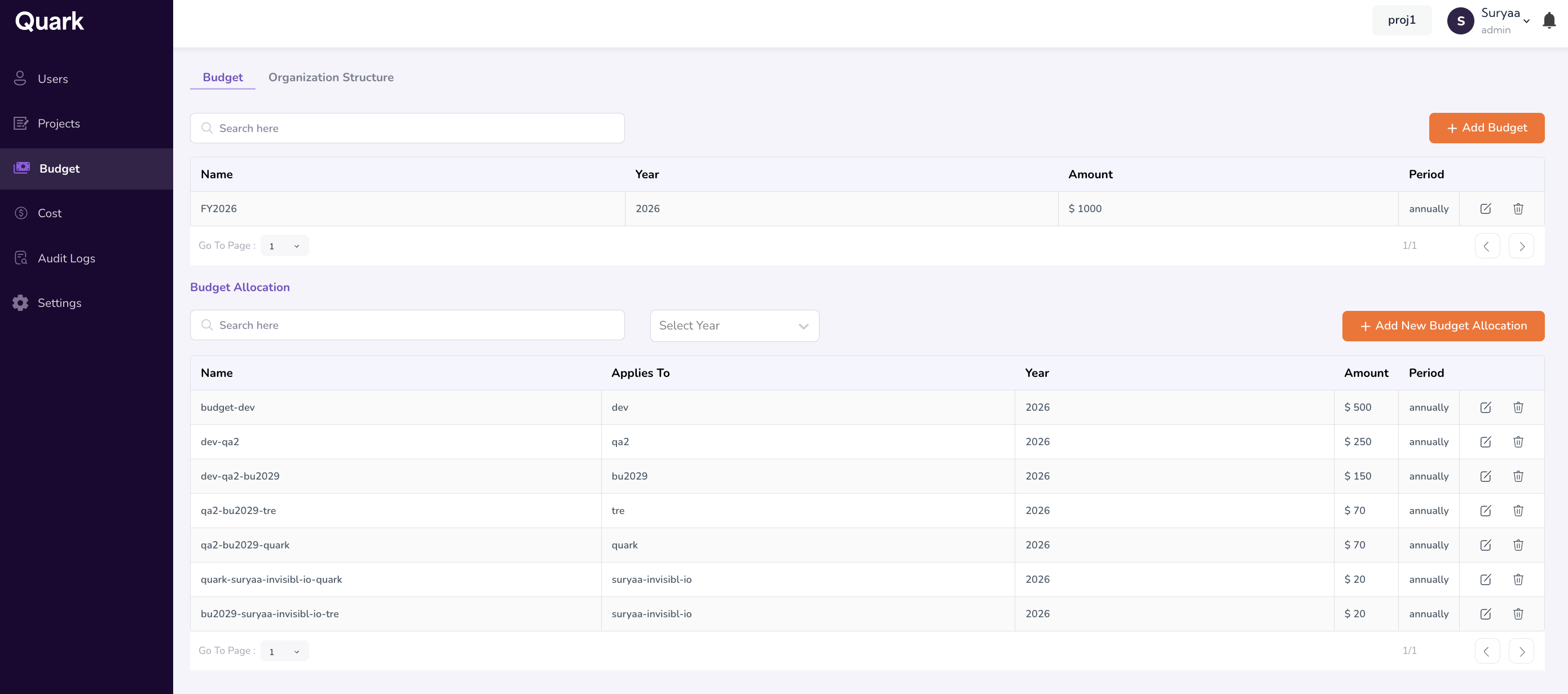
-
Click Add New to create a new budget.
-
Fill in the following fields:
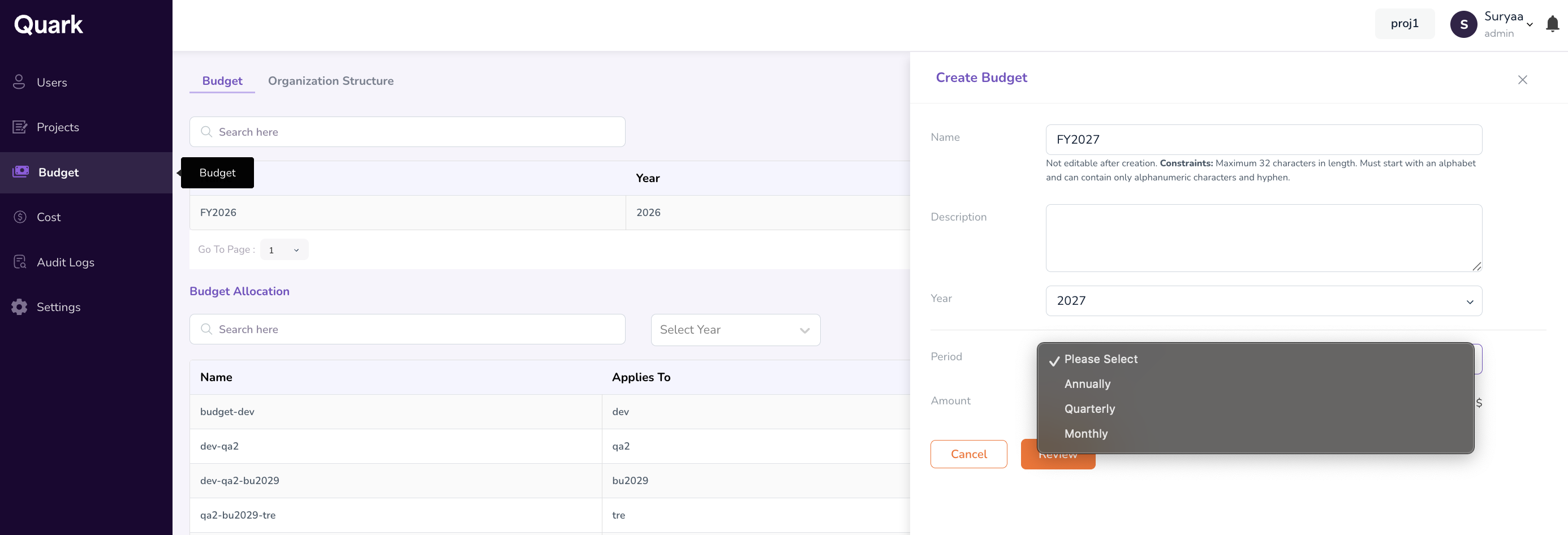
- Budget Name — A descriptive identifier. The convention
FY <year>(for example,FY 2026) is recommended for fiscal-year budgets. - Description — A short note describing the budget's purpose.
- Year — The fiscal year the budget applies to.
- Period - The period for which the budget applies (Annual, Quarter, Month)
- Total Amount — The total budget value in your organization's currency.
- Click Review, and then submit.
- Budget Name — A descriptive identifier. The convention
2. Sub-allocate the budget
Once the top-level budget exists, you allocate portions of it across the Organization Structure.
- Open the budget you just created.
- Click Add New Budget Allocation.
- Fill in the following fields:
- Name — A descriptive identifier for this allocation (for example,
Group - DrugDiscovery). - Description — Optional notes about the allocation.
- Applies To — Select the entity this allocation governs. Allocations can be made at different levels:
- Group Level — Apply the budget to an entire Group.
- Business Unit/Department/Team Level — Apply the budget to a specific Business Unit or Department.
- User Level — Apply the budget to a specific user.
- Year — The fiscal year the allocation applies to.
- Amount — The allocated amount.
- Period — Annual or Quarterly or Monthly.
- Threshold (optional) — A percentage of the allocated amount at which the system will trigger a notification (for example,
90%).
- Name — A descriptive identifier for this allocation (for example,
- Click Review and then submit.
3. Filter and review allocations
Use the Year filter on the Budget Allocation view to see all allocations for a given fiscal year side by side. Each allocation row shows its name, the entity it applies to, the year, the allocated amount, and the period.
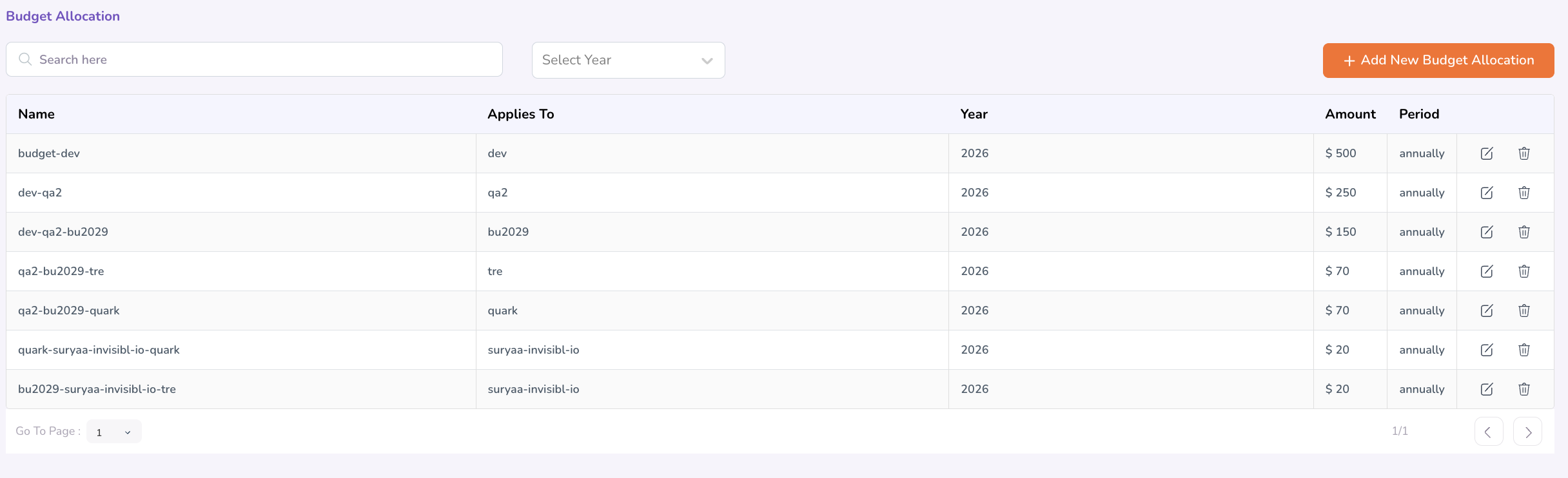
Example Budget Allocations
Pharmaceutical use case:
| Name | Applies To | Year | Amount ($) | Period |
|---|---|---|---|---|
| Group - DrugDiscovery | DrugDiscovery | 2026 | 15,000 | Annually |
| Group - VaccineRND | VaccineRND | 2026 | 12,000 | Annually |
| Business Unit - OncologyRND | OncologyRND | 2026 | 8,000 | Annually |
| Business Unit - GeneTherapy | GeneTherapy | 2026 | 7,000 | Annually |
| User - User1 | User1 | 2026 | 4,000 | Annually |
Threshold Alerts
When a Business Unit/Department/Team, or user reaches their configured threshold, an alert is automatically dispatched.
- First alert — Fires when consumption reaches the threshold (default
90%). - Final alert — Fires when consumption reaches
100%of the allocated amount. - Notification contents — Each alert identifies the entity that exceeded threshold, the overage amount, the current usage vs. allocated budget, and a link to the detailed budget report.
- Delivery channels — Notifications are sent via in-app dashboard alerts. Email delivery is controlled separately under Configuring Platform Controls.
Note: Threshold alerts are notifications only.
Editing an Allocation
Any allocation can be edited after creation. Open the allocation, modify the name, amount, period, or threshold as needed, and save. Changes apply immediately and are recorded in the audit log.
Additional Notes
- Sub-allocations should add up to (or stay under) the parent budget.
- User-level allocations override the Group or Business Unit/Department allocation for that specific user.
What's Next
- Onboarding Users — With the budget structure in place, add users to the platform and place them within the hierarchy.
- Monitoring Platform Cost — Once spending begins, monitor actual consumption against your allocations.