TRE Infrastructure Administrator
Creating a Workstation Template
Workstation templates define standard, reusable workstation configurations — operating system, specifications, and visibility scope — that researchers can launch on demand without needing to know the underlying setup details. Creating well-scoped templates is one of the most impactful things the TRE-Infra-Admin can do to streamline researcher onboarding.
Steps to Create a Workstation Template
-
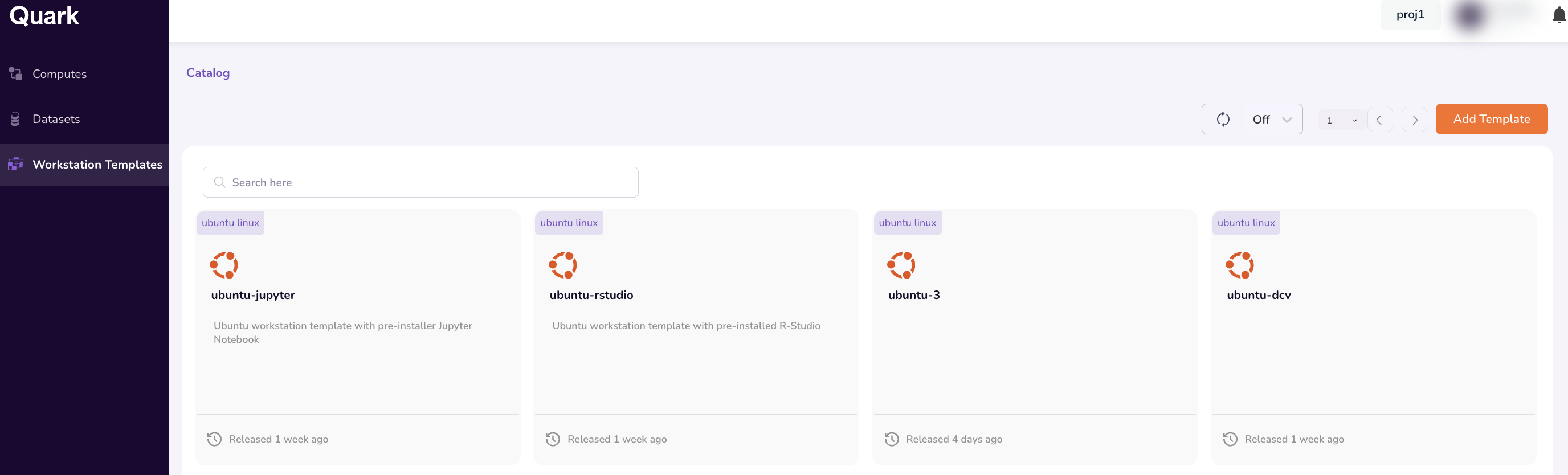
Navigate to Workstations in the left-hand Navigation Menu of the TRE Infrastructure Administrator app. The Workstations dashboard lists all templates you have previously created, including their OS, specifications, and visibility scope.
-
Click Add New in the top-right corner.
-
In the Create Workstation Template window, fill in the following details:
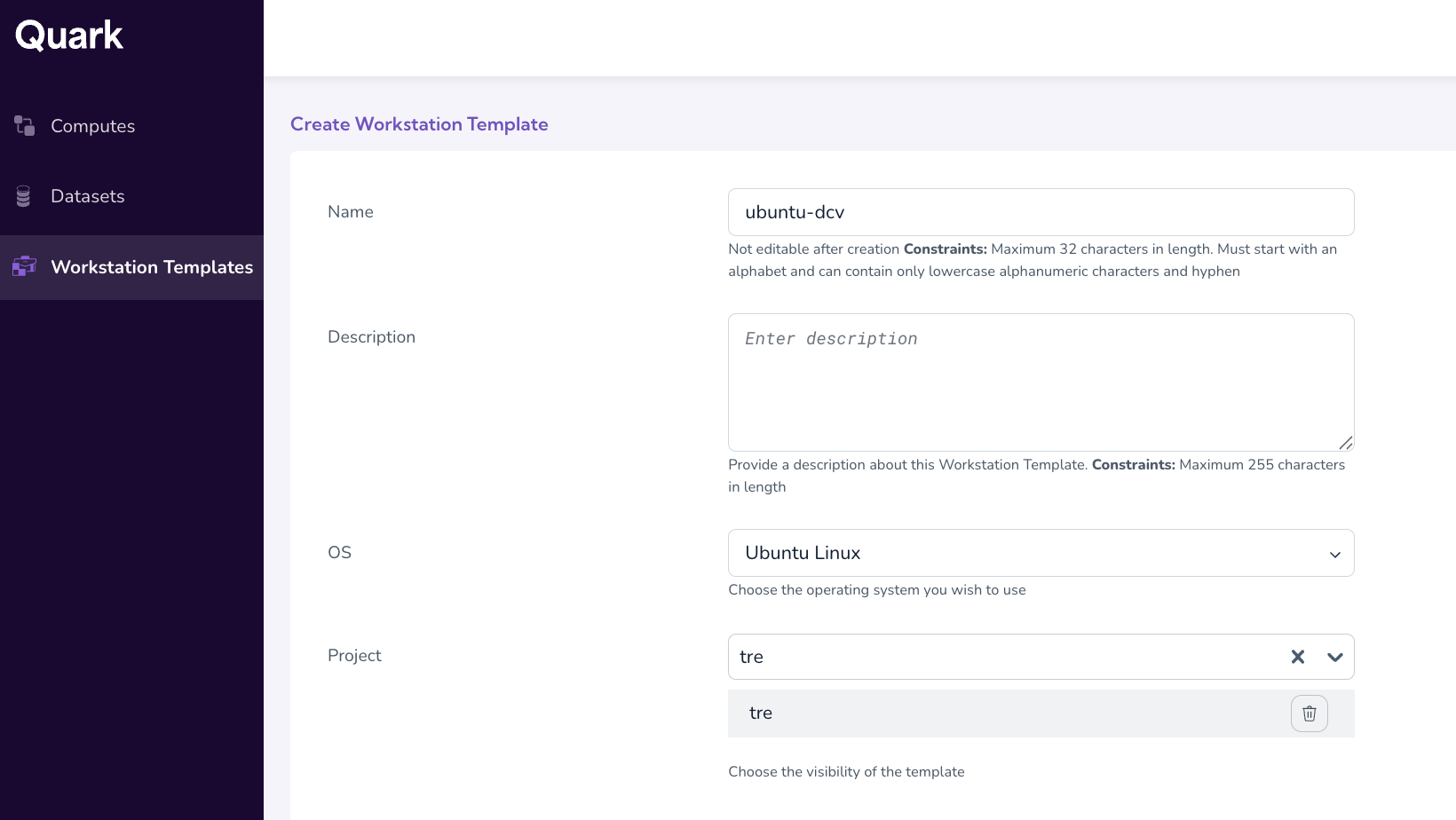
- Name (mandatory) — Up to 32 characters. Once saved, the template name cannot be modified — choose carefully.
- Description (optional) — Use this field to describe the template's intended use case (for example, "RStudio for single-cell analysis, 16 GB RAM").
- Operating System (OS) (mandatory) — Select from the available options. The OS determines which Specifications and pre-installed tools are available downstream.
- Project — Restricted to specific projects. Use this for templates that include licensed software or project-specific tooling.
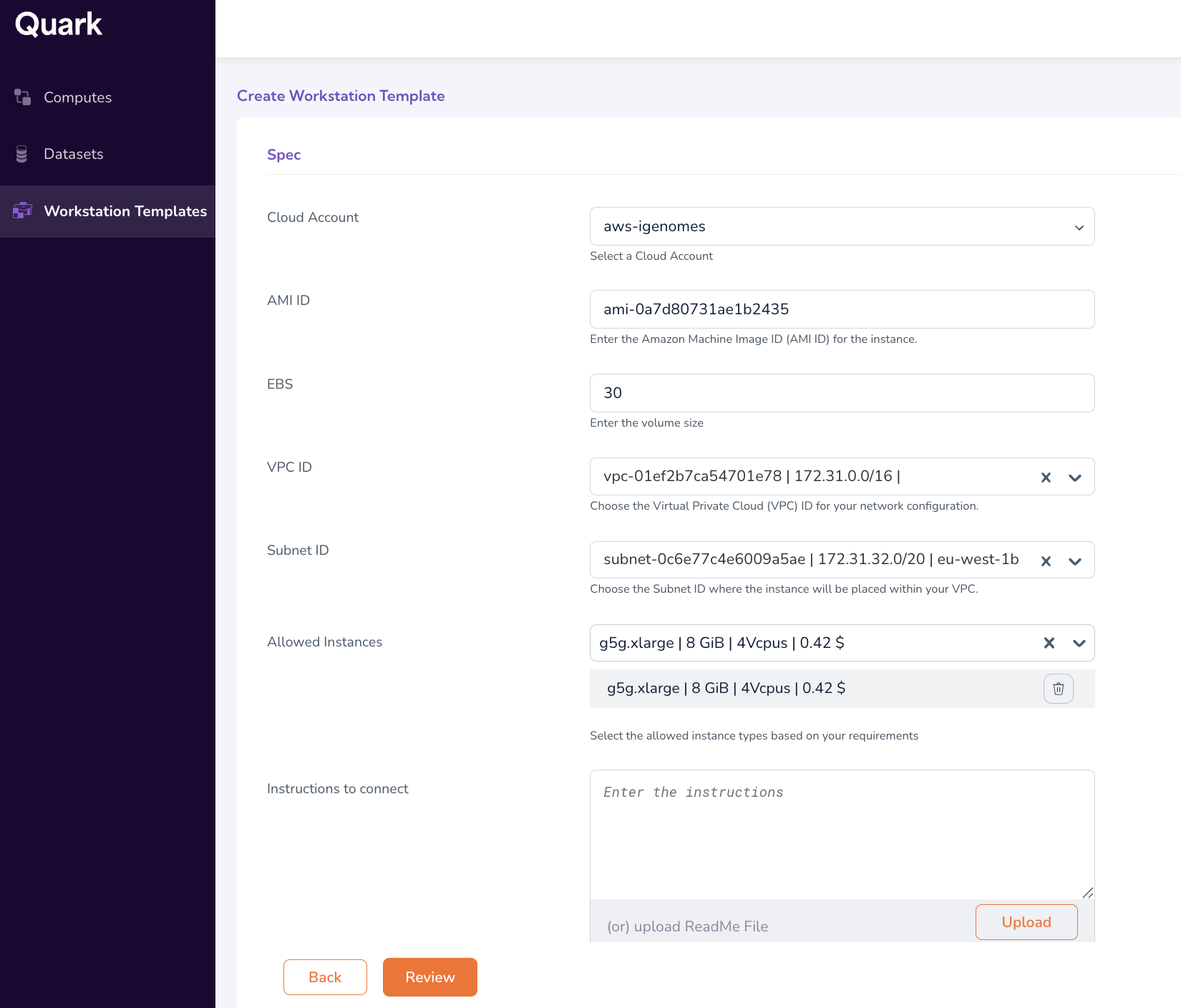
- Specifications (Spec) — This field is enabled only after an OS is selected.
- Cloud Account: Select the connected cloud account from the drop-down.
- AMI ID: Provide the template's region-specific identifier to launch an EC2 instance
- EBS: Specify the volume size of the Elastic Block Store.
- VPC ID: Select the Virtual Private Cloud ID from the drop-down menu.
- Subnet ID: Select the subnet from the options displayed in the drop-down.
- Allowed Instances: Configure which instance types can be launched from this template based on the requirements (e.g., GPU)
- Instructions to connect (Optional): Provide detailed connection instructions or procedures in Markdown format.
- Tags: Provide Key-Value tags for this template for easier retrieval.
-
Click Review to confirm your workstation template specifications. Once you've reviewed your specifications, click Create.
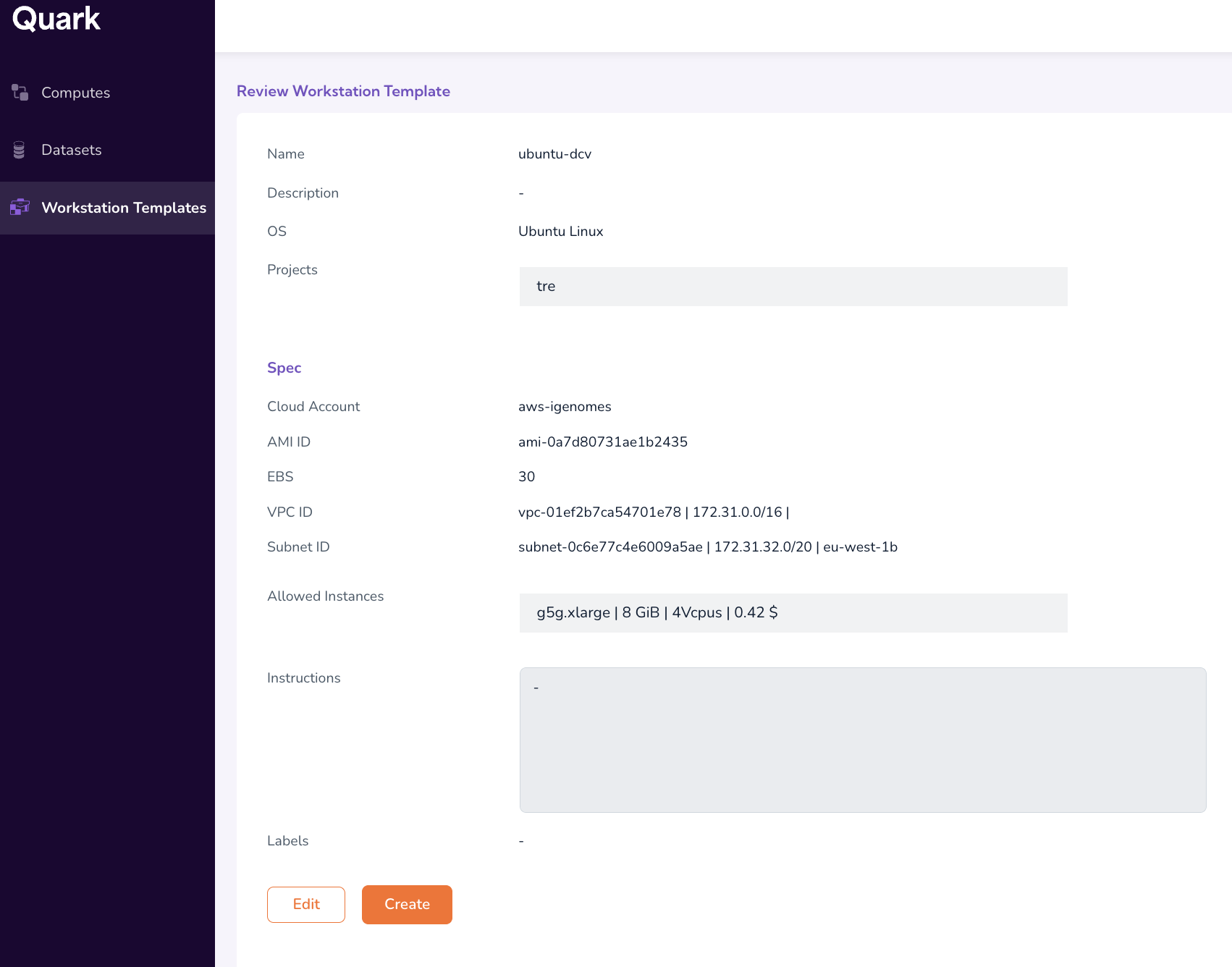
The new template appears on the Workstations dashboard and becomes available to researchers (subject to the project visibility scope) the next time they request a workstation.
Additional Notes for Workstation Templates
- The template name cannot be modified after creation. If you need to rename a template, you must create a new one and deprecate the old one.
- The Specifications dropdown is dependent on the selected OS — switching the OS after partial entry will reset this field.
What's Next
- Getting Started with Quark TRE — Understand the researcher-facing experience your infrastructure supports.