TRE Infrastructure Administrator
Adding Compute
Computes define where and how workloads execute in the TRE. A compute configuration ties together a cluster, an instance profile, and the workload types that are allowed to use it. Researchers do not interact with compute configurations directly — they consume them indirectly when launching pipelines, workstations, or visualisation apps.
Steps to Add a Compute
-
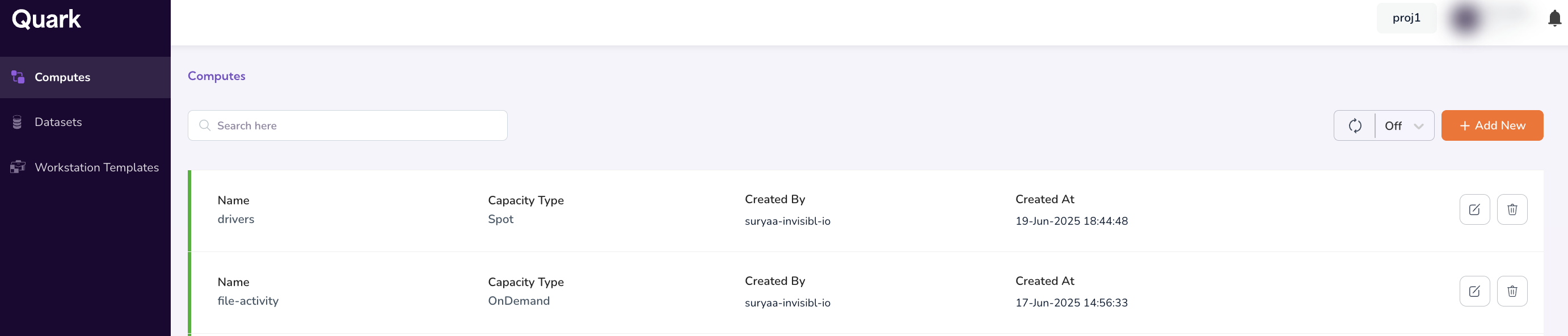
Navigate to Computes in the left-hand Navigation Menu of the TRE Infrastructure Administrator app.
The Computes dashboard lists all compute configurations you have previously created, along with their cluster, capacity type, and associated projects.
-
Click Add New in the top-right corner of the dashboard.
-
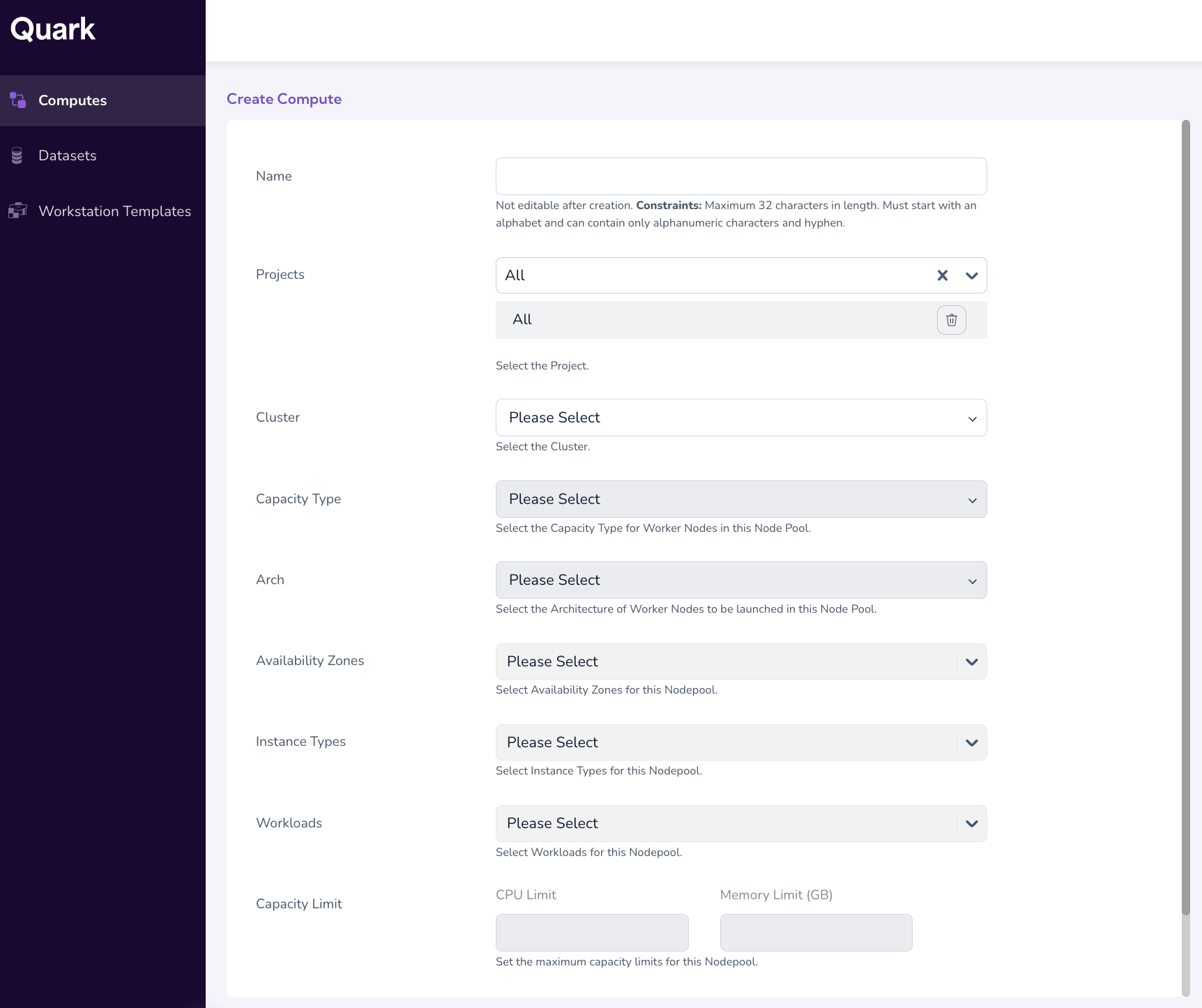
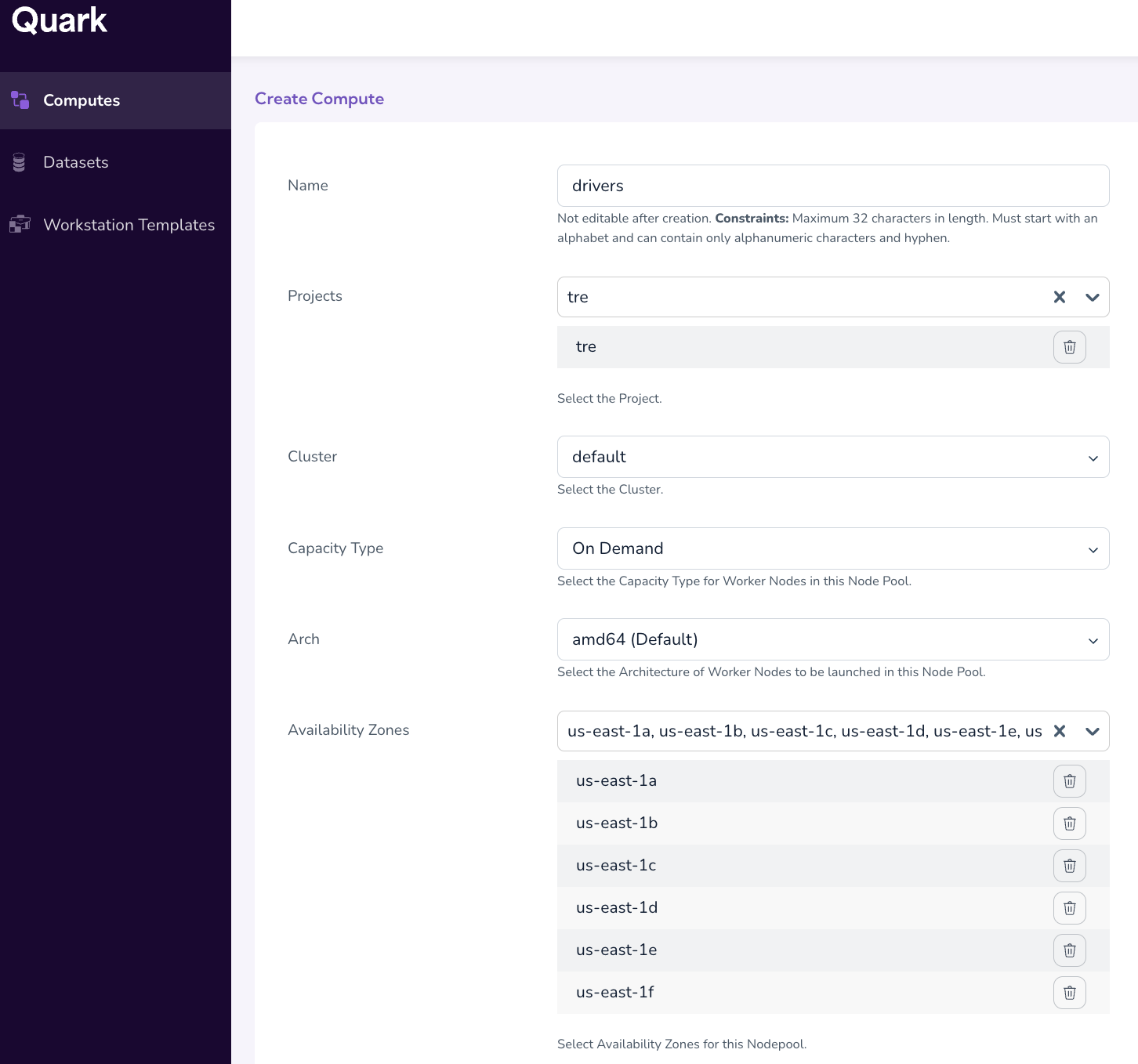
In the Create Compute window, fill in the following fields:
-
Name (mandatory) — A unique, descriptive name for the compute (for example,
prod-cpu-ondemandorgpu-spot-us-east). -
Projects — Select one or more projects from the dropdown that should have access to this compute. Projects are created by the TRE Platform Admin; if your project is missing, contact them to have it added.
-
Cluster — Select the underlying cluster on which the compute will run:
- k3s-onprem — On-premise Kubernetes cluster.
- default — Your organisation's primary managed cluster.
-
Capacity Type — Choose the pricing/availability model:
- On-demand — Reserved capacity, higher cost, guaranteed availability.
- Spot — Lower cost, may be interrupted; best suited for fault-tolerant workloads.
-
Arch — Select the CPU architecture:
- amd64 — Intel/AMD x86-64 instances.
- arm64 — ARM-based instances (typically lower cost per vCPU).
-
Availability Zone — Choose from the pre-set zones available in the dropdown. Selecting a zone close to your data reduces transfer latency and egress cost.
-
Instance Types (multi-select) — Choose one or more instance types from the dropdown (for example,
c3.2xlarge,c1.xlarge). Selecting multiple types gives the scheduler flexibility to fall back when a preferred type is unavailable. -
Workloads — Select the workload categories that are permitted to run on this compute. Options include:
- Pipelines
- File Activity
- EFS File Browser
- Workspaces
- Visualisation Tools
- Apps
-
Capacity Limit — Set upper bounds to prevent runaway consumption:
- CPU limit — Maximum number of vCPUs this compute is allowed to consume across all workloads.
- GPU limit (GB) — Maximum GPU memory in gigabytes this compute is allowed to consume.
-
-
Once you've filled in all the fields in the form, click Review to verify your configuration. It will take you to the following screen.
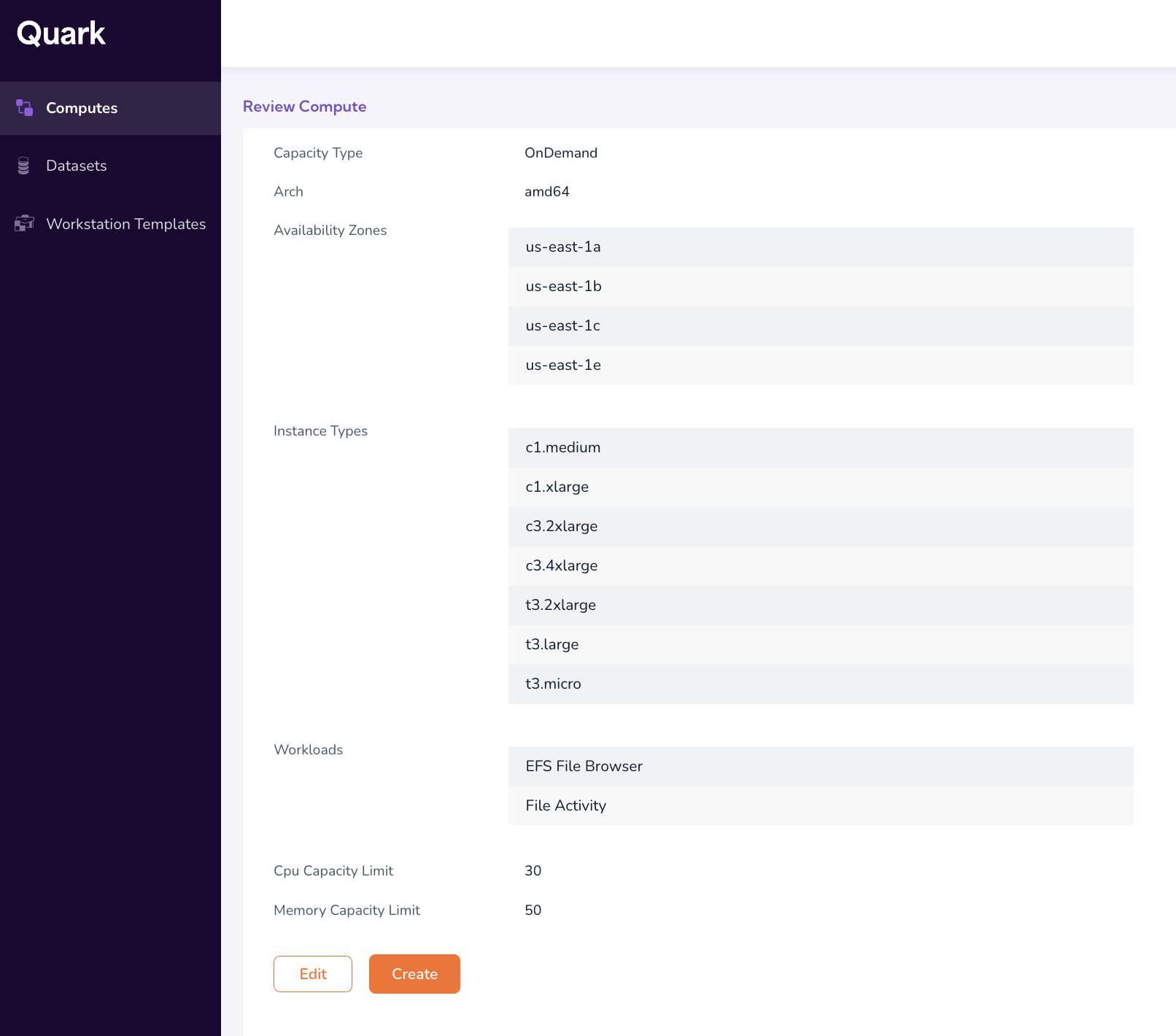
On the review screen, confirm that the cluster, instance types, workloads, and limits are correct. Once you confirm and click Create, the compute is provisioned and becomes available to the selected projects.
Additional Notes for Computes
-
A compute can only serve the workload types you explicitly enable. To extend an existing compute to a new workload (for example, allowing Visualisation Tools on a compute previously restricted to Pipelines), edit the configuration and add the workload from the dashboard.
-
Spot capacity offers significant cost savings but is not recommended for long-running interactive workstations.
What's Next
- Publish a Dataset: View, review and publish datasets for your research team to access.