My Requests
Overview of Request Types
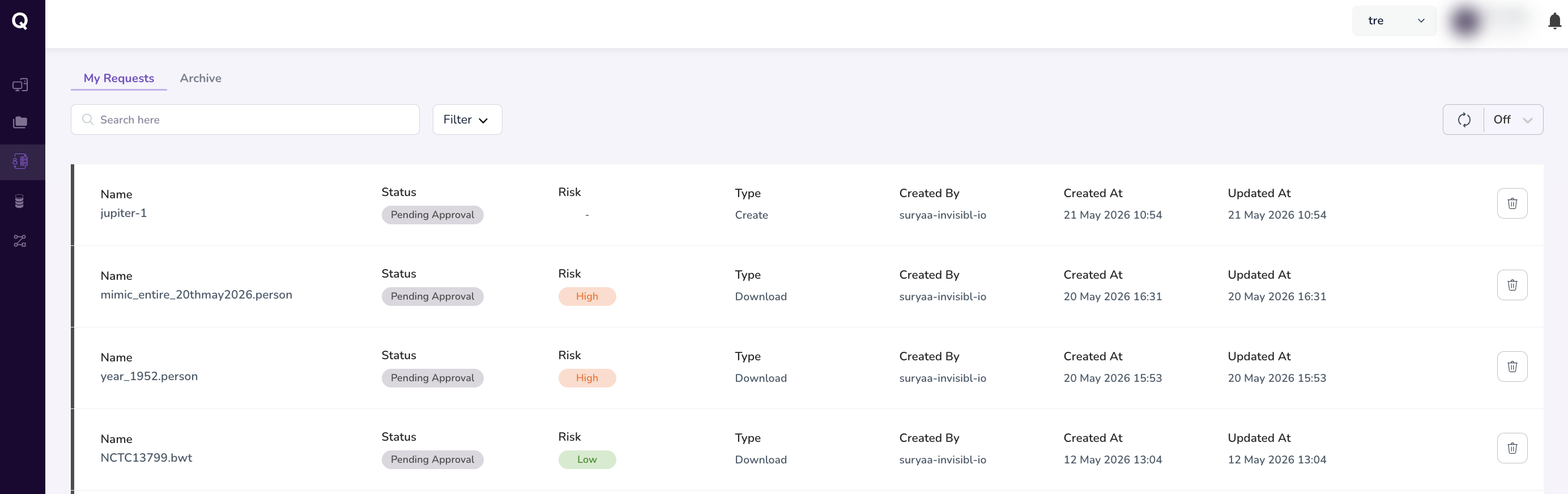
The My Requests section provides a consolidated view of all your pending and completed requests across the TRE. Request types that are tracked include:
| Request Type | Description |
|---|---|
| Dataset Access | Requests to access entire datasets from the Data Catalog. |
| Cohort Access | Requests to access custom-built cohorts. |
| Workstation Provisioning | Requests to provision new workstations. |
| File Upload | Requests to upload files to a workstation (includes vulnerability scanning and admin approval). |
| File Download | Requests to download result files from a workstation. |
To access My Requests:
- Select My Requests from the Navigation Menu on the left.
- Your submitted requests will be listed with their current status.
Tracking Request Status
Viewing Request Status
Each request displays one of the following statuses:
| Status | Description |
|---|---|
| Pending Approval | The request has been submitted and is awaiting review. |
| Approved | The request has been reviewed and approved. |
| Rejected | The request has been declined. |
| Downloading | (File downloads) The file is currently being transferred to your local system. |
| Downloaded | (File downloads) The file has been successfully downloaded. |
| Download Failed | (File downloads) The download process encountered an error. |
| Scanning | (File uploads) The file is undergoing a vulnerability scan. |
| Uploading | (File uploads) The file is being transferred to the workstation. |
| Uploaded | (File uploads) The file has been successfully uploaded. |
Filtering and Searching Requests
My Requests enables you to locate specific requests quickly by filtering:
- Status Filter — Filter by request status (e.g.,
Approved,Pending Approval,Rejected). - Type Filter — Filter by request type (e.g.,
Download,Upload,Dataset Access,Workstation). -
Date Filter — Filter by creation date using
Created Before,Created After, orBetweenoptions.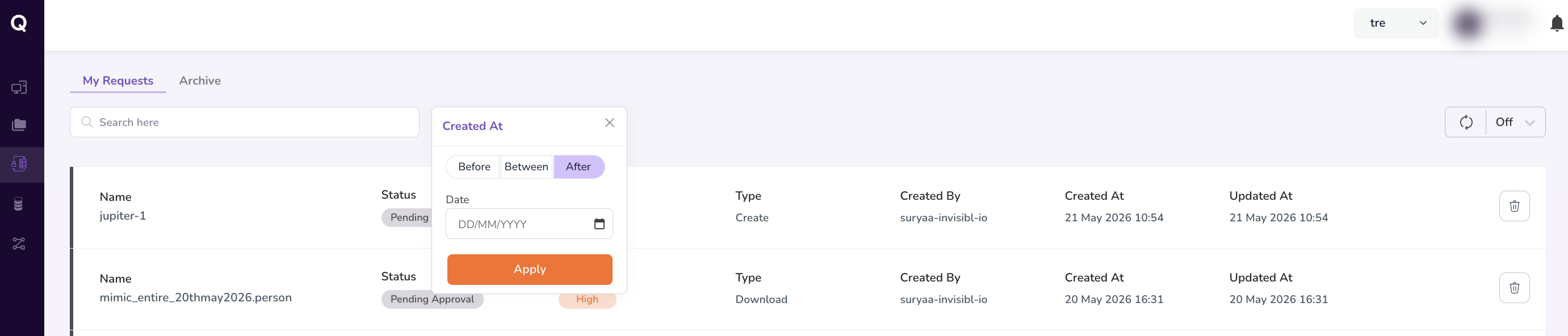
-
Search Bar — Search for requests by name or keyword.
These filters can be combined to narrow results as needed.
Refreshing the Request Status
To check for status updates:
- Click the Refresh icon in the top-right corner of the My Requests screen.
- The status labels will update to reflect any changes.
Archived Requests
Completed and withdrawn requests are moved to the Archived section within My Requests. Archived requests include files with the following statuses:
- Approved — Requests that were successfully approved.
- Denied — Requests that were explicitly denied by the administrator.
- Request Withdrawn — Requests that were manually withdrawn by the researcher.
- Uploaded — Successfully uploaded files that no longer require action.