Viewing Pipeline Run Results
Once a pipeline run is complete, researchers can retrieve and visualise the results.
Retrieving Run Results
-
Select Pipelines from the Navigation Menu and click the Runs tab.

-
Use the Search bar to find your pipeline run by name.
- Check the Status column. Once the status is marked as Complete, click on the run to open its details.
The run details dashboard displays the following tabs:
| Tab | Description |
|---|---|
| Summary | Displays runtime, cost, and a link to View Samples under the Analytics sub-heading (available once the run is complete). |
| Results | Allows researchers to download individual output files (e.g., MultiQC reports, variant annotation files, variant calling files). |
| Input | Summarises the input parameters provided at the time of launching the run. |
| Log | Provides a timeline for each tool deployed during the pipeline's execution. |
| About | Gives an overview of the pipeline, its input requirements, and output formats. |
Visualising Results with Vizapp
Quark's Vizapp is an intuitive interface that enables researchers to visualise the results of their secondary data analyses without requiring coding or bioinformatics expertise.
To access Vizapp:
-
Click your completed pipeline run. This opens a run overview on the side of the screen.
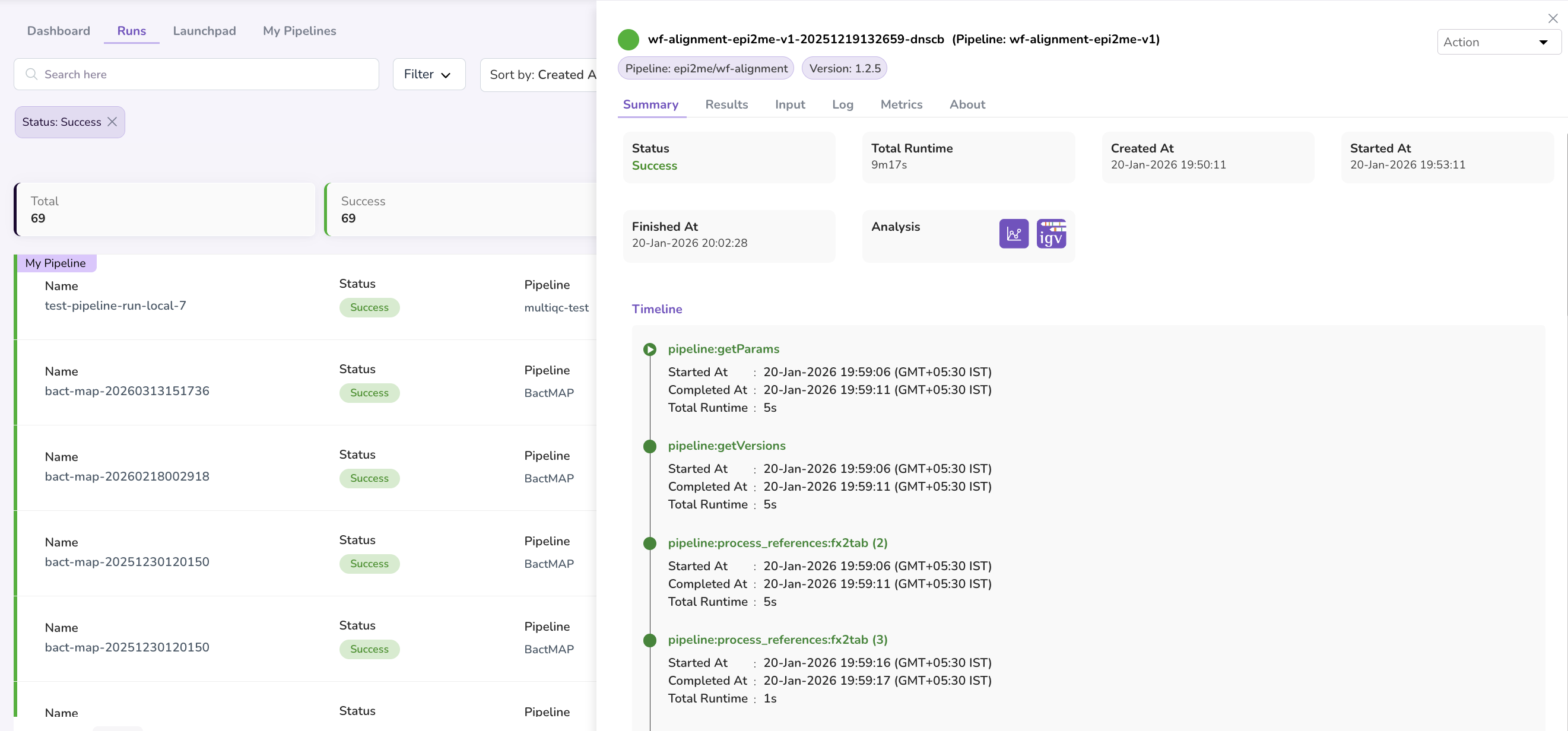
-
Navigate to the Summary tab of your completed pipeline run.
- Click the View Reports icon under the Analysis sub-heading.

Clicking on View Reports opens the Vizapp dashboard, which includes:
- Reports — Links directly to the pipeline's workflow management system report (e.g., a Nextflow report) with details on resource allocation, project directory path, pipeline version, and other run logistics.
- MultiQC — Aggregates all samples and associated metadata, enabling data retrieval and quality assessment across all run samples.

What's Next
- Download your pipeline output files — See My Files and navigate to the Results section to download your result files.
- Perform data analyses in your workstation — See an example/tutorial of performing Dataset Analysis using Workstations.